Understanding Where Passwords Are Stored on Windows
Knowing how to show passwords on this PC is a practical skill that can save you time and frustration. When you forget a saved password for your Wi-Fi network or a website you frequently visit, you do not necessarily need to reset it. Windows operating systems, particularly Windows 10 and Windows 11, have built-in utilities that store credentials for various services. These tools, such as Credential Manager and network settings, allow you to view passwords you have previously saved. The process is straightforward but may require administrative rights depending on the type of password you want to retrieve. This article provides a comprehensive guide on accessing and displaying passwords stored directly on your computer, covering system credentials, browser-based passwords, and network keys. We will also include advanced command-line methods for retrieving information quickly.
Using Credential Manager to Show Windows Passwords
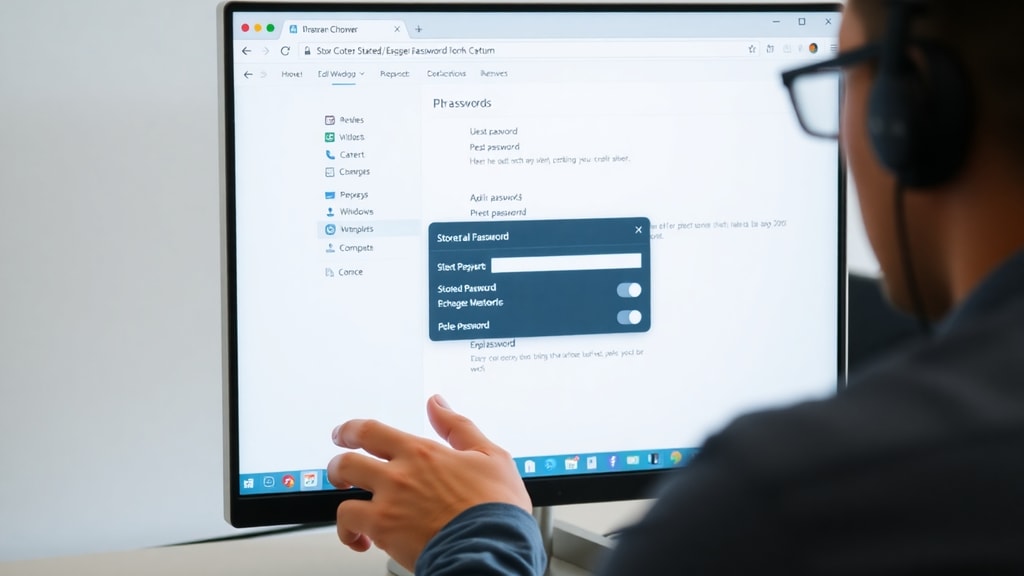
The most direct method to show passwords on this PC is through a feature called Credential Manager. This built-in Windows utility stores login information for shared folders, remote desktop connections, and other system-level services. To access it, click on the Start button or press the Windows key on your keyboard. Type Credential Manager into the search bar and press Enter. The interface is divided into two sections: Web Credentials and Windows Credentials. Web Credentials typically hold passwords saved by Microsoft Edge or Internet Explorer, while Windows Credentials store logins for network resources, mapped drives, and domain access. To view a specific password, click on the entry you wish to examine, then click the Show link next to the password field. You will be prompted to enter your Windows login credentials or confirm your identity through a biometric method if supported. This additional security step ensures that only the authorized user can see the stored passwords.

Displaying Saved Passwords in Google Chrome
If you use Google Chrome as your primary browser, showing passwords on this PC is simple. Chrome has its own password manager, which syncs across devices if you are signed into a Google account. To view saved credentials, open Chrome and click on the three-dot menu in the upper right corner. Go to Settings, then select Autofill and passwords from the left-hand menu. Click on Google Password Manager. Here, you will see a list of all websites for which you have saved passwords. Find the site you need, then click on the eye icon to reveal the password. Chrome may ask you to enter your computer's password or use Windows Hello for verification. This step prevents unauthorized viewing. If you have many passwords, you can use the search bar at the top of the password list to quickly locate a specific entry. The process is similar across Windows 10 and Windows 11.
Viewing Saved Passwords in Microsoft Edge
Microsoft Edge is the default browser in Windows 10 and Windows 11, and it also includes a straightforward method to show passwords on this PC. Open Edge and click on the three-dot menu in the top right corner. Select Settings from the dropdown menu, then click on Profiles in the left sidebar. From there, choose Passwords. You will see a list of saved passwords for websites you have visited. To display a password, click on the eye icon situated next to the masked password field. You will be prompted to enter your device password, PIN, or use biometrics to confirm your identity. One useful feature is that Edge allows you to export all your saved passwords to a CSV file, but this requires you to verify your identity again. This can be helpful if you need to transfer passwords to another manager or device.
How to Show Wi-Fi Password on This PC
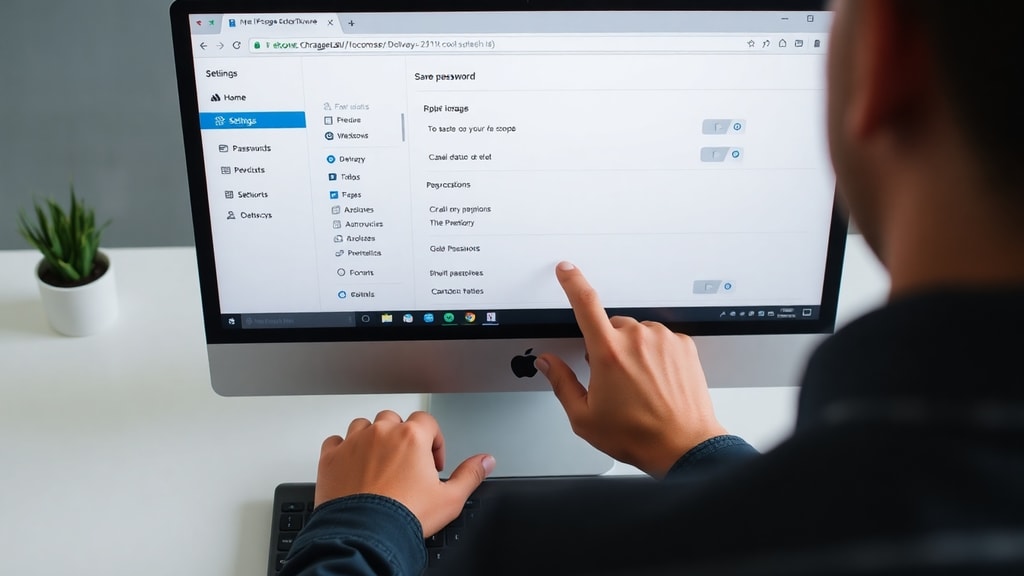
One of the most common reasons people need to view stored passwords is to retrieve a forgotten Wi-Fi network key. Windows makes this accessible through network settings and the command line. If your computer is currently connected to the network, you can view the password by going to Settings, then Network and Internet, and selecting Status. Click on Network and Sharing Center, then click on your Wi-Fi network name. In the Wi-Fi Status window, click on Wireless Properties, then go to the Security tab. Check the box that says Show characters, and the network security key will be displayed in plain text. This method works on Windows 10 and Windows 11 and does not require administrative privileges if you are already logged into the machine that is connected to the network. For networks you have connected to in the past but are not currently connected to, you can use a command line method described later.
Using Command Prompt to Recover Network Passwords
For advanced users, the command line offers a powerful way to show passwords on this PC, particularly for Wi-Fi networks. Open Command Prompt as an administrator by searching for cmd in the Start menu, right-clicking it, and selecting Run as administrator. First, you can list all saved Wi-Fi profiles by typing the command `netsh wlan show profiles` and pressing Enter. This will display a list of network names your computer has connected to. To retrieve the password for a specific network, type the command `netsh wlan show profile name="NETWORK_NAME" key=clear`, replacing NETWORK_NAME with the actual SSID of the network. Look for the Key Content field under the Security settings section. The value displayed next to it is the plain text password. This method works for any previously saved Wi-Fi network, even if you are not currently connected. It is particularly useful for retrieving passwords for networks you joined in the past but no longer have the password documented.
Using a Quick Command to Open Key Manager
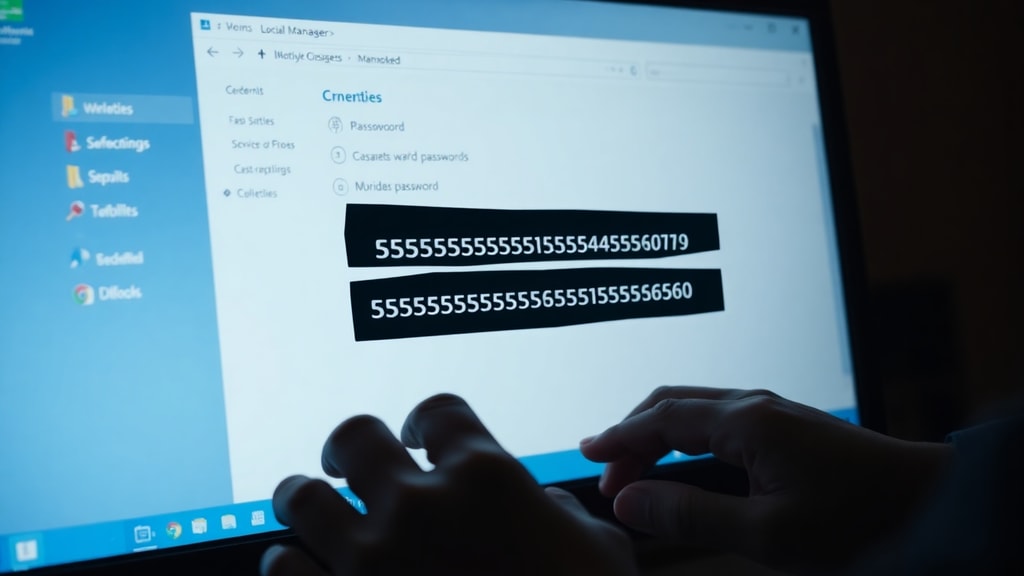
Windows 11 and Windows 10 offer a lesser-known shortcut to open the credential store. By running a specific command, you can directly launch the Stored User Names and Passwords dialog, which is an older interface for managing credentials. Press the Windows key, type cmd, and select Run as administrator. In the command prompt window, type `rundll32.exe keymgr.dll,KRShowKeyMgr` and press Enter. This opens a window that lists all your stored credentials for Windows services, mapped drives, and other network logins. You can select an entry and click Edit to see the stored username and password. Unlike Credential Manager, this tool does not always show the password in plain text for all types of credentials, but it is a fast way to access the credential database. This method is especially helpful when you need to troubleshoot mapped drive connections or remote desktop sessions that are failing due to incorrect passwords.
Checking Passwords Saved in Other Applications
Beyond browsers and system credentials, some applications store passwords locally on your PC. For example, email clients like Microsoft Outlook save your IMAP or POP3 password, and VPN clients such as Cisco AnyConnect store VPN credentials. To view these passwords, you often need to look within the application’s settings. For Outlook, you can go to File, Account Settings, and select your email account, then look for a password field that may be hidden. Some VPN clients allow you to view the saved password by clicking a show button in the connection settings. Additionally, third-party password managers like LastPass or Bitwarden store encrypted databases on your hard drive. To show passwords from these apps, you must open the application and authenticate with your master password. The specific steps vary by software, but the general principle is that saved passwords are accessible through the application’s settings panel, often protected by the operating system’s authentication.

Troubleshooting Common Issues When Viewing Passwords
Sometimes you might encounter problems when trying to show passwords on this PC. The most common issue is that the Show password option is grayed out or missing. This typically occurs because you do not have administrative privileges on the computer. To fix this, ensure you are logged into an administrator account. Right-click the Start button and select Computer Management, then go to Local Users and Groups to check your account type. Another issue is that the password you are looking for is stored in a different credential manager, such as the one used by a VPN or a third-party application. In such cases, you must open that specific application. If you see an error message when using the command line, double-check that you have run the command prompt as administrator and that the network profile name is spelled exactly as it appears. For browsers, if the eye icon does not respond, try restarting the browser or ensuring it is updated to the latest version. If all else fails, you may need to reset the password through the website or network administrator.
Security Considerations for Storing Passwords
While it is convenient to store passwords on your PC, it introduces security risks. When you show passwords on this PC, you are viewing credentials stored in plain text or encrypted formats. If someone gains physical access to your computer while you are logged in, they can potentially view your saved passwords. For this reason, it is advisable to use a master password on your user account and enable BitLocker drive encryption if your version of Windows supports it. Additionally, avoid storing highly sensitive passwords, such as those for banking or email, directly in browsers. Instead, use a reputable password manager that requires a separate, strong master password. Regularly review the passwords saved in Credential Manager and browsers to remove old or unused entries. This practice reduces your exposure in case of a data breach or malware infection. Remember that the ability to view passwords is a feature meant for convenience, but it should be used with caution.
List of Methods to Show Passwords on This PC
- Credential Manager for Windows credentials and web logins.
- Google Chrome password manager via Settings menu.
- Microsoft Edge password manager under Profile settings.
- Network and Sharing Center for current Wi-Fi passwords.
- Command prompt with `netsh` commands for saved Wi-Fi networks.
- `rundll32.exe keymgr.dll,KRShowKeyMgr` command for older credential interface.
- Third-party applications like Outlook or VPN client settings.
- Exporting passwords from browser settings for backup purposes.
Comparison of Methods for Different Password Types
| Password Type | Method | Access Level Required |
|---|---|---|
| Windows shared folders | Credential Manager | Administrator |
| Wi-Fi network | Network settings or `netsh` | Administrator for `netsh` |
| Website in Chrome | Chrome password manager | Device password or PIN |
| Website in Edge | Edge password settings | Device password or PIN |
| Remote Desktop | Credential Manager | Administrator |
Additional Tips for Managing Passwords Efficiently
To avoid repeatedly needing to show passwords on this PC, consider adopting good password management habits. Use a dedicated password manager that can generate and store complex passwords securely. Many password managers offer browser extensions that autofill login forms, reducing the need to manually view or type passwords. Also, enable two-factor authentication for important accounts, as this adds a layer of security even if your stored password is compromised. On Windows, regularly update your operating system and browser to patch security vulnerabilities that could be exploited to access saved credentials. If you share your computer with others, create separate user accounts for each person to prevent unauthorized access to your passwords. Finally, consider using the built-in Windows security features like Windows Defender to protect against malware that might try to steal saved passwords. By combining these practices, you can maintain both convenience and security.
References
Microsoft Learn. (2023). Credential Manager overview. https://learn.microsoft.com/es-es/windows/security/credential-manager. Accessed February 2025.
Google Support. (2024). Manage saved passwords in Chrome. https://support.google.com/chrome/answer/95606. Accessed February 2025.
Microsoft Support. (2024). View saved passwords in Microsoft Edge. https://support.microsoft.com/es-es/microsoft-edge/ver-contrasenas-guardadas-0a1b2c3d. Accessed February 2025.
Microsoft Learn. (2023). Use netsh commands for wireless networking. https://learn.microsoft.com/es-es/windows-server/networking/technologies/netsh/netsh-wlan. Accessed February 2025.
Reddit Community. (2024). How to check all my saved passwords on Windows 11. https://www.reddit.com/r/windows/comments/1h6iia1/how_to_check_all_my_saved_passwords_on_windows/. Accessed February 2025.