Introduction: Why Change Desktop Icons?
Desktop icons are the small images that represent programs, folders, files, or system shortcuts on your computer screen. They serve as visual cues that help you quickly locate and open the items you use most often. While the default icons provided by Windows are functional, many users prefer to customize them to match their personal style, improve organization, or simply refresh the look of their workspace. Changing a desktop icon is a straightforward process that can enhance your daily computing experience without requiring any advanced technical knowledge. Whether you want to replace a generic folder icon with a custom image or restore a shortcut to its original appearance, the steps are easy to follow and available in all recent versions of Windows.
Method 1: Changing an Icon via the Shortcut Properties
The most direct and commonly used method to change a desktop icon is through the shortcut's properties window. This works for shortcuts, folders, and some system icons. Here is a step‑by‑step guide:
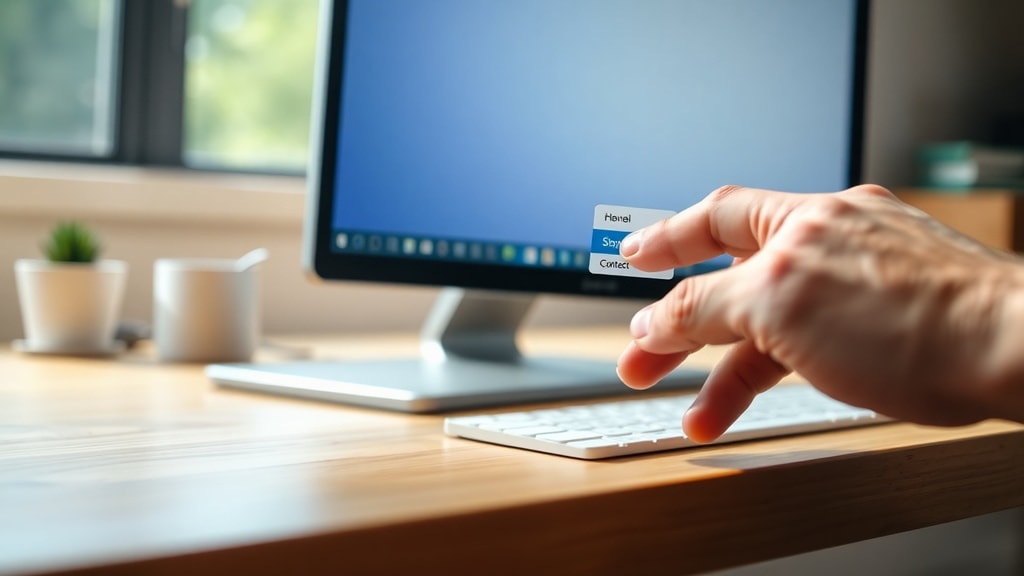
- Right‑click the icon you want to change on your desktop. A context menu appears.
- Select Properties from the menu. Alternatively, you can press
Alt + Enterwith the icon selected. - In the Properties window, navigate to the Shortcut tab (for shortcuts) or the Customize tab (for folders).
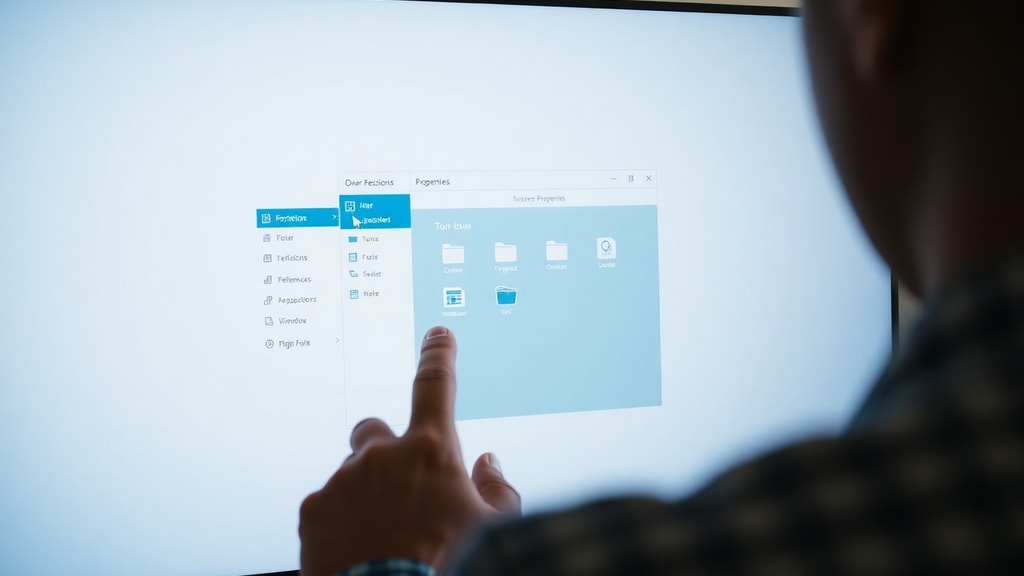
- Click the Change Icon button located near the bottom of the window.
- A new window opens showing a list of available icons. You can scroll through the default selection or click Browse to locate a custom icon file on your computer.
- Select the desired icon and click OK.
- Back in the Properties window, click Apply and then OK to save the changes.
After completing these steps, the desktop icon will update immediately. This method works for Windows 10 and Windows 11 alike. If you are changing a system icon such as This PC or the Recycle Bin, you will need to use the Desktop Icon Settings method described below.
Method 2: Changing System Icons via Desktop Icon Settings
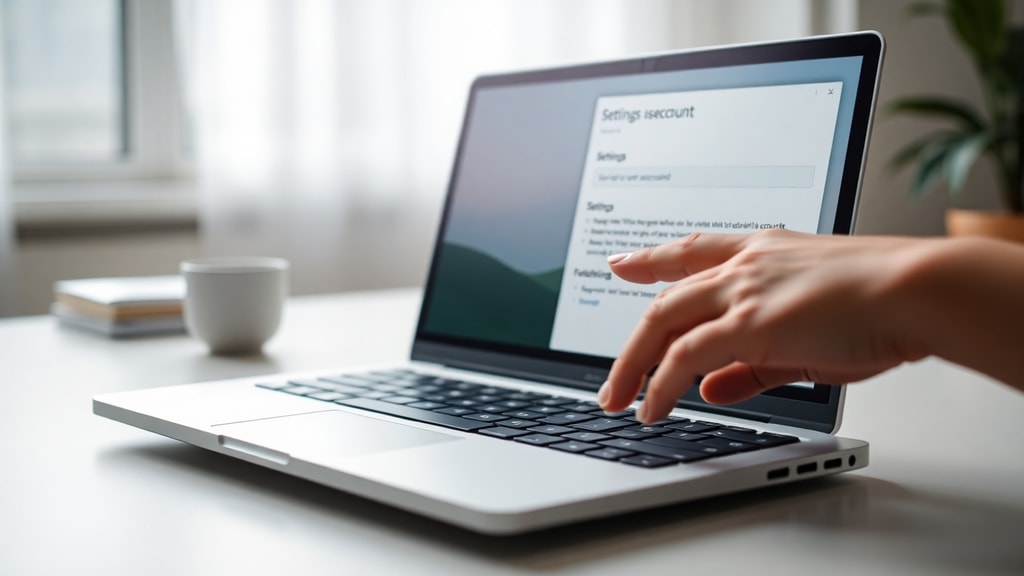
For the standard system icons that appear on the desktop (like This PC, Network, Recycle Bin, and User’s Files), you must use the Desktop Icon Settings panel. This method is also the recommended approach for Windows 11 users who want to change these core icons. Follow these steps:
Right‑click an empty area of the desktop and select Personalize. In the Personalization settings, click on Themes. Under the Related Settings section, find and click Desktop icon settings. This opens a window listing the available system icons. Select the icon you wish to change (for example, Recycle Bin) and click the Change Icon button. Choose a new icon from the list or browse for a custom file, then click OK. Finally, click Apply and OK to confirm.
Windows 11 users can also reach the same panel via the Settings app: press Win + I to open Settings, go to Personalization > Themes, and then scroll down to find Desktop icon settings. This alternative path is helpful if you prefer using the Settings interface over the context menu.
Custom Icon Files: Formats and Sources
When you click the Browse button in the Change Icon window, you can select files with certain extensions. The most common and reliable format for Windows icons is the .ico file, which can contain multiple sizes and color depths. However, Windows 10 and 11 also support .png images, though these may not display correctly in all contexts. For best results, use dedicated icon files that are square and at least 256×256 pixels in size. Many websites offer free icon collections, or you can create your own using graphic design software. Always ensure that you download icons from trustworthy sources to avoid malware.
To organize your custom icons, consider creating a folder in your Pictures directory where you store all your .ico files. This makes it easy to browse for them later. If you have an image in a different format (like .jpg or .png), you can convert it to .ico using free online converters or by renaming the extension, though that method is not always reliable.
Comparison of Methods
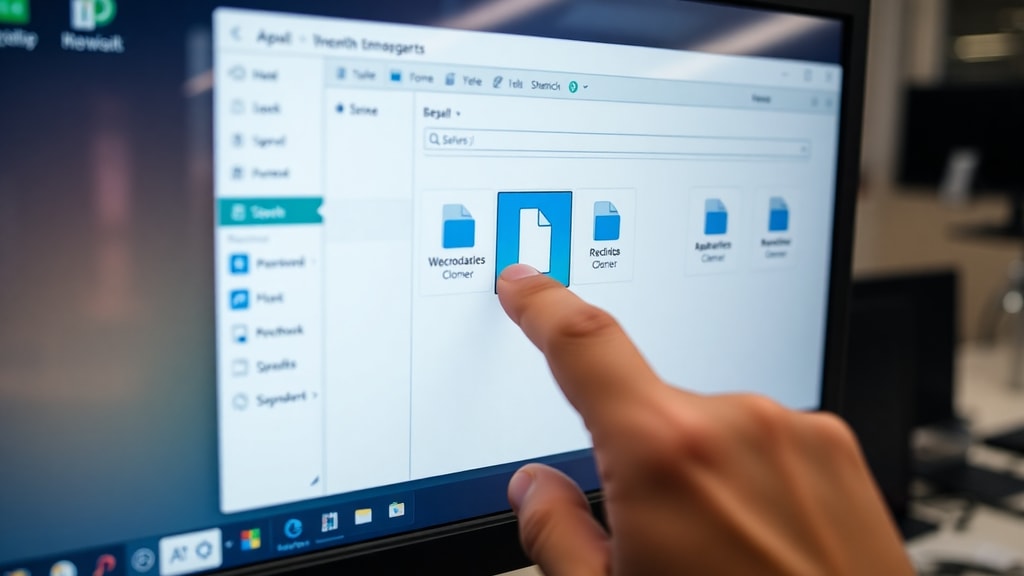
The following table summarizes the two main approaches for changing desktop icons, along with their use cases and notes.
| Method | Target Icons | Steps | Best For |
|---|---|---|---|
| Shortcut Properties | Shortcuts, folders, files | Right‑click the icon > Properties > Shortcut tab > Change Icon | Quick changes for individual items |
| Desktop Icon Settings | System icons (This PC, Recycle Bin, etc.) | Right‑click desktop > Personalize > Themes > Desktop icon settings | Changing the core desktop icons |
Both methods allow you to restore the default icon at any time by clicking the Restore Default button in the Change Icon window. This is useful if you decide you prefer the original look or if a custom icon becomes corrupted.
Troubleshooting Common Issues
Sometimes the icon does not update immediately after you apply the change. If this happens, try refreshing the desktop by right‑clicking an empty area and selecting Refresh (or pressing F5). Another common issue is that the Browse window does not show your .png files. In that case, switch the file filter from “Icon files” to “All files” to see other formats. If you select a .png image and the icon appears blurry or with a black background, the image may not be properly formatted. Converting it to a true .ico file with transparency support usually solves the problem.
If you cannot find the Change Icon button at all, it may be because the item is not a shortcut but an actual executable file (.exe). For executable files, you cannot directly change the icon without using third‑party tools or creating a shortcut. To work around this, create a shortcut to the program, place it on the desktop, and then use the shortcut method to change its icon. The shortcut will maintain the custom appearance while still launching the original program.
Additional Tips for a Customized Desktop
Changing desktop icons is only one part of personalizing your workspace. You can also adjust icon size, arrange them in a specific order, or hide all icons completely. For a clean look, many users combine custom icons with a matching wallpaper and color theme. Remember that any changes you make are reversible, so feel free to experiment with different styles. If you want to change icons for multiple shortcuts at once, you will need to repeat the process for each icon individually – there is no built‑in batch change feature in Windows.
For further guidance on Windows customization, you can consult official resources. For example, the Microsoft Support page on customizing desktop icons provides detailed instructions and troubleshooting tips. Additionally, video tutorials such as this walkthrough from SpeedyTech offer visual demonstrations that can be easier to follow.
Conclusion
Changing a desktop icon in Windows is a simple yet effective way to personalize your computer environment. By using the shortcut properties or the desktop icon settings panel, you can replace nearly any icon with an image that reflects your preferences. Whether you are a casual user who wants a fresh look or a professional who needs to quickly identify shortcuts, the process takes only a few minutes. Remember to use proper .ico files for best quality and to keep backups of any custom icons you create. With the methods outlined above, you can easily transform your desktop into a space that is both functional and visually appealing.
References
Microsoft Support. Personalizar os Ícones do Ambiente de Trabalho no Windows. Available at: https://support.microsoft.com/pt-br/windows/personalizar-os-%C3%ADcones-do-ambiente-de-trabalho-no-windows-c13270f0-3812-c71d-f27e-29aa32588b20
SpeedyTech. How to Change a Desktop Icon. YouTube. Available at: https://www.youtube.com/watch?v=6e0N0ZAIxh4
TecMundo. Alterando os ícones em seu Windows. Available at: https://www.tecmundo.com.br/windows-xp/713-alterando-os-icones-em-seu-windows.htm
TechDay. Como Mudar os Ícones de Pasta no Windows 11. Available at: https://pt.windows.day/?p=37592