Understanding the Need to Re-Pair Bluetooth Headphones on Windows
Bluetooth headphones offer convenience and freedom from cables, but sometimes Windows does not automatically restore stereo sound after pairing. This issue can occur due to driver conflicts, incorrect audio profiles, or a corrupted pairing record. Re-pairing your headphones is often the most effective way to restore full stereo audio output. This article provides a step-by-step guide to re-pairing Bluetooth headphones for stereo sound on Windows, including troubleshooting common problems.
Remove the Old Device Pairing
Before you can successfully re-pair your headphones, you must clear the existing pairing record from Windows. This prevents conflicts between old and new connection settings. Follow these steps:
- Open the Start menu and navigate to Settings by clicking the gear icon. Alternatively, press Windows key + I.
- Select Devices, then click on Bluetooth and other devices.
- Locate your headphones in the list of paired devices. They may appear under the heading Audio or Other devices.
- Click on the device name to reveal a Remove device button. Click it and confirm the action.
- Once removed, restart your computer to ensure Windows clears all cached driver information.
This process is recommended by Microsoft Support as a first step for Bluetooth audio issues. Removing the device forces Windows to treat the next pairing as a fresh connection.
Re-enable Bluetooth and Re-Pair Your Headphones
After removing the old device, you need to restart the Bluetooth adapter on your computer and then pair the headphones again. This refreshes the wireless connection and can resolve many audio problems.
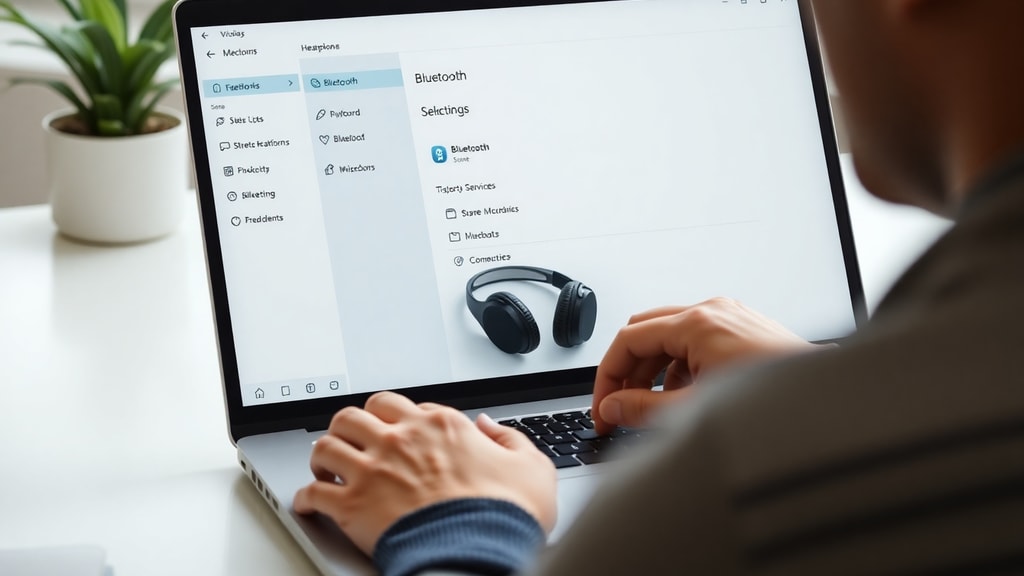
First, disable Bluetooth temporarily. In the Settings menu under Bluetooth and other devices, turn the Bluetooth toggle off. Wait a few seconds, then turn it back on. This action reinitializes the Bluetooth hardware and clears temporary glitches. Next, put your headphones into pairing mode. The exact method depends on the model, but usually involves holding the power button or a dedicated pairing button until an LED flashes rapidly. Consult your headphone manual if needed.
Now, on your Windows machine, click Add Bluetooth or other device. Select Bluetooth from the pop-up window. Windows will scan for nearby devices. When your headphones appear in the list, click on them. A pairing code may appear on screen; confirm it matches the code on your headphones, then select Connect. Windows will install the necessary drivers and confirm the pairing. After success, your headphones should appear in the Bluetooth settings with the status Connected.
For detailed instructions, refer to the official Microsoft guide on pairing Bluetooth devices.
Set the Headphones as the Default Stereo Output
Even after re-pairing, Windows may still route audio through a different device or apply a hands-free profile that degrades sound quality. You must explicitly set your headphones as the default stereo output device.
Right-click the speaker icon in the system tray (usually near the clock) and select Sounds. In the Sounds window, click the Playback tab. Look for your headphones in the list. They may appear with labels such as Headphones, Speaker, or the brand name. Right-click the headphones and select Set as Default Device. Then, right-click again and choose Set as Default Communication Device if that option is available. Finally, click Properties, go to the Advanced tab, and under Default Format, select the highest quality setting (e.g., 24 bit, 48000 Hz). These settings ensure stereo audio is delivered without compression.
If your headphones still output mono or low-quality audio, check the Spatial sound section in the Sound settings. Right-click the speaker icon and go to Spatial sound. Turn off Windows Sonic for Headphones if it is enabled, as it can sometimes interfere with standard stereo output. The table below summarises common audio output settings and their impact.
Troubleshooting Stereo Sound Issues: Common Settings and Fixes
| Issue | Possible Cause | Solution |
|---|---|---|
| Mono sound from headphones | Windows is using the hands-free profile instead of stereo | Remove device and re-pair; ensure headphone supports A2DP profile |
| Low audio quality or choppy sound | Bluetooth interference or outdated drivers | Move closer to PC, update Bluetooth and audio drivers |
| Headphones show as paired but no sound | Default playback device not set correctly | Set headphones as default under Sound > Playback |
| Surround sound enabled causing distortion | Virtual surround sound settings active | Disable Windows Sonic for Headphones in Spatial sound |
| Bluetooth adapter not detected | Driver failure or hardware issue | Update Bluetooth driver via Device Manager |
Refer to the table above to quickly identify and resolve common problems. For persistent issues, proceed to the next sections on driver updates and enhancement settings.
Update Bluetooth and Audio Drivers
Outdated or corrupted drivers can prevent Bluetooth headphones from delivering stereo audio. Windows Update sometimes handles driver updates, but manual intervention may be required.
Open Device Manager by right-clicking the Start button and selecting Device Manager. Expand the Bluetooth section. Right-click your Bluetooth adapter (often named Intel Wireless Bluetooth or Realtek Bluetooth) and select Update driver. Choose Search automatically for drivers. Windows will search online and install the latest version if available. After the update, restart your PC. Next, expand the Sound, video and game controllers section. Look for your audio driver (e.g., Realtek High Definition Audio). Right-click it and choose Update driver. Repeat the automatic search.
Sometimes the audio driver for the headphones themselves appears under Audio inputs and outputs. Right-click the headphone device there and update its driver as well. This step ensures the headphone is recognised with the correct capabilities.
If automatic updates do not resolve the issue, consider visiting your PC manufacturer website or the headphone brand portal for dedicated driver files. Many Bluetooth problems stem from driver conflicts, and a full driver refresh can restore stereo sound.
Disable Surround Sound Enhancements
Windows includes audio enhancements that can interfere with standard stereo output. Virtual surround sound technologies like Windows Sonic for Headphones, Dolby Atmos, or DTS Headphone:X may cause the audio to be processed in a way that reduces clarity or forces mono output in some applications.
To disable these enhancements, right-click the speaker icon and select Sounds. Go to the Playback tab, right-click your headphones, and choose Properties. Click the Enhancements tab. Check the box that says Disable all enhancements. Then click Apply and OK. If the Enhancements tab is not visible, click the Spatial sound tab instead and set Off. Some headphones also have manufacturer-specific software that applies surround processing; disable that software temporarily to test if stereo sound returns.
After making these changes, test your headphones by playing a stereo audio track. The sound should now be balanced between left and right channels. If not, repeat the pairing process or try the headphone on another device to rule out hardware issues.
Additional Tips for Stable Stereo Bluetooth Audio
Beyond the core steps above, consider the following practices to maintain reliable stereo sound:
- Keep your headphones firmware updated. Many brands release firmware updates that improve Bluetooth audio quality.
- Use Bluetooth version 4.0 or higher on your PC. Older adapters may not support high-quality stereo audio.
- Avoid placing your computer near other wireless devices such as Wi-Fi routers or cordless phones, as they can cause interference.
- If you experience intermittent audio, switch the audio format in Sound properties to a lower sample rate like 48000 Hz or 44100 Hz. This reduces bandwidth requirements.
These measures complement the re-pairing process and help maintain consistent stereo output over time.
Conclusion
Re-pairing Bluetooth headphones for stereo sound on Windows is a straightforward process when you follow the correct sequence: remove the old device, re-enable Bluetooth, pair the headphones afresh, set them as the default playback device, and adjust driver and enhancement settings. By systematically working through these steps, you can restore full stereo audio and eliminate common issues like mono sound or low quality. If problems persist, the troubleshooting table and driver update guide provided in this article will help you isolate the cause. Regular maintenance of both headphone firmware and Windows drivers will keep your wireless audio experience reliable.
References
Microsoft Support. Emparelhar um dispositivo Bluetooth no Windows. https://support.microsoft.com/pt-br/windows/emparelhar-um-dispositivo-bluetooth-no-windows-2be7b51f-6ae9-b757-a3b9-95ee40c3e242
DigiTei. Tutorial de reemparelhamento de fones de ouvido Bluetooth para som estéreo no Windows. https://digitei.com/emparelhar-novamente-fones-de-ouvido-bluetooth-para-som-estereo-no-windows-tutorial/
Microsoft Support. Configurar definições de qualidade de áudio Bluetooth LE no Windows 11. https://support.microsoft.com/pt-br/windows/configurar-defini%C3%A7%C3%B5es-de-qualidade-de-%C3%A1udio-bluetooth-le-no-windows-11-b8a78c31-bde9-4443-8c17-8bc0a4d571d0
Microsoft Q&A. Drivers de fone Bluetooth. https://learn.microsoft.com/pt-br/answers/questions/3928323/fones