Why Key Settings Matter
Key settings, or keyboard configurations, allow you to control how your keyboard interacts with your operating system and applications. Whether you want to switch between languages quickly, remap a broken key, or create shortcuts for repetitive tasks, understanding these settings can dramatically improve your efficiency and comfort. A well‑configured keyboard reduces hand movement, accelerates common actions, and helps prevent strain. This guide will walk you through the most important key settings on Windows and Linux, show you how to customize them, and provide practical tips for better customization.
Accessing Keyboard Settings in Windows
Windows offers several ways to manage your keyboard. The primary location is under Settings > Time & Language > Language & Region. To add a new keyboard layout, find the language you use, click the three‑dot menu next to it, and select Language Options. Under Installed Keyboards, click Add a keyboard and choose the layout you need. For detailed steps, refer to the Microsoft guide on keyboard accessibility. Once you have multiple layouts, you can switch between them using the default shortcut Left Alt + Shift or by clicking the language icon near the system clock. This is especially useful if you type in more than one language regularly.
Another important Windows setting is the keyboard repeat rate. You can adjust how fast a key repeats when you hold it down and how long you must hold it before repetition starts. Go to Settings > Accessibility > Keyboard and toggle on Use Filter Keys or adjust the repeat delay and rate in the classic Control Panel (under Keyboard Properties). These settings are vital for people who type quickly or need to avoid accidental repeated characters.

Here is a quick list of the most useful keyboard settings in Windows that you should check:
- Add or remove keyboard layouts under Language & Region.
- Change the default input switching shortcut (Alt+Shift or Ctrl+Shift).
- Enable or disable Filter Keys to ignore brief or repeated keystrokes.
- Toggle Sticky Keys to use key combinations like Ctrl+Alt+Del one key at a time.
- Remap individual keys using the registry or third‑party tools like SharpKeys.
Mastering these options will save you time and reduce errors. The ability to quickly switch layouts or adjust repeat behavior makes everyday computing smoother.
Changing Keyboard Layout Shortcuts
After adding multiple keyboard layouts, you may want to customize the shortcut used to switch between them. On Windows, the standard shortcuts are Left Alt + Shift for language change and Ctrl + Shift for keyboard layout change inside the same language. You can modify these via Settings > Time & Language > Typing > Advanced keyboard settings. In older versions of Windows, you could also access them from the Language bar options. For a complete walkthrough, Microsoft explains how to personalize keyboard shortcuts. If you often switch between, say, US English and Portuguese, choosing an easy‑to‑reach combination can make the process almost effortless.
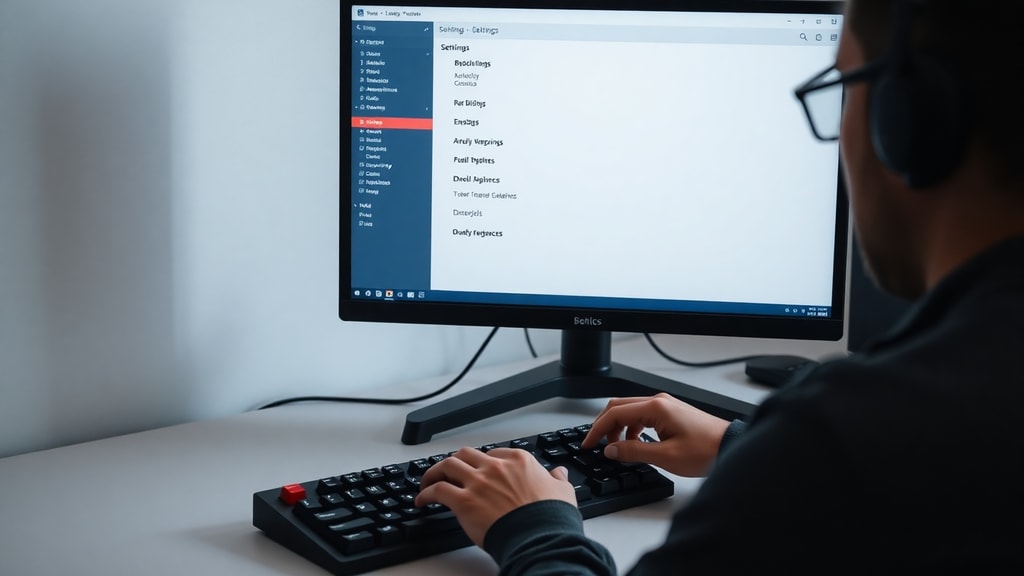
On Ubuntu Linux, layout switching works similarly. You can define your own shortcut under Settings > Keyboard > View and Customize Shortcuts. The default is often Super+Space or Alt+Shift. You can also assign a shortcut to a specific layout instead of cycling through all of them. For example, you can set Super+1 for English and Super+2 for French. This is far more efficient than pressing a key combination multiple times. Remember that your chosen shortcut should not conflict with application‑level shortcuts, such as those in text editors or browsers.
Setting Custom Key Bindings for Applications and Games
Beyond layout switching, you may want to remap individual keys or create custom shortcuts for specific programs. In Windows, the Settings > Accessibility > Keyboard page offers some standard toggles, but advanced remapping often requires third‑party software. One popular free tool is SharpKeys, which edits the Windows registry to reassign a key (for example, making the Caps Lock key act as a Control key). Another is AutoHotkey, a scripting language that allows you to build complex hotkeys and macros. For gamers, many titles allow in‑game key bindings – you can usually find these in the Settings > Controls or Key Bindings menu. There you can reassign actions like jump, crouch, or reload to keys that feel more natural for your hand position.
For Linux users, the built‑in shortcut manager is robust. Under Keyboard Shortcuts you can edit default system shortcuts and add custom ones. For example, you can bind a key to launch a terminal, take a screenshot, or control media playback. The custom command option accepts any shell command. This flexibility means you can automate almost any action with a single keystroke. Additionally, many desktop environments like GNOME and KDE offer tools like KWin rules or Compiz for window management shortcuts.

When customizing key bindings, always test for conflicts. A shortcut that works globally might interfere with shortcuts inside a web browser or a development environment. It helps to maintain a written log of your custom bindings, especially if you use multiple devices. Over time, your key settings become a personal productivity system.
Keyboard Accessibility Features
Modern operating systems include many accessibility options that affect key settings. In Windows, the Ease of Access Center (now part of Settings > Accessibility) provides Filter Keys, Sticky Keys, Toggle Keys, and other features. Filter Keys ignore brief or repeated keystrokes, which is helpful for users with tremors. Sticky Keys allow you to press one key at a time for shortcuts like Ctrl+Alt+Del – useful if you have difficulty holding multiple keys simultaneously. Toggle Keys play a sound when you press Caps Lock, Num Lock, or Scroll Lock to alert you that a lock state has changed. These settings can be activated via a keyboard shortcut (often pressing the right Shift key for eight seconds) or through the Settings menu. Microsoft’s official keyboard accessibility guide provides step‑by‑step instructions for enabling and configuring these features. Adjusting them can make a huge difference for anyone with motor difficulties or temporary injuries.
On Ubuntu, accessibility options live under Settings > Accessibility. You can enable Slow Keys (which delays the acceptance of a keypress), Bounce Keys (ignores repeated presses), and Mouse Keys (move the pointer using the numeric keypad). These are especially useful when using a keyboard as a primary input device. Spending a few minutes to explore these settings can unlock capabilities you never knew existed.

Table: Common Key Settings and Their Functions
The following table summarises the most common key settings across Windows and Linux, along with their default shortcuts where applicable.
| Setting | Description | Default Shortcut (Windows / Linux) |
|---|---|---|
| Switch keyboard layout | Cycles through installed layouts in order. | Left Alt + Shift (Win) / Super+Space or Alt+Shift (Linux) |
| Sticky Keys | Latch modifier keys (Ctrl, Alt, Shift) so you press them one at a time. | Press Shift five times (Win) / Enabled in Accessibility settings (Linux) |
| Filter Keys | Ignore brief or repeated keystrokes (adjustable tolerance). | Hold right Shift for 8 seconds (Win) / Slow Keys in Linux |
| Toggle Keys | Play a sound when Caps Lock, Num Lock, or Scroll Lock are turned on/off. | Hold Num Lock for 5 seconds (Win) / Not standard (Linux – via accessibility) |
| Repeat delay / rate | How long before a held key starts repeating, and how fast it repeats. | Control Panel > Keyboard Properties (Win) / Settings > Keyboard (Linux) |
| Custom shortcut (global) | User‑defined key combination to launch an app or run a command. | AutoHotkey or SharpKeys (Win) / Settings > Keyboard Shortcuts (Linux) |
This table is a starting point. Depending on your device, manufacturer‑specific software (like Dell QuickSet or Lenovo Vantage) may offer additional options for function keys or multimedia controls. Always consult the documentation for your laptop or keyboard.
Tips for Effective Key Customization
To get the most out of your key settings, follow these practical recommendations. First, start with the defaults and only change what bothers you. Over‑customization can lead to confusion when you use someone else’s computer. Second, use descriptive names for any custom commands or scripts you create – you will thank yourself later. Third, test new key bindings over a few days before committing; some adjustments feel unnatural at first but become second nature with practice. Fourth, take advantage of online communities. For Windows, r/AutoHotkey and the Microsoft community forums are excellent resources. For Linux, the Ubuntu Forums and Arch Wiki are treasure troves of shortcut ideas. Finally, consider ergonomics. Place the most frequently used shortcuts on keys that are easy to reach from the home row (e.g., Caps Lock remapped to Ctrl). This can reduce finger movement and prevent repetitive strain injuries. A well‑conceived key configuration turns your keyboard into a true productivity tool.
References
Microsoft Support. "Make mouse, keyboard, and other input devices easier to use." Windows Help. https://support.microsoft.com/pt-br/windows/facilitar-o-uso-de-mouse-teclado-e-outros-dispositivos-de-entrada-10733da7-fa82-88be-0672-f123d4b3dcfe
Microsoft Support. "Customize keyboard shortcuts." Office Help. https://support.microsoft.com/pt-br/office/personalizar-atalhos-de-teclado-9a92343e-a781-4d5a-92f1-0f32e3ba5b4d
Ubuntu Documentation. "Keyboard shortcuts." Ubuntu Help. https://help.ubuntu.com/stable/ubuntu-help/keyboard-shortcuts-set.html.pt-BR