Understanding the Challenge of Upgrading a Laptop Graphics Card
If you own a notebook and feel that its graphics performance is no longer keeping up with your needs, you have probably asked yourself whether it is possible to expand or replace the video card. This is a common question among users who want to play modern games, edit high-resolution video, or run graphically demanding software without buying an entirely new machine. The short answer is that upgrading the internal graphics processor inside most laptops is not a straightforward task. Unlike desktop computers, where you can simply swap out a dedicated graphics card, notebooks are designed with integrated components that are often soldered directly onto the motherboard. This article explains why internal GPU upgrades are nearly impossible, explores the only viable expansion method known as an external GPU (eGPU), discusses compatibility requirements, and presents realistic alternatives when an eGPU is not supported.
Internal GPU Upgrades: Why They Are So Difficult
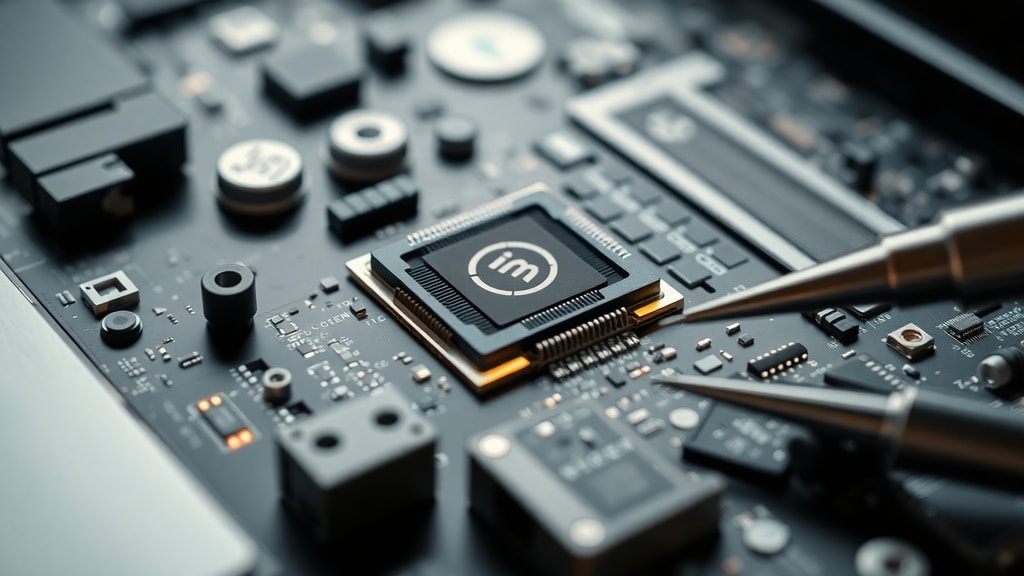
In the vast majority of modern notebooks, the graphics processing unit is either integrated into the CPU or soldered as a separate chip onto the motherboard. This design choice allows manufacturers to create thinner, lighter, and more power-efficient devices. However, it also means that the GPU is not socketed like a desktop card. Even in some older or high-end gaming laptops that used a removable MXM module, the upgrade options are extremely limited because the BIOS, thermal design, power delivery, and physical dimensions are unique to each model. Most current laptops, particularly ultrabooks and mainstream notebooks, have the GPU permanently attached. A user on a technology forum asked, "posso mudar a placa de vídeo do meu notebook?" and the consensus was clear: it is not feasible for the vast majority of devices. The only exception might be a handful of specialized laptops that use a proprietary connector for the graphics module, but even those require specific hardware that is often impossible to find or incompatible with newer GPUs. Therefore, attempting to open your laptop and replace the graphics chip is not recommended and will likely damage the device.

External GPU (eGPU) as the Only Viable Expansion Method
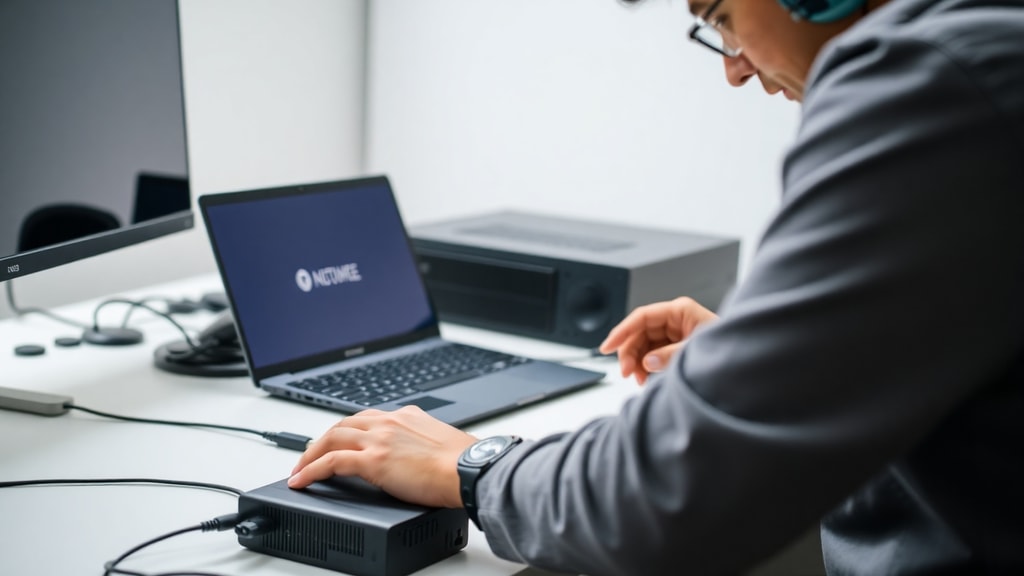
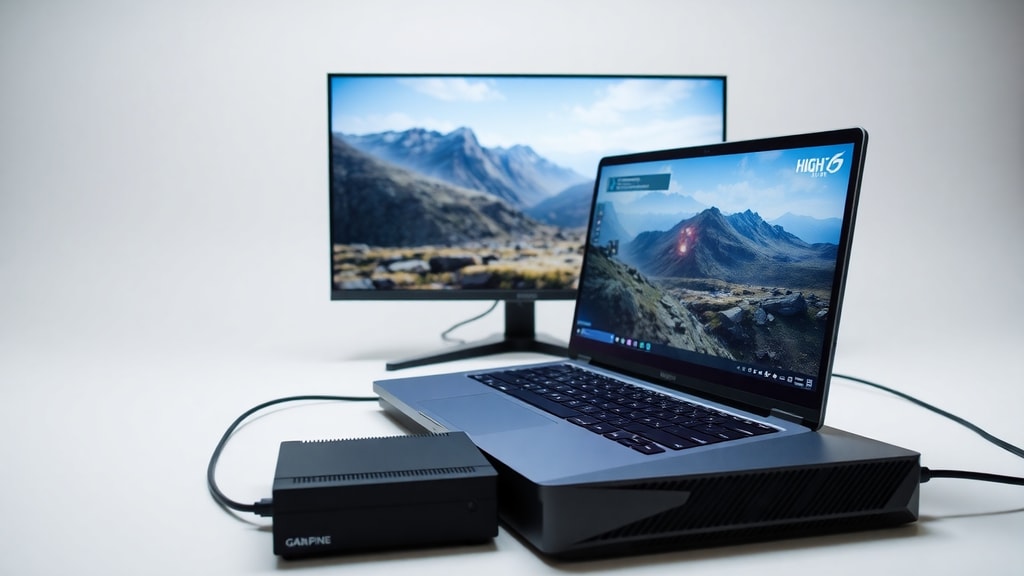
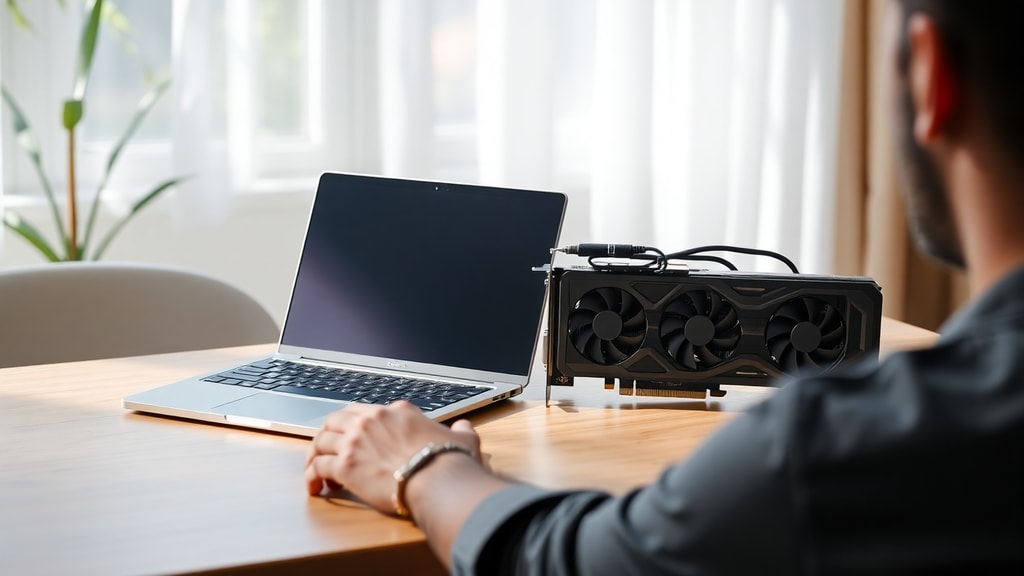
If you cannot upgrade the internal graphics card, your next best option is to add an external graphics processor through an eGPU enclosure. An eGPU is a box that contains a full desktop graphics card and connects to your laptop via a high-speed interface such as Thunderbolt 3, Thunderbolt 4, or USB4 with PCIe tunnel support. When connected, the laptop uses the external card for rendering, giving you a significant boost in graphics performance for gaming, 3D rendering, and video editing. According to a detailed article from TecMundo, this is the only practical way to install a video card in a notebook to run games. The eGPU enclosure typically includes its own power supply and cooling system, so the laptop does not need to handle the extra heat. It is important to note that the eGPU does not replace the internal GPU; instead, it works alongside it. When the eGPU is disconnected, the laptop returns to using its original integrated or dedicated graphics. This solution is particularly attractive for users who already own a capable laptop but need extra graphical horsepower for specific tasks and do not want to buy a new computer.
Requirements for an eGPU Setup
Before you rush to purchase an external GPU dock, you must verify that your laptop supports eGPU operation. Not every notebook can work with an eGPU. The critical requirement is a Thunderbolt 3 or Thunderbolt 4 port that provides at least 40 Gbps of bandwidth and supports external graphics via PCI Express. Some laptops with USB-C ports that include DisplayPort Alt Mode and PCIe support may also work, but Thunderbolt is the most reliable standard. Additionally, the laptop must have a compatible BIOS and driver support. Many gaming laptops from 2018 onward have Thunderbolt, but budget or older models may lack it. Another article from TopGadget explains how to install a PC graphics card on a notebook and highlights that without Thunderbolt or a sufficiently fast USB-C connection, the eGPU will not function. Power delivery is also important: the eGPU enclosure must be plugged into an AC outlet, and the connection to the laptop typically provides charging as well. You also need to consider that using an eGPU introduces some performance overhead due to bandwidth limitations, so you might not get the full potential of a high-end desktop card. Nevertheless, even with a modest performance penalty, the gain over the laptop’s internal GPU can be substantial.
Pros and Cons of Using an eGPU
To help you decide whether an external GPU is the right choice, here is a list of the main advantages and disadvantages:
- Pros: - Significant boost in graphics performance, allowing you to play modern games at higher settings. - Upgradable in the future – you can swap the desktop card inside the enclosure for a newer model. - No need to replace the entire laptop; the eGPU can be used with multiple laptops. - Provides additional USB ports and often charges the laptop simultaneously.
- Cons: - High initial cost: the enclosure alone can cost several hundred dollars, plus the graphics card. - Requires a laptop with Thunderbolt 3/4 or compatible USB-C; many older or budget notebooks do not have this. - Performance loss compared to the same card in a desktop due to bandwidth limitations. - Bulky and not portable; you need to carry the eGPU unit if you travel. - Some games and applications may have compatibility issues with eGPU setups.
Comparison of Graphics Upgrade Options
The following table summarizes the three main paths you can take when your laptop graphics are insufficient:
| Option | Cost | Performance | Portability | Feasibility |
|---|---|---|---|---|
| Internal GPU upgrade | Low to medium (if possible at all) | Limited to available compatible module | No change | Rarely possible; soldered or no support |
| External GPU (eGPU) | High (enclosure + desktop card) | High, but with some overhead | Reduces portability | Depends on Thunderbolt/USB-C support |
| Replace the entire laptop | High (cost of new notebook) | Depends on new model | Same as original | Always possible |
No VRAM Upgrade Possible
Another common misunderstanding is that you can increase the video memory (VRAM) of a notebook’s graphics chip. This is not true. VRAM is physically soldered onto the GPU die or on the graphics module and cannot be expanded or replaced. Some users attempt to modify BIOS settings to allocate more system RAM to the integrated GPU, but this does not increase the VRAM of a dedicated GPU. A source from MAX Turbos clearly states that you cannot change the video card of a notebook or increase its VRAM. The same applies to an eGPU: the external card has fixed VRAM that cannot be adjusted. Therefore, if your applications require more video memory, your only option is to choose a different graphics card that has the required VRAM capacity, whether that means selecting a different desktop card for the eGPU or buying a new laptop with a suitable GPU.
Alternatives When eGPU Is Not Supported
If your laptop lacks Thunderbolt or compatible USB-C, and you cannot upgrade the internal GPU, what can you do? The most straightforward solution is to replace the entire notebook with a model that has a more powerful built-in graphics card. This might seem drastic, but given the limitations, it is often the most cost-effective and reliable path, especially if you need a portable solution. Some users consider using external solutions that connect via USB 3.0 or older standards, but those do not provide enough bandwidth for a serious eGPU. Another alternative is to use cloud gaming services or remote rendering, where the graphical processing happens on a remote server and streams to your laptop. This can work for gaming but requires a stable, high-speed internet connection and may introduce latency. Additionally, you could try overclocking the existing internal GPU, but this offers only a marginal improvement and can cause overheating and instability. Ultimately, for most users, the decision comes down to either investing in an eGPU (if supported) or purchasing a new laptop with the desired graphics performance.
Conclusion
Expanding a notebook’s graphics card is rarely possible through internal upgrades. The vast majority of laptops have their GPU soldered, making replacement impractical. The only realistic expansion method is to use an external GPU enclosure connected via Thunderbolt 3/4 or a compatible USB-C port. This setup can deliver excellent performance gains, but it comes with a high cost, reduced portability, and specific compatibility requirements. You cannot upgrade VRAM either. If your laptop does not support an eGPU, your best option is to replace the notebook entirely. Before making a decision, carefully assess your budget, performance needs, and whether your laptop has the necessary ports. With this knowledge, you can choose the right path to boost your graphics performance without damaging your hardware or wasting money.
References
Reddit – r/computadores. "Posso mudar a placa de vídeo do meu notebook?" Available at: https://www.reddit.com/r/computadores/comments/1ko33qu/posso_mudar_a_placa_de_v%C3%ADdeo_do_meu_notebook/ (accessed March 2025).
TecMundo. "É possível instalar uma placa de vídeo no notebook para rodar jogos?" Available at: https://www.tecmundo.com.br/produto/119316-possivel-instalar-placa-video-notebook-rodar-jogos.htm (accessed March 2025).
TopGadget. "Como instalar uma placa de vídeo de PC no notebook?" Available at: https://www.topgadget.com.br/howto/tech/colocando-placa-grafica-do-pc-no-notebook.htm (accessed March 2025).
MAX Turbos. "Pode mudar placa de video de notebook?" Available at: https://maxturbos.com.br/pode-mudar-placa-de-video-de-notebook/ (accessed March 2025).
YouTube – "Posso instalar placa de vídeo no notebook?" Available at: https://www.youtube.com/watch?v=UjO-8_uIt0Y (accessed March 2025).