Understanding VHDX Files and Why You Might Need to View Their Contents
VHDX files are virtual hard disk images used primarily by Microsoft Hyper-V and Windows operating systems. They function as complete virtual drives, containing file systems, folders, and data just like a physical hard drive. You might encounter a VHDX file when working with virtual machines, system backups, or disk images created by Windows backup tools. Knowing how to view the contents of a VHDX file is essential for extracting specific files, inspecting backups, or troubleshooting system issues without booting the entire virtual machine. This article covers multiple methods to access and browse VHDX file contents, ranging from built-in Windows tools to third-party software solutions.
Mounting a VHDX File Directly in Windows File Explorer
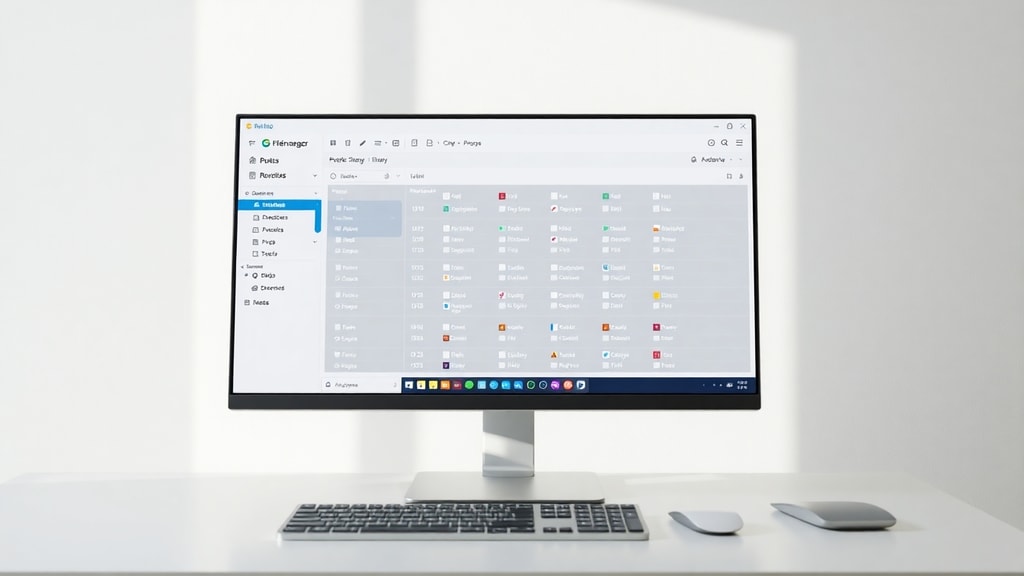
The simplest way to view VHDX file contents is by mounting the file directly through Windows File Explorer. This method works on Windows 8, Windows 10, and Windows 11 without requiring additional software. Locate your VHDX file in File Explorer, right-click on it, and select the Mount option from the context menu. Windows will treat the VHDX file as a physical disk and assign it a drive letter. You can then open This PC and see the new drive listed alongside your other drives. Double-click the drive to browse its folders and files just like any other storage device. When you are finished, right-click the mounted drive in File Explorer and select Eject to safely unmount the VHDX. This method is ideal for quick access and does not require administrative privileges in most cases.
Using Disk Management to Attach and View VHDX Files
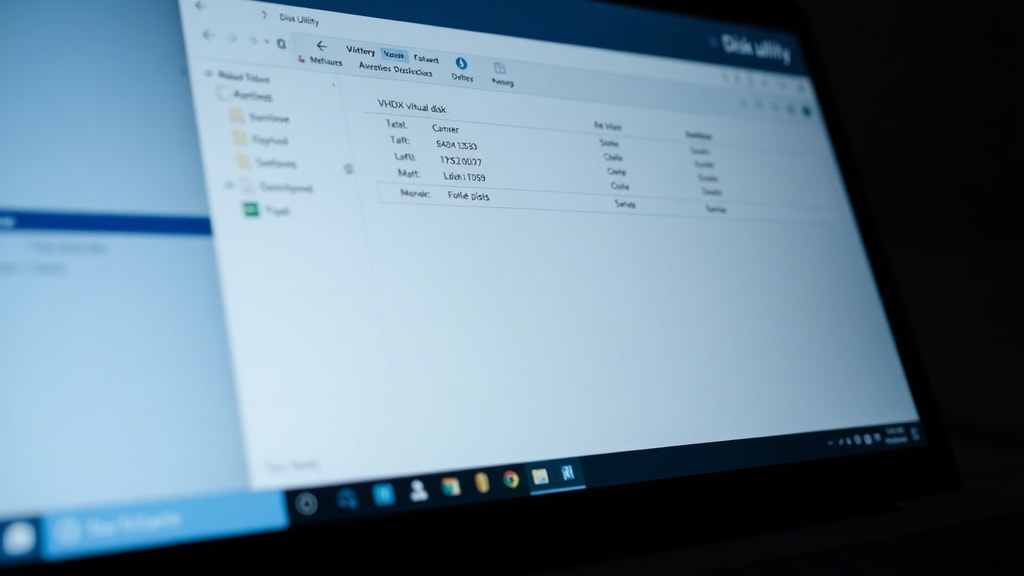
Another built-in Windows method involves using the Disk Management console. This approach gives you more control over how the VHDX file is attached and is useful if the File Explorer mount option is unavailable. Press Windows Key + R, type diskmgmt.msc, and press Enter to open Disk Management. In the menu bar, click Action and then select Attach VHD. A dialog box will appear where you can browse to your VHDX file. Check the Read-only option if you only want to view files without making any changes. Click OK, and Windows will attach the VHDX as a new disk. You will see it appear in the lower section of Disk Management. Right-click the disk volume and select Open or Explore to view its contents in File Explorer. This method is particularly useful when dealing with multiple VHDX files or when you need to attach a VHDX that is not automatically recognized by File Explorer.
Attaching VHDX Files via DiskPart Command Line
For advanced users or when scripting is required, the DiskPart command-line tool provides a powerful way to attach VHDX files. Open Command Prompt as Administrator by searching for cmd, right-clicking it, and selecting Run as administrator. Type diskpart and press Enter to start the DiskPart utility. Then use the following commands sequentially:
select vdisk file="C:\path\to\your\file.vhdx"
attach vdisk
Replace the file path with the actual location of your VHDX file. After executing these commands, the VHDX will be attached as a new disk. You can then open File Explorer and access the drive. To detach the VHDX, use the commands select vdisk file="C:\path\to\your\file.vhdx" and then detach vdisk. This method is efficient for batch operations and can be incorporated into scripts for automated backup or recovery tasks. It also works when the graphical interface is not available, such as in Server Core installations or remote management scenarios.
Viewing VHDX Contents Without Mounting Using Third-Party Tools
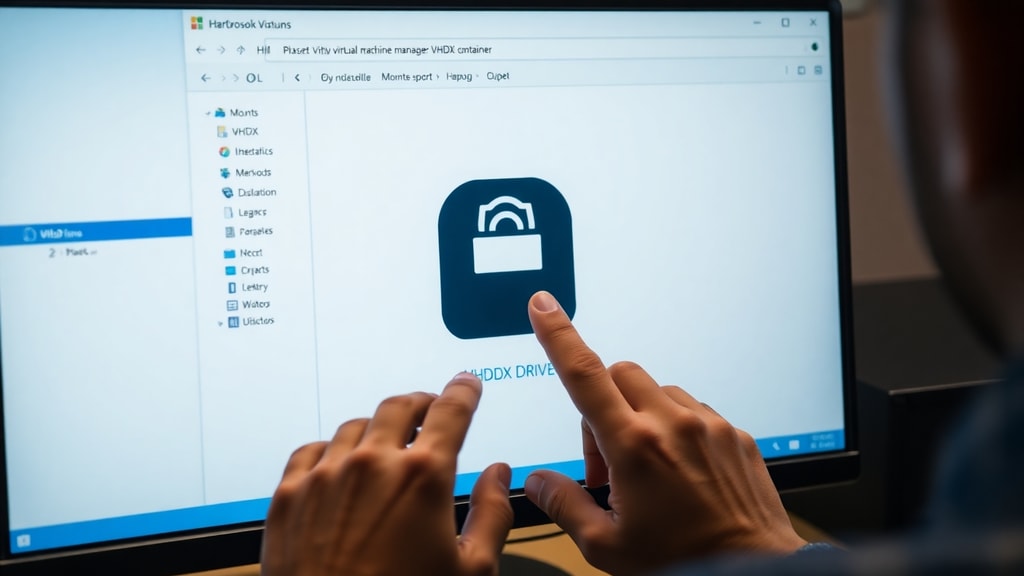
Sometimes you may not want to mount a VHDX file, especially if the file is corrupted, or if you prefer a read-only view without altering your system. Several free and commercial tools allow you to open and browse VHDX files without mounting them as drives. These tools function like file explorers specifically designed for virtual disk images. Popular options include Kernel VHD/VHDX Viewer, SysTools VHDX Viewer, and PowerISO. These applications let you open a VHDX file, navigate its folder structure, and extract individual files to your local system. They are particularly useful for forensic analysis, data recovery, or when you need to access files from a VHDX that belongs to a different operating system. Most of these tools offer a free trial or a limited free version that allows viewing and extracting small files.
Accessing WSL 2 VHDX Files via Windows Subsystem for Linux
If your VHDX file is the ext4.vhdx used by Windows Subsystem for Linux version 2, the process is different. WSL 2 stores its Linux file system in a VHDX file located in the user profile directory. To view the contents of this VHDX, you do not need to mount it manually. Simply open a WSL terminal by typing wsl in the Start menu or command prompt. From within the WSL environment, you can navigate the Linux file system using standard Linux commands. Alternatively, you can access WSL files from Windows File Explorer by typing \\wsl$\
Comparison of Methods for Viewing VHDX File Contents
The following table summarizes the key differences between the methods discussed, helping you choose the best approach based on your needs.
| Method | Ease of Use | Requires Admin Rights | Best For |
|---|---|---|---|
| File Explorer Mount | Very Easy | No | Quick access, everyday use |
| Disk Management | Moderate | Yes | Advanced control, read-only attachment |
| DiskPart Command Line | Advanced | Yes | Scripting, automation, remote management |
| Third-Party Viewer Tools | Easy to Moderate | No | Corrupted files, forensic analysis, no mounting |
| WSL 2 Native Access | Easy | No | Accessing WSL 2 ext4.vhdx files |
Step-by-Step List for Mounting a VHDX Using Disk Management
For users who prefer a structured approach, here is a clear list of steps to attach a VHDX file using Disk Management:
1. Press Windows Key + R, type diskmgmt.msc, and press Enter.
2. In Disk Management, click Action in the menu bar.
3. Select Attach VHD from the dropdown menu.
4. Click Browse and navigate to your VHDX file.
5. Check the Read-only box if you only want to view files.
6. Click OK to attach the VHDX.
7. The new disk will appear in the lower pane. Right-click the volume and choose Open or Explore.
8. Browse the files in File Explorer as needed.
9. To detach, right-click the disk in Disk Management and select Detach VHD.
Important Considerations When Viewing VHDX Contents
Before you start viewing VHDX file contents, there are a few important points to keep in mind. Always ensure you have a backup of the VHDX file if it contains critical data, especially if you plan to mount it in read-write mode. Mounting a VHDX in read-write mode can alter the file, which may affect the original virtual machine or backup. If you are unsure, always use the read-only option when attaching via Disk Management or use a third-party viewer that does not modify the file. Additionally, some VHDX files may be encrypted or use dynamic sizing, which can affect how they are mounted. Dynamic VHDX files grow as data is added, but they mount the same way as fixed-size VHDX files. If you encounter errors during mounting, the file may be corrupted, and you should consider using recovery tools or specialized viewers.
Using Third-Party Tools for Corrupted or Inaccessible VHDX Files
When a VHDX file is corrupted or cannot be mounted using Windows tools, third-party viewers become invaluable. Tools like Kernel VHD/VHDX Viewer are designed to open damaged or inaccessible VHDX files and allow you to extract data. These tools often support both VHD and VHDX formats and can recover files from partitions that Windows cannot recognize. SysTools VHDX Viewer offers a similar functionality with a user-friendly interface that lets you preview files before extraction. PowerISO, while primarily known for ISO files, also supports opening VHDX files and browsing their contents. These tools typically do not require installation and can run from a USB drive, making them portable solutions for IT professionals. Always download such tools from official websites to avoid malware risks.
Accessing VHDX Files from Hyper-V Virtual Machines
If you are working with Hyper-V virtual machines, the VHDX file is the virtual hard disk of the VM. To view its contents without starting the virtual machine, you can mount the VHDX file on the host system using any of the methods described above. This is useful for copying files into or out of the VM without booting it. However, ensure the VM is turned off before mounting the VHDX to avoid data corruption. Hyper-V Manager also provides an option to edit VHDX files, but that is intended for resizing or converting disks, not for browsing contents. For routine file access, mounting via Disk Management or File Explorer is faster and more straightforward.
Security and Permissions When Viewing VHDX Files
VHDX files may contain sensitive data, and viewing their contents should be done with appropriate security measures. If the VHDX is from another user or system, you may need administrative permissions to mount it. Additionally, some VHDX files are encrypted with BitLocker or other encryption tools. In such cases, you will need the encryption key or password to access the contents. When using third-party viewers, ensure they do not transmit your data over the internet. Always work in a secure environment, especially if the VHDX contains personal or confidential information. For forensic or audit purposes, use read-only methods to preserve the integrity of the evidence.
References
Microsoft Learn. How to open VHDX files. Available at: https://learn.microsoft.com/en-us/answers/questions/3995193/is-there-any-way-to-open-the-hard-disk-image-file.
Iperius Backup. How to mount VHD/VHDX and extract individual files. Available at: https://www.iperiusbackup.net/en/how-to-mount-vhd-vhdx-extract-individual-files-from-drive-image-and-hyper-v-backups/.
Kernel Data Recovery. How to open and view VHD/VHDX files. Available at: https://www.kerneldatarecovery.com/blog/how-to-open-and-view-vhd-vhdx-files/.
Microsoft Q&A. Browse folders in a VHDX. Available at: https://learn.microsoft.com/en-us/answers/questions/551896/browse-folders-in-a-vhdx.
PowerISO. How to open VHD file. Available at: https://www.poweriso.com/tutorials/open-vhd-file.htm.
SysTools. VHDX Viewer. Available at: https://www.systoolsgroup.com/vhdx/viewer/.