Understanding the Taskbar Icon Size and Why It Matters
The taskbar is one of the most used elements of the Windows interface. It provides quick access to running applications, pinned programs, system notifications, and essential controls like the clock and volume. Over time, users often feel the need to adjust the size of the icons displayed on the taskbar. Some prefer larger icons for easier visibility, especially on high-resolution displays or for accessibility reasons. Others prefer smaller icons to maximize screen real estate and fit more buttons. Regardless of the reason, changing the taskbar icon size is a straightforward process in both Windows 10 and Windows 11, though the methods differ slightly depending on the version and update level. This article covers all the native and third-party options available, so you can achieve exactly the look and feel you want.
Changing Taskbar Icon Size in Windows 10
Windows 10 has offered a simple native setting for adjusting the taskbar icon size since its initial release. The option is hidden behind a toggle called "Use small taskbar buttons." When this option is enabled, the taskbar icons shrink to a smaller size. When it is disabled, the icons revert to the default larger size. To access this setting, open the Settings app by pressing Windows + I, then navigate to Personalization and select the Taskbar tab. In the right pane, you will find the toggle for "Use small taskbar buttons." Turning it on reduces the icon size, while turning it off enlarges them. That is the only native option provided by Windows 10; there is no third size choice like medium. If you need a different size, you may need to rely on system scaling or third-party tools.
According to Microsoft Support documentation, this setting affects all icons on the taskbar, including those for system tray icons and pinned applications. It does not affect the size of the taskbar itself. Users who want a larger taskbar with bigger icons can also increase the overall system scale factor. However, that method changes the size of all user interface elements, not just the taskbar. For most users, simply toggling the small taskbar buttons option is sufficient to achieve a comfortable icon size. A direct link to the Microsoft Answers page discussing this feature is available: Microsoft Support – Changing Taskbar Icon Size.
Changing Taskbar Icon Size in Windows 11 (Version 24H2 and Later)
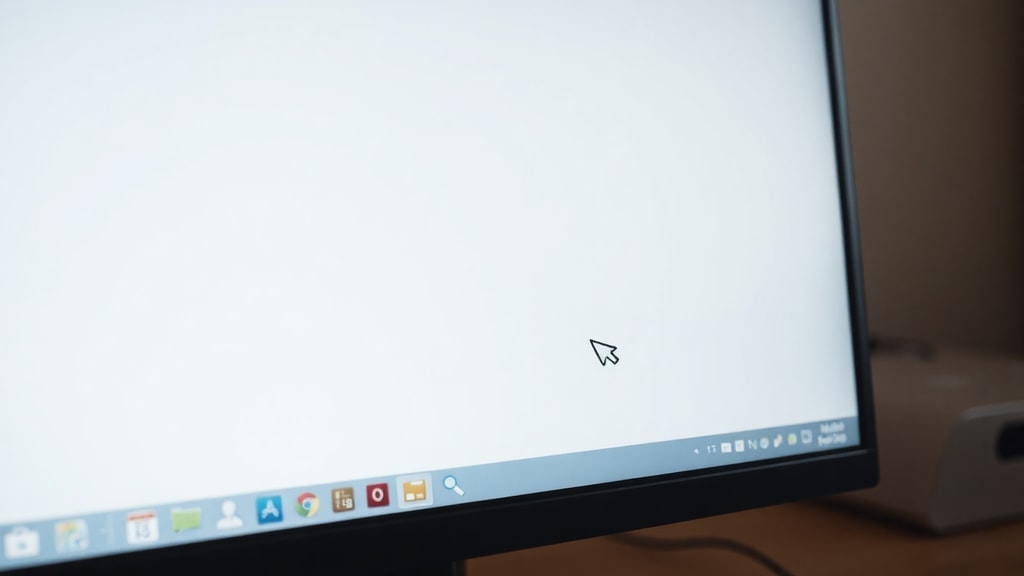
Windows 11 introduced a more granular approach starting with the 24H2 update. In this version, Microsoft added a native setting called "Taskbar icon size" under Personalization > Taskbar > Taskbar behaviors. This setting offers three options: Small, Medium, and Large. The default is Medium, which matches the icon size used in previous Windows 11 builds. Selecting Small reduces the icons significantly, making them similar to the small taskbar buttons in Windows 10. Selecting Large increases the icons noticeably, which can be helpful for users with high-resolution displays or those who prefer a more touch-friendly interface. This setting is located in the same area where you can adjust other taskbar behaviors such as badge notifications and corner overflow. Once you select a new size, the change applies immediately without requiring a restart.
If you are running Windows 11 version 22H2 or 23H2, this native option may not be available. In that case, you must either update to the latest version or use one of the alternative methods described in the next section. A comprehensive guide from NinjaOne explains how to use this native setting: NinjaOne – Windows 11 Taskbar Icon Size.
Windows 11 Without the Native Size Option (Legacy Methods)
Before the 24H2 update, Windows 11 did not include a native taskbar icon size setting. Users who wanted to shrink or enlarge icons had to rely on third-party utilities. Two popular tools are StartIsBack++ and ExplorerPatcher. These applications allow you to restore the Windows 10-style taskbar or modify the Windows 11 taskbar with additional customization options, including icon size and button height. StartIsBack++ is a paid tool, while ExplorerPatcher is open source and free. Both require installation and may need to be updated after major Windows updates. Using these tools gives you more control but also adds an extra layer of software that can occasionally conflict with system updates. A Windows Report article details the steps for using these tools: Windows Report – Changing Taskbar Icon Size.
Another approach involves editing the registry, but this is generally not recommended because Windows 11 may revert the changes or cause instability. For most users, the safest and most reliable method is to update to the latest Windows 11 version and use the built-in size option. However, if you are unable to update or prefer a different size than the three offered, third-party tools remain a viable solution.
Using System Scaling to Adjust Icon Size
General system scaling affects the entire user interface, including taskbar icons. You can set the scaling level to 100%, 125%, 150%, or higher. To do this, go to Settings > System > Display and look for the Scale & layout section. The recommended scaling is usually based on your display resolution and size. Increasing the scale to 125% will enlarge all text, apps, and icons, including those on the taskbar. This is a global solution that does not offer fine-tuned control over just the taskbar, but it is a native and stable method. It works on both Windows 10 and Windows 11. The TecMundo article provides an older but still relevant guide on reducing icon size using scaling: TecMundo – How to Reduce Taskbar Icon Size.
Advantages and Disadvantages of Different Icon Sizes
Choosing the right icon size depends on your personal preference, screen resolution, and accessibility needs. Below is a list of pros and cons for each size option:
- Small Icons: Pros – Maximize screen space, allow more pinned apps and system tray icons to fit on the taskbar, reduce visual clutter. Cons – Harder to read or identify icons at a glance, may require precise mouse clicks, not ideal for touch screens or users with visual impairments.
- Medium Icons (Default in Windows 11): Pros – Balanced size that works well for most users, readable without being too large, compatible with high-DPI displays at standard scaling. Cons – May still feel too small on 4K screens or too large on small laptops.
- Large Icons: Pros – Easier to see and click, good for touch interfaces, reduces eye strain, helpful for users with motor or vision difficulties. Cons – Reduces the number of icons that can be displayed, may cause the taskbar to take up more vertical space, can look oversized on low-resolution monitors.
Comparison of Methods to Change Taskbar Icon Size
The following table summarizes the different methods available across Windows versions and their key characteristics.
| Method | Windows Version | Icon Size Options | Native or Third Party | Ease of Use |
|---|---|---|---|---|
| Toggle "Use small taskbar buttons" | Windows 10 | Small (on) or Default (off) | Native | Very easy |
| Taskbar icon size setting | Windows 11 24H2+ | Small, Medium, Large | Native | Very easy |
| Third-party tools (StartIsBack++, ExplorerPatcher) | Windows 11 (earlier versions) | Customizable | Third-party | Moderate; requires install |
| System scaling (Display settings) | Windows 10 and 11 | 100%–225%+ | Native | Easy; affects entire UI |
Additional Tips and Best Practices
When changing the taskbar icon size, keep the following points in mind. First, if you use multiple monitors, the setting applies to all taskbars simultaneously, provided you have extended displays. Second, some third-party tool settings may reset after a Windows update, so you may need to reapply the configuration. Third, if you are using a high-DPI display, consider combining a moderate system scaling (e.g., 125%) with the native taskbar size option to achieve the best balance. For example, on a 4K laptop, setting scaling to 150% and choosing Small icons can give you a compact but readable interface. Finally, always restart File Explorer or sign out and back in if a change does not take effect immediately. This can be done through Task Manager without a full reboot.
Frequently Asked Questions About Taskbar Icon Size
Can I set a custom size that is not predefined? Native options only offer predefined sizes, but third-party tools allow you to enter specific pixel values. This is advanced and may impact system stability. Does changing the icon size affect the taskbar height? In Windows 11 with the native setting, the taskbar automatically adjusts its height to accommodate the chosen icon size. In Windows 10, the taskbar height remains the same when toggling small buttons. Do I need administrator rights to change these settings? No, all native settings can be adjusted by a standard user. Third-party installations may require administrator privileges.
Conclusion
Adjusting the taskbar icon size is a simple way to personalize your Windows experience and improve usability. Whether you are using Windows 10 with its straightforward toggle, Windows 11 with the new native three-size option, or need a third-party tool for older versions, the process is accessible to most users. System scaling offers an additional global method that can be combined with taskbar-specific settings. Experiment with different sizes to find what feels most comfortable for your workflow and display setup. Remember to keep your operating system updated to access the latest customization features.
References
Microsoft Support – Como aumentar os ícones da barra de tarefas: https://learn.microsoft.com/pt-br/answers/questions/3170525/como-aumentar-os-cones-da-barra-de-ferramentas
NinjaOne – Alterar o tamanho dos ícones da barra de tarefas no Windows 11: https://www.ninjaone.com/pt-br/blog/alterar-o-tamanho-dos-icones-da-barra-de-tarefas-no-windows-11/
Windows Report – Como alterar o tamanho dos ícones da barra de tarefas: https://windowsreport.com/pt/como-alterar-o-tamanho-dos-icones-da-barra-de-tarefas-3-etapas-faceis/
TecMundo – Como reduzir o tamanho dos ícones na barra de tarefas: https://www.tecmundo.com.br/software/10707-como-reduzir-o-tamanho-dos-icones-na-barra-de-tarefas.htm