Introduction to Printer Configuration
Setting up a printer correctly is essential for smooth and efficient printing, whether at home or in an office environment. Printer configuration involves adjusting settings that determine how documents and images are printed, including paper size, quality, color management, and connection type. With modern operating systems offering several configuration paths, understanding the differences can save time and reduce frustration. This guide provides easy-to-follow steps for configuring a printer on Windows, ChromeOS, and through application-specific settings. It also covers driver installation, network connectivity, and advanced color options. By the end, you will be able to tailor your printer to your exact needs.
Understanding Printer Configuration Options
Before diving into the steps, it is important to recognize that printer configuration comes in two main types: permanent settings that apply to all print jobs from a user account, and temporary settings that apply only to a specific print job within an application. The first type is managed through the operating system’s printer preferences, while the second is accessed via the print dialog inside programs like Microsoft Word, Adobe Acrobat, or web browsers. Knowing where to make each change prevents accidental overrides and ensures that custom layouts, such as two-sided printing or draft mode, are applied exactly where needed.
Configuring a Printer in Windows 10 and 11
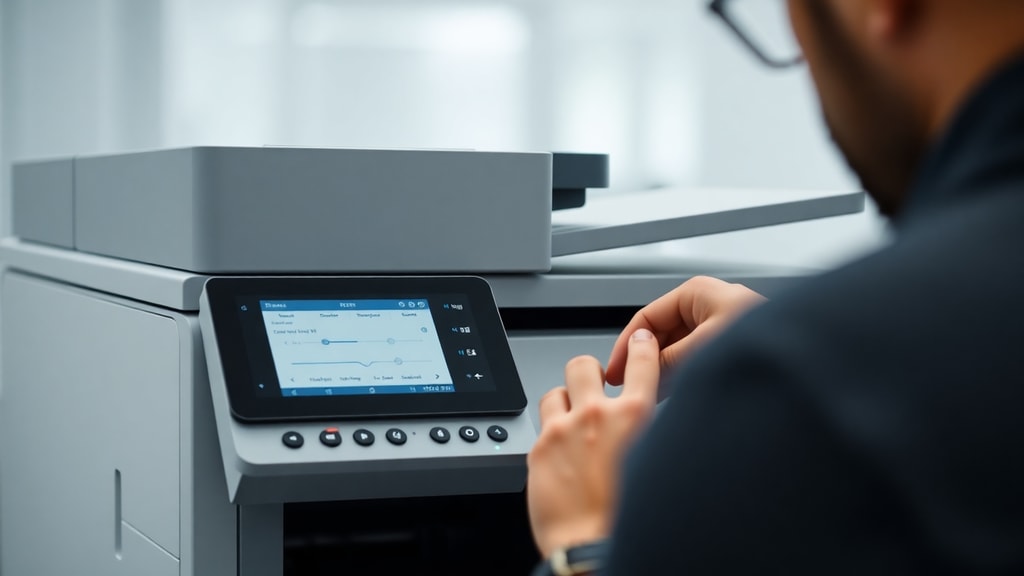
For Windows users, the primary method to adjust permanent printing defaults is through the Settings app. Navigate to Start, then select Settings (the gear icon). Go to Devices, then Printers & scanners. Find your printer in the list, click on it, and select Manage. From the Manage screen, choose Printing preferences. This opens a dialog box where you can set options such as paper size, orientation, color versus grayscale, print quality, and duplex (two-sided) printing. These changes will be applied to all future print jobs unless overridden within an application. For example, if you always want to print in high-quality color on letter-sized paper, you can set that here. If you need to access advanced driver-specific settings, such as ink density or paper type, look for a button labeled Advanced in the same dialog.
It is worth noting that the classic Control Panel also provides access to printer settings. Open Control Panel, select View devices and printers, right-click your printer, and choose Printing preferences. The result is identical to the modern Settings path. Both methods lead to the same configuration interface, so choose whichever you find more convenient.
Application-Specific Printer Settings
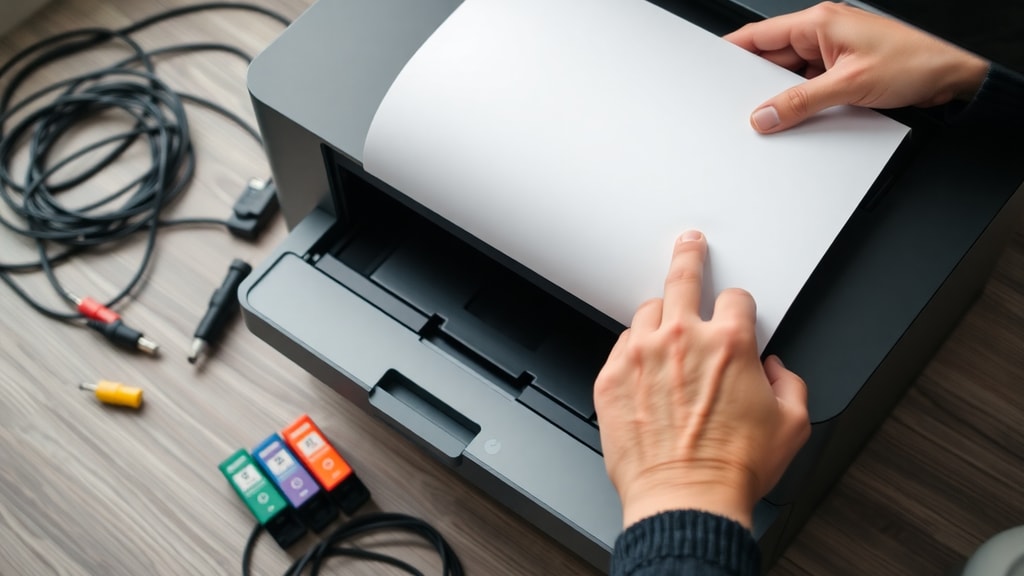
When you only need a one-time change for a particular document, it is best to adjust settings within the application itself. In most programs, go to File, then Print. In the print dialog, you will see a button or link labeled Properties, Preferences, or Printer Properties. Clicking that opens the same driver interface, but any alterations made here only affect the current print job. For instance, if you are printing a large spreadsheet and want to use draft mode to save ink, you can select that option in the application’s print dialog without changing your permanent defaults. This approach is recommended for temporary adjustments because it prevents you from accidentally printing all future documents in draft mode.
Driver Installation and Connection Methods
Before you can configure a printer, it must be properly connected and have the correct driver installed. The driver is software that translates your computer’s print commands into a language the printer understands. Most modern operating systems automatically download appropriate drivers when you connect a printer via USB or network. However, for full functionality, especially with advanced features like borderless printing or specific color profiles, it is wise to install the driver provided by the manufacturer. You can download the latest driver from the printer brand’s support website. If you have the CD or DVD that came with the printer, you can also install the driver from that media.
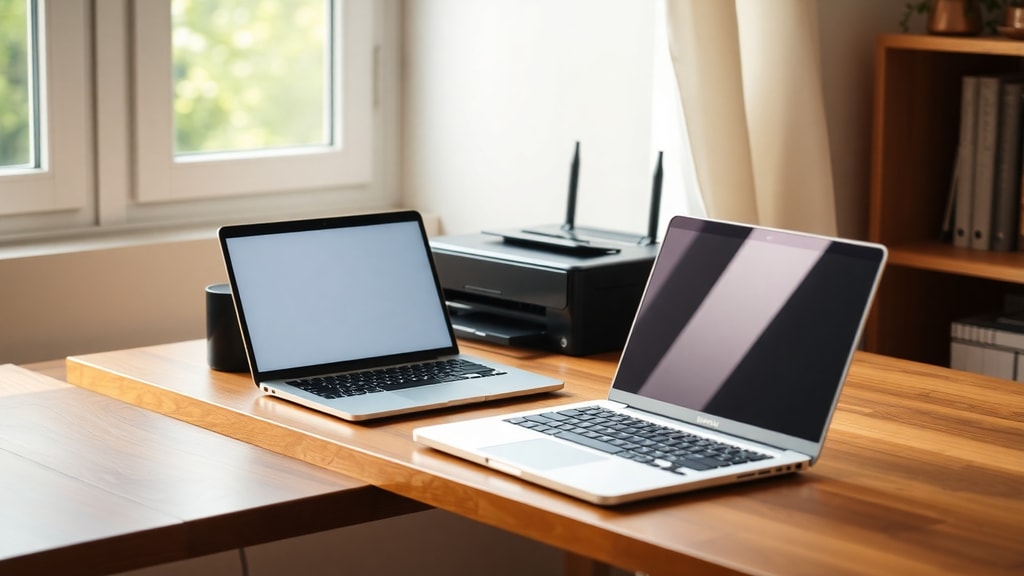
For a USB connection, simply plug the cable into both the printer and the computer, turn on the printer, and wait for Windows to detect it. For a network printer, ensure both the computer and the printer are on the same Wi-Fi network. You can then add the printer through Settings by selecting Add a printer and choosing the one that appears in the list. If the printer does not show up, you may need to add it manually using its IP address.
Configuring a Printer on ChromeOS (Chromebook)
ChromeOS handles printer configuration differently from Windows. To set up a printer on a Chromebook, click the clock on the bottom-right corner to open the Quick Settings panel, then select the gear icon to enter Settings. Scroll down to Device and then Printers and scanners. Click Add printer, and if your printer is detected automatically, select it. If not, choose Add manually and enter the printer’s IP address. You will also need to select the printing protocol; most modern printers support Internet Printing Protocol (IPP). The typical address format using IPP is: ipp://192.168.1.100/ipp/print (replace the IP with your printer’s actual address). After adding the printer, you can manage its default settings by clicking on its name and adjusting preferences such as paper size, color, and duplex.
Advanced Color Configuration
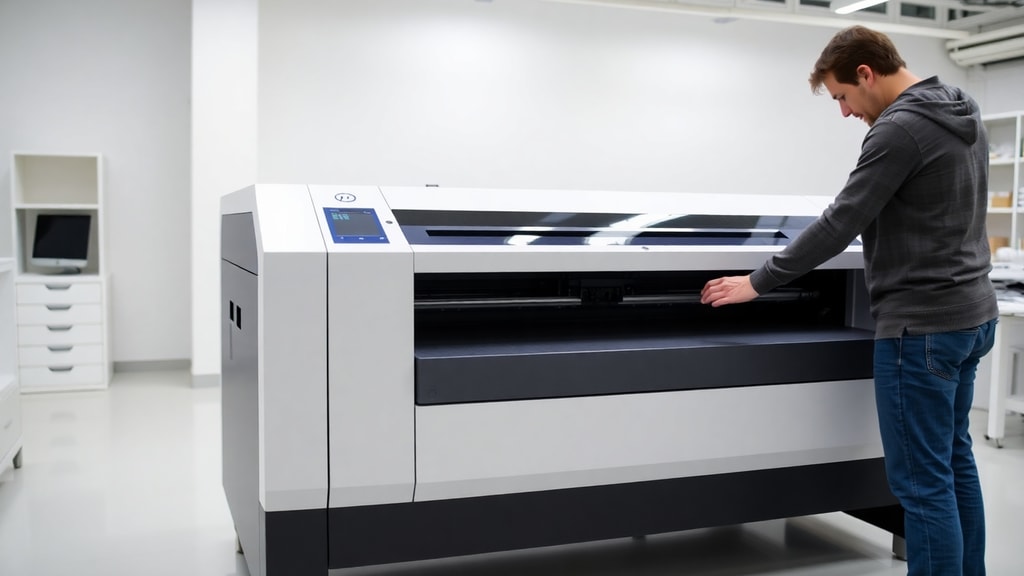
For users who need precise color output, especially in photography or design, printer configuration includes color management settings. In the printer’s advanced preferences, you may find options to select color profiles such as Adobe RGB or sRGB. The exact steps vary by manufacturer. For example, on many Epson printers, you can go to the Maintenance tab or the Advanced Color Settings within the driver. If you are using an application that supports color management, like Adobe Photoshop, you should disable color management in the printer driver and let the application handle it. This prevents double color correction and yields more accurate prints. It is also advisable to keep the printer’s color settings at the highest quality when printing images, while using standard or draft mode for text documents to save ink.
Troubleshooting Common Configuration Issues
Even with careful setup, printer configuration problems can arise. Below is a list of common issues and their solutions to help you resolve them quickly.
- Printer not detected: Restart both the printer and the computer. Check cables and network connections. Ensure the printer is powered on and the driver is installed.
- Wrong paper size prints: Verify that the paper size selected in the printer preferences matches the paper loaded in the tray. Also check the application’s page setup settings.
- Print jobs stuck in queue: Open the print queue, cancel all documents, and restart the Print Spooler service via Services.msc in Windows. On ChromeOS, restart the printer from Settings.
- Poor print quality: Run the printer’s head cleaning utility, check ink or toner levels, and set the quality to a higher setting in the driver preferences.
- Color mismatch: Review color management profiles. Disable printer-based color management when using a color-managed application.
Comparison of Configuration Methods by Operating System
The following table summarizes the main configuration paths for Windows and ChromeOS, highlighting where to make permanent and temporary changes.
| Operating System | Permanent Settings Location | Application-Specific Access |
|---|---|---|
| Windows 10/11 | Settings > Devices > Printers & scanners > Manage > Printing preferences | File > Print > Properties (in any application) |
| ChromeOS | Settings > Device > Printers and scanners > click printer > Printer preferences | File > Print > More settings (before printing) |
Best Practices for Printer Configuration
To maintain optimal performance, update your printer driver periodically by checking the manufacturer’s website. Avoid using generic drivers from Windows Update unless necessary, as they may lack advanced features. For shared network printers, ensure the print server settings allow users to override defaults only through application dialogs, so that one user’s temporary change does not affect others. Additionally, configure paper type and weight correctly to prevent jams and ensure long printhead life. If you frequently switch between different media, create custom presets in the driver preferences for quick access.
Conclusion
Printer configuration does not have to be complicated. By understanding where to apply settings, whether system-wide or per job, and by following the steps outlined for your operating system, you can achieve consistent and high-quality prints. Always keep your drivers up to date and use the correct connection method. For advanced color needs, dive into the driver’s color management tools. With this guide, you are now equipped to handle the most common configuration tasks confidently.
References
The information in this article was compiled from official documentation and reliable guides. For detailed steps on Windows printer configuration, consult Microsoft Learn - Printer Configuration. For ChromeOS setup instructions, see Chrome Enterprise Help - Configure your printer. Additional troubleshooting tips were adapted from support materials provided by printer manufacturers.