Understanding What Your ISP Router Actually Records
Many people believe that the router provided by their internet service provider keeps a detailed log of every website they visit, similar to the history stored in a web browser. This assumption is understandable, given that routers manage all network traffic in and out of your home. However, the reality is more limited. Standard ISP routers do not store a history of URLs, page titles, or even domain names in an easily accessible format. Instead, they generate logs that contain technical data such as source and destination IP addresses, timestamps, and the amount of data transferred. These logs are primarily used for network troubleshooting, maintenance, and security monitoring. The router itself lacks a dedicated hard drive or permanent storage system capable of saving the complete browsing history of every device connected to it. Therefore, when you attempt to check your router access history, you are essentially looking at a list of raw IP connections, not the specific websites visited.
To further clarify, the responsibility for storing comprehensive browsing history lies with the internet service provider itself. ISPs operate their own servers and network infrastructure, which log DNS queries and traffic patterns at a much larger scale. This information is often retained for legal compliance, network management, or marketing purposes. Accessing that level of detail requires direct contact with the ISP, assuming it is legally permitted and the provider offers such a service. For typical home users, the router’s built-in logs are the only accessible source of historical data, and they are far from a complete record of web activities.

Accessing the Router Administration Panel
To view any traffic records on your ISP router, you must first log into its administrative interface. This is usually done by entering the gateway IP address into a web browser. The most common default addresses are 192.168.0.1, 192.168.1.1, or 10.0.0.1. You can confirm the correct IP by opening your computer’s command prompt and typing ipconfig (on Windows) or using the network settings on a Mac. Look for the Default Gateway entry. Once you type the IP address into your browser, a login page appears. The username and password are often printed on a sticker on the router itself, or they may be provided by your ISP. Common default credentials are admin/admin, admin/password, or user/user, but many modern routers now require a unique password set during installation. If you have never changed these credentials and cannot find them, contact your ISP support.
After logging in, navigate to sections labeled System Logs, Security Logs, Traffic Statistics, or Access Logs. The exact naming depends on the router’s manufacturer and firmware. Below is a typical process you can follow, presented as a numbered list for clarity.
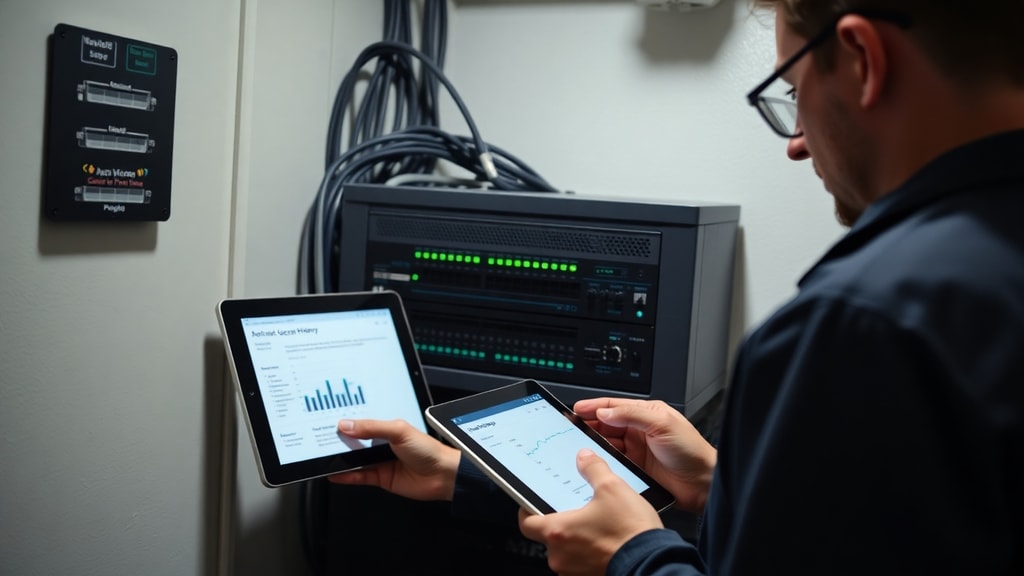
- Open a web browser and type the router’s gateway IP address (e.g., 192.168.0.1) into the address bar. Press Enter.
- Enter your administrator username and password. If you do not know them, check the router label or contact your ISP.
- Look for a menu option called Administration, Advanced, or Management. Inside, you should find Logs, System Log, or Event Log.
- Once inside the logs section, you will see entries with timestamps, source IP addresses (your devices), and destination IP addresses (external servers).
- Use the Refresh or Save Log function to view recent activity. Some routers allow you to download the log as a text file.
It is important to note that the logs are volatile. Many ISP routers automatically clear system logs when the router is rebooted or after a certain number of entries. Therefore, the history you see may only cover a few hours or days, depending on device memory and settings.
What the Logs Actually Show: A Comparison Table
When you examine the router’s access logs, you will find data that is very different from a browser history. The following table highlights the typical information available and what is not recorded.
| Information Present in Router Logs | Information Typically Absent |
|---|---|
| Destination IP address (e.g., 142.250.190.46) | Website URL (e.g., www.example.com) |
| Timestamp of connection (date and time) | Page title or specific page path |
| Source device private IP (e.g., 192.168.0.105) | User account or login details |
| Protocol used (TCP, UDP, etc.) | Content of data transmitted |
| Port number (e.g., 80 for HTTP, 443 for HTTPS) | DNS query history (names of sites) |
| Packet size or data volume transmitted | Encrypted traffic details |
As the table shows, the logs contain technical metadata but not the user-friendly browsing history most people expect. The destination IP addresses can sometimes be reverse-looked up to identify the hosting provider or domain, but this is not always reliable. For example, an IP belonging to a content delivery network might host thousands of different websites, making it impossible to determine which specific site was visited without additional context.
Practical Limitations and Workarounds
Given that the default ISP router logs are limited, users seeking more detailed access history may consider alternative methods. Some modern routers include a feature called Parental Control or Firewall Logs. These can be configured manually to block or record access to specific domain names. However, this functionality is not standard on all ISP-provided equipment. If you have a router with such capabilities, you can enable logging for certain categories or websites. The logs will then show domain names or even URLs for blocked or allowed traffic. However, setting this up requires creating rules and may affect network performance.
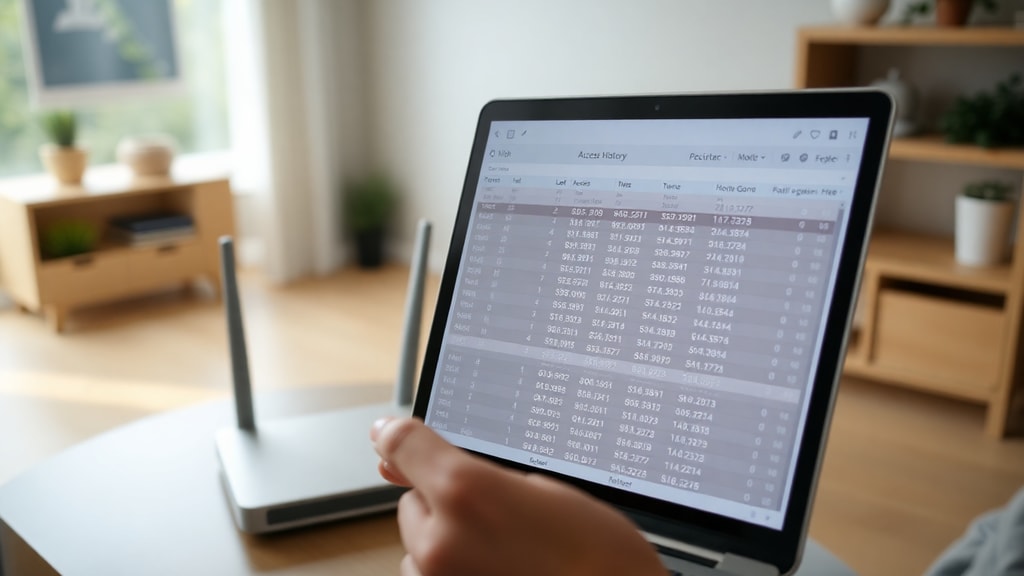
Another option is to replace the ISP router with a third-party router that offers more advanced logging features. Many consumer routers from brands like ASUS, TP-Link, or Netgear allow users to enable detailed traffic analysis, including DNS query logs. Some even support third-party firmware like DD-WRT or OpenWrt, which can log every DNS request made on the network. This provides a much clearer picture of which domain names were accessed. Be aware that replacing the ISP router may require additional configuration and might not be supported by your internet provider.
For a comprehensive view, you can also use network monitoring software on your computer or a dedicated device. Tools like Wireshark can capture all network packets, but they require technical expertise and are not practical for everyday use. Alternatively, enabling logging on your browser or using a privacy-focused DNS service can give you personal browsing records without relying on the router.
Why ISPs Retain More Data Than Your Router
It is crucial to understand the difference between router logs and ISP logs. Your internet service provider sees all traffic that passes through their network. They can log every DNS request you make, because those requests are sent to their DNS servers by default. Even if you use a third-party DNS like Google or Cloudflare, your ISP can still record the IP addresses of the servers you connect to. In many countries, ISPs are required by law to retain this data for a certain period (months or even years) for law enforcement purposes. This data includes timestamps, source and destination IP addresses, and sometimes the full URL if the connection is not encrypted at the DNS level. However, with encrypted DNS (DNS over HTTPS), the ISP cannot see the domain names in the DNS queries, but they can still see the IP addresses of the servers you contact.
If you want to see the data your ISP holds, you must submit a formal request. In some jurisdictions, you have the right to access your personal data under data protection laws (such as GDPR in Europe). However, this process is not immediate, and the ISP may charge a fee or require identification. For most users, the easiest way to get a glimpse of their browsing history is by checking their own devices’ browser history, not the router.
Additional Reading and Reliable Sources
For further details on how router history works and what you can realistically retrieve, two reputable sources offer clear explanations. The first is a report from Surfshark, which explains that routers store only network activity records (IP addresses) and not actual URLs. You can read the full article at Surfshark: How to Delete Your Wi-Fi Router History (available in Portuguese). The second source is DT Network, which provides practical instructions on viewing and deleting router logs, confirming that the logs show IP addresses rather than domain names. Access it here: DT Network: How to View Router History and Delete Wi-Fi Logs (also in Portuguese). Both sources are based on standard router behavior and ISP practices.
References
Surfshark. "Como apagar o histórico do seu roteador Wi-Fi." Accessed February 2025. https://surfshark.com/pt-br/blog/como-apagar-o-historico-do-wifi-roteador.
DT Network. "Como ver o histórico do roteador e deletar o log do Wi-Fi." Accessed February 2025. https://dtnetwork.com.br/como-ver-o-historico-do-roteador-e-deletar-o-log-do-wi-fi.