Why You Need a Reliable App Store for Your PC
Downloading software for your computer should be simple and safe. Yet many users still search for programs on random websites, risking malware, adware, or unwanted toolbars. A proper app store for PC acts as a trusted marketplace where every application undergoes verification before it reaches your system. The most well-known and officially supported store for Windows is the Microsoft Store, but there are also useful alternatives. This article explores the best options for downloading apps safely, explains how each platform works, and provides practical tips for protecting your machine. Whether you are a casual user or a tech enthusiast, understanding where to get your software is essential for maintaining system health and performance.
The Microsoft Store: The Official App Store for Windows
Microsoft has integrated its own store directly into Windows 10 and Windows 11. Formerly called the Windows Store, it is now simply known as the Microsoft Store. This platform offers a wide range of applications, from productivity tools and creative suites to games and entertainment apps. Everything in the store is checked by Microsoft for security issues, so you can install programs with confidence. Automatic updates are handled by the store itself, meaning you do not have to manually check for new versions. The store also supports in-app purchases and subscriptions, making it a convenient hub for both free and paid software. Because it is built into the operating system, there is no need to download any additional installer. Just open the store and start browsing.
How to Access the Microsoft Store
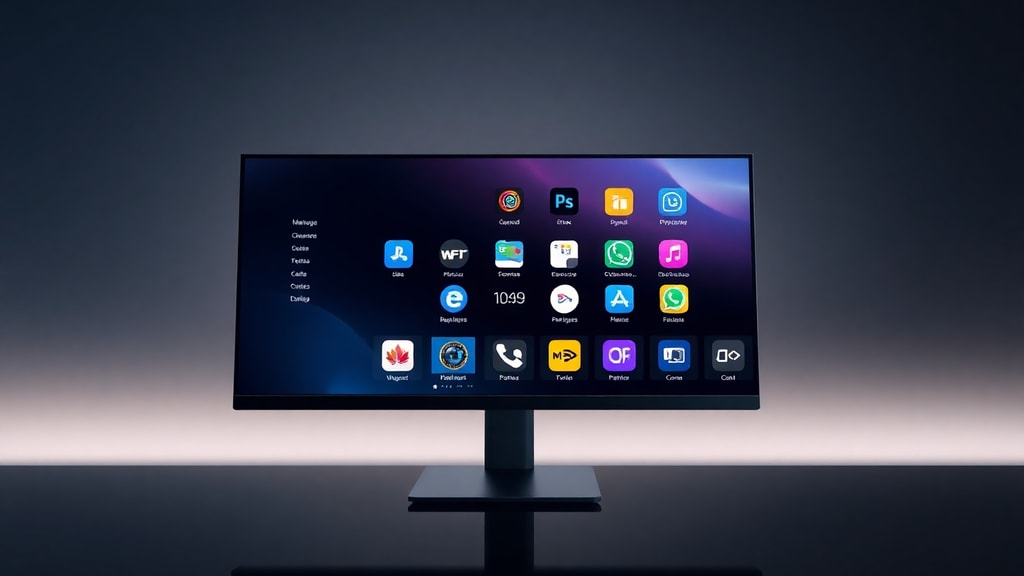
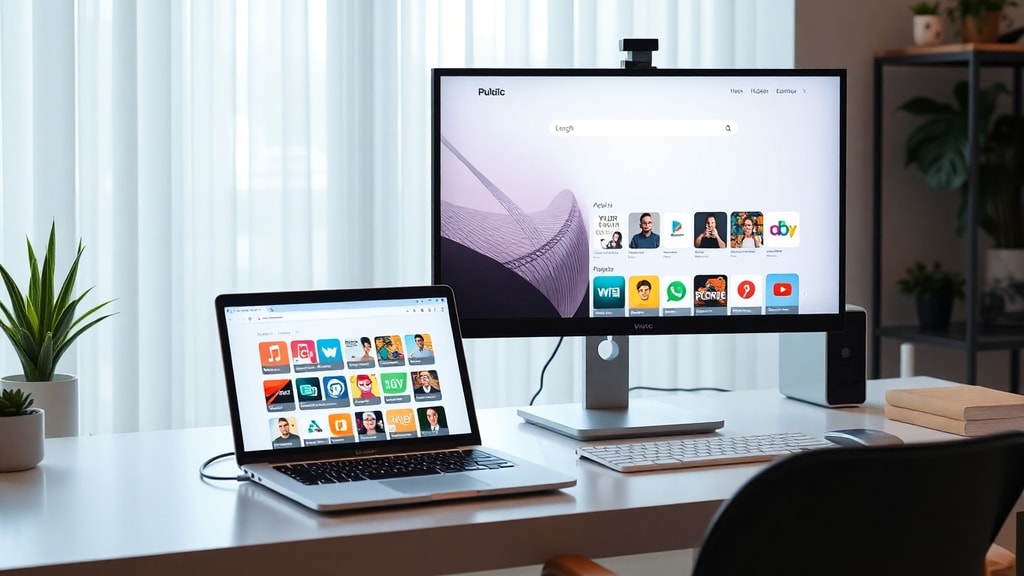
Opening the Microsoft Store is straightforward. In Windows 10, you can click its icon on the taskbar. In Windows 11, the icon appears in the Start Menu or can be pinned if you prefer. Alternatively, you can type Microsoft Store into the Windows search bar and press Enter. Once inside, the interface is similar to other app stores you might have used on your phone. Categories such as Productivity, Entertainment, and Games help you find relevant software. You can also search for specific titles. Each app page includes ratings, screenshots, and a description. Before installing, check the system requirements to ensure compatibility with your computer. The store also lists whether an app is free or paid, and sometimes offers free trials. After you install an app, it appears in your Start Menu and can be opened like any other program.
Security and Verification: Why the Microsoft Store Is Safe
One of the main advantages of using an official app store is the security layer. Microsoft checks every submission for malware, viruses, and other threats. This process reduces the chance of installing something harmful. Additionally, apps in the store are sandboxed to some extent, meaning they have limited access to your system resources. This prevents malicious code from spreading. Another benefit is that the store manages updates automatically. When a developer releases a new version, the store downloads and installs it without requiring your manual intervention. This helps keep your software up to date with the latest security patches. If you ever encounter a problem with an app, you can report it directly to Microsoft through the store interface. For most users, the Microsoft Store is the safest place to download software for a Windows PC.
Alternative App Stores for PC: WingetUI Store
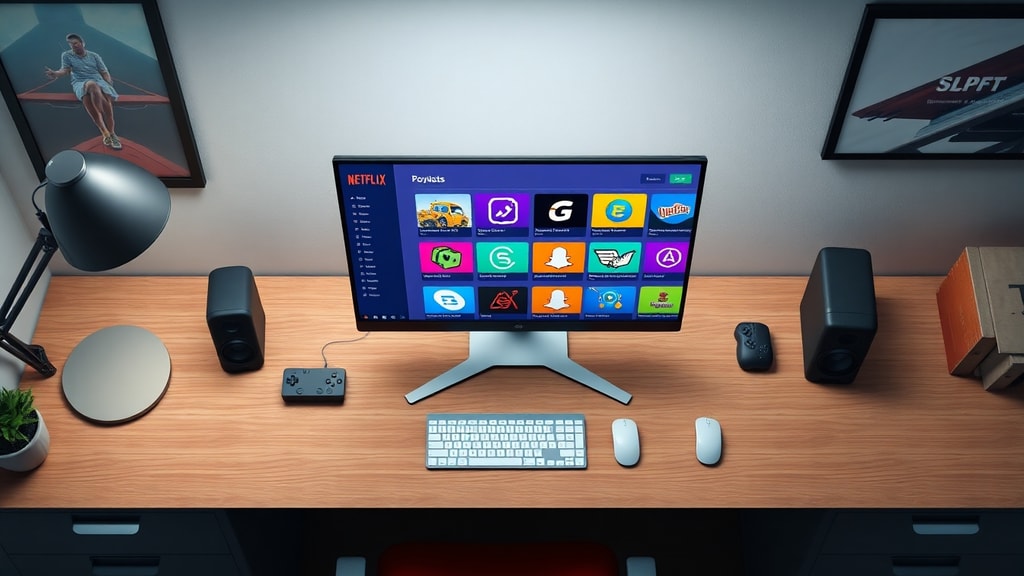
While the Microsoft Store is the official choice, some users look for alternatives that offer more flexibility or a larger library. One notable option is the WingetUI Store. This is a free, open-source app store that aggregates programs from multiple package managers, including Winget, Scoop, and Chocolatey. It currently lists over 3,700 applications. WingetUI provides a graphical interface for installing, updating, and uninstalling software. Because it is open source, you can inspect the code for security. The project is hosted on GitHub and has an active community. For advanced users or those who want a centralized way to manage software from various sources, WingetUI is a powerful yet easy-to-use alternative. It does not replace the Microsoft Store entirely, but it complements it by offering programs that may not be available in the official store.
Third-Party Download Portals: A Word of Caution
Many people turn to websites like Uptodown, Softonic, and Softpedia to download PC applications. These portals host thousands of programs and often provide older versions or software not found in official stores. However, they are not app stores in the strict sense. They act as download repositories, and while they scan files for viruses, security is not always guaranteed. Some sites bundle extra software with installers, which can lead to unwanted programs on your computer. Others use misleading ads that trick users into downloading fake installers. If you must use a third-party site, choose one with a good reputation, read user reviews, and always scan downloaded files with an antivirus program. But for maximum safety, the Microsoft Store remains the best choice.

Key Factors to Consider When Choosing an App Store
When deciding where to get your software, think about the following criteria:
- Security: Does the store verify every app for malware and privacy risks?
- Update management: Are updates automatic or do you need to manually check?
- Library size: How many apps are available? Are the ones you need present?
- Ease of use: Is the interface intuitive and fast?
- Cost: Are there free options or is everything paid?
- Open-source transparency: Can you review the store’s code for hidden risks?
- System integration: Does the store work smoothly with your version of Windows?
Comparison of Popular App Sources for Windows
To help you decide, the table below compares the Microsoft Store, WingetUI Store, and typical third-party download websites across key dimensions.
| Feature | Microsoft Store | WingetUI Store | Third-Party Sites (e.g., Softonic) |
|---|---|---|---|
| Official Microsoft support | Yes | No | No |
| Automatic updates | Yes | Yes (via package managers) | Rarely |
| App verification | High (Microsoft screening) | Depends on source package | Variable (often scanned but not guaranteed) |
| Free software selection | Large (thousands of free apps) | Large (over 3,700 programs) | Very large (millions of files) |
| Open source | No | Yes | No |
| Bundled adware risk | Low | Low (community vetted) | Moderate to high |
| Offline installers available | No (online installation) | Yes | Often yes |
Tips for Downloading Apps Safely on Any Platform
No matter which store you use, it is smart to follow basic safety practices. Always keep your operating system and antivirus software up to date. Read the permissions requested by an app before installing. If a program asks for access to your camera, microphone, or files without a clear reason, be cautious. Download only from official sources or reputable repositories. Avoid clicking on pop-up ads that claim to offer free software. When possible, use the built-in app store rather than downloading installers from random websites. If you are unsure about an app, search for user reviews or ask in tech forums. Back up important data regularly so that even if something goes wrong, you can recover your files. By combining a trustworthy app store with careful behavior, you can enjoy a safe and productive computing experience.
Conclusion: The Best App Store for PC Depends on Your Needs
For the vast majority of Windows users, the Microsoft Store is the best app store for PC download safety. It is integrated, verified, and easy to use. For those who want more control or access to open-source utilities, the WingetUI Store is an excellent free alternative. Third-party download sites can fill gaps but come with higher risks. The key is to match the store to your comfort level and technical knowledge. No single solution fits everyone, but by understanding the options available, you can make an informed decision. Always prioritize security over convenience. A few extra minutes spent choosing the right source can save hours of dealing with malware or system instability.
References
Microsoft. Find the best apps for Windows. Available at: https://www.microsoft.com/pt-br/windows/apps-for-windows (accessed 2025-04-08).
Microsoft Support. Get apps from the Microsoft Store on your Windows PC. Available at: https://support.microsoft.com/pt-br/account-billing/obter-aplica%C3%A7%C3%B5es-da-microsoft-store-no-seu-pc-windows-f69412b3-3e5c-9122-1e87-820bd718058a (accessed 2025-04-08).
WingetUI Store. GitHub repository. Available at: https://github.com/microsoftappstore/wingetui (accessed 2025-04-08).
Uptodown. Download apps for Windows. Available at: https://br.uptodown.com/windows (accessed 2025-04-08).
Softonic. App store for Windows 10. Available at: https://www.softonic.com.br/downloads/loja-de-aplicativos-para-windows-10 (accessed 2025-04-08).