Understanding Your Screen Time on PC: Why It Matters
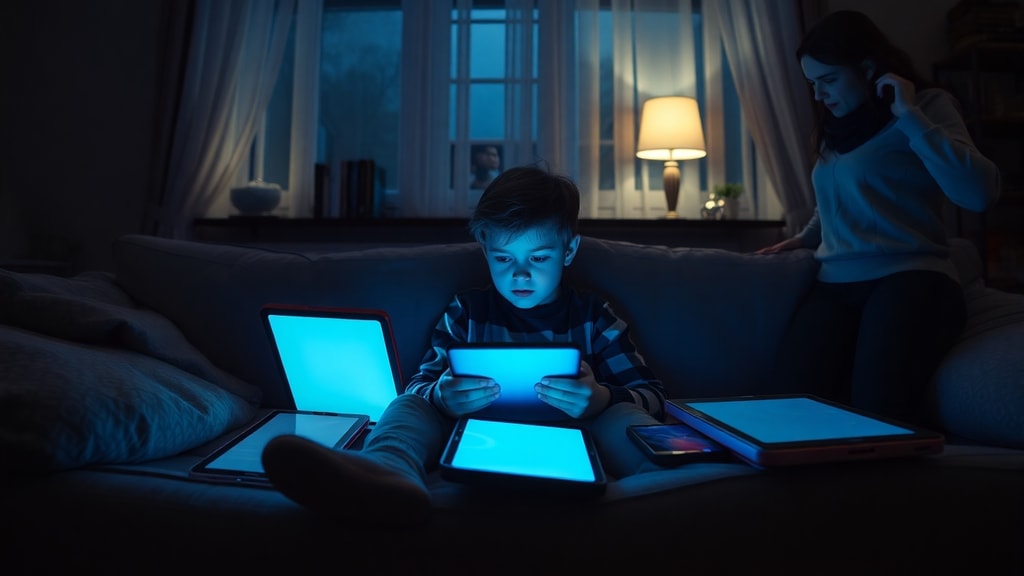
In todays digital world, the PC screen is a central hub for work, study, and entertainment. Whether you are a professional completing tasks, a student attending online classes, or someone enjoying a game, the amount of time you spend looking at your monitor can be substantial. Brazilians, for instance, now average over nine hours per day in front of screens including both PCs and mobile devices. This level of exposure raises an important question: how long should you really use a PC screen each day to maintain both productivity and health? Understanding your personal screen time is the first step toward building a healthier relationship with your digital devices.
Continuous screen exposure, especially when it exceeds two hours without a break, can lead to a range of issues including eye strain, headaches, and disrupted sleep patterns. The blue light emitted by screens suppresses melatonin production, making it harder to fall asleep at night. Furthermore, prolonged sitting and poor posture often accompany extended PC use, contributing to back and neck pain. By becoming aware of how much time you actually spend in front of your computer, you can take informed steps to manage it more effectively.
How Brazilians Use Screens: Current Statistics
Recent data reveals that the average Brazilian adult spends more than nine hours per day interacting with screens. This includes time spent on a PC, smartphone, tablet, and television. While much of this time is necessary for work and communication, a significant portion often goes toward leisure activities such as streaming video, browsing social media, and gaming. According to reports from sources like DataReportal, this number has been steadily increasing over the past decade, driven by remote work policies and the growing availability of digital content.
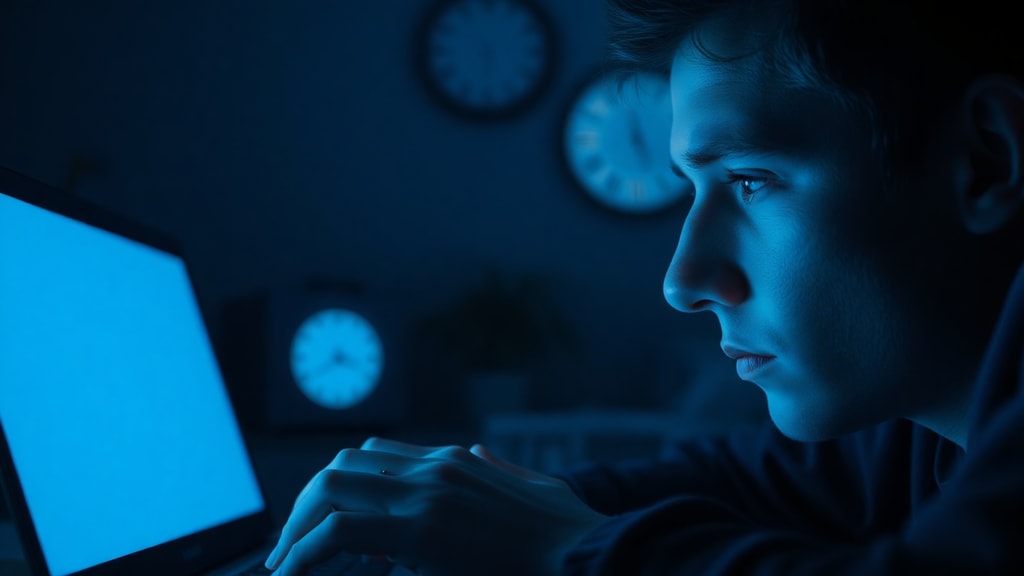
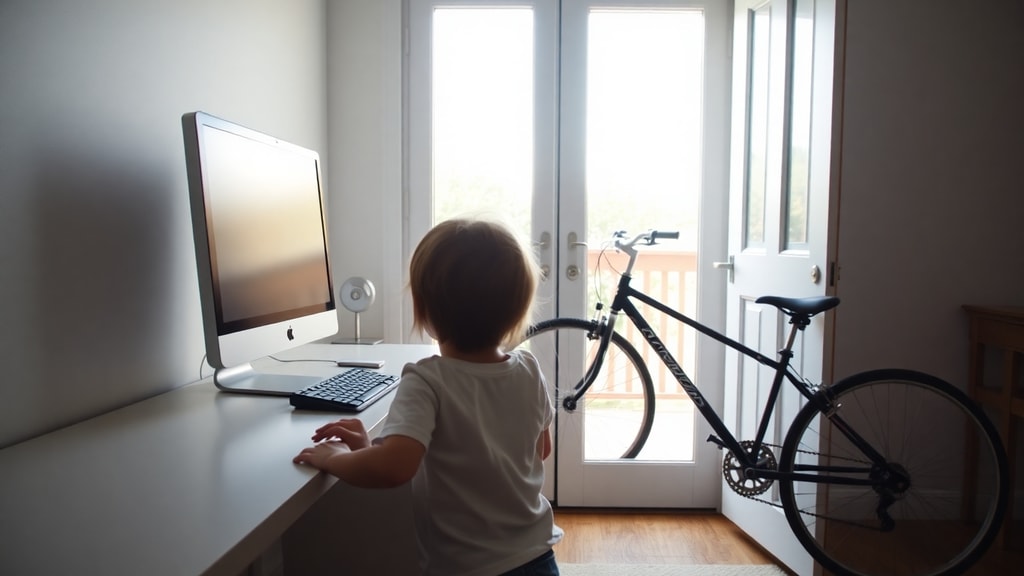
For children and teenagers, the situation is equally concerning. Pediatric health guidelines recommend a maximum of two hours of recreational screen time per day for children aged six to eighteen. For toddlers aged two to five years, the recommended limit drops to one hour per day. For children under the age of two, screen exposure should be avoided entirely except for interactive video calls with family members. Exceeding these limits has been linked to developmental delays, attention problems, and obesity. Understanding these benchmarks helps parents and individuals set realistic boundaries for their own PC usage.
Detecting Your PC Screen Time in Windows 10 and Windows 11
Before you can manage your screen time, you need to know exactly how much time you are spending on your PC. Fortunately, Windows provides several built-in methods to track this data. On Windows 11, you can find detailed screen time information by navigating to Settings > System > Power & battery > Battery usage. This section shows you the active screen time over the last seven days, along with battery consumption per application. This is particularly useful for identifying which programs are consuming most of your time and energy.
On Windows 10, the approach is slightly different. To monitor family screen time and set usage limits, go to Settings > Accounts > Family & other users > Family Safety. This feature requires a Microsoft Family account, which allows you to set daily time limits for each family member. It also provides detailed reports on app usage and web browsing activity. For a quick snapshot of how long your PC has been running since its last restart, you can use the Task Manager. Open Task Manager > Performance > CPU and look for the "Active time" metric. This shows the total time the CPU has been active since boot, but it is not a perfect measure of screen time because it counts all activity, including background processes and idle periods.
Using PowerShell for Exact Boot Time Calculation
If you prefer a more technical method, Windows PowerShell offers a precise way to determine how long your computer has been running since its last boot. This can be useful for understanding session length if you rarely shut down your PC. Open PowerShell as an administrator and run the following command:
(get-date) – (gwmi Win32_OperatingSystem).LastBootUpTime
This command calculates the difference between the current date and time and the exact moment your computer was last started. The result is displayed as a duration, showing days, hours, minutes, and seconds. While this is not a direct measure of screen time because it includes all system uptime, it gives you a baseline for how long your computer has been active. For a more accurate picture of personal screen usage, you may need to combine this data with the battery usage reports mentioned earlier. Third-party applications can also provide more detailed breakdowns, but for most users, the built-in Windows tools are sufficient.
Practical Steps to Manage Your PC Screen Time
Once you have a clear idea of your current screen habits, you can start implementing strategies to reduce or manage it effectively. Below is a list of actionable steps that can help you build a healthier digital routine:
- Set a daily screen time limit using digital wellbeing apps or built-in family safety features.
- Take a 5 to 10 minute break every hour to rest your eyes and stretch your body.
- Adjust your screen brightness and enable blue light filters in the evening.
- Create a schedule that separates work, leisure, and sleep periods.
- Position your monitor at arm's length and at eye level to reduce strain on your neck.
- Use the 20-20-20 rule: every 20 minutes, look at something 20 feet away for 20 seconds.
- Keep a log of your screen time for one week to identify patterns and triggers.
For additional guidance on managing screen time on a PC, you can explore resources like this guide on screen time management for 2024. These practices are not only beneficial for your physical health but also for your mental well-being, as excessive screen time has been linked to increased anxiety and reduced attention span.
Recommended Screen Time Limits by Age Group
To provide a clearer framework, the table below outlines the recommended maximum daily screen time for different age groups. These recommendations come from pediatric health organizations and are based on research into the effects of screen exposure on development and sleep.

| Age Group | Maximum Daily Screen Time (Recreational) | Notes |
|---|---|---|
| Under 2 years | 0 hours (except video calls) | No screen exposure is recommended for development. |
| 2 to 5 years | 1 hour | High-quality programming with adult supervision. |
| 6 to 18 years | 2 hours | Should be consistent and not interfere with sleep or physical activity. |
| Adults (18+) | No strict limit, but 2-hour continuous breaks are advised | Focus on balance and breaks rather than strict time caps. |
For adults, the guideline is less about a daily total and more about taking regular breaks. Continuous exposure beyond two hours without a pause can cause cumulative eye fatigue and mental exhaustion. If your work requires long hours on a PC, consider setting a timer to remind yourself to stand up, walk around, and look into the distance.
Health Implications of Excessive PC Screen Usage
Spending too much time in front of a PC screen has been linked to a condition known as computer vision syndrome, or digital eye strain. Symptoms include dry eyes, blurred vision, headaches, and increased sensitivity to light. This occurs because people blink less frequently when staring at a screen, reducing the natural lubrication of the eyes. Over time, these issues can become chronic if not addressed. Additionally, prolonged sitting contributes to a sedentary lifestyle, which is associated with obesity, cardiovascular disease, and metabolic disorders.
Mental health is also affected by excessive screen time. Constant exposure to notifications, social media, and work emails can heighten stress levels and reduce the quality of sleep. The blue light from screens disrupts the body's internal clock, making it harder to fall asleep and stay asleep. For children, too much screen time can interfere with language development, social skills, and academic performance. Balancing screen use with physical activity, face-to-face interaction, and outdoor time is essential for overall well-being.
Adjusting Windows Settings to Encourage Breaks
Windows offers several built-in settings that can help you manage your screen time indirectly. One effective method is to adjust the screen timeout settings so that the display turns off after a period of inactivity. This not only saves power but also serves as a visual cue to take a break. On Windows 11, you can change these settings by going to Settings > System > Power & battery > Screen and sleep. Here, you can set the screen to turn off after a specific duration, such as 10 or 15 minutes of inactivity.
Another useful feature is the Night Light mode, which reduces blue light emission in the evening hours. You can schedule it to turn on automatically at sunset or at a custom time. This helps prepare your body for sleep by mimicking natural light conditions. To enable it, go to Settings > System > Display > Night light. For families, the Microsoft Family Safety app provides a more comprehensive approach, allowing you to set daily limits, block certain apps, and receive activity reports. By leveraging these tools, you can create a healthier digital environment without relying solely on willpower. For more detailed instructions, you can visit the official Microsoft Learn documentation.
Creating a Sustainable Digital Routine
Ultimately, the goal is not to eliminate screen time entirely but to use it in a balanced and intentional way. Start by tracking your current usage for a few days using the methods described earlier. Identify which activities consume the most time and whether they add value to your life. Replace passive scrolling with active tasks like learning a new skill, reading an ebook, or engaging in a creative project. Set boundaries for work and leisure, and communicate these boundaries to family and colleagues.
Physical activity should also be part of your daily routine. Incorporate short walks, stretching exercises, or yoga sessions between screen sessions. If possible, establish tech-free zones in your home, such as the dining table or bedroom. These small changes can significantly reduce the negative impact of prolonged PC use and improve your overall quality of life. Remember, the key is progress, not perfection. Even small reductions in screen time can lead to noticeable improvements in sleep, focus, and mood.
References
Mondevi. (2024). Fadiga Ocular e Tempo de Uso de Telas. Retrieved from https://mondevi.com.br/fadiga-ocular-tempo-uso-telas/
Microsoft Learn. (2024). Official Windows Documentation. Retrieved from https://learn.microsoft.com/pt-br/
DataReportal. (2024). Digital 2024: Global Overview Report. Retrieved from https://datareportal.com/
MonitUp. (2024). Guide to Managing Screen Time on PC 2024. Retrieved from https://www.monitup.com/blog/guide-managing-screen-time-pc-2024-pt
Acer Community. (2023). How to Make Your Screen Last Longer on Windows 11. Retrieved from https://community.acer.com/pt/kb/articles/15806-como-fazer-sua-tela-durar-mais-tempo-no-windows-11