Understanding PC Screen Time and Its Impact
In an era where digital devices dominate both work and leisure, monitoring and managing the time spent in front of a computer screen has become a crucial aspect of maintaining overall well‑being. Whether you use a desktop or a laptop, extended periods of screen exposure can lead to eye strain, headaches, poor posture, and even disruptions in sleep patterns. Many users are unaware that Windows offers built‑in tools to track screen time, while also providing straightforward ways to adjust screen timeout settings to encourage healthier habits. This article explores how to check your PC screen time, the health implications of excessive use, and actionable strategies to reduce it without sacrificing productivity.
How to Check Your Screen Time on Windows
Windows 10 and Windows 11 include several native features that allow you to monitor how long the screen has been active. The most direct method is through the Power & battery section in Settings. Navigate to Settings > System > Power & battery, then look under the Battery usage area. Here you can see a breakdown of app‑level battery consumption, which indirectly reflects screen‑on time because the display is a major power drain. For a more precise measure, the Battery usage page shows a graph with active hours of the device. However, this method does not give a separate “screen time” metric; it combines all system activity.
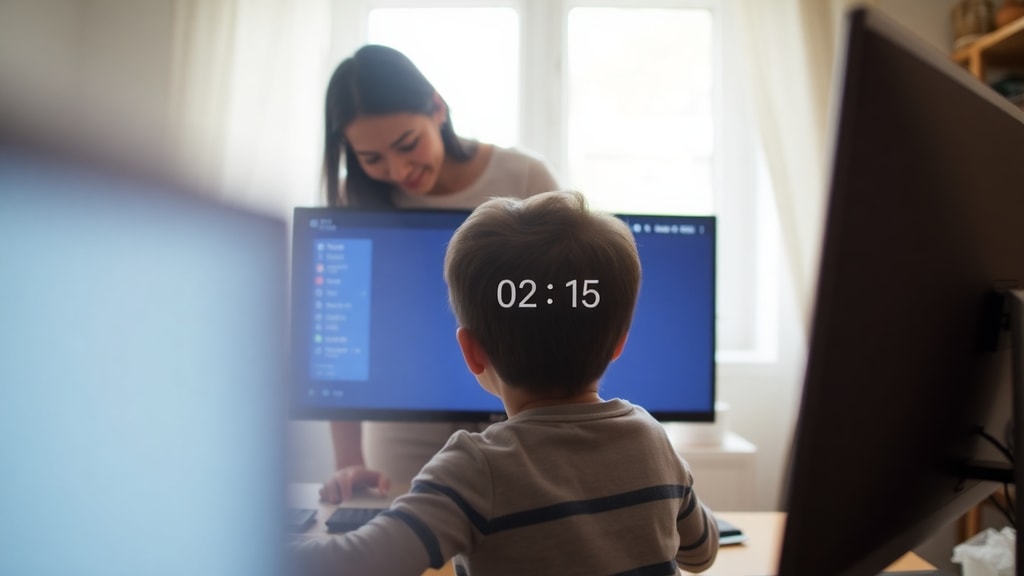
For families, Microsoft Family Safety offers a more comprehensive solution. When you set up a child’s account, you can view weekly activity reports that include screen time across Windows devices. This tool helps parents set limits and receive notifications when those limits are approached. Additionally, third‑party applications like MonitUp provide dedicated screen time tracking and management features. For a detailed walkthrough of these options, refer to the MonitUp Guide on Managing Screen Time.
Recommended Screen Time Limits for Different Age Groups
Health organisations have established guidelines to help individuals balance digital and physical activities. The following list summarises the key recommendations for various age brackets:
- Adults (18 and over): Should not use screens continuously for more than two hours at a time without taking a break. The 20‑20‑20 rule is advised: every 20 minutes, look at an object 20 feet away for at least 20 seconds.
- Children aged 6 to 18: Total screen time (excluding educational work) should be limited to less than two hours per day.
- Children aged 2 to 5: Maximum of one hour per day of high‑quality programming, with supervision.
- Infants under 2: Screen exposure should be avoided entirely, except for video calls with family.
These figures come from sources such as the World Health Organization and the Brazilian Society of Pediatrics, as referenced in the Mondevi article on eye fatigue. Adhering to these limits can significantly reduce the risk of digital eye strain and other health issues.
Default Screen Timeout Settings in Windows
Windows automatically configures the screen to turn off after a period of inactivity to conserve power. The default settings vary between portable and desktop computers. The table below outlines the typical defaults and where you can adjust them.
| Device Type | Default Screen Off (Plugged In) | Default Screen Off (On Battery) | How to Change |
|---|---|---|---|
| Laptop / Portable | 15 minutes | 5 minutes | Settings > System > Power & battery > Screen and sleep |
| Desktop | 15 minutes | N/A (usually no battery mode) | Same path as above |
You can change these values to any duration from one minute to “Never.” Setting a shorter timeout helps reduce unnecessary screen time, while setting it to “Never” can be useful during presentations or specific tasks. For detailed instructions, see the Microsoft Support article on turning off the screen.
Practical Strategies to Reduce PC Screen Time
Reducing screen time does not mean abandoning digital work altogether. Instead, it involves making conscious choices to break up long sessions and to turn off the display when it is not needed. Here are several effective approaches. First, adjust your screen timeout settings to a shorter duration, such as three or five minutes. This ensures the monitor turns off quickly during micro‑breaks, saving energy and reducing overall exposure. Second, use the 20‑20‑20 rule: set a timer on your phone or use a free desktop app to remind you to look away every 20 minutes.

Another strategy is to install Microsoft PowerToys, which includes an “Always On” module that can prevent the screen from turning off for specific applications. While this is useful for streaming or reading, use it sparingly to avoid unintended long sessions. For families, parental controls in Microsoft Family Safety can enforce daily screen time limits automatically. Finally, consider reducing blue light emission by enabling the built‑in Night Light feature in Windows (Settings > System > Display > Night light). This adjusts the colour temperature to warmer tones, which may help reduce eye strain during evening use.
Leveraging PowerToys for Custom Screen Time Control
Microsoft PowerToys is a free set of utilities for power users. One of its modules, called “Always On,” allows you to keep the screen active indefinitely, bypassing the normal timeout settings. This can be useful for presentations, watching movies, or when you are using a remote desktop. However, it is important to use this feature only when necessary, because overreliance on it can lead to excessively long periods of screen exposure. To install PowerToys, visit the official GitHub repository and download the latest release. Once installed, you can toggle Always On on and off with a keyboard shortcut.
Monitoring Screen Time with Battery Usage Reports
Beyond the basic Battery usage graph, Windows can generate detailed power reports that include screen‑on time. Open Command Prompt as administrator and type “powercfg /batteryreport” to create an HTML file in your user folder. This report shows system uptime and screen on/off transitions, giving you a granular view of how long the display has been active each day. While this method is more technical, it provides data that can help you identify patterns, such as late‑night usage or unusually long sessions.
References
Microsoft Support. “Turn off the screen.”
Available at: https://learn.microsoft.com/windows/clients/getting-started/turn-off-screen
Dell Support. “How to Wake a Computer from Sleep, Hibernation, or Standby.”
Available at: https://www.dell.com/support/kbdoc/pt-br/000130380/como-ativar-um-computador-ou-monitor-do-modo-de-suspensao-hibernacao-ou-em-espera
Mondevi. “Eye Fatigue and Screen Time.”
Available at: https://mondevi.com.br/fadiga-ocular-tempo-uso-telas/
MonitUp. “Guide: Managing Screen Time on PC in 2024.”
Available at: https://www.monitup.com/blog/guide-managing-screen-time-pc-2024-pt
Microsoft PowerToys Documentation.
Available at: https://github.com/microsoft/PowerToys