Understanding Why Your Computer Needs Restoration
Over time, every computer accumulates clutter, conflicting software, and performance issues. You might encounter slow boot times, unexpected crashes, or error messages that make everyday tasks frustrating. Restoring your computer to a normal state can fix these problems without requiring advanced technical skills. Whether you use Windows 10 or Windows 11, built-in tools allow you to revert your system to a stable condition while preserving your personal files or wiping everything clean. This article explains the easiest methods to restore your computer to normal, step by step.
Method 1: Using "Reset This PC" (Reinicializar este PC)
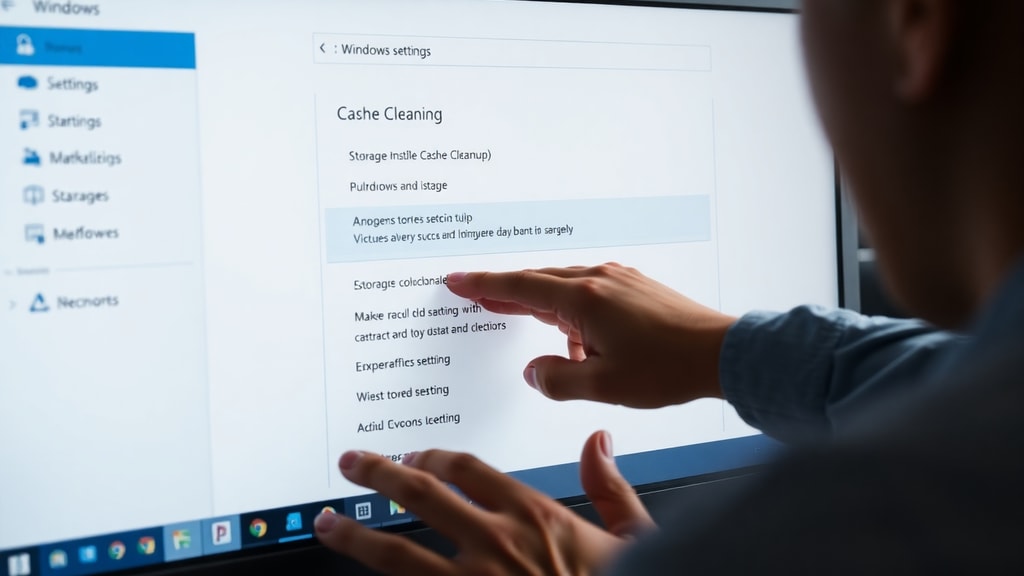
The most straightforward solution is the "Reset this PC" feature, available in Windows 10 and 11. It reinstalls the operating system while giving you the option to keep your files or remove everything. This method is ideal when your computer is infected with malware, experiencing persistent errors, or simply running slowly. You can access it through Settings > System > Recovery > Reset this PC. The process downloads fresh system files from Microsoft, so an internet connection is recommended. For detailed instructions, refer to the Microsoft Support page on resetting your PC.

When you click "Get started" under Reset this PC, you will see two choices: "Keep my files" and "Remove everything". The first option reinstalls Windows but keeps your personal documents, photos, and apps that came with the computer. It removes installed applications and settings changes. The second option deletes everything, including personal files, and is best if you plan to sell or give away the computer. After selecting an option, Windows will show a summary of changes and may ask for additional confirmation. The process can take between 30 minutes and two hours, depending on your hardware and internet speed.
Method 2: System Restore (Restauração do Sistema)
System Restore is a different tool that reverts your computer's system files and settings to a previous point in time without affecting your personal files. It is useful when a recent driver update or software installation causes problems. To use it, type "System Restore" in the Start menu or press Win + R and type rstrui.exe. Then follow the wizard to choose a restore point. You can also find it in Control Panel > Recovery > Open System Restore. This feature is not enabled by default on all systems, so you may need to configure it in advance. For more details, check the Microsoft Support article on System Restore.

System Restore works by creating snapshots of essential system files and the Windows registry. When you run it, your computer restarts and applies the changes. Your documents, emails, and photos remain untouched. However, any applications installed after the restore point date will be removed. It is wise to create restore points manually before making major system changes. If you do not have any restore points available, the option will be grayed out. In that case, use Reset this PC instead.
Method 3: Go Back to a Previous Version (Voltar para uma versão anterior)
If your computer started having issues after a recent Windows update, you can use the "Go back to the previous version" feature. This is available for a limited time (usually ten days) after an upgrade. Access it via Settings > Update & Security > Recovery > Go back to the previous version of Windows. This tool rolls back the entire operating system to the previous build, preserving your files and applications. It is different from System Restore because it reverses the OS version itself. According to Dell's support guide, this method is especially helpful when a feature update causes compatibility problems with hardware or software.

To use this feature, click "Get started" under the option and follow the on-screen instructions. Windows will ask why you are going back and may suggest troubleshooting steps. Be aware that you cannot use this option after the ten-day window expires, and you may need to reinstall some drivers or applications after the rollback. If the "Go back" button is grayed out, it means the previous version files have been deleted from your system. In that case, consider Reset this PC with the "Keep my files" option.
Comparison of Restoration Methods
The table below summarizes the key differences among the three main methods to help you choose the right one for your situation.

| Method | Affects Personal Files? | Affects Installed Apps? | Requires Restore Point? | Best For |
|---|---|---|---|---|
| Reset this PC (Keep my files) | No | Yes (removes apps) | No | Slow performance, minor errors, malware |
| Reset this PC (Remove everything) | Yes (deletes everything) | Yes (removes all) | No | Giving away or selling PC |
| System Restore | No | Removes apps installed after restore point | Yes | Recent driver or software issues |
| Go back to previous version | No | May need reinstallation of some apps | No (uses backup files) | Problems after a Windows update |
Step-by-Step Checklist for a Smooth Restoration
Before you begin any restoration process, follow this list of preparatory steps to avoid data loss and ensure a successful outcome.
- Back up your important files to an external drive or cloud storage. Even methods that claim to keep your files can encounter unexpected issues.
- Ensure your computer is plugged into a power source. Interrupting the process due to a dead battery can corrupt the system.
- Close all open applications and save any ongoing work.
- Disconnect unnecessary peripherals like printers, external drives, and second monitors.
- Make note of your installed software and product keys if you plan to reinstall applications.
- If using System Restore, confirm you have a restore point dated before the problem started.
- Check your internet connection for Reset this PC, as it may need to download system files.
Factory Reset from HP, Dell, and Other Manufacturers
Many computer manufacturers provide their own recovery tools that restore the system to factory conditions. For example, HP includes a recovery partition that you can access by pressing F11 during startup. The HP guide on restoring factory settings outlines steps for HP notebooks. Dell systems typically offer a similar option through SupportAssist or by pressing F8. These manufacturer tools often reinstall the original operating system and pre-installed software. They are useful if you want to return the computer to the exact state it was in when you first purchased it.

However, these factory reset methods usually delete all personal files and applications. They are a last resort when other restoration options are not available. Keep in mind that if your computer came with bloatware, factory reset will restore those unwanted programs as well. In contrast, Reset this PC from Windows settings gives you a cleaner system without manufacturer add-ons. For a visual walkthrough, you can watch the YouTube tutorial on resetting a Windows 10 PC without a disk.
When to Seek Professional Help
Most restoration methods are safe and straightforward, but sometimes issues persist. If your computer does not boot at all, you may need to use installation media or access the Windows Recovery Environment. In rare cases, hardware failure can mimic software problems. If Reset this PC or System Restore fail repeatedly, consider backing up your data and performing a clean installation using a USB drive. For users who are not comfortable with these steps, visiting a trusted repair shop is a good alternative. The goal is to restore your computer to normal function, not to create more stress.
References
Microsoft Support. "Reset your PC." Accessed February 2025. https://support.microsoft.com/en-us/windows/reset-your-pc-0ef73740-b927-549b-b7c9-e6f2b48d275e
Microsoft Support. "System Restore." Accessed February 2025. https://support.microsoft.com/pt-br/windows/restaura%C3%A7%C3%A3o-do-sistema-a5ae3ed9-07c4-fd56-45ee-096777ecd14e
Dell Support. "How to Use System Restore in Microsoft Windows." Accessed February 2025. https://www.dell.com/support/kbdoc/pt-pt/000148025/como-usar-a-restaura%C3%A7%C3%A3o-do-sistema-no-microsoft-windows
HP Tech Takes. "Como restaurar as configurações de fábrica de um notebook com Windows." Accessed February 2025. https://www.hp.com/br-pt/shop/tech-takes/como-restaurar-as-configuracoes-de-fabrica-de-um-notebook-com-windows
YouTube. "Como Resetar O PC Com Windows 10 Para As Configurações De Fábrica." Accessed February 2025. https://www.youtube.com/watch?v=qxT0AU7OorI