How to See Who Is Connected to Your WiFi
Knowing exactly which devices are using your WiFi network is essential for maintaining security, managing bandwidth, and ensuring a fast connection for your own devices. Unauthorised users can slow down your network, access shared files, or even intercept your traffic. Fortunately, there are several straightforward methods to check who is connected to your WiFi, ranging from router settings to free software tools and mobile applications. This article guides you through each approach step by step.
Checking Through Your Router’s Admin Panel
The most reliable and direct way to see all connected devices is by logging into your router’s administrative interface. Every router has a built‑in device list that displays every device currently using the network. To access it, you first need to know your router’s IP address, often called the default gateway. On a Windows computer, you can open the Command Prompt and type ipconfig. Look for the line that says Default Gateway – it is usually something like 192.168.0.1 or 192.168.1.1. On a Mac, go to System Preferences, then Network, select your active connection, and find the Router field.
Once you have the IP address, type it into a web browser’s address bar and press Enter. You will be prompted for a username and password. If you have never changed these, check the sticker on your router – most manufacturers print the default credentials there. Common defaults are “admin” for both fields, or “admin” as the username and “password” as the password. After logging in, navigate to a section labelled “Connected Devices,” “Device List,” “WLAN Status,” or “Attached Devices.” The exact name varies by router brand and firmware. You will see a list of all active clients, typically showing the device name, IP address, and MAC address. From this list, you can identify every device and spot any that you do not recognise.

Using Command Line on Windows
If you prefer not to use a browser, you can also find your default gateway and then open the router admin page from the command line. As mentioned, open Command Prompt and run ipconfig. Note the Default Gateway IP. Then simply type that IP into your browser’s address bar. Once in the router interface, the steps are the same as above. Some users also use the arp -a command in the Command Prompt to list all devices that have recently communicated with your computer. However, the arp table only shows devices that have exchanged data with your machine, not the entire network. Using the router’s device list is far more comprehensive.
Mobile Apps for Network Scanning
For a quick and visual check without needing to log into a router, mobile apps are excellent. These apps scan your local network and display every connected device, often with useful details such as the device manufacturer and IP address. You simply install the app, connect to your WiFi, and start a scan. The most popular and comprehensive app is Fing, available for both Android and iOS. It not only lists devices but also allows you to run network diagnostics and even detect intruders. Other reliable options include Who Use My Wi‑Fi and Network Analyser. Below is a list of recommended apps and their key features:
- Fing – Shows device name, IP, MAC, manufacturer, and operating system. Allows remote wake‑on‑LAN and port scanning.
- Who Use My Wi‑Fi – Simple interface that lists devices with icons. Includes a tool to disconnect unknown devices (requires router compatibility).
- Network Analyser – Provides detailed information including signal strength, network usage, and device vendor.
- Wi‑Fi Analyzer (Android) – Primarily for channel analysis, but also includes a connected devices list in its network tools.
These apps are particularly useful for people who are not comfortable navigating router settings. They give you a quick overview from your phone.
Desktop Software for a Deeper Look
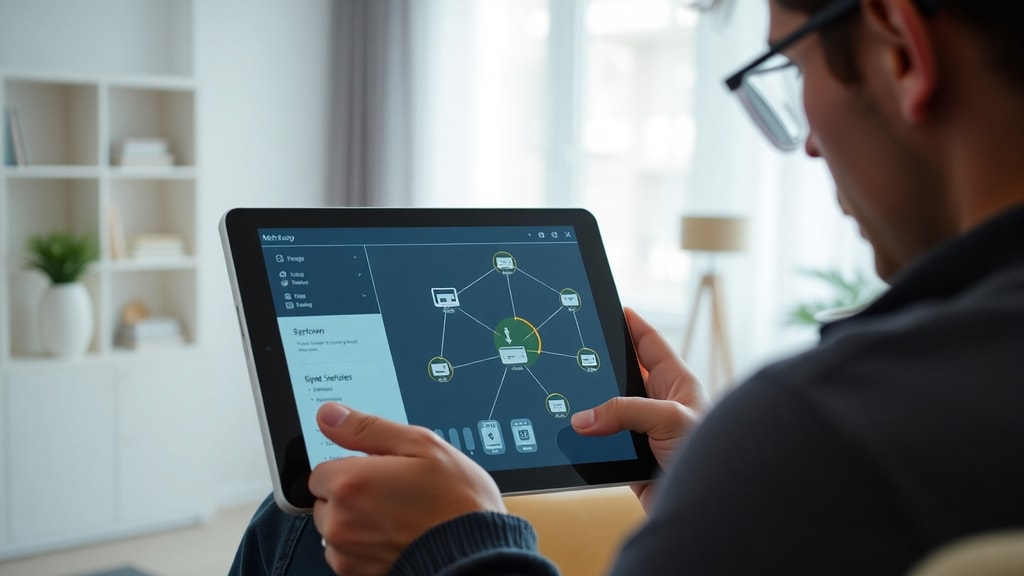
If you need a more advanced view of your network, dedicated desktop tools offer features such as continuous scanning, logging, and export options. Wireless Network Watcher is a lightweight Windows tool from Nirsoft that runs a scan and shows connected devices in real time. It updates every few seconds and can alert you when a new device connects. Angry IP Scanner is a cross‑platform tool (Windows, Mac, Linux) that can scan any IP range and provide information about each host, including open ports. The table below compares these two popular tools:
| Feature | Wireless Network Watcher | Angry IP Scanner |
|---|---|---|
| Platform | Windows only | Windows, macOS, Linux |
| Scan Type | Wi‑Fi network scanning | IP range scanner (works on any network) |
| User Interface | Simple, table view with device list | Customisable, shows hostname, IP, MAC, open ports |
| Real‑time Updates | Yes, automatic refresh | Manual or scheduled scans |
| Export Options | Text, HTML, CSV | CSV, TXT, XML, etc. |
| Purpose | Monitor devices on your WiFi | Network discovery and port scanning |
Both tools are free and widely used. You can download Wireless Network Watcher from the Nirsoft website, and Angry IP Scanner from its official page.
Using Google Home and Google Wifi Apps
If you use Google Wifi (or any Google Nest router) or have a Google Home device that acts as a network controller, you can check connected devices through the Google Home app. Open the app, select your router from the list, and tap the “Devices” tab. You will see a real‑time list of all devices currently connected to your network, along with their names and IP addresses. This is an especially convenient method for users already in the Google ecosystem. For detailed instructions, you can visit the official Google Support page: Google Home connected devices guide. Note that the page includes a Portuguese version, but the steps are the same in English.
Why You Should Monitor Connected Devices
Regularly checking who is connected to your WiFi helps you identify unauthorised users who may have guessed your password or obtained it through a guest. Unknown devices can consume bandwidth, causing your own internet to feel slower. They can also pose a security risk – someone on your network might be able to access shared folders, printers, or even intercept unencrypted traffic. By monitoring, you can take action quickly. Additionally, you may discover forgotten devices (like an old smart plug) that still use the network and should be removed. Monitoring is a simple but powerful habit for both home and small office networks.
What to Do If You Find an Unknown Device
If you see a device you do not recognise, the first step is to note its MAC address and IP address. Then, change your WiFi password immediately. Log into your router, go to wireless settings, and set a new, strong password – ideally a mix of letters, numbers, and symbols. After changing the password, all devices will be disconnected, and you will need to reconnect your own devices using the new credentials. Additionally, you can enable MAC address filtering on your router, which only allows devices whose MAC addresses you have approved. You should also ensure your WiFi encryption is set to WPA2 or WPA3, as older protocols like WEP are easy to crack. Finally, check if your router has a “guest network” feature; you can use it for visitors while keeping your main network more secure.
References
This article draws on the following sources for its technical recommendations and step‑by‑step instructions:
Vivo. “Como saber quem está usando minha internet.” Vivo Explica. Accessed 2025. https://www.vivo.com.br/para-voce/por-que-vivo/vivo-explica/para-descomplicar/como-saber-quem-esta-usando-minha-internet
NordVPN. “Quem está ligado à minha rede Wi‑Fi?” Blog NordVPN. Accessed 2025. https://nordvpn.com/pt/blog/quem-ligado-minha-rede-wifi/
Desktop.com.br. “Como saber quem está conectado no seu Wi‑Fi.” Blog Desktop. Accessed 2025. https://www.desktop.com.br/blog/como-saber-quem-esta-conectado-no-seu-wi-fi/

Google Support. “Ver dispositivos conectados à sua rede Google Wifi ou Nest Wifi.” Accessed 2025. https://support.google.com/googlehome/answer/6263633?hl=pt-BR
Nirsoft. “Wireless Network Watcher.” Accessed 2025. https://www.nirsoft.net/wireless_network_watcher.html
Fing. “Fing – Network Scanner.” Accessed 2025. https://www.fing.com/