Introduction
Checking your printer ink level is one of those small maintenance tasks that can save you from a lot of frustration. Running out of ink in the middle of an important document or a photo project is never convenient, and it often leads to wasted paper and time. Fortunately, modern printers and operating systems offer several straightforward ways to monitor ink levels before they run dry. Whether you prefer using the manufacturer’s software, the built‑in tools on your computer, or simply glancing at the printer itself, there is a method that fits your workflow. This article covers all the reliable techniques for verifying your printer ink level quickly, explaining step‑by‑step how each one works. By the end, you will be able to choose the method that works best for your setup and avoid unexpected interruptions.
Using Manufacturer Software on Windows
Most printer manufacturers provide their own dedicated applications for managing your device. These programs are designed to give you the most accurate and detailed information about your printer’s status, including precise ink or toner levels. For HP printers, the HP Smart app is the go‑to tool. After installing the app from the Microsoft Store or the HP website, you can open it, select your printer, and navigate to the “Supplies” or “Ink Levels” section. The app displays a visual bar for each cartridge, showing the remaining percentage. Epson users can rely on the Epson Status Monitor 3, which is typically installed automatically with the printer driver. Look for a printer icon in the system tray, double‑click it, and the status monitor will open, showing ink levels and providing warnings when a cartridge is low. Brother printers come with the ControlCenter software. Launch the application, click on “Device Settings” or “Status Monitor,” and you will see the estimated ink levels for each color. The advantage of using manufacturer software is that it often includes direct links to reorder cartridges, making the refill process seamless. For a detailed guide on this method, you can refer to the official HP support documentation.
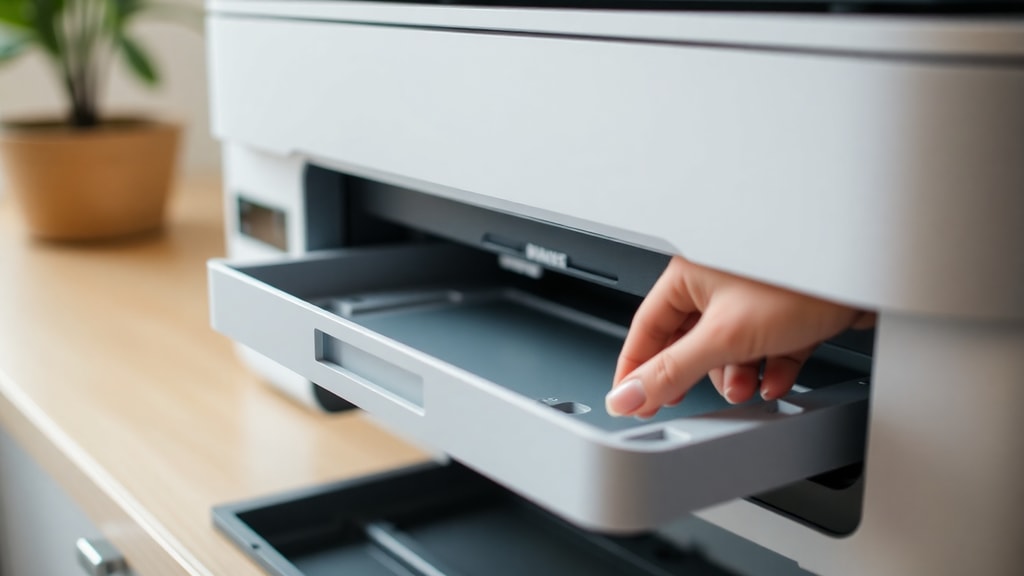
Checking Ink Levels Through Windows Control Panel
Not everyone wants to install additional software, especially if you use a printer from a brand you rarely deal with. Fortunately, Windows includes a generic way to check ink levels that works with most printers. Open the Control Panel (you can search for it in the Start menu), then click “Devices and Printers.” Find your printer icon, right‑click it, and select “Printing Preferences.” In the window that opens, look for a tab labeled “Services,” “Maintenance,” or “Support.” The exact wording depends on your printer driver, but you are looking for an option that says “View Printer Status,” “Estimate Ink Levels,” or “Status Monitor.” Click it, and a separate window should appear showing the approximate levels for each cartridge. This method is particularly useful when the manufacturer’s software is not installed or when you are helping someone who does not have the brand‑specific app. It works with HP, Canon, Epson, and Brother printers as long as the basic driver is present. The information displayed is usually less detailed than the manufacturer’s tool, but it gives you a clear enough picture to decide whether a cartridge replacement is imminent.
Checking Ink Levels on a Mac via System Preferences
If you use a Mac, the process is equally simple. Apple integrates printer management directly into the macOS operating system. Start by opening System Preferences (or System Settings on newer versions) and click on “Printers & Scanners.” Select your printer from the list on the left. A button labeled “Options & Supplies” appears; click it, then switch to the “Supply Levels” tab. macOS will query the printer and display the remaining ink or toner levels in a clear, percentage‑based format. This method works with most modern printers that support Apple’s printing framework. It is reliable and does not require any third‑party software. If the printer lacks the ability to report ink levels over the connection, the Supply Levels tab may show “Unknown,” in which case you should try one of the other methods described in this article.

Using the Printer’s Physical Control Panel
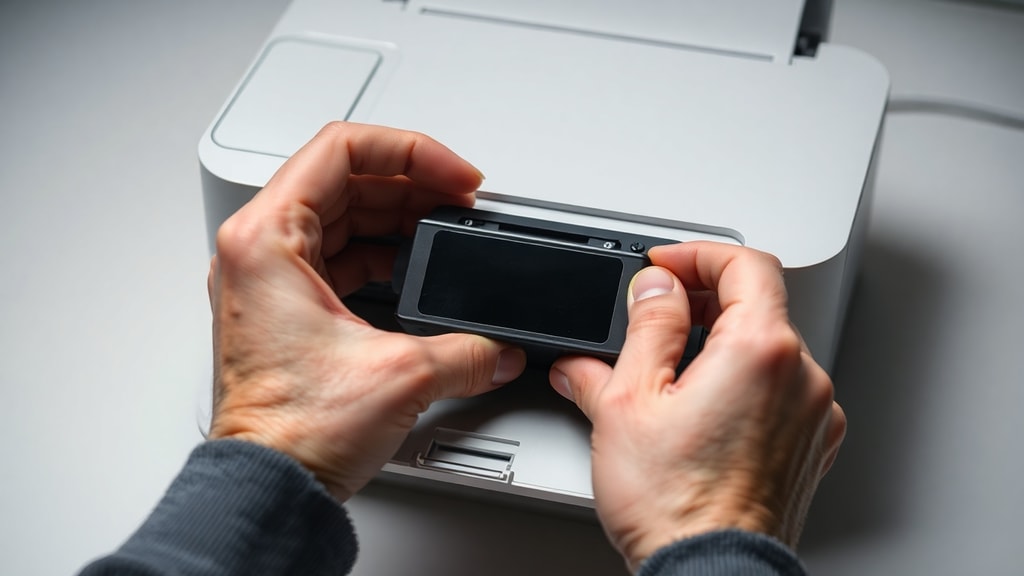
Many printers, especially all‑in‑one models, have their own display screens and menus that let you check ink levels directly on the device. This is the quickest way to get a reading without touching your computer at all. The exact steps vary by brand and model, but the general approach is the same. Look for a button labeled “Menu,” “Setup,” or “Settings.” Navigate through the options using the arrow keys until you find a section called “Status,” “Ink Levels,” or “Supply Info.” Select it, and the screen will show a graphical representation of each cartridge. Some entry‑level printers do not have a screen but include a simple indicator light or a combination of button presses that force a status page to print. Refer to your printer’s user manual to confirm the right sequence.
To give you a clearer idea of what different brands offer, here is a quick reference table:
| Brand | Typical Menu Path (when screen is present) | Alternative (no screen) |
|---|---|---|
| HP | Setup > Tools > Ink Status | Press and hold the Resume button for 5 seconds |
| Canon | Menu > Maintenance > Ink Status | Print a nozzle check pattern; ink levels shown on printed sheet |
| Epson | Menu > Maintenance > Ink Levels | Press the “+” button for 3 seconds |
| Brother | Menu > Ink > Ink Life | Print a test page (hold Go button) |
| Lexmark | Settings > Reports > Supplies Status | Print menu settings page |
Using the printer’s own interface is especially helpful when the computer is not nearby or when you need a quick check before starting a large print job. For Canon models, the official user manual provides detailed instructions on interpreting the physical indicators.
Advanced Method – Using Command Prompt in Windows
For power users who prefer keyboard shortcuts over clicking through menus, Windows offers a way to access the printer status via the command line. Open the Run dialog by pressing Windows Key + R, type control printers, and press Enter. This opens the classic Printers folder. Right‑click your printer icon and select “Printing Preferences.” From there, the steps are the same as the Control Panel method: find the Maintenance or Services tab and click “View Printer Status” or the equivalent. While this is not a pure command‑line solution, it is the fastest way to reach the printer settings without navigating through Control Panel menus. You can also use PowerShell with a specific WMI command, but that is more complex and not recommended for routine checks. The command‑prompt shortcut is ideal for IT professionals or anyone who wants to save a click or two.

Tips for Accurate Ink Level Monitoring
Knowing how to check the ink level is only half the battle. To get the most reliable readings and avoid surprises, follow these practical recommendations:
- Always update your printer driver and manufacturer software. Outdated programs may display incorrect levels or fail to communicate with the printer.
- Check ink levels before starting a large print job. This is especially important for color‑heavy projects such as photos or presentations.
- Keep spare cartridges on hand, especially for colours you use frequently. Even if the software says 10% remaining, a low‑ink warning can appear at any moment.
- Run a printer head cleaning cycle if you notice banding or streaks even when the ink level appears full. Sometimes the sensor can misread actual ink volume.
- For inkjet printers, avoid letting the cartridge run completely dry. Extended emptiness can cause the print head to clog, leading to costly maintenance.
- Document your cartridge model numbers so you can order the right replacement quickly when needed.
By following these tips, you extend the life of your printer and minimise the risk of interruption.
References
HP Support. “Verify Ink Levels.” https://support.hp.com/pt-pt/document/ish_3084212-2529318-16 (Portuguese language page; original English version also available).
Epson. “Check Ink Status.” https://files.support.epson.com/htmldocs/st24__/st24__ug7/ink_1.htm
WikiHow. “How to Check Printer Ink Levels in Windows.” https://pt.wikihow.com/Ver-os-N%C3%ADveis-de-Tinta-da-Impressora-no-Windows (Portuguese; English version also available).
Apple Support. “Manage Printers on Mac.” https://support.apple.com/pt-pt/macos
Canon. “Check Ink Level from the Printer.” https://ij.manual.canon/ij/webmanual/PrinterDriver/W/TR4500%20series/1.0/PT/PPG/dg-c_ink.html
Canon. “Indicator on Printer.” https://ij.manual.canon/ij/webmanual/Manual/All/G2060%20series/PT/UG/ug-212.html
DeCo Proteste. “Como substituir tinteiro/toner da impressora.” https://www.deco.proteste.pt/tecnologia/computadores/dicas/como-substituir-tinteiro-toner-impressora (includes ink level verification commands).