Understanding Cache and Its Role on Your PC
Cache is a collection of temporary data stored by your operating system, applications, and web browsers to speed up performance. When you visit a website, open a program, or run system processes, your PC saves certain files locally so that repeated tasks load faster. Over time, this cache accumulates and can cause slowdowns, storage shortages, and even glitches. Clearing your PC cache regularly helps maintain optimal performance, frees up disk space, and resolves various software issues. This guide covers multiple methods to clear cache on Windows, from built-in tools to manual steps, so you can choose what works best for your needs.
Why Clearing Your Cache Matters
As you use your computer, cached files build up in hidden folders. While cache improves speed initially, an overloaded cache can lead to slower system responsiveness, application errors, and outdated web content. In addition, temporary update files and system caches may cause conflicts when Windows attempts to install new patches. By clearing cache periodically, you reduce the risk of corrupted data, improve privacy by removing stored browsing history, and recover gigabytes of storage. For many users, a simple cache clean can fix problems like browser freezes, slow startup, and unresponsive apps without needing advanced troubleshooting.
Top Methods to Clear Cache on Windows
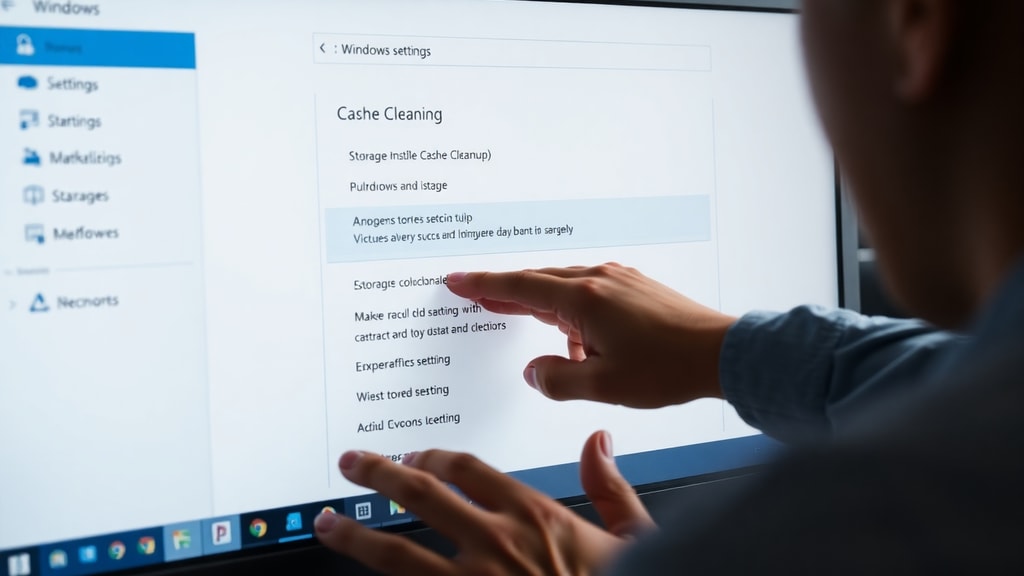
Below is a list of the most effective ways to clear different types of cache. Each method targets specific areas such as system files, browser data, or update caches. Choose the one that matches your current issue, or use them all for a thorough cleanup.
- Use the Disk Cleanup tool to remove temporary system files and thumbnails.
- Navigate to Storage Settings to manage temporary files and enable Storage Sense.
- Clear browser cache from Chrome, Edge, or Firefox using built-in options.
- Run wsreset.exe to reset the Microsoft Store cache.
- Manually delete files from the Temp folder and Windows Temp directory.
- Clear the Software Distribution folder to fix Windows Update problems.
Using the Built-In Disk Cleanup Tool
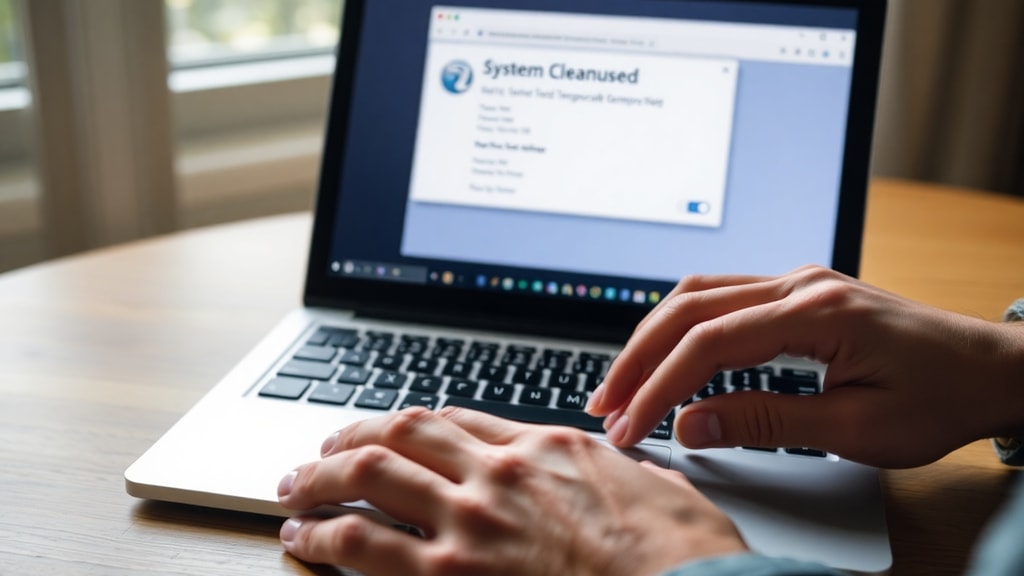
The Disk Cleanup utility is a safe, Windows-integrated method to clear system cache and temporary files. To launch it, press the Windows key plus R to open the Run dialog, type cleanmgr, and press Enter. Select the drive you want to clean, usually C:, and the tool will scan for files you can remove. After the scan, you will see a list of file categories including temporary internet files, recycle bin contents, and thumbnail cache. For a deeper clean, click the button labeled Check System Files. This option allows Disk Cleanup to find additional system caches such as Windows Update cleanup files, delivery optimization files, and device driver packages. Select the categories you want to erase and confirm. This process is recommended for general maintenance and can free up several gigabytes of space on a heavily used PC.
Storage Settings and Storage Sense
Windows provides a modern interface for managing temporary files under the Storage settings. Open the Start menu, go to Settings, then System, and select Storage. Here you will see a breakdown of disk usage. Click on Temporary Files to view a list of removable items including temporary app data, Windows update files, and cached thumbnails. You can manually select and delete these files. Additionally, turn on Storage Sense, which automates cache cleanup by deleting temporary files and emptying the recycle bin at regular intervals. Storage Sense can be configured to run daily, weekly, or monthly, making it a convenient hands-off solution for users who prefer to maintain their system without manual effort. Under the same menu, you can also review files from previous Windows installations if they are taking up space after a major update.
Clearing Browser Cache
Web browsers store images, HTML pages, and scripts locally to speed up page loading. When cache becomes outdated, you may see error messages or stale content. Clearing browser cache is straightforward and differs slightly between browsers. The following table summarizes the steps for the three most popular browsers on Windows.

| Browser | Keyboard Shortcut | Steps |
|---|---|---|
| Chrome / Edge | Ctrl + Shift + Delete | Press shortcut, select Cached images and files, choose time range, click Clear data. |
| Firefox | Ctrl + Shift + Delete | Press shortcut, check Cache, select time range, click Clear Now. Alternatively, go to Options, Privacy and Security, Cookies and Site Data, Clear Data, then check Cached Web Content. |
| Opera | Ctrl + Shift + Delete | Similar to Chrome, select Cached images and files, choose range, confirm deletion. |
After clearing browser cache, you may need to reload websites that you visit frequently. This step also helps protect your privacy by removing locally stored data that could be accessed by others using the same computer.
Resetting the Microsoft Store Cache
The Microsoft Store app maintains its own cache to manage app updates and downloads. If you encounter issues with the Store not loading, displaying errors, or failing to install apps, resetting this cache often resolves the problem. Open the Start menu, type wsreset.exe, and run the command. A black command window will appear briefly, and when it disappears, the Store cache has been cleared. This process does not affect your installed apps or account settings. After the reset, relaunch the Microsoft Store and check if the issue is fixed. This method is recommended by Microsoft support for common Store-related errors.

Manual Cleanup of Temporary Folders
Windows stores temporary files in specific folders that can accumulate over time. To access the primary temp folder, press Windows key plus R, type %temp%, and press Enter. This opens a folder containing application and system temporary files. Select all files inside (Ctrl + A) and delete them. Some files may be in use and cannot be deleted; you can skip those safely. Next, open another temporary folder by typing C:\Windows\Temp into the address bar of File Explorer or using the Run dialog again. Delete all files here as well. Administrator privileges may be required for the Windows Temp folder. This manual approach can clear residual cache from third-party software and system processes that other tools might miss. For a comprehensive cleanup, consider performing this step after running Disk Cleanup.
Clearing the Software Distribution Cache
The SoftwareDistribution folder contains files downloaded by Windows Update. If updates are stuck or failing, clearing this cache can force the system to redownload them fresh. First, open the Services console by typing services.msc in the Run dialog. Locate the service named Windows Update, right-click it, and select Stop. Leave the Services window open. Then, open File Explorer and navigate to C:\Windows\SoftwareDistribution\Download. Delete all files inside the Download folder, but do not delete the folder itself. Go back to the Services console, right-click Windows Update again, and select Start. This process clears the update cache without uninstalling any updates. It is especially useful when updates fail to install or get stuck at a certain percentage. Always run this step with care and only when you suspect update-related problems.
Additional Tips for a Thorough Cache Clean
Beyond the methods listed above, you can also clear cache from specific applications like Adobe Creative Cloud, Steam, or Discord. Each program stores cache in its own directory, often under the user's AppData folder. For a system-wide approach, you can use third-party tools like CCleaner or BleachBit, but the built-in Windows tools are generally safer and sufficient for most users. Remember to restart your PC after a major cleanup to ensure all changes take effect. If you are using a solid-state drive, avoid frequent deep cleans as modern SSDs manage data differently, but occasional cache clearing is still beneficial. Finally, always back up important files before making system-level changes, especially when deleting files from System32 or other protected directories.
Conclusion
Clearing your PC cache is a simple yet powerful way to improve system performance, free up disk space, and resolve common software errors. Whether you use the built-in Disk Cleanup tool, navigate Storage Settings, or manually delete temporary folders, each method targets specific types of cache that slow down your computer. Regularly clearing browser cache ensures faster web browsing and protects your privacy. If you encounter issues with the Microsoft Store or Windows Update, the wsreset.exe command and Software Distribution cleanup are reliable solutions. By incorporating these tasks into your routine maintenance, you can keep your Windows system running smoothly. For further reading, refer to the official resources listed below.
References
Microsoft Support. Use Disk Cleanup in Windows. Accessed at support.microsoft.com
Microsoft Docs. Manage storage on your device. Accessed at learn.microsoft.com
Google Support. Clear cache and cookies. Accessed at support.google.com
Mozilla Support. Clear cookies and site data in Firefox. Accessed at support.mozilla.org
PCMag. How to Clear Your PC's Cache. Accessed at pcmag.com
Olhar Digital. Como limpar o cache do PC. Accessed at olhardigital.com.br
TecMundo. Como limpar cache no Windows 10 e 11. Accessed at tecmundo.com.br