The Frustration of Sudden Silence
You are in the middle of your favorite playlist, a critical conference call, or an immersive podcast, and then nothing. The sound vanishes completely. Your headphones, which were working perfectly minutes ago, have suddenly stopped producing any audio. This is a common and deeply annoying experience that can happen with any type of headphone, whether wired, Bluetooth, or noise-canceling. The good news is that in most cases the problem is not permanent and can be resolved with a few systematic checks. Understanding why your headphones suddenly stopped working is the first step toward getting them back online. The causes range from simple software glitches to physical damage, and knowing where to look saves you time, money, and frustration. This article walks you through the most likely reasons and provides clear steps to diagnose and fix the issue. We will explore Bluetooth connectivity problems, physical obstructions, firmware bugs, and system volume settings, all of which can cause your audio output to drop without warning.
Bluetooth Pairing and Audio Output Settings
One of the most frequent culprits when headphones suddenly stop making sound is a miscommunication between your headphones and the audio source device. This is especially true for wireless headphones and earbuds. The device might still show that your headphones are connected, but the audio stream is not being routed to them. This can happen because the phone, computer, or tablet is sending sound to its internal speakers instead, or because the headphones are paired but not set as the active audio output. Many users assume that if the Bluetooth icon shows a connection, sound should come through the headphones, but that is not always the case. The operating system sometimes loses the audio routing configuration after a software update, a power cycle, or when multiple Bluetooth devices are nearby. To fix this, you need to manually select your headphones as the output device. On a smartphone, go to the Bluetooth settings, find your headphones, and ensure that the media audio toggle is enabled. On a computer, click the speaker icon in the system tray and confirm that your headphones are selected as the playback device.
Another common scenario is that the headphones are connected to a different device entirely. For example, if you have your headphones paired with your phone and your laptop, the audio might be playing on the laptop while you are trying to listen on the phone. Check the list of connected devices on your source device and disconnect any unnecessary pairings. Sometimes a simple toggle of the Bluetooth connection can resolve the issue. Turn off Bluetooth on your device, wait a few seconds, and turn it back on. Then try reconnecting your headphones. If that does not work, unpair the headphones completely and pair them again from scratch. This process clears any stored configuration errors. For Apple users, Apple Support provides guidance on troubleshooting audio output, emphasizing that the phone may be connected to Bluetooth but not routing audio to it. A similar note from Huawei Support confirms that checking the active audio output is a critical step. You can find detailed instructions on their support pages. Remember, the connection itself is only half the equation; the audio channel must be active.
- Open your device's Bluetooth settings and confirm your headphones appear under "Connected devices."
- Tap the settings icon next to your headphones and verify that "Media audio" or "Phone audio" is toggled on.
- Go to your device's sound or audio output settings and explicitly select your headphones as the playback device.
- If using a computer, click the volume icon in the taskbar and ensure the correct output is selected.
- Turn Bluetooth off and on again, then reconnect your headphones.
- Unpair and re-pair the headphones as a last resort for this step.
For more detailed step-by-step instructions, refer to the official Apple Support article on Bluetooth audio routing. This resource specifically addresses the problem of a phone being connected to Bluetooth but not sending sound to the headphones.
Physical Damage and Debris Blocking Sound
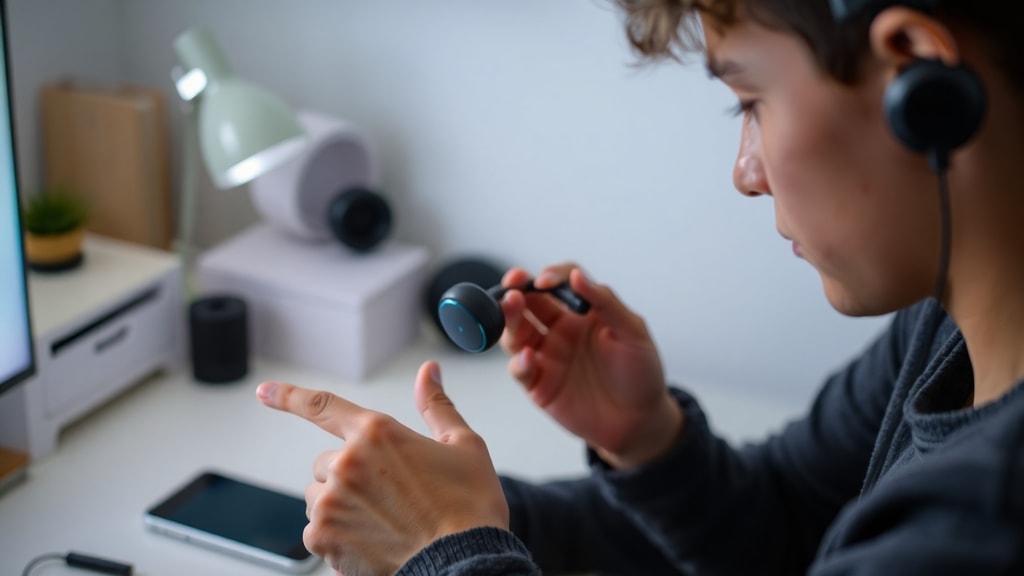
When the sudden silence is accompanied by no warning signs and no apparent software issue, physical damage or debris is often the real problem. Wired headphones are especially vulnerable to internal wire fraying where the cable meets the jack or the earbud housing. This damage can cause a break in the electrical circuit, resulting in no sound at all or intermittent audio that eventually fails completely. If you frequently wrap your headphones tightly, bend the connector at sharp angles, or pull the cord rather than the plug, you are more likely to experience this. For wireless earbuds and over-ear headphones, the speaker mesh is a common entry point for earwax, dust, and lint. Over time, this debris can block the tiny openings that allow sound to pass through. The result is a muffled or completely silent output, often in just one earbud first, but sometimes both. Even a small piece of debris can reduce volume to near zero, making it seem as if the headphones have stopped working entirely.
Inspect your headphones carefully. Look at the cable for any visible cuts, kinks, or exposed wiring. Gently wiggle the connector while it is plugged into the audio source; if sound crackles or returns momentarily, you likely have a broken wire. For earbuds, examine the speaker grills. Use a bright light to see if there is any buildup. If you see debris, clean it carefully. Do not insert sharp objects into the mesh. Instead, use a soft, dry toothbrush or a specialized cleaning tool. For wax buildup, a small amount of isopropyl alcohol on a cotton swab can help, but be careful not to let liquid drip into the internal components. If the problem persists after cleaning, the speaker driver may have failed. In such cases, professional repair or replacement is necessary. According to Olhar Digital and TechTudo, physical damage and debris are among the most common reasons headphones suddenly stop working. They recommend regular cleaning and careful handling to prevent these issues.
You can read more about the impact of debris and physical wear on headphone performance from Olhar Digital's troubleshooting guide. Their article explains why headphones fail and what you can do about it, including a thorough inspection of the cable and connectors.
Firmware and Software Issues
Wireless headphones are essentially small computers that run firmware to manage Bluetooth connections, audio codecs, and battery performance. Like any software, this firmware can have bugs, become outdated, or corrupt itself over time. When a bug occurs, your headphones may suddenly lose the ability to output sound even if they appear to be connected and charged. This is especially common after an operating system update on your phone or computer, because the new software may change how it communicates with the headphone firmware. The solution is often to update the headphone firmware to the latest version. Most manufacturers provide a companion app (such as Sony Headphones Connect, Bose Music, or Samsung Wearables) that allows you to check for and install firmware updates. Updating can resolve known connectivity and audio issues. If an update is not available or does not fix the problem, a factory reset may be necessary.
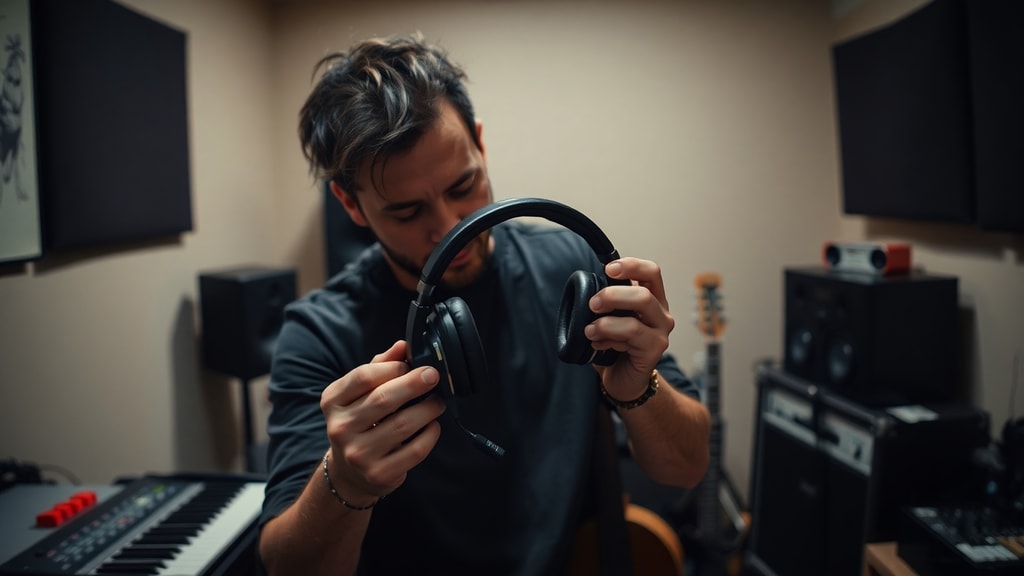
A factory reset restores the headphones to their original state, erasing any corrupted settings and pairing information. The exact method varies by brand and model, but it usually involves pressing and holding a specific button combination for several seconds. For Apple AirPods, you hold the setup button on the back of the case. For many other brands, you hold the power and volume buttons simultaneously. After the reset, you will need to pair your headphones again with your devices. This process often resolves sudden sound failures that have no apparent cause. Apple Support provides detailed factory reset instructions for AirPods and Beats products. Android Community threads also frequently recommend resetting the headphones as a reliable fix for audio dropouts. Keep in mind that a factory reset will erase all custom settings, equalizer presets, and saved pairings, so you will need to set them up again.
| Symptom | Likely Cause | Recommended Action |
|---|---|---|
| Headphones connected but no sound after phone update | Firmware incompatibility or bug | Update headphone firmware via companion app |
| Intermittent audio that stops completely | Corrupted configuration or pairing data | Perform a factory reset and re-pair |
| Volume controls on headphones not working | Outdated firmware | Install latest firmware from manufacturer |
| Audio works on one device but not another | Bluetooth profile issue | Unpair and re-pair on the problematic device |
Firmware updates and resets are safe procedures when done correctly. Always follow the manufacturer's instructions. If you are unsure how to reset your specific model, consult the support website or user manual.
Volume and System Settings Check
Sometimes the solution is embarrassingly simple. The volume on your device may be turned all the way down, muted, or the audio output may be set to a different device entirely. It is very easy to accidentally press a mute button, turn the volume wheel while the headphones are in a pocket, or have a system update reset your audio preferences. For Bluetooth headphones, the volume level on the headphones themselves might be separate from the device volume. Some headphones have their own independent volume controls, and if that is turned down, you will not hear anything even if the phone is at full volume. Check the physical volume buttons on your headphones. Also check the on-screen volume slider while audio is playing. If you see that the volume is low or muted, simply increase it.
Another hidden setting is the absolute volume feature on Android devices. This feature synchronizes the volume levels between the phone and the Bluetooth device, but sometimes it can cause the headphone volume to drop to zero unexpectedly. Disabling absolute volume in the developer options can help. On a computer, verify that the correct audio device is set as default. Go to Sound settings and look for your headphones in the list of output devices. If they appear but are disabled, right-click and enable them. If they do not appear, your computer may not recognize the headphones, which points to a driver issue. PC World and Hi-fi Hub both stress that many sudden headphone failures are simply due to volume or output settings. They recommend checking the system volume and media audio settings on the device before diving into more complex troubleshooting. Even if you are sure the volume is on, double-check. It only takes a moment and can save you a lot of time.
Additional Troubleshooting Steps
If you have tried all the above steps and your headphones still do not produce sound, consider testing them with a different audio source. Connect your wired headphones to another phone or computer. Pair your wireless headphones with a different device. This helps isolate whether the problem lies with the headphones themselves or with the original source device. If the headphones work on another device, then the issue is with your phone, computer, or tablet. In that case, check for audio drivers, system updates, or audio enhancements that might be interfering. Some computers have audio processing software that can block sound output to certain devices. Disable any audio enhancements or spatial sound features temporarily.
For wired headphones, try a different audio jack or a USB adapter if available. Sometimes the port on your device becomes dirty or damaged. Use a can of compressed air to clean the headphone jack. For wireless headphones, ensure they are adequately charged. Some headphones have a low battery warning, but others simply shut off the audio without warning when the battery is critically low. Charge them for at least 30 minutes and try again. If none of these steps work, the headphones may have suffered an internal hardware failure. In such cases, contacting the manufacturer for warranty service or considering a replacement is the next step. Remember to keep a record of your troubleshooting steps, as this can help the support team diagnose the problem faster.
References
Apple Support. "Check Bluetooth pairing and audio output." https://support.apple.com/pt-br/102449
Huawei Support. "Troubleshooting audio output for Bluetooth devices." https://consumer.huawei.com/br/support/content/pt-br00765137/
Olhar Digital. "Why headphones stop working and what to do." https://olhardigital.com.br/2023/09/22/dicas-e-tutoriais/por-que-fones-param-de-funcionar-veja-o-que-voce-pode-fazer-para-arrarr/
TechTudo. "Headphone stopped working suddenly: possible causes." https://www.techtudo.com.br/listas/2023/01/fone-parou-de-funcionar-do-nada-veja-cinco-possiveis-motivos.ghtml
Apple Support. "How to reset AirPods and Beats products." https://support.apple.com/pt-br/102530
Google Android Community. "My headphones are not making sound." https://support.google.com/android/thread/171660272/meu-fone-de-ouvido-n%C3%A3o-est%C3%A1-fazendo-som?hl=pt-BR
PC World (Portal Insights). "What to do when the headphone has no sound." https://www.portalinsights.com.br/perguntas-frequentes/o-que-fazer-quando-o-fone-nao-esta-saindo-som
Hi-fi Hub. "One side of the headphone stopped working: what to do." https://www.hifihub.com.br/cpt-artigos/um-dos-lados-do-fone-parou-de-funcionar-o-que-fazer