How to Check Ink Level in Your Printer
Running out of ink in the middle of an important print job is a frustrating experience that nearly every printer owner has faced at some point. Knowing how to check your ink level before you start printing can save you time, money, and a fair amount of stress. Different printer models and brands offer various methods for monitoring ink levels, ranging from simple visual checks to detailed software reports. Whether you own an Epson tank printer, an HP inkjet, or a Brother laser printer, understanding these methods helps you stay prepared and avoid unexpected interruptions. This article walks through the most reliable ways to check ink levels across different platforms and devices, including direct visual inspection, operating system tools, manufacturer software, and mobile applications. Each method has its own strengths, and knowing which one to use for your specific printer can make maintenance much easier.
Why Checking Ink Levels Matters
Keeping an eye on your ink levels is about more than just convenience. Print quality can suffer significantly when ink runs low. You might start seeing faded colors, missing lines, or streaks running across your documents and photos. In some cases, printing with an empty or nearly empty cartridge can even damage the print head, leading to costly repairs. Regularly checking your ink levels also helps you plan ahead for replacements. Instead of rushing to buy a new cartridge at the last minute, you can order supplies when you notice levels getting low. This is especially important if you rely on your printer for work or school assignments. Additionally, many modern printers use ink for maintenance cycles, so what appears to be a full cartridge might actually have less usable ink than you think. Staying proactive about monitoring ink levels keeps your printer running smoothly and your prints looking sharp.
Direct Visual Inspection for Tank Printers
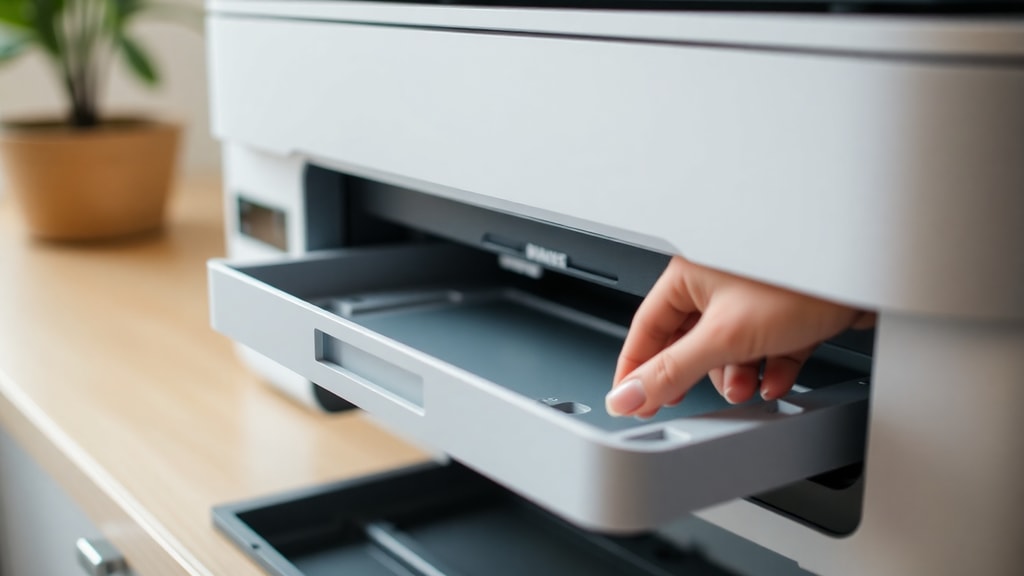
For printers that use visible ink tanks rather than sealed cartridges, a direct visual check is one of the simplest and most accurate methods. Epson EcoTank models, such as the L-series, feature translucent ink reservoirs mounted on the front of the printer. These tanks have clear markings that indicate minimum and maximum fill levels. By simply looking at the tanks, you can see exactly how much ink remains in each color. This method does not require any software or technical knowledge. You just open the front cover, locate the ink tanks, and check the level against the markings. Epson recommends checking these levels periodically, especially before starting large print jobs. The visual indication is reliable because it shows the actual physical ink volume rather than an estimated percentage. However, it is important to note that the ink in the tank is not directly fed into the print head. Some ink sits in the internal tubes and the damper unit, so a tank that appears nearly empty may still allow a few more pages of printing. Still, for day-to-day monitoring, this is the most straightforward approach for tank-based printers. Epson provides detailed guidance on this process in their official support documentation, and many users find it more intuitive than navigating through software menus.
Using Built-in Software on Windows
Windows users have access to several built-in tools that can display ink level information. The most common method involves using the printer driver's status monitor. Many printer manufacturers, including Epson, HP, and Canon, include a utility called Status Monitor or similar software that installs alongside the driver. For Epson printers, the tool is called Epson Status Monitor 3. To access it, you typically click the printer icon in the Windows taskbar, select the Maintenance tab, and then choose Status Monitor. This opens a window showing graphical representations of each ink cartridge or tank, with estimated remaining levels displayed as percentages. The software updates in real time, so you can see changes immediately after printing or performing maintenance tasks. This method works well for most consumer and office printers. One thing to keep in mind is that the estimates are based on usage tracking, not actual ink measurement. The printer counts the number of drops used and calculates the remaining ink from there. This can sometimes be inaccurate, especially if you perform many cleaning cycles or if the printer resets its counters. Nevertheless, it provides a helpful approximation that is often sufficient for planning replacements. For more precise information, you can combine this method with a physical check if your printer has visible tanks.

Checking Ink Levels on macOS
Mac users can check ink levels through the System Settings or System Preferences menu, depending on the version of macOS they are running. On recent versions, go to System Settings, then click on Printers and Scanners. Select your printer from the list on the left, and then click the Options and Supplies button. A new window appears with a tab labeled Supply Levels. This tab displays a list of installed cartridges or ink tanks along with estimated remaining amounts. The information is presented in a simple, clean format that is easy to read. Some printers also show a color-coded bar graph that gives a quick visual indication of how much ink is left. This method is native to macOS and works with most major printer brands, including HP, Epson, Canon, and Brother. It does not require any additional software installation beyond the printer driver. The accuracy of these readings depends on the printer's reporting capabilities. Some printers provide very detailed data, while others only show basic status information. If you have an HP printer, for example, the supply level information is usually quite reliable. HP's official support site confirms that this method provides a convenient way to check ink levels without opening any third-party applications. For users who prefer a quick glance, this is often the fastest route on a Mac.
Using Printer Mobile and Desktop Apps
In recent years, printer manufacturers have developed dedicated applications that make ink level monitoring more accessible. HP Smart, Epson iPrint, Brother iPrint and Scan, and Canon PRINT are among the most popular options. These apps are available for both Windows and macOS as well as for iOS and Android devices. After connecting your printer to your home network via Wi-Fi, you can open the app and see the ink levels displayed prominently on the main dashboard. Many of these apps also send push notifications when ink levels are low, so you do not have to remember to check manually. The HP Smart app, for example, shows a color-coded meter for each cartridge and even provides direct links to purchase replacements. Epson iPrint offers similar functionality, with the added benefit of being able to initiate cleaning cycles and nozzle checks from the app. These applications are designed with user experience in mind, making them ideal for people who are not comfortable navigating system menus or printer driver settings. Another advantage is that you can check ink levels remotely if your printer is connected to the internet. This means you can verify your ink status while on the go, and decide whether to stop by a store on your way home. The convenience and extra features make these apps a worthwhile tool for anyone who prints regularly.
Using the Windows Control Panel
Another option available to Windows users is the Control Panel, which provides an alternative path to ink level information. On Windows 10 and Windows 11, you can open the Control Panel by searching for it in the Start menu. Then navigate to Devices and Printers. Right-click on your printer icon and select Printing Preferences or Printer Properties, depending on your printer model. From there, look for a tab labeled Maintenance, Services, or Tools. Within that tab, there is usually a button that opens the printer status monitor or ink level display. This method can be useful if the taskbar icon is missing or if you prefer using the classic Control Panel interface. The information displayed is the same as what you see in the Status Monitor from the taskbar. It relies on the same usage-based estimation technology, so the same caveats about accuracy apply. However, it provides a consistent way to access ink data across different printer brands. Some users find this method more reliable when dealing with network printers, as the Control Panel sometimes handles printer connections differently than the Settings app. If you are troubleshooting a printer that is not showing up in the modern Settings interface, the Control Panel method can be a lifesaver. It is worth knowing as a backup option, even if you normally use the taskbar icon or a mobile app.
Quick Reference: Ink Level Check Methods by Platform
The table below summarizes the main methods discussed in this article, organized by platform and printer type. Keep in mind that not all methods are available for every printer model, so check your printer's manual for specific instructions.

| Platform | Method | Best For | Accuracy |
|---|---|---|---|
| All printers with visible tanks | Direct visual inspection | Epson EcoTank, Canon MegaTank | High |
| Windows | Epson Status Monitor 3 | Epson inkjet printers | Moderate |
| macOS | System Settings > Supply Levels | All major brands | Moderate |
| Windows | Control Panel > Devices and Printers | All major brands | Moderate |
| Windows / macOS / Mobile | Manufacturer app (HP Smart, Epson iPrint) | HP, Epson, Brother, Canon | Moderate to High |
Common Issues When Ink Runs Low
When ink levels drop too low, a variety of problems can arise. Being aware of these issues helps you recognize the warning signs early and take action before the situation worsens. Below is a list of common problems associated with low ink levels.
- Faded or streaked prints, especially in areas of solid color
- Missing colors or banding that make images look incomplete
- Frequent printer cleaning cycles that consume even more ink
- Error messages that stop printing entirely until a cartridge is replaced
- Print head damage caused by running the printer with no ink
- Inaccurate color reproduction in photos and graphics
- Wasted paper and time from failed print jobs
If you notice any of these symptoms, check your ink levels immediately using one of the methods described above. Often, replacing a low cartridge resolves the issue without any further steps. In some cases, running a print head cleaning cycle after replacing the ink can restore full print quality. It is also a good practice to keep a spare set of cartridges or a bottle of ink on hand so that you are never caught off guard. For printers that use individual color cartridges, replacing only the empty color is more economical than swapping out a multi-color cartridge. Tank printers offer the benefit of refilling only the color that is low, which reduces waste and saves money over time.
Conclusion
Checking your printer's ink level does not have to be a complicated process. Whether you use a direct visual check on a tank printer, access the software tools on your computer, or rely on a mobile app, the information you need is usually just a few clicks or glances away. Each method has its own trade-offs in terms of convenience and accuracy, but having multiple options means you can choose the one that fits your workflow best. For tank printer owners, the visual check is fast and reliable. For cartridge-based printers, the built-in software on Windows or macOS provides a quick estimate that works well for most needs. Manufacturer apps add extra convenience by bringing ink monitoring to your phone or tablet. The key is to make checking ink levels a regular habit, perhaps once a week or before starting a large print project. This simple routine helps you avoid interruptions, maintain print quality, and get the most value from your ink supplies. Staying informed about your ink status also helps you make smarter purchasing decisions, whether you buy genuine cartridges or compatible alternatives. By taking a few minutes to understand your printer's monitoring features, you can keep your device in good working order and ensure that your prints come out exactly as you expect, every time.
References
Epson Brasil. "Como sei quando um tanque de tinta precisa ser recarregado?" epson.com.br/faq/SPT_C11CE242~faq-16763. Accessed 2025.
Epson. "Verificação do nível de tinta." Epson L3280 Série Manual do Usuário. download4.epson.biz/share/l3280_series/useg/pt/GUID-53EC8719-73B4-44A4-B188-9857EF2FD9B1.htm. Accessed 2025.
Epson. "Verificação do estado dos cartuchos de tinta." Epson Status Monitor 3 Documentação. epson.biz/sec_pubs/status_monitor/pt/GUID-53EC8719-73B4-44A4-B188-9857EF2FD9B1.htm. Accessed 2025.
HP. "Verifique os níveis de tinta ou toner." support.hp.com/pt-pt/document/ish_3084212-2529318-16. Accessed 2025.
HP. "Como verificar os níveis de tinta." support.hp.com/pt-pt/document/ish_3084212-2529318-16. Accessed 2025.
Microsoft Learn. "Como verificar o nível de tinta dos cartuchos da impressora Epson." learn.microsoft.com/pt-br/answers/questions/3248835. Accessed 2025.