Understanding Slow Wi-Fi on Your Phone
If you have problems with your phone, and the Wi-Fi connection does not come back well or is very slow, you are not alone. Many users experience frustrating moments when their smartphone suddenly refuses to load pages, streams buffer endlessly, or the network status icon shows a full signal yet nothing works. This problem can stem from a variety of causes, ranging from simple software glitches to more complex router misconfigurations. Understanding why your Wi‑Fi is slow on your phone is the first step toward restoring a smooth online experience.
The modern smartphone relies heavily on a stable Internet connection. Whether you are checking emails, scrolling through social media, or watching videos, any interruption or slowdown can disrupt your daily routine. Fortunately, most slow Wi‑Fi issues on phones can be resolved with a few targeted fixes. In this article, we will explore the most common reasons for a sluggish connection and provide proven solutions that you can try immediately. We will also discuss when the problem lies with your device versus your network equipment.
Common Culprits Behind Slow Wi‑Fi on Your Phone
Before diving into fixes, it helps to know what typically causes a phone to have poor Wi‑Fi performance. Below is a list of common factors that can degrade your connection speed and stability:
- Interference from other electronic devices, such as microwaves, cordless phones, or neighboring Wi‑Fi networks.
- Outdated router firmware or phone software that lacks important performance improvements.
- Congested Wi‑Fi channels, especially on the 2.4 GHz band where many devices compete for bandwidth.
- Physical obstacles like thick walls, metal objects, or distance from the router.
- Corrupted network settings stored on your phone, such as a saved but broken connection profile.
- Too many devices connected to the same router, overwhelming its capacity.
- Background apps or system processes on your phone that consume data without your knowledge.
Identifying which of these factors applies to your situation can help you choose the most effective solution. In many cases, a combination of simple steps will restore your Wi‑Fi performance.
Quick Fixes to Try First
When your phone’s Wi‑Fi is not working well, the fastest approach is to perform a few basic resets. These actions clear temporary data and re‑establish connections without requiring any technical knowledge. The table below summarizes the most effective quick fixes and what they accomplish:
| Fix | What It Does | Time Required |
|---|---|---|
| Restart your phone | Clears cached network data, stops background processes, and forces the Wi‑Fi radio to reset. | 1–2 minutes |
| Restart your router | Unplug it for 30 seconds, then plug back in. This clears the router’s memory and refreshes connections. | 2–3 minutes |
| Toggle Airplane Mode | Disables all radios briefly, then re‑enables them, forcing a fresh connection to the Wi‑Fi network. | 15 seconds |
| Forget and rejoin the network | Removes the stored connection profile from your phone, eliminating any corrupted configuration data. | 1 minute |
These steps are recommended by major support sources. For example, Google Support advises restarting your device and router as the first action to resolve Internet connection problems on Android devices. Similarly, Intelbras suggests that a simple power cycle can improve slow and unstable Wi‑Fi. If these quick fixes do not work, proceed to more detailed troubleshooting.

Step‑by‑Step Troubleshooting for Persistent Slow Wi‑Fi
If the basic resets did not solve your problem, you need to dig a little deeper. Start by checking your phone’s Wi‑Fi settings. Go to the network settings menu and look for options such as “Wi‑Fi adaptive connectivity” or “smart network switch”. On many Android phones, these features can cause the device to switch between Wi‑Fi and mobile data unpredictably, leading to a perceived slowdown. Turn these off temporarily to see if performance improves.
Next, examine the Wi‑Fi frequency band you are connected to. Most modern routers broadcast on both 2.4 GHz and 5 GHz bands. The 2.4 GHz band offers longer range but is more prone to interference and congestion. The 5 GHz band is faster and less crowded, but its signal does not travel as far through walls. If your phone supports 5 GHz, try connecting to that band exclusively. You can do this by assigning a different network name (SSID) to each band in your router settings, then selecting the 5 GHz option on your phone.
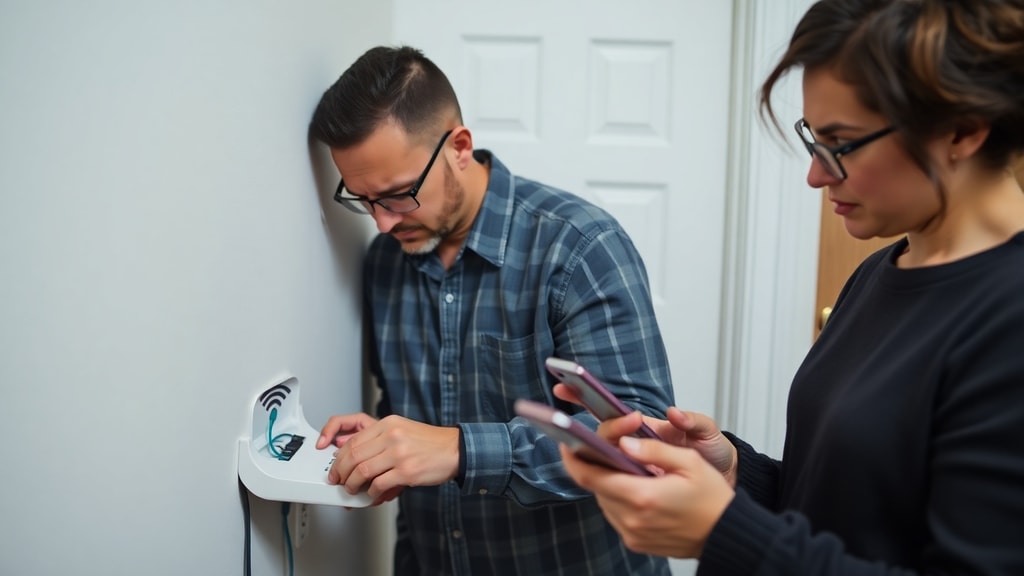
Another helpful step is to check for router settings that may be limiting your speed. Access your router’s administration page (usually via a web browser at an address like 192.168.0.1 or 192.168.1.1). Look for “Quality of Service” (QoS) settings. Enabling QoS allows you to prioritize traffic from your phone, ensuring it gets the bandwidth it needs even when other devices are active. Also, check the Wi‑Fi channel selection. In the 2.4 GHz band, channels 1, 6, and 11 are non‑overlapping and typically offer the least interference. Manually selecting one of these channels can improve stability.
When the Problem Is Your Phone
Sometimes, the issue is not the network but the phone itself. Outdated software can cause Wi‑Fi drivers to malfunction. Make sure your phone’s operating system is up to date. On Android, check System Update under Settings; on iPhone, go to General then Software Update. Additionally, cached data from apps that constantly use the network can accumulate and slow performance. Clearing the system cache partition (on Android) or resetting network settings (on both platforms) can help.

Battery saving modes are another common culprit. Many phones throttle performance and reduce network activity when battery saver is enabled. If your Wi‑Fi is slow while in low‑power mode, try turning it off temporarily to see if speeds improve. Also, consider whether you have installed a VPN or security app that routes traffic through a slow server. Disable any such apps for testing purposes.
When the Problem Is Your Router or Network
If your phone works fine on other Wi‑Fi networks (for example, at a friend’s house or a public hotspot), the issue likely lies with your home network. Older routers may not be able to handle the demands of multiple modern devices. Check the router’s specifications – if it is more than three years old, upgrading to a newer model that supports Wi‑Fi 5 (802.11ac) or Wi‑Fi 6 (802.11ax) can make a significant difference.
Interference from neighboring networks is another possibility. Use a Wi‑Fi analyzer app on your phone to see which channels are crowded. If you find that many networks are using the same channel as yours, switch to a less congested one in your router settings. Also, ensure your router is placed in a central location, away from walls and metal objects. Elevating it off the floor can also improve signal distribution.
Advanced Tips for a Faster Connection
For users comfortable with more technical steps, consider the following: Change your router’s security protocol to WPA2 or WPA3. Older protocols like WEP can slow down the network and are less secure. You can also update the router’s firmware manually by downloading the latest version from the manufacturer’s website. Some routers allow you to adjust transmission power – setting it to high can extend range, but may introduce interference.
Another advanced technique is to assign a static IP address to your phone within the router’s DHCP settings. This ensures your phone always gets the same IP and reduces the time spent negotiating connections. You can also disable Wi‑Fi Direct and any guest networks if you are not using them, as they consume router resources. Finally, experiment with the “Band Steering” feature if available, which automatically directs your phone to the best frequency band.
For reliable guidance, you can refer to resources like Google’s support page for Internet connection problems on Android and Avast’s article on why your phone’s Internet is so slow. These sources provide additional validation for the methods described here.
References
Google Support. “Corrija problemas de ligação à Internet em dispositivos Android”. Available at: https://support.google.com/googleplay/answer/2651367?hl=pt
Intelbras (via Globo.com). “Wi‑Fi lento e travando? Veja como melhorar a conexão e ampliar o sinal em casa”. Available at: https://g1.globo.com/guia/guia-de-compras/tecnologia/wi-fi-lento-e-travando-veja-como-melhorar-a-conexao-e-ampliar-o-sinal-em-casa.ghtml
Avast. “Por que a Internet do meu telefone está tão lenta?”. Available at: https://www.avast.com/pt-br/c-boost-phone-internet-speed
Techtudo. “Wi‑Fi lento no celular? Veja possíveis causas e como melhorar”. Available at: https://www.techtudo.com.br/listas/2023/09/wi-fi-lento-no-celular-veja-possiveis-causas-e-como-melhorar-edmobile.ghtml
Avast. “Por que meu Android não se conecta ao Wi‑Fi?”. Available at: https://www.avast.com/pt-br/c-fix-wifi-connection-android
Google Support (Android Community). “O meu Wi‑Fi tem hora que some e da conexão lenta mesmo perto do roteador”. Available at: https://support.google.com/android/thread/435289531/o-meu-wi-fi-tem-hora-que-some-e-da-conex%C3%A3o-lenta-mesmo-perto-do-roteador?hl=pt-br
Desktop.com.br. “Wi‑Fi lento no celular? Saiba como resolver”. Available at: https://www.desktop.com.br/blog/wi-fi-lento-no-celular-saiba-como-resolver