Understanding the Problem: Missing Print Screen Key
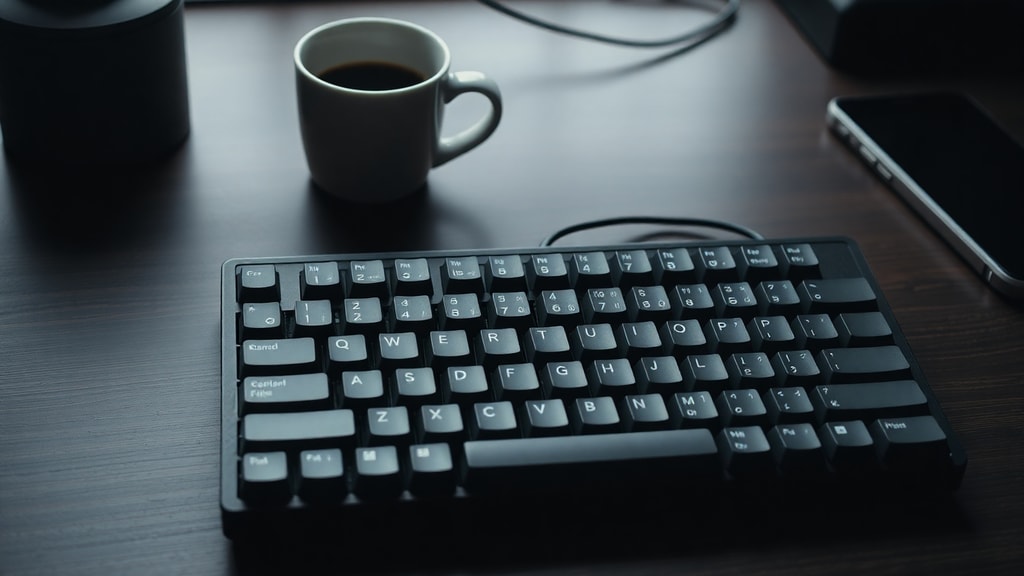
Many modern keyboards, especially compact laptop keyboards and mechanical keyboards with smaller form factors, have omitted the dedicated Print Screen key to save space. If your keyboard does not have a key labeled "Print Screen," "PrtScn," "PrtSc," or "SysRq," you are not alone. This is a common design choice in tenkeyless (TKL) layouts and some 60% keyboards. The good news is that you can still take screenshots easily using alternative shortcuts built into Windows. The issue is that the system needs a trigger, and if the physical key is absent, you must rely on key combinations or software solutions.
Using the Built-in Snipping Tool Shortcut
The simplest and most powerful alternative is the shortcut Windows Logo Key + Shift + S. This combination instantly opens the Snipping Tool in its screen capture mode. Once triggered, the screen dims and a small toolbar appears at the top of the display, allowing you to select a rectangular, freeform, window, or full-screen capture. The captured image is automatically copied to your clipboard and can be pasted into any application, such as an email, a document, or an image editor. This shortcut works on all current versions of Windows, including Windows 10 and Windows 11. It does not require a Print Screen key at all. According to Microsoft Support, this is the recommended method for users who do not have or cannot use the Print Screen key. You can access the official documentation at Keyboard shortcut for print screen.

Fn Key Combinations for Compact Keyboards
Many laptop keyboards and compact external keyboards use function (Fn) layers to restore missing keys. On a typical compact keyboard, you might hold down the Fn key while pressing another key to produce the Print Screen functionality. There is a specific combination: Fn + Windows Logo Key + Space Bar. This combination takes a screenshot of the entire screen and saves it directly to a file in the Screenshots folder (inside your Pictures library). This shortcut is documented by Microsoft as a valid alternative when no dedicated PrtScn key exists. However, the exact combination varies by keyboard manufacturer. Some keyboards require Fn + Insert, Fn + F11, or even Fn + a key marked with a camera icon. Check your keyboard's user manual or search for the key with a small icon resembling a rectangle or a camera. If your keyboard uses a Fn lock (often indicated by a lock icon on the Fn key or F12 key), you may need to toggle that on first. If none of these combinations work, the key may be completely absent from the hardware layer, and you must use a software-based method.
How to Remap or Enable the Print Screen Key in Windows Settings
If your keyboard has a Print Screen key but it does nothing when pressed, it might be disabled or set to a different function. Windows 11 and Windows 10 include a setting that controls what the Print Screen key does. Go to Settings > Accessibility > Keyboard. Look for the option labeled "Use the Print Screen button to open screen snipping." If this toggle is off, pressing Print Screen may do nothing. Turn it on, and your Print Screen key will trigger the Snipping Tool. This setting effectively remaps the key itself, overriding any default behavior. If your keyboard has a key but it is not responding, this setting is the first thing to check. Microsoft documentation on accessibility keyboard settings explains this process in detail at Accessibility keyboard settings.

Using the Windows Snipping Tool Independently
The Snipping Tool is a built-in Windows application that does not depend on any keyboard shortcut. You can open it by searching for "Snipping Tool" in the Start menu or by pressing the Windows key and typing "snipping." Once the app is open, you can click "New" to start a capture. The tool also supports timed captures and screen recording. For users who cannot use keyboard shortcuts at all, this is the most accessible method. The Snipping Tool also stores your screenshots in a folder you can specify, and it allows you to annotate and share directly. This application has been part of Windows since Windows 7 and is included in Windows 10 and 11. It is a reliable backup when keyboard shortcuts fail.
Third-Party Screenshot Tools
If you find Windows built-in tools insufficient or too limited, there are many free third-party applications that offer advanced features. One lightweight and free option is Snappy (also known as Snapshot). It runs in the system tray and can take screenshots with a single click or keyboard combination you define. Other popular tools include ShareX (open source and feature-rich), Greenshot, and Lightshot. These tools often include image editing, upload to cloud services, and OCR (optical character recognition) for extracting text from images. They do not require a dedicated Print Screen key to function; they can be triggered by any configurable hotkey or by clicking an icon. Using a third-party tool is especially useful if you need to capture scrolling windows or take screenshots on a set timer. Most of these tools are free for personal use and have been around for many years.
List: Quick Alternatives When Physical Key Is Missing
- Windows Logo Key + Shift + S (opens Snipping Tool in capture mode)
- Windows Logo Key + Print Screen (saves full screen to Screenshots folder)
- Fn + Windows Logo Key + Space Bar (compact keyboard combination)
- Open Snipping Tool from Start menu (no keyboard needed)
- Use a third-party tool like Snappy, Greenshot, or ShareX
- Assign a custom shortcut using AutoHotkey scripts
- Connect an external USB keyboard with a dedicated Print Screen key
Checking for Hidden or Alternative Key Labels
Some keyboards label the Print Screen function with different names or symbols. Look for a key that says "PrtSc", "PrtScn", "SysRq", or "Print Scr". On some international keyboards, the key may be labeled in a different language. Additionally, the key might be a secondary function printed in blue or gray on the top of another key, such as the Insert key or the F10 key. In such cases, you must hold the Fn key to access it. On Microsoft Surface keyboards, the combination is often Fn + Space. On Lenovo ThinkPad keyboards, it is often Fn + End. On many gaming keyboards, the key is replaced by a button with a camera icon. If you are uncertain, look up your keyboard model online or check the user manual. According to WikiHow, some keyboards list "SysRq" instead of Print Screen; this key is also a screenshot key in certain operating systems. Examining your physical keyboard layout carefully can reveal a hidden Print Screen function you might have overlooked.
Table: Common Keyboard Shortcuts for Screenshots on Windows
| Shortcut | Action | Notes |
|---|---|---|
| Windows + Print Screen | Captures full screen, saves to Screenshots folder | Requires Print Screen key |
| Windows + Shift + S | Opens Snipping Tool capture toolbar | Works without Print Screen key |
| Fn + Windows + Space | Captures full screen on some compact keyboards | May vary by keyboard model |
| Alt + Print Screen | Captures active window only | Requires Print Screen key |
| Windows + G | Opens Game Bar with screenshot option | Works for games and apps |
Testing with an External USB Keyboard
If you are not sure whether your keyboard is truly missing the Print Screen key or if it is simply malfunctioning, you can plug in a standard external USB keyboard. Any full-size USB keyboard will have a dedicated Print Screen key, usually in the top row near the F12 key. If the external keyboard works for taking screenshots, then your built-in keyboard likely lacks the key or has it mapped to a function layer that you need to activate. This is a simple diagnostic step that can confirm whether the issue is hardware or software. According to ShiftShift, connecting an external keyboard is a recommended troubleshooting step when Print Screen is not working properly.
Using AutoHotkey to Create a Custom Shortcut
For advanced users, the free tool AutoHotkey allows you to assign any key combination to any action. You can write a simple script that remaps a key you never use (like Scroll Lock, Pause, or even a function key) to trigger the Print Screen function. For example, a script line such as ScrollLock::PrintScreen will make the Scroll Lock key act as the Print Screen key. You can also map a combination like ^+s::Send {PrintScreen} to make Ctrl+Shift+S take a screenshot. AutoHotkey scripts run in the background and are extremely lightweight. This method gives you full control and does not rely on any built-in Windows keyboard shortcuts. It is especially useful for users with disabilities or those who use custom keyboard layouts.
When the Key Exists but Does Not Work
Sometimes the Print Screen key is physically present but does not produce any result. This can happen for several reasons. The key may be physically damaged or clogged with debris. Try cleaning around the keycap with compressed air. Alternatively, the key may be disabled by a keyboard utility or by a game launcher that captures keystrokes. Restarting your computer can reset the keyboard driver. You can also open the on-screen keyboard in Windows (search "On-Screen Keyboard" in the Start menu). The on-screen keyboard displays all keys, including Print Screen, and clicking it with your mouse should work. If the on-screen keyboard works, the issue is either hardware or driver-related. Updating your keyboard driver from the manufacturer's website or reinstalling it through Device Manager can resolve software conflicts. If none of these steps work, consider replacing the keyboard.
Using the Windows Game Bar for Screenshots
Windows 10 and 11 include a Game Bar that can capture screenshots and video. Press Windows + G to open the overlay, then click the camera icon or press Windows + Alt + Print Screen (if you have a Print Screen key) to take a screenshot. The Game Bar does not require a Print Screen key to open, but it does require the key to take the screenshot if you use that shortcut. However, you can still click the camera icon with your mouse even without the key. The Game Bar is designed for capturing game footage, but it works for any application. It saves your screenshots to the Videos/Captures folder. This is a good alternative if you want a one-click method that does not rely on the Print Screen key at all.
Hardware Variants: Key Labels and Form Factors
Keyboards vary widely in how they label screenshot functions. On some 60% keyboards, the Print Screen function is accessed by holding Fn and pressing a key in the top row, often one of the F keys or the Backtick key. On full-size keyboards, the key is usually located between the F12 and Pause/Break keys. On Apple keyboards, the equivalent is Command + Shift + 3 or Command + Shift + 4. On Chromebooks, the key may be labeled with a rectangle icon or the words "Screen Capture." If you are using a custom mechanical keyboard, the key mapping can be programmed via firmware such as QMK. In that case, you can assign the Print Screen function to any key you want. The variety in hardware means that the user must inspect their specific keyboard layout carefully. As noted by CCM, checking for alternative Fn combinations like Fn + PrtSc or Ctrl + PrtSc can resolve the issue on many keyboards.
References
Microsoft Support. "Keyboard shortcut for print screen." Accessed March 2025. https://support.microsoft.com/en-us/windows/keyboard-shortcut-for-print-screen
Microsoft Support. "Accessibility keyboard settings." Accessed March 2025. https://support.microsoft.com/en-us/windows/accessibility-keyboard-settings
ShiftShift Blog. "Print Screen not working." Accessed March 2025. https://shiftshift.app/blog/print-screen-not-working
WikiHow. "5 Ways to Use the Print Screen Function on a Keyboard." Accessed March 2025. https://www.wikihow.com/Use-the-Print-Screen-Function-on-a-Keyboard
CCM. "Keyboard shortcuts for screen capture." Accessed March 2025. https://ccm.net/faq/50156-keyboard-shortcuts-for-screen-capture