What is Shell:Appsfolder and Why Should You Use It?
Windows users often find themselves searching through multiple menus to locate all the software installed on their computer. Whether you need to pin an obscure utility to your taskbar, uninstall a stubborn program, or simply browse the full library of applications you own, the default navigation paths can be frustrating. This is where the shell:appsfolder command enters the picture. It is a special virtual folder built into Windows that acts as a central repository for every application registered on your system. Unlike a standard folder on your hard drive, shell:appsfolder does not exist as a physical directory. Instead, it is a dynamic view that File Explorer generates on the fly, pulling together entries from traditional desktop programs, Universal Windows Platform apps from the Microsoft Store, and even legacy Control Panel applets. By using this command, you gain a single, clutter-free interface to see everything you have installed, without digging through the Start menu or the Settings app.
How to Access Shell:Appsfolder
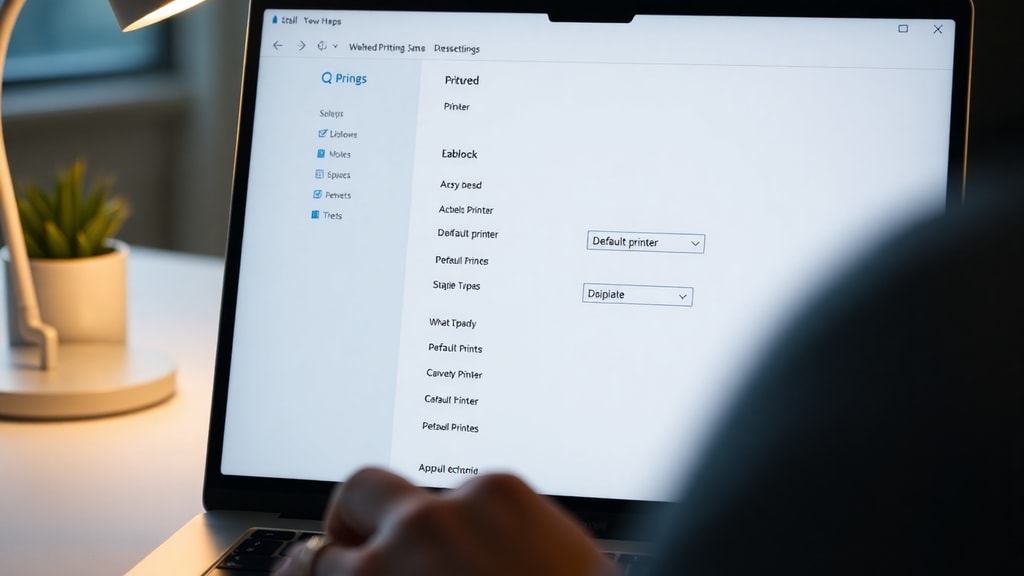
Opening the AppsFolder is remarkably simple and works on every version of Windows from 7 through 11. The most direct method is to press the Windows key and the R key simultaneously to open the Run dialog box. Type shell:appsfolder into the text field and press Enter. File Explorer immediately opens a new window titled Applications, displaying all installed programs in a clean list or icon view. You can also access it through the address bar in File Explorer itself. Just click inside the address bar, erase whatever path is shown, type shell:appsfolder, and press Enter. For users who prefer a more permanent solution, you can create a desktop shortcut. Right-click on an empty area of your desktop, select New, then Shortcut. In the location field, enter explorer shell:AppsFolder and click Next. Give your shortcut a name such as Installed Applications and click Finish. Double-clicking this shortcut from now on will open the AppsFolder instantly.
What You Will Find Inside the AppsFolder
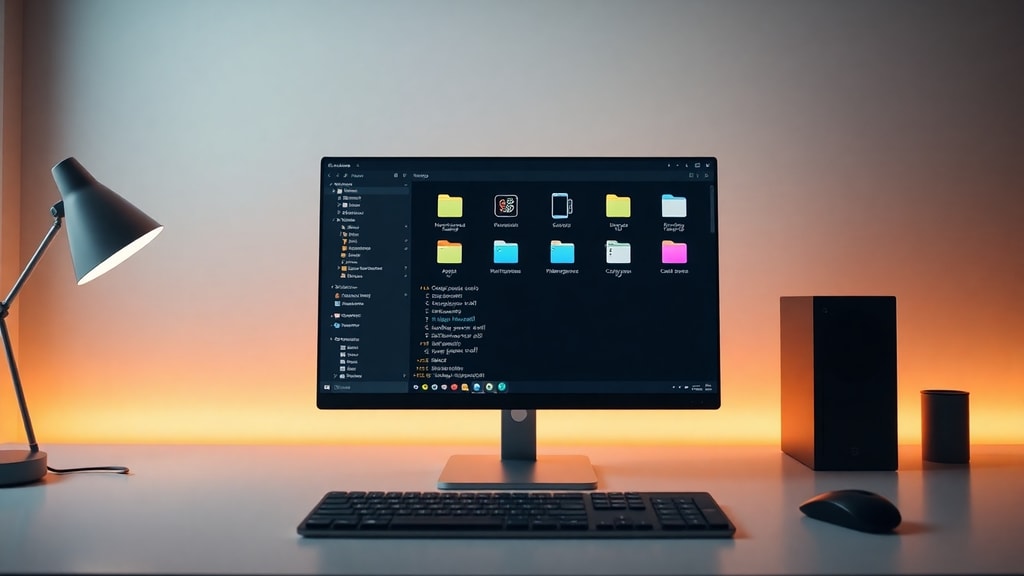
The content of shell:appsfolder is much broader than what most users expect. It includes every application that has registered itself with Windows during installation. This covers standard desktop software like Microsoft Office, Adobe Photoshop, or Google Chrome. It also includes all UWP apps downloaded from the Microsoft Store, such as Spotify, Netflix, or the built-in Windows Camera app. Additionally, you will see entries for certain system tools, like the Command Prompt or the Windows PowerShell, and even some legacy utilities from the Control Panel. One of the most valuable aspects of this folder is that it shows applications that do not appear in the Start menu or even in the typical Programs and Features list. Some developers choose not to create Start menu shortcuts for their tools, making them nearly impossible to find without this folder. The table below outlines the typical categories of items you can expect to see.
| Category | Examples | Notes |
|---|---|---|
| Desktop Applications | Microsoft Word, Adobe Acrobat, 7-Zip | Installed via traditional setup files; appear in Programs and Features. |
| Microsoft Store Apps | Spotify, Instagram, Microsoft Solitaire | Installed from the Store; may not appear in Programs and Features. |
| System Tools | Command Prompt, Windows PowerShell, Control Panel | Built-in Windows components; often hidden from Start by default. |
| Legacy Utilities | Java Control Panel, Adobe Reader Update Notifier | Older tools that still register themselves in the folder. |
| Portable Applications | Some versions of Rufus, PeaZip | Only if the portable app registers itself during runtime. |
Common Tasks You Can Perform from the AppsFolder
Once you have the Applications window open, you can do much more than just look at the list. Right-clicking any item reveals a context menu with several useful actions. The most common option is Pin to Start or Pin to taskbar, which allows you to add the application to your preferred launch area without hunting for its executable file. There is also an Uninstall command, which is particularly handy for Store apps that do not show up in the traditional Control Panel uninstaller. For advanced users, the Open file location option is invaluable. When you click this, File Explorer navigates directly to the folder where the application's shortcut or executable resides, even if that shortcut is normally hidden deep inside the WindowsApps directory. This is helpful when you need to create a custom shortcut, inspect the program's files, or troubleshoot a launch issue.

List of Benefits of Using Shell:Appsfolder
Using the shell:appsfolder command offers several practical advantages over other methods of browsing installed software. Here is a concise list of the most significant benefits:
- It consolidates all installed applications into one view, eliminating the need to check both the Start menu and the Microsoft Store library separately.
- It reveals hidden or orphaned applications that lack Start menu shortcuts, which is common with portable tools or older utilities.
- It provides a fast and direct way to uninstall applications, especially Store apps that are not listed in the classic Programs and Features interface.
- It allows you to create desktop or taskbar shortcuts for any application, including those that do not normally appear in search results.
- It functions identically across Windows 7, 8, 10, and 11, making it a reliable tool for IT professionals who support multiple operating system versions.
How Shell:Appsfolder Relates to Other Windows Shell Commands
Windows includes a family of shell commands that open special virtual folders, and understanding how shell:appsfolder fits into this system can deepen your overall knowledge of the operating system. For example, shell:startup opens the Startup folder where you can place shortcuts that run automatically when you log in. shell:desktop opens your desktop directory, and shell:downloads opens your default download folder. What makes shell:appsfolder unique is that it does not point to a physical location on your disk. Its technical identifier is a GUID, specifically shell:::{4234d49b-0245-4df3-B780-3893943456e1}. This GUID is registered in the Windows Registry and tells File Explorer to query the system for all registered applications and display them in a virtual layout. This is why the folder cannot be accessed by navigating through your C drive, and why it works the same way regardless of which user account is active. For more technical details on how Windows manages these virtual folders, you can refer to the Microsoft documentation on known folder IDs.

Troubleshooting Common Issues with Shell:Appsfolder
While shell:appsfolder is generally reliable, some users encounter situations where the folder appears empty or does not open at all. One common cause is a corrupted Windows user profile. If the system cannot read the registry entries that track installed applications, the folder may show no items. Trying the command from a different user account can help isolate the issue. Another cause is interference from third-party antivirus or system optimization tools that clean up application registration entries. If you have recently used a registry cleaner, you may need to reinstall the affected applications to restore their entries. A third possibility is that you accidentally opened the wrong folder. Typing shell:appsfolder into the Run dialog is case-insensitive, but a typo such as shell:apps or shell:appsfold will not work. Double-check the spelling and try again. If the folder still fails to respond, you can try navigating to the GUID directly. Open File Explorer, click in the address bar, and paste this entire string: shell:::{4234d49b-0245-4df3-B780-3893943456e1}. This bypasses the shell command and goes straight to the underlying virtual folder.
Using Shell:Appsfolder to Create Shortcuts for Any Application
One of the most practical uses of shell:appsfolder is creating shortcuts for applications that are otherwise difficult to pin. Some UWP apps, for example, do not appear in the Start menu's All Apps list as expected, or they may be buried inside folders that make dragging them to the desktop impossible. From the AppsFolder, you can simply drag any application icon onto your desktop, and Windows creates a shortcut automatically. You can also right-click a program, select Copy, and then paste the shortcut into any folder or the taskbar. This method works for all items in the folder, including system tools like the old Windows Media Player or Internet Explorer, which are often hidden from the main interface. For IT administrators who deploy software across multiple machines, this technique can save considerable time when setting up a standard desktop environment. A step-by-step guide on creating such shortcuts is available on TechRepublic.

How Shell:Appsfolder Differs from the Start Menu and Settings
At first glance, shell:appsfolder might seem redundant because you can already see your apps in the Start menu or in Settings under Apps and Features. However, there are important differences. The Start menu only shows applications that have chosen to add a shortcut to the Start menu folder. Many portable applications or older tools skip this step, so they never appear in Start. Settings > Apps and Features lists all installed applications, but it separates Store apps from desktop apps in different sections, and it does not allow you to create shortcuts or open file locations easily. The AppsFolder combines both worlds into a single, interactive list that supports right-click actions. It also refreshes instantly, so if you install a new program while the folder is open, pressing F5 will show it immediately without any delays. This makes it a superior tool for power users who want quick access to every detail of their installed software.
Security and Privacy Considerations
Because shell:appsfolder reveals every application on your system, it can be a security risk if you share your computer or if a malicious program gains access to your user session. An attacker could use this folder to enumerate installed software and identify potential vulnerabilities, such as outdated versions of Java or Adobe Reader. To mitigate this risk, always keep your user account protected with a strong password or PIN, and avoid running unknown scripts or executables that might exploit shell commands. Additionally, be aware that the AppsFolder does not show applications installed for other user accounts on the same machine. Each user sees only the programs registered under their own profile, which provides a natural layer of isolation. For enterprise environments, group policies can restrict access to certain shell commands, including shell:appsfolder, to prevent users from bypassing controlled application deployment strategies.
Alternatives to Shell:Appsfolder
If for some reason shell:appsfolder does not meet your needs, there are alternative ways to access your full application list. The Start menu's All Apps view, accessible by clicking the down arrow or scrolling through the program list, gives a similar overview but may miss unregistered applications. Third-party tools like Everything or Void Tools allow you to search for executable files across your entire drive, but they do not organize them with the same metadata. The Windows PowerShell command Get-StartApps lists installed applications in a text format, which can be useful for scripting or exporting to a file. However, none of these options offer the same graphical, interactive interface with drag-and-drop shortcut creation and direct uninstall capabilities. For most users, shell:appsfolder remains the fastest and most comprehensive solution.
References
The information in this article was compiled from several reliable sources. Microsoft Learn provides official documentation on known folder IDs and their usage in Windows. TechRepublic offers practical guides for IT professionals on shell commands. SuperUser features detailed community explanations of the technical underpinnings of the AppsFolder. MiniTool publishes user-friendly tutorials for everyday Windows users. Cosmonet provides a thorough technical guide in Italian that covers the GUID and registry details of the shell:appsfolder command. These sources were consulted to ensure accuracy and depth in the explanations above.