Introduction
Managing print jobs is a routine task for anyone who uses a printer with a Windows computer. Whether you are in a home office, a busy school, or a corporate environment, understanding how to check the current print jobs in the queue helps you avoid delays, fix stuck documents, and maintain productivity. The print queue is the list of documents waiting to be printed by a specific printer. When a job gets stuck or you need to cancel an unwanted printout, you need to know exactly where to look. Windows provides several built-in ways to view and manage the queue, from simple graphical interfaces to powerful command-line tools. This article explains each method in detail, so you can choose the one that fits your workflow best.
Accessing the Print Queue via Windows Settings
The most straightforward way to check current print jobs is through the Settings app, which works on both Windows 10 and Windows 11. This method does not require any special permissions and is ideal for everyday users. The steps are as follows:
- Click the Start menu (or press the Windows key) and select the gear icon to open Settings.
- In Windows 10, go to Devices and then Printers & scanners. In Windows 11, go to Bluetooth & devices and then Printers & scanners.
- Find your printer in the list of available printers. Click on its name to highlight it.
- Click the button labeled Open print queue (in Windows 10) or Open queue (in Windows 11).
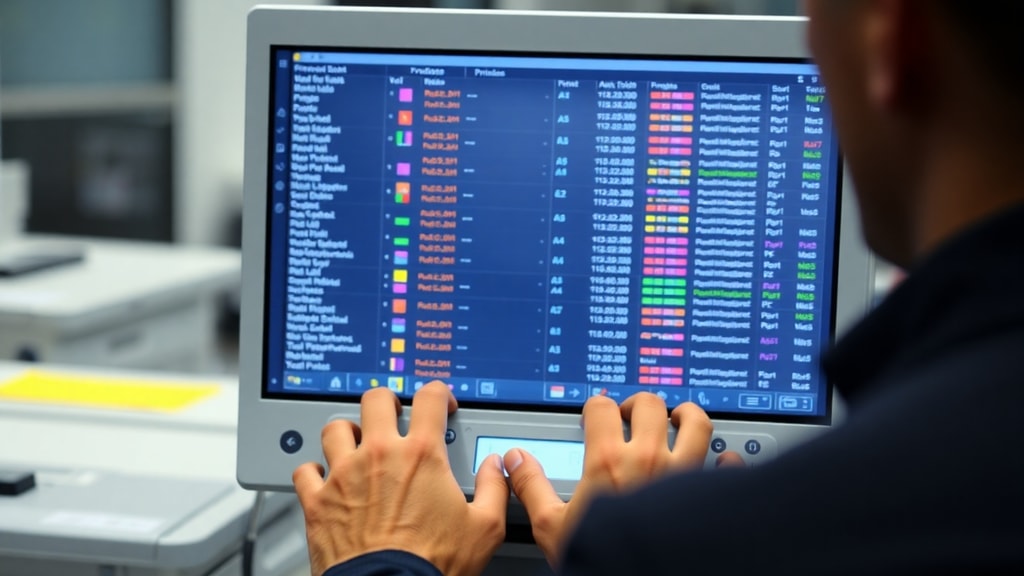
Once the queue window opens, you see all current print jobs listed with information such as document name, status (for example, Printing, Paused, or Error), owner, pages, and size. From this window you can pause, resume, restart, or cancel any job. You can also clear the entire queue if needed. This graphical interface is the most intuitive way to check and manage your print jobs because it updates in real time and shows clearly what is happening with each document.
Checking Print Jobs from the Notification Area
Another fast method is to use the printer icon that appears in the system tray (notification area) on the taskbar. When a print job is active, Windows often shows a small printer icon. If you do not see it, click the arrow to show hidden icons. Then click the printer icon to open the print queue window directly. You can also right-click the icon to see a list of recent jobs and choose to open the queue. This method is convenient because it does not require navigating through multiple menus. For more details on managing stuck jobs, you can refer to the official Microsoft guide on fixing print queue errors in Windows. The notification icon gives you one-click access to the same queue window you would open from Settings, so you can quickly see what is printing and intervene if something goes wrong.
Using PowerShell for Advanced Management
For IT administrators or users who prefer command-line control, Windows PowerShell offers powerful cmdlets to view and manage print queues. This approach is especially useful when you need to manage multiple printers remotely or automate tasks. The primary cmdlet for listing print jobs is Get-PrintJob. You must specify the printer name as a parameter. For example, to see all current jobs for a printer named "HP LaserJet Pro", open PowerShell as administrator and run:
Get-PrintJob -PrinterName "HP LaserJet Pro"This command returns a list with details such as JobId, DocumentName, Status, Owner, and TimeSubmitted. You can then pipe these results into other cmdlets to cancel or pause jobs. For instance, to cancel a job with a specific ID, use Remove-PrintJob -PrinterName "HP LaserJet Pro" -JobId 123. The PowerShell route is faster for advanced users and can be scripted. For more training on client-side printing management, see the Microsoft Learn module on managing print drivers and devices. PowerShell also allows you to view jobs for all printers at once by combining the Get-Printer and Get-PrintJob cmdlets, which is very efficient in environments with many printers.

How to Cancel or Pause Print Jobs
Regardless of which method you use to open the queue, cancelling or pausing a job follows the same basic principle. In the graphical queue window, simply right‑click any job in the list. A context menu appears with options such as Pause, Resume, Restart, and Cancel. Click Cancel to remove the job from the queue immediately. If you need to pause all new jobs from being sent to the printer, you can also select Pause Printing from the Printer menu in the queue window. In PowerShell, you pause a job with Suspend-PrintJob -PrinterName "PrinterName" -JobId 123 and cancel with Remove-PrintJob. If you accidentally cancel the wrong job, you may need to resend it from the application that originally created it, so be careful. The ability to pause jobs is especially useful when you need to fix a paper jam or reload paper without losing the documents already in line.
Troubleshooting Common Print Queue Issues
Print queues can sometimes behave unpredictably. Jobs may get stuck with a status of "Spooling" or "Error" even though the printer is working. Below is a table of common problems and practical solutions.
| Issue | Possible Cause | Solution |
|---|---|---|
| Job stuck in queue | Corrupt spooler or driver conflict | Restart the Print Spooler service (services.msc) and clear the queue |
| Printer shows offline | Network connection lost or USB cable unplugged | Check physical connections; run printer troubleshooter |
| Multiple copies printing when not desired | Settings in the application vs. printer defaults | Cancel excess jobs and check the print dialog before sending |
| Access denied | Insufficient user permissions | Log in as administrator or contact IT to adjust permissions |
| Job disappears from queue but does not print | Printer driver error or paper mismatch | Update the driver or check printer settings for paper type |
For many of these issues, the first step is always to open the queue and see if you can cancel or restart the problematic job. If the queue itself is unresponsive, restarting the Print Spooler service usually clears everything. Do not forget to check the printer's physical condition as well. A simple power cycle of the printer can resolve many communication errors.
Tips for Managing Multiple Print Jobs Efficiently
When you have many jobs in the queue, organization becomes important. Here are a few tips to keep your printing smooth. First, always give your documents clear names so they are easy to identify in the queue. Second, use the priority features available in some printer drivers; for example, you can often set a job as "urgent" to move it ahead of others. Third, if you regularly print large files, consider scheduling them during off‑peak hours to avoid congestion. Fourth, delete old or duplicate jobs as soon as you notice them to keep the queue tidy. Finally, if you share a network printer, communicate with other users to avoid conflicting print jobs. PowerShell scripts can help automate cleanup of jobs that have been sitting in the queue for too long. For instance, you can write a script to cancel all jobs older than one hour. This proactive management reduces the chance of a stuck job blocking the entire queue.

Conclusion
Checking current print jobs in the Windows queue is a simple yet essential skill. Whether you prefer the graphical interface through Settings or the notification area, or you like the speed and flexibility of PowerShell, Windows gives you multiple ways to see exactly what is printing and take action when needed. From cancelling an accidental printout to clearing a jammed queue, knowing these methods saves time and frustration. By following the steps in this article and using the troubleshooting table, you can handle most common print queue problems on your own. Remember to keep your printer drivers updated and to regularly monitor the queue if you share the printer with others. With practice, managing print jobs becomes a quick and effortless part of your daily computer use.
References
Microsoft Support. "Corrigir trabalho de impressão preso em erros de fila no Windows." Accessed June 2025. URL: https://support.microsoft.com/pt-br/windows/corrigir-trabalho-de-impress%C3%A3o-preso-em-erros-de-fila-no-windows-9ee21bad-4488-45b5-b497-2d8299bd74aa
Microsoft Learn. "Gerir a impressão do lado do cliente." Accessed June 2025. URL: https://learn.microsoft.com/pt-br/training/modules/manage-drivers-device-peripherals/6-manage-client-side-printing