What Are Desktop Widgets and Why Use Them?
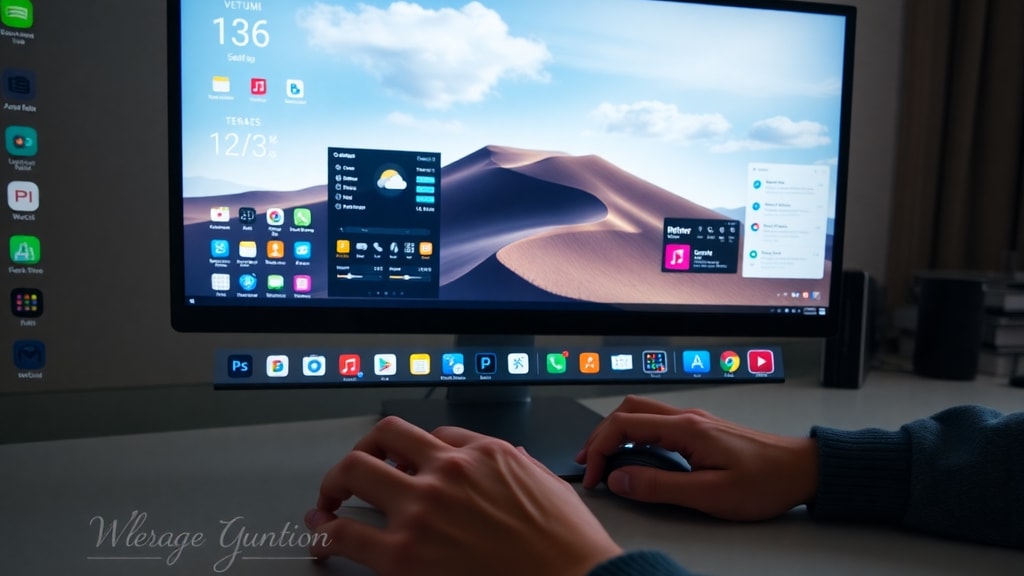
Desktop widgets are small applications that live on your computer screen, providing quick access to information, tools, or visual enhancements. They can display everything from the current weather forecast and your calendar appointments to real-time system performance stats like CPU usage and memory load. For many users, widgets serve as a productivity booster because they reduce the need to open separate apps or browser tabs just to check simple data. For others, widgets are about personalization: they let you customize your desktop with clocks, photo slideshows, music visualizers, and stylish skins that reflect your taste. Whether you use a Windows PC or a Mac, the right widgets can transform your desktop from a static grid of icons into a lively, functional dashboard that keeps you informed and inspired throughout the day.
Native Windows Widgets Bar
Microsoft has built a native widgets system directly into Windows 10 and Windows 11. It appears as a dedicated button on the taskbar, often displaying a weather icon by default. When you click or swipe onto it, a panel slides out from the left side of your screen, showing a mix of widgets: weather, news headlines, traffic information, sports scores, and a calendar. This feature is enabled by default in many installations, but if it is missing, you can activate it by navigating to Settings > Personalization > Taskbar > Widgets and toggling it on. The native widgets bar is convenient because it requires no third‑party installation and integrates directly with your Microsoft account to show personalized content. However, its customization options are limited compared to dedicated widget apps. You cannot move individual widgets onto your desktop background or resize them freely; they remain confined to the sliding panel. Despite these restrictions, the built‑in widgets bar provides a solid starting point for anyone new to desktop widgets, offering quick glanceable information without cluttering your workspace.
Top Third‑Party Widget Platforms for Windows
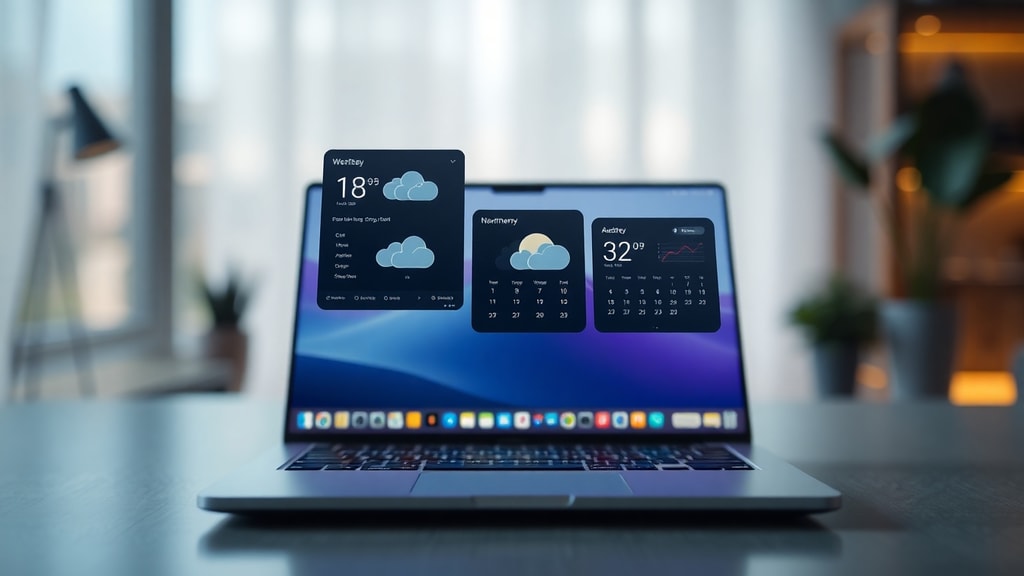
For users who want more control and variety, third‑party widget applications offer extensive customization. These apps allow you to place widgets directly on your desktop, adjust transparency, choose from hundreds of skins, and add functionality that the native panel lacks. Below is a comparison of three popular options for Windows 10 and 11.
| Widget App | Key Features | Price / Licensing |
|---|---|---|
| Widget Launcher | Over 1,600 customizable skins; includes CPU monitors, weather, calendar, world clocks | Free (Microsoft Store) |
| BeWidgets | Floating, highly customizable widgets for time, weather, finances, photos | Free, open‑source |
| Seelen UI | Lightweight desktop manager; elegant widgets for system monitoring, music visualization, clocks | Free, open‑source |
These applications are available through the Microsoft Store or directly from their official websites. They each have a different focus: Widget Launcher emphasizes sheer variety of skins, BeWidgets prioritizes a clean floating interface, and Seelen UI offers a modern, minimalist aesthetic integrated into a full desktop manager.
Widget Launcher: A Versatile Option
Widget Launcher, previously known as Widgets HD, is one of the most popular widget apps in the Microsoft Store. It provides a massive library of over 1,600 customizable skins, covering almost every type of widget you might need. You can add CPU and RAM monitors for keeping an eye on system performance, weather widgets that show forecasts for multiple locations, analog and digital clocks, calendars, and even world clocks for tracking time zones. The app allows you to resize each widget and adjust its opacity to blend with your chosen wallpaper. Because it is free and regularly updated, Widget Launcher is an excellent choice for users who enjoy experimenting with different looks. However, because it relies on a large online database of skins, some user‑created designs may vary in quality. You can download it directly from the Microsoft Store using this link.
BeWidgets: Open‑Source Customization
BeWidgets stands out as a free, open‑source desktop customization tool for Windows 10 and 11. Its main attraction is the ability to create floating widgets that sit anywhere on your desktop, not just in a sidebar. BeWidgets supports a variety of widget types: time and date displays, weather forecasts, financial stock tickers, and photo slideshows using your own images. Each widget can be styled with different fonts, colors, and background effects. The open‑source nature of BeWidgets also means that developers can contribute improvements or create new widgets based on the framework. For users who value privacy and the ability to inspect the code, BeWidgets is a reassuring option. It does not display advertisements or collect unnecessary data. If you prefer a lightweight tool that gives you full control over the appearance of your desktop without extra overhead, BeWidgets is worth exploring. You can download it from the Microsoft Store via this official page.
Seelen UI: Lightweight Desktop Manager
Seelen UI is a free, open‑source desktop manager for Windows 11 that includes a sophisticated widget system. Unlike standalone widget apps, Seelen UI replaces or enhances the traditional taskbar and start menu, offering a modern workflow. Its widget panel supports system monitoring widgets that display real‑time CPU, GPU, and RAM usage, a music visualization widget that reacts to your audio output, and elegant analog and digital clocks. Seelen UI is designed to be light on system resources, which makes it ideal for users who run demanding applications or games and do not want unnecessary background processes. The entire tool is customizable through a settings interface, and because it is open‑source, the community can extend its capabilities. For those looking for a comprehensive desktop overhaul that includes widgets, Seelen UI is a compelling choice. More information and downloads are available on the project’s website.
Widgets for Mac Users: WidgetWall
Mac users are not left out of the widget revolution. WidgetWall is a highly customizable suite of widgets and stickers designed specifically for macOS. It allows you to place widgets directly on your desktop background, creating a personalized layout that can include weather reports, calendars, clocks, to‑do lists, and even decorative stickers. WidgetWall supports different widget sizes and themes, and you can arrange them in any configuration you like. The app is available on the Apple App Store and offers both free and premium tiers. Another Mac option is DeskWidgets, which provides similar functionality with a focus on simplicity. Because macOS already has a Notification Center with native widgets, third‑party apps like WidgetWall extend that functionality by letting widgets live permanently on the desktop, always visible. This approach can be especially useful for users who want to glance at information without having to open a panel or swipe on a trackpad.
Cross‑Platform and Mobile Widget Solutions
Desktop widgets are not limited to Windows and Mac. Many widget ecosystems are now cross‑platform, allowing you to sync your widgets across your computer, tablet, and phone. On Android, apps like iScreen and My Desktop offer extensive widget libraries that can mimic the look of a Windows or Mac desktop. These mobile widgets often include clocks, weather, battery status, and quick shortcuts. For users who want a consistent experience across devices, some third‑party developers are creating widget systems that work on Windows via the Microsoft Store and on mobile through companion apps. Although full cross‑platform widget sync is still relatively niche, the trend is growing. Using a tool like Widget Launcher on Windows and a matching app on your Android phone can provide a unified information feed that follows you throughout the day.
How to Get Started with Desktop Widgets
If you are ready to try desktop widgets, follow these simple steps to get the most out of them.
- Identify your primary needs: Do you want system monitoring, weather updates, calendar integration, or just visual decoration? Knowing this will guide your choice of widget app.
- Start with the native widgets on your OS: On Windows, enable the built‑in widgets bar to see if the basic features satisfy you. On Mac, explore the Notification Center widgets before installing third‑party apps.
- Choose a trusted third‑party app: For Windows, download Widget Launcher, BeWidgets, or Seelen UI from official sources. For Mac, try WidgetWall or DeskWidgets from the App Store.
- Experiment with customization: Resize, reposition, and change skins until your desktop feels both functional and visually pleasing. Most apps allow you to save different profiles so you can switch between work and personal layouts.
- Monitor performance: Widgets that constantly update (like CPU monitors or live weather) can use system resources. Keep an eye on your PC’s performance and disable any widgets that you do not need.
- Update regularly: Developers frequently add new features and fix bugs. Keep your widget apps updated to ensure stability and security.
By following these steps, you can gradually build a desktop environment that works for your routine without becoming overwhelming.
Conclusion
Desktop widgets offer a practical and creative way to enhance your computing experience. Whether you need instant access to system metrics, a weather forecast at a glance, or simply want to personalize your screen with beautiful clocks and photo displays, there is a widget solution available for your platform. Native options on Windows and macOS provide a basic starting point, but third‑party applications like Widget Launcher, BeWidgets, Seelen UI, and WidgetWall unlock far greater flexibility and customization. As technology advances, we can expect even more integrated and cross‑platform widget ecosystems to emerge. Investing a little time in setting up the right widgets can save you time in the long run by reducing app switches and keeping important information always visible. Experiment with different tools and layouts until you find the combination that makes your desktop both productive and uniquely yours.
References
YouTube – Transform your desktop with Windows widgets: https://www.youtube.com/watch?v=U9nRouTl8f0
Microsoft Store – Widget Launcher: https://apps.microsoft.com/detail/9wzdncrdqfbt?hl=es-ar
Uptodown – Widget Launcher for Windows: https://widget-launcher.en.uptodown.com/windows
Microsoft Store – BeWidgets: https://apps.microsoft.com/detail/9nq07fg50h2q
Softonic – BeWidgets download: https://bewidgets.en.softonic.com
Seelen IO – Desktop Widgets: https://seelen.io/es/apps/seelen-ui/desktop-widgets
Apple App Store – WidgetWall: https://apps.apple.com/us/app/widgetwall/id1618466427
Softzone – Mejores widgets Windows: https://www.softzone.es/windows/personalizacion/mejores-widgets-windows/