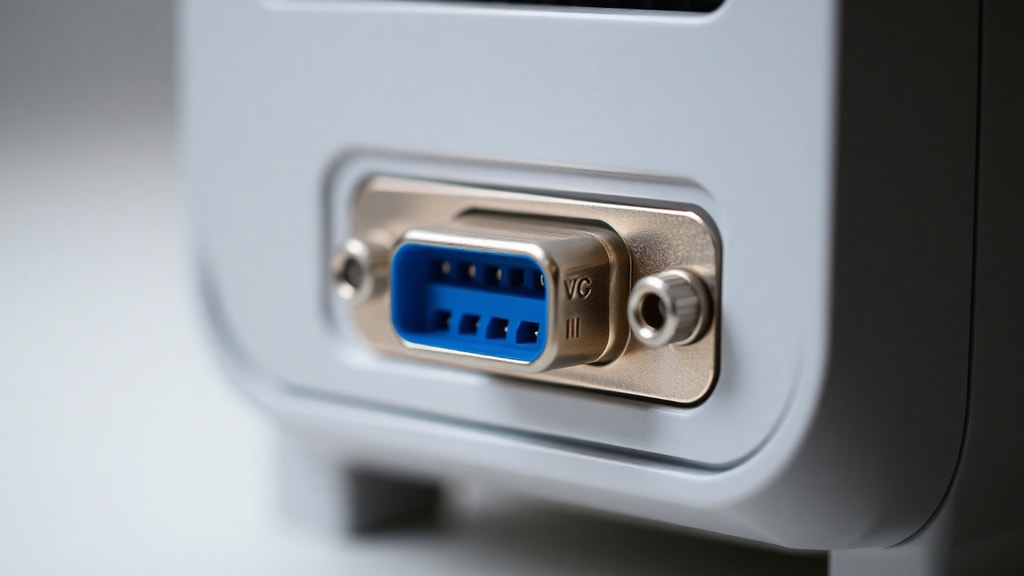
Understanding the Router: The Core of Your Home Network
A router is the central hub of your home or office network. It is essentially a small computer designed for one primary purpose: directing data traffic. When you send an email, stream a video, or browse a website, your device sends a request. The router receives that request and acts as a traffic cop, finding the fastest path to the destination server on the Internet. It then manages the return traffic, ensuring the data reaches the correct device in your home. Without a router, your individual devices would have no way to communicate with the Internet or with each other. Every piece of data flowing through your network passes through this device, making it a critical component for both performance and security.
The core function of a router involves packet switching. Data is broken down into small packets, each with a destination address. The router reads these addresses and uses a routing table, which is like a map of the network, to decide where each packet should go next. This process happens millions of times per second for a single video stream. Modern routers are sophisticated systems that handle multiple tasks simultaneously, including wireless broadcasting, network security, and bandwidth management. They serve as the gateway between your local network and the wider Internet, managing the flow of information to keep everything running smoothly.
Essential Router Types for Every User
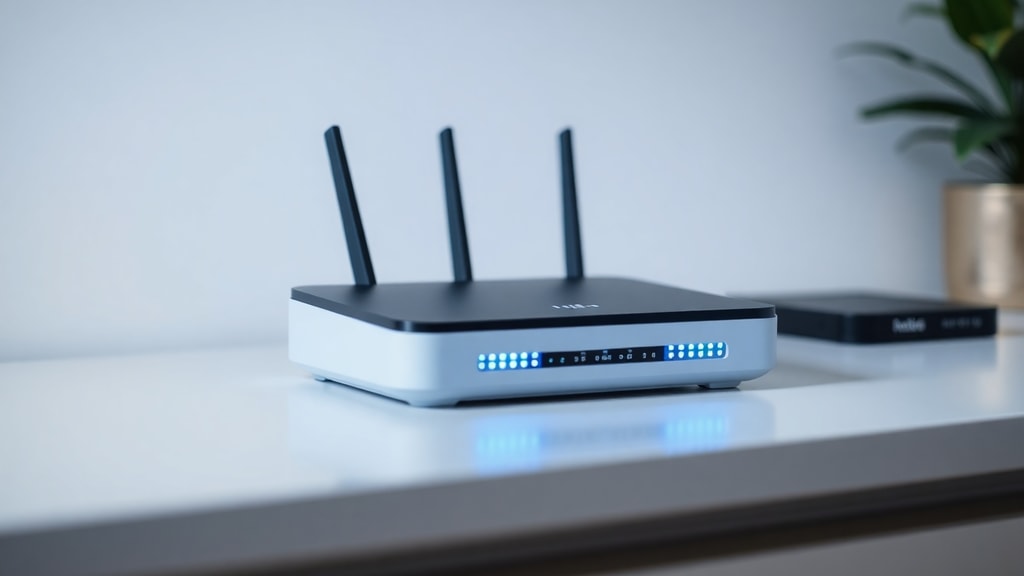
Routers come in several configurations, and choosing the right type depends on your living situation, internet speed, and number of devices. The most common type is the standalone wireless router. This is a single box that combines the router, network switch, and wireless access point. It connects directly to your modem or fiber optic terminal and broadcasts a Wi-Fi signal. These are suitable for small to medium-sized homes where the router can be centrally located. They are also the most affordable option, with decent performance for basic web browsing and streaming.
For larger homes or spaces with multiple floors and thick walls, a mesh router system is often a better choice. A mesh system uses multiple units, typically a main router and two or more satellite nodes, that work together to create a single, unified Wi-Fi network. Unlike a traditional router with a range extender, mesh nodes communicate with each other seamlessly, allowing you to move through your home without experiencing dropped connections. They are easy to set up through a mobile app and automatically manage device handoffs. The main difference from standalone routers is that mesh systems typically range from $300 to over $1,000 for high-end tri-band models, but they offer superior coverage for demanding environments.
Another important category is the gaming router. These are specialized devices designed to reduce latency and prioritize gaming traffic. They often feature advanced Quality of Service (QoS) settings that allow you to assign bandwidth to your gaming console or PC over other devices. They may also include multiple gigabit Ethernet ports, customizable RGB lighting, and built-in VPN support. While they are more expensive, typically costing between $200 and $500, they provide features that hardcore gamers find essential for competitive play.
Key Features to Consider When Buying a Router
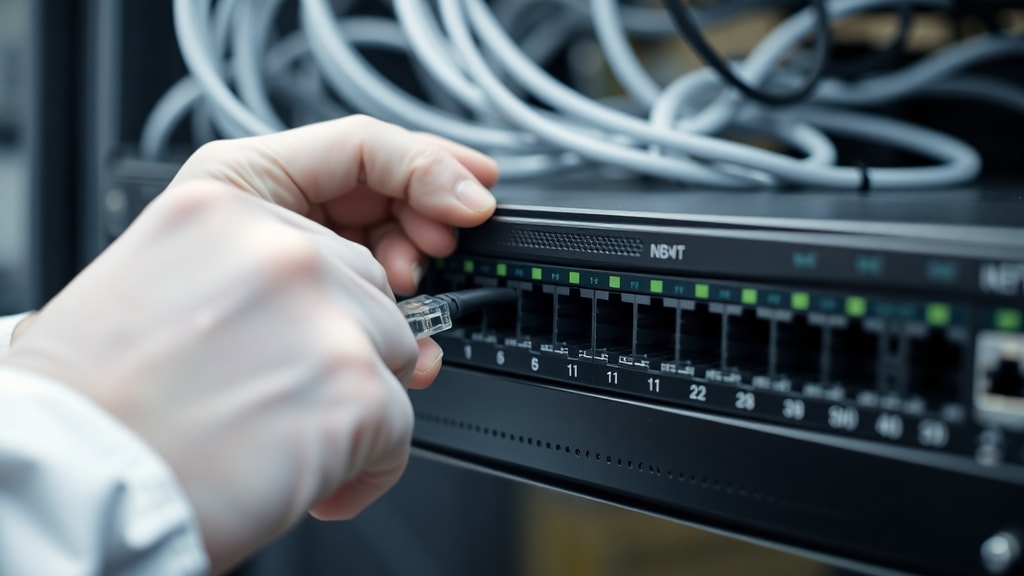
When evaluating a router, you must consider several technical features that directly impact your experience. The number of Ethernet ports is important if you have wired devices like a desktop computer, gaming console, or network-attached storage. Most routers offer four or five LAN ports, but high-end models may have more. The type of Ethernet port also matters; you want gigabit ports for speeds up to 1 Gbps. Some new routers now include 2.5 Gbps or even 10 Gbps ports for ultra-fast wired connections, but these are only beneficial if your internet plan supports those speeds.
Security is another critical feature. Modern routers include built-in firewalls that monitor incoming and outgoing traffic. These firewalls act as a barrier between your network and the Internet, blocking malicious data packets and preventing unauthorized access to your devices. Advanced routers also offer content filtering, which can block access to known malicious websites and adult content. Some models include automatic firmware updates to patch security vulnerabilities as soon as they are discovered. When buying a router, look for one that supports WPA3 encryption, the latest Wi-Fi security standard, to keep your network safe from intruders.
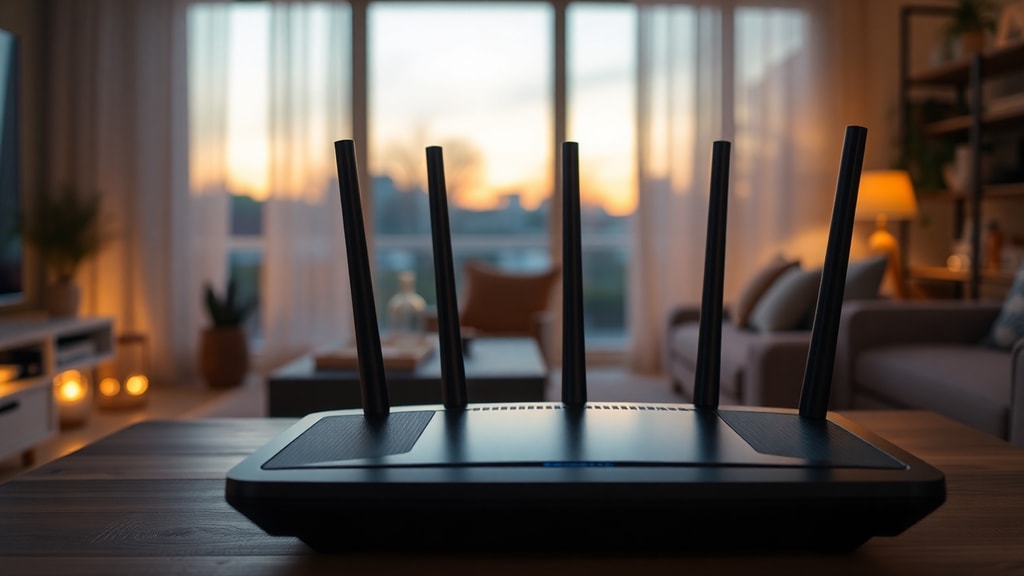
Antenna type and placement also matter. External antennas can be adjusted to improve signal direction, while internal antennas are less obtrusive but may offer less control. For the best performance, look for a tri-band router, which broadcasts two separate signals on the 5 GHz band and one on the 2.4 GHz band. This design reduces congestion because devices can be spread across multiple channels. Tri-band routers are particularly useful in households with many smart devices, as they help maintain high speeds for streaming and gaming even when many gadgets are online.
Understanding Wi-Fi Standards: From Wi-Fi 6 to Wi-Fi 7
Wi-Fi standards evolve continuously to meet increasing demands for speed and capacity. The most common standard as of 2026 is Wi-Fi 6, also known as 802.11ax. Wi-Fi 6 operates on both the 2.4 GHz and 5 GHz bands and offers significant improvements over its predecessor, Wi-Fi 5. It uses technologies like Orthogonal Frequency Division Multiple Access (OFDMA) to allow multiple devices to communicate simultaneously, reducing lag and improving efficiency in crowded homes. Wi-Fi 6 routers are a solid choice for most households, offering reliable performance for streaming, gaming, and video calls.
Wi-Fi 6E is an extension of Wi-Fi 6 that adds support for the 6 GHz band. This band is less congested than the 2.4 GHz and 5 GHz bands, providing cleaner channels for high-bandwidth activities. Wi-Fi 6E routers require compatible devices to take advantage of the 6 GHz band, but they future-proof your network. For those seeking the latest technology, Wi-Fi 7, or 802.11be, was certified in early 2024 and is now appearing in high-end routers. Wi-Fi 7 offers even higher speeds, lower latency, and increased capacity. It uses 320 MHz channels, double the width of Wi-Fi 6, and supports multi-link operation to combine multiple bands for faster data transfer. However, Wi-Fi 7 routers are still expensive and may not be necessary for all users.
| Wi-Fi Standard | Band Support | Max Theoretical Speed | Key Features |
|---|---|---|---|
| Wi-Fi 6 (802.11ax) | 2.4 GHz, 5 GHz | 9.6 Gbps | OFDMA, Target Wake Time, improved efficiency |
| Wi-Fi 6E (802.11ax extended) | 2.4 GHz, 5 GHz, 6 GHz | 9.6 Gbps | Additional 6 GHz band, reduced congestion |
| Wi-Fi 7 (802.11be) | 2.4 GHz, 5 GHz, 6 GHz | 46 Gbps | 320 MHz channels, Multi-Link Operation, 4096-QAM |
When selecting a router, consider your current devices. If you own many Wi-Fi 6 compatible gadgets, a Wi-Fi 6 router will serve you well. If you want the latest performance and have compatible devices, a Wi-Fi 7 router is a worthwhile investment. However, for most users, a high-quality Wi-Fi 6 or 6E router offers an excellent balance of performance and price.
IP Addressing and NAT: How Your Router Manages Devices
Every device on your network needs a unique identifier to communicate. Your router handles this by assigning IP addresses to each connected device. Typically, your router uses a process called Dynamic Host Configuration Protocol (DHCP) to automatically assign these addresses. When a device connects to the network, the router gives it a private IP address, such as 192.168.1.2. This private IP address is only valid within your local network. The router itself has a public IP address, which is the address assigned to you by your Internet Service Provider (ISP). This public address is how the Internet sees your entire household.
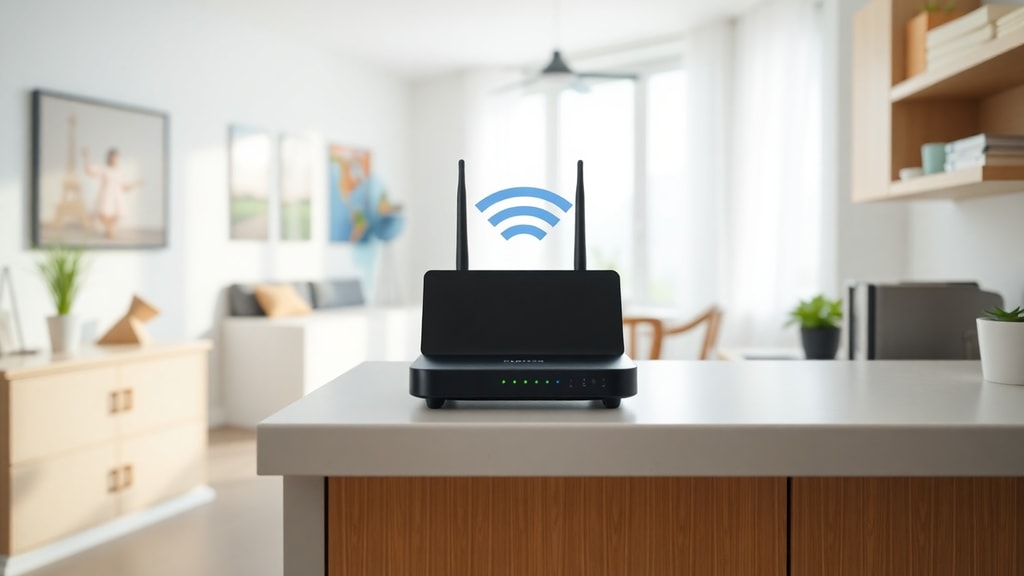
The mechanism that makes this work is called Network Address Translation (NAT). NAT allows your router to let multiple devices share that single public IP address. When one of your devices sends a request to a website, the router notes which device made the request. When the response comes back from the website, the router uses NAT to forward that response to the correct device on your network. This process is essential because there are not enough IPv4 addresses to give every device in the world its own public IP. Without NAT, upgrading your network would be far more complex. For more detailed information on how IP addressing and NAT work, you can read this resource from Netgear.
Security Features: Firewalls and Content Filtering
Modern routers are equipped with robust security features that go beyond simple password protection. A built-in firewall is the first line of defense. This firewall monitors all traffic that enters and leaves your network. It inspects data packets for known threats and blocks suspicious activity. Many firewalls also support Stateful Packet Inspection, which tracks the state of active connections and only allows incoming traffic that matches an outgoing request. This prevents unsolicited connections from malicious sources. Keeping your firmware updated is crucial because manufacturers release patches to address newly discovered vulnerabilities.
Content filtering is another valuable security feature. This allows you to block access to specific categories of websites, such as those containing malware, phishing pages, or adult content. Some routers offer parental controls that let you set time limits for internet access or pause the internet for specific devices. These features are especially useful for families with children. Additionally, many routers now include automatic threat detection that can identify and block devices that are infected with malware or participating in botnets. For a deep dive into router security best practices, check out the guides available at RouterSecurity.org.
Pricing and What to Expect in 2026
The cost of a router varies greatly based on its features and performance capabilities. For a typical home with average internet speeds and a handful of devices, a mid-range dual-band Wi-Fi 6 router is an excellent choice. These routers usually cost between $150 and $200. They provide reliable coverage for most apartments and smaller homes and support all the essential security features. Brands like TP-Link, Asus, and Netgear dominate this segment, offering good performance for the price.
If you need more coverage or have a larger home, high-end tri-band Wi-Fi 6E routers are available in the $300 to $500 range. These routers offer the advantage of the 6 GHz band and better performance in congested environments. For those who want a mesh system to cover an entire house with thick walls or multiple floors, prices start around $300 and can go up to $1,000 or more for premium models with multiple nodes and advanced features like built-in security software. Before purchasing, consider your internet plan speed. Buying a router that can handle much higher speeds than your plan provides is often unnecessary, but it does future-proof your network for when faster plans become available.
Essential Buying Tips: A Quick Checklist
To help you make an informed decision, here are several key points to consider before purchasing a router:
- Determine your internet speed plan; buy a router that supports at least that speed.
- Assess the size of your home; for large spaces, consider a mesh system.
- Check the number of wired devices you have; ensure enough Ethernet ports are available.
- Look for WPA3 encryption for the best wireless security.
- Consider a tri-band router if you have many simultaneously active devices.
- Verify that the router supports the Wi-Fi standard compatible with your devices.
- Read reviews for real-world performance and reliability data.
- Ensure the router has a user-friendly interface or app for easy setup.
- Check for automatic firmware update support to keep security current.
- Factor in the cost of any additional features you might need, such as VPN support or advanced QoS.
References
This article synthesizes information from several authoritative sources to provide an accurate and comprehensive guide to routers. The definition and core functions of routing, including packet switching and traffic management, were informed by DIY.org and PDQ. Details on IP addressing and Network Address Translation were sourced from Netgear and Bytagig. The section on security features, including firewalls and content filtering, draws on material from RouterSecurity.org and Bytagig. Information about Wi-Fi standards, including Wi-Fi 6, Wi-Fi 6E, and Wi-Fi 7, was based on reports from Consumer Reports and Bytagig. Hardware specifications and pricing estimates were derived from RouterSecurity.org and Netgear. These resources provide further reading for anyone interested in a deeper understanding of router technology.