Understanding the Need for Emojis on a PC
Emojis have become an essential part of digital communication, allowing people to express emotions, ideas, and reactions quickly. While smartphones have built-in emoji keyboards, many PC users wonder how to access these symbols on their computers. Whether you are writing a professional email, chatting with friends, or creating social media content, knowing how to put emojis on a PC can save time and add personality to your text. Fortunately, Windows and other platforms offer several straightforward methods to insert emojis, from keyboard shortcuts to virtual keyboards and copy-paste techniques. This article explores the most effective ways to use emojis on a PC, ensuring you can communicate with color and nuance just like on a mobile device.
Using the Windows Emoji Panel
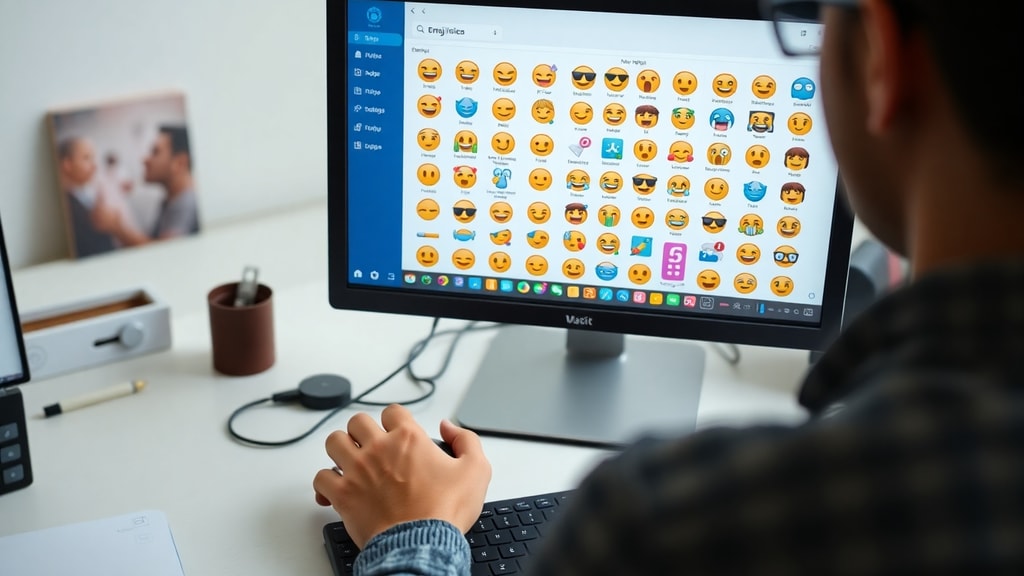
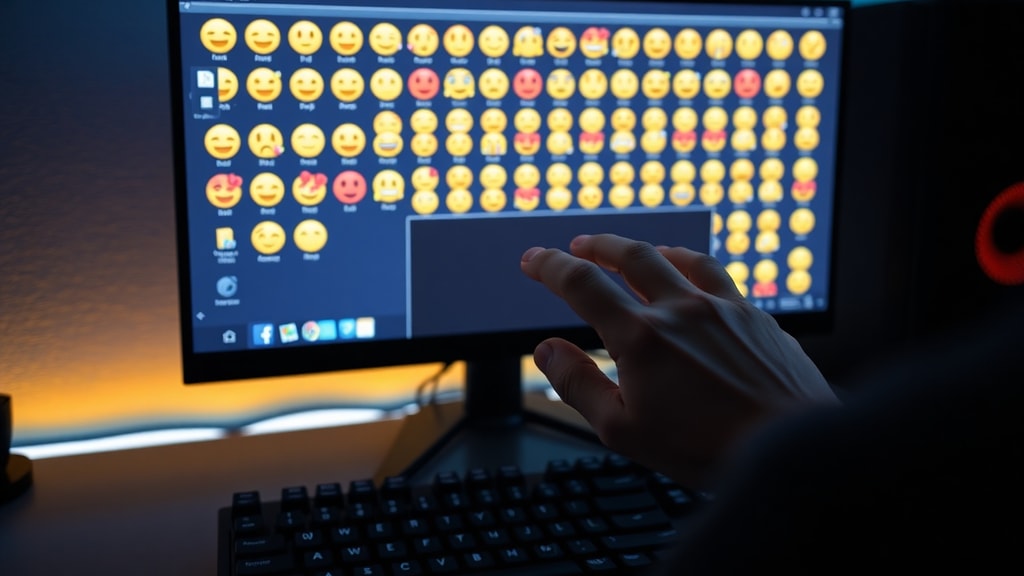
The fastest and most integrated method for putting emojis on a PC is the Windows Emoji Panel. Available in Windows 10 and Windows 11, this feature allows you to access a library of emojis directly from your keyboard. To open the emoji picker, simply press the Windows key and the period (.) key simultaneously, or use the Windows key and semicolon (;) combination. This shortcut works in almost any text field, including Microsoft Word, web browsers, chat applications, and note-taking programs. Once the panel appears, you can browse through categories such as smileys, animals, food, and symbols, or use the search bar to find a specific emoji. Clicking on any emoji inserts it directly into your document or message. This method is ideal for users who need quick access to a wide range of emojis without leaving their current app. According to Microsoft Support, the emoji panel is a built-in tool that simplifies inserting emojis, and it is regularly updated with new characters through Windows updates.
Enabling the Virtual Keyboard Emoji Button
Another practical approach to putting emojis on a PC is by using the touch keyboard, also known as the virtual keyboard. This method is particularly useful for users without a physical keyboard or those who prefer a visual interface. To enable this feature, right-click on the taskbar and select “Show touch keyboard button.” A small keyboard icon will appear in the system tray area near the clock. Clicking this icon opens the on-screen keyboard, which includes an emoji key located next to the spacebar. Pressing this key reveals an emoji picker similar to the one on mobile devices. You can scroll through categories, search for emojis, and tap to insert them into any text field. This option is especially helpful for touch-enabled laptops or tablets, but it works equally well on desktop systems. The virtual keyboard emoji button is a versatile tool that integrates seamlessly with Windows, providing an intuitive way to add emojis to your conversations. As noted by Canaltech, this method is one of the simplest ways to access emojis without memorizing keyboard shortcuts.
Copying and Pasting from Emoji Websites
For users who prefer a web-based approach, copying and pasting from emoji websites is a reliable alternative. Sites like Emojipedia and Get Emoji host extensive collections of emojis organized by category. You can browse through lists of smileys, gestures, objects, and flags, then select an emoji and copy it using the standard Ctrl+C shortcut. After copying, switch to your target application and paste the emoji using Ctrl+V. This method works in any program that supports text input, including email clients, document editors, and social media platforms. One advantage of this technique is that it does not require any software installation or system configuration. Additionally, emoji websites often provide Unicode codes and descriptions, which can help you understand the meaning behind each symbol. However, it is important to note that some older applications may not render certain emojis correctly, so testing the pasted symbol is advisable. According to TechTudo, this method is particularly useful for users of older Windows versions that lack native emoji support. For a comprehensive list of emojis, you can visit resources like emojipedia.org to find the exact symbol you need.
Using Alt Codes in Microsoft Word
If you frequently work in Microsoft Word and need to insert specific emojis, the Alt code method offers a direct way to type them. This technique relies on the numeric Unicode code assigned to each emoji. For example, holding the Alt key and typing 1 on the numeric keypad produces a smiley face emoji. However, this method has limitations. First, it only works in Microsoft Word and a few other Office applications that support Alt codes. Second, it requires a keyboard with a separate numeric keypad, as the number row at the top of the keyboard does not work for this purpose. Third, only a limited set of emojis have simple numeric codes; most modern emojis require longer codes that are impractical to memorize. Digitalmente Tech advises that while Alt codes can be handy for frequently used symbols like smileys or hearts, they are not a comprehensive solution for the full emoji library. For most users, the emoji panel or copy-paste method is more efficient. Nonetheless, Alt codes remain a useful trick for advanced users who want to insert emojis without leaving the keyboard.
List of Common Emoji Shortcuts for Windows
To help you get started, here is a quick reference list of common emoji combinations that can be typed directly in many applications, especially in chat programs that support autocorrect:
- Windows key + . (period) or Windows key + ; (semicolon) – Opens the emoji panel
- :) – Often converts to a classic smiley face
- :( – Converts to a frown face
- :D – Converts to a wide grin
- ;) – Converts to a winking face
- <3 – Converts to a heart symbol
- :O – Converts to a surprised face
- :/ – Converts to a skeptical face
- :P – Converts to a tongue-out face
Note that these text-based shortcuts often work in messaging apps like WhatsApp Web, Slack, and Microsoft Teams. However, they may not function in all software, so using the dedicated emoji panel is generally more reliable.
Comparison of Methods for Putting Emojis on a PC
The following table summarizes the main methods discussed, highlighting their key features and compatibility:
| Method | Key Features | Best For | Requires Internet? |
|---|---|---|---|
| Windows Emoji Panel | Integrated system tool, shortcut keys, searchable library | All users, especially for quick access | No |
| Virtual Keyboard Button | On-screen keyboard, emoji key, touch-friendly | Touchscreen users or those with limited keyboard access | No |
| Copy and Paste from Websites | Web-based, wide selection, no installation needed | Older Windows versions or occasional use | Yes |
| Alt Codes in Word | Direct keyboard input, numeric codes | Word users with numerical keypad | No |
Each method has its strengths, and you can combine them based on your workflow. For instance, use the emoji panel for daily chatting and Alt codes for specific symbols in Word documents.
Tips for Using Emojis Effectively on a PC
When adding emojis to your computer, consider the context and audience. In professional settings, use emojis sparingly to maintain clarity and respect. For personal messages, emojis can convey tone and emotion that plain text lacks. Also, be aware that some older systems or software may not display all emojis correctly, showing blank squares instead. To avoid this, stick to widely supported emojis like smiley faces, thumbs up, and hearts. If you encounter display issues, update your operating system or use a modern browser. Additionally, learning the Unicode codes for your most-used emojis can save time, but the emoji panel remains the most comprehensive solution. Finally, explore third-party apps like “Emoji Keyboard” for Windows, which offer enhanced features such as quick search and favorites, though the built-in tools are sufficient for most users.

Conclusion
Putting emojis on a PC is no longer a challenge, thanks to multiple accessible methods. The Windows Emoji Panel is the most direct option for Windows 10 and 11 users, while the virtual keyboard provides a visual alternative. Copy-pasting from emoji websites works universally, and Alt codes offer a niche solution for Word users. By familiarizing yourself with these techniques, you can enhance your digital communication with expressive symbols. For further details, you can explore the official Microsoft Support page for keyboard tips at Windows keyboard tips and tricks. Choose the method that fits your workflow and start adding emojis to your PC today.
References
Microsoft Support – “Windows keyboard tips and tricks” (https://support.microsoft.com/pt-br/windows/sugestões-e-truques-de-teclado-do-windows-588e0b72-0fff-6d3f-aeee-6e5116097942).
Canaltech – “Como colocar emoji no PC” (https://canaltech.com.br/windows/como-colocar-emoji-no-pc/).
TechTudo – “Como usar emoji no PC” (https://www.techtudo.com.br/dicas-e-tutoriais/2021/11/como-usar-emoji-no-pc-veja-tres-formas-de-encontrar-icones.ghtml).
Digitalmente Tech – “Como colocar emoji no PC” (https://digitalmentetech.com/glossario/como-colocar-emoji-no-pc/).