Introduction to Password Management in Windows 11
Managing passwords effectively is a key part of staying secure online. Windows 11 provides several built-in tools to help you store, view, and delete passwords across your device. Whether you use the new passkeys feature, the classic Credential Manager, or the password saving options in Microsoft Edge, understanding these tools can simplify your digital life. This article explains each method step by step, so you can choose the approach that works best for you.
Using the Built‑In Passkeys Manager in Windows 11
Windows 11 includes a dedicated area for managing passkeys. Passkeys are a modern alternative to traditional passwords. They are tied to your device and use biometric authentication or PIN verification. To access them, go to Settings > Accounts > Passkeys. Here you can view all passkeys saved on your device, search for specific ones, or delete those you no longer need.
The interface is clean and simple. It shows the name of the app or service that created the passkey, along with the date it was saved. If you want to remove a passkey, just click the three dots next to it and select Delete. Windows will ask for confirmation before removing it. This is useful if you have changed devices or no longer use a particular service.
For more details on how to use the passkeys manager, you can visit the official Microsoft Support page on Windows 11 passkeys. That page explains the requirements and gives extra tips for keeping your passkeys safe.
Credential Manager: Traditional Passwords for Apps and Networks
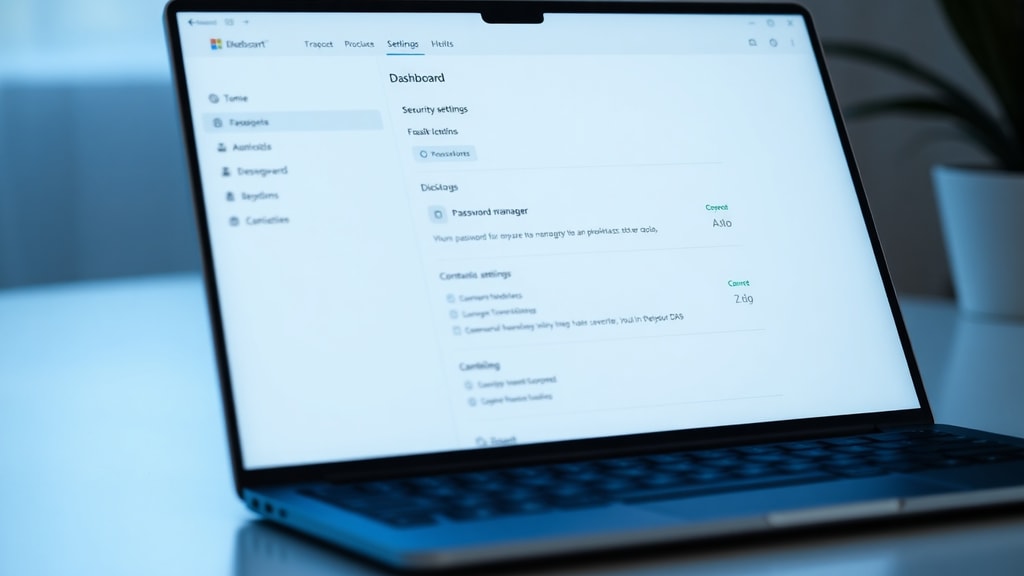
For older applications and network credentials, Windows 11 still relies on the Credential Manager. This tool stores usernames and passwords for file shares, remote desktop connections, and some legacy apps. You can open it from the Control Panel under User Accounts > Credential Manager. Alternatively, you can launch it directly by running the command rundll32.exe keymgr.dll,KRShowKeyMgr in a command prompt with administrator rights.
The Credential Manager has two tabs: Windows Credentials and Web Credentials. Windows Credentials contain network and application passwords. Web Credentials store login information for websites, but only if you use Internet Explorer or Microsoft Edge Legacy. For newer browsers like the current Microsoft Edge, web passwords are handled separately inside the browser.
To view a stored credential, click the arrow next to it and select Show. Windows will ask for your account PIN or password before revealing the credential. This extra layer of security ensures that no one can see your passwords just by opening the Credential Manager. You can also edit or remove credentials as needed.
If you want a comprehensive guide to the Credential Manager, check the Microsoft support article on Credential Manager in Windows 11. It covers common tasks like backing up and restoring credentials.

Managing Web Passwords in Microsoft Edge
Most of your daily password needs revolve around websites. Microsoft Edge has its own password manager built in. To access it, open Edge, click the three dots menu, go to Settings > Profiles > Passwords. Here you can see a list of all saved passwords for the websites you use. You can search for a specific site, view the password (after authenticating), edit it, or delete it.
Edge also offers a password monitor feature that alerts you if any of your saved passwords appear in a known data breach. This can help you quickly change compromised passwords. Additionally, Edge can suggest strong passwords when you create a new account and will save them automatically if you allow it.
It is important to note that passwords saved in Edge are separate from the passkeys stored in Windows Settings. However, both use your Windows Hello authentication (PIN, fingerprint, or face) to protect access. This means that if someone gains physical access to your device, they still cannot see your passwords without your biometric or PIN verification.
Security and Authentication Requirements
Windows 11 takes password protection seriously. Whenever you try to view a saved password or a passkey, the system requires authentication. This can be your Windows Hello PIN, a fingerprint, or your account password. The same requirement applies when you access the Credential Manager and try to reveal a credential. This ensures that even if your device is unlocked, a malicious user cannot simply open the password manager and steal your logins.

You can adjust the authentication method in Settings > Accounts > Sign-in options. If you prefer, you can set Windows to require a PIN every time you try to view passwords. Some users choose to disable automatic saving of passwords for extra privacy, but that often leads to forgetting credentials. A balanced approach is to let Windows save passwords but always require strong authentication to view them.
Step-by-Step Guide: How to Delete a Saved Passkey
Here is a simple list of steps to remove a passkey that you no longer need:
- Open Settings by pressing Win + I.
- Go to Accounts, then click Passkeys.
- Browse or search for the passkey you want to delete.
- Click the three dots (More options) next to the passkey entry.
- Select Delete and confirm when prompted.
- The passkey is removed from your device immediately.
Deleting a passkey does not affect your online account; it only removes the saved authentication data on your Windows device. If you later want to use that service again, you will need to create a new passkey or sign in with your password.
Comparing Password Storage Methods in Windows 11
To help you decide which tool to use, the table below compares the main features of passkeys, Credential Manager, and Edge’s password manager.
| Feature | Passkeys (Settings) | Credential Manager | Microsoft Edge |
|---|---|---|---|
| Type of credentials | Modern passkeys (biometric/PIN) | Windows & Web credentials (legacy) | Web passwords |
| Where to access | Settings > Accounts > Passkeys | Control Panel > User Accounts > Credential Manager | Edge Settings > Profiles > Passwords |
| Authentication needed to view | Yes (PIN/biometric/password) | Yes (PIN/biometric/password) | Yes (PIN/biometric/password) |
| Sync across devices | Limited to device | No (local only) | Yes (with Microsoft account) |
| Best used for | Modern apps and websites supporting FIDO2 | Network shares, remote desktop, old apps | All websites, password monitoring |
Choose passkeys if the service you use supports them, because they are more phishing‑resistant. Use Credential Manager for network and application credentials that are not web‑based. Use Edge for everyday website logins because it offers sync and breach alerts.
Best Practices for Password Management
No matter which tool you use, following a few best practices will keep your accounts safer. First, enable two‑factor authentication wherever possible. Second, never reuse passwords across different sites. Use a password generator built into Edge or any reputable third‑party manager to create long, random passwords. Third, regularly review your saved passwords and delete any that are outdated or for services you no longer use. Finally, keep your Windows 11 system updated to receive the latest security patches and improvements to the password management features.
Another important habit is to use a strong PIN for Windows Hello rather than a simple one. Avoid using your birth year or common patterns. The PIN is the key that unlocks all your saved passwords, so treat it with care. If you suspect your device has been compromised, change your Windows account password immediately and revoke any saved credentials through the Credential Manager.
Conclusion
Windows 11 offers a range of password management tools that cater to different needs. The passkeys manager provides a modern, secure way to store authentication data for compatible services. The Credential Manager remains useful for older applications and network resources. And Microsoft Edge’s password manager handles the bulk of your web logins with ease. By understanding how each works and taking advantage of the built‑in security features, you can reduce the risk of password theft and streamline your daily online tasks.

References
Microsoft Support. (2023). Windows 11 includes a passkeys manager. Retrieved from https://support.microsoft.com/pt-br/windows/10141
Microsoft Support. (2023). Credential Manager in Windows 11. Retrieved from https://support.microsoft.com/pt-br/windows/credential-manager-in-windows-11/10141
Microsoft Support. (2023). Manage passwords in Microsoft Edge. Retrieved from https://support.microsoft.com/pt-br/edge/manage-passwords
Microsoft TechNet. (2023). Open Credential Manager via command line. Retrieved from https://learn.microsoft.com/pt-br/windows/credential-manager