Why You Need to Control Bluetooth Settings Easily
Bluetooth is a core feature in modern Windows computers. It connects wireless mice, keyboards, headphones, speakers, and smartphones. However, leaving Bluetooth on all the time can drain your battery and expose your device to potential security risks. Knowing how to turn Bluetooth on or off quickly in Windows saves time and improves your workflow. Whether you use Windows 10 or Windows 11, the process is straightforward once you learn the right methods. This article covers every practical way to activate or deactivate Bluetooth settings, from the fastest shortcuts to detailed system menus. You will also find a list of common issues and a table comparing methods by speed and accessibility.
Using the Action Center for Instant Toggle
The Action Center is the fastest way to turn Bluetooth on or off in Windows. To open it, press the Windows key and the A key together on your keyboard. This opens a side panel on the right side of your screen. Look for the Bluetooth icon, which looks like a blue stylized B. If you see it, click it once to toggle Bluetooth on or off. The icon changes color or shade to indicate the current state. If you do not see the Bluetooth icon, click the Expand text or the chevron icon at the bottom of the Action Center. This reveals hidden quick actions. You can also customize which icons appear here by right-clicking the Action Center and selecting Edit quick actions. This method works on both Windows 10 and Windows 11. It requires no navigation through menus and takes less than two seconds.
Using the Taskbar Notification Area
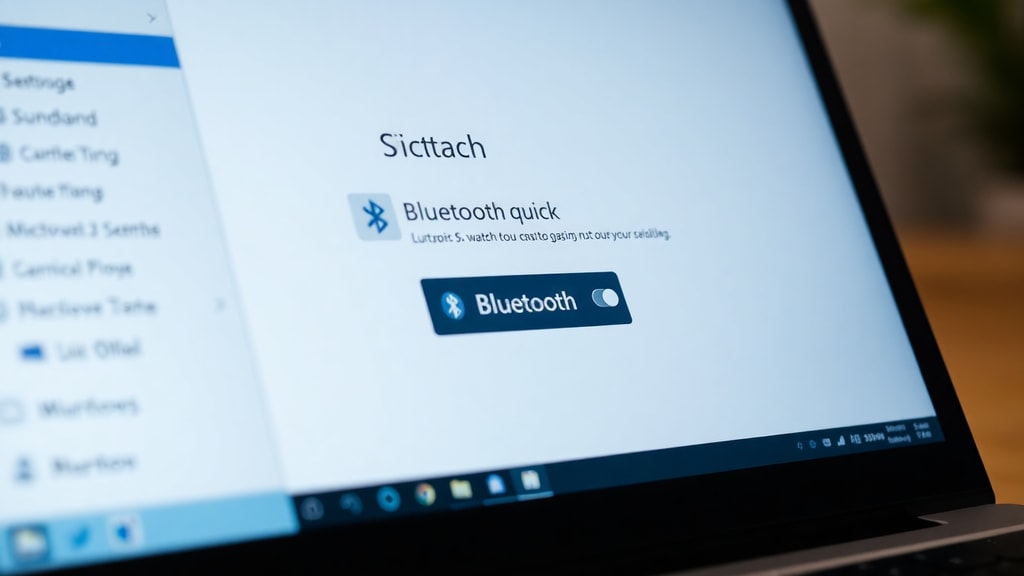
Another quick method involves the notification area in the lower right corner of your screen. Look for the network, volume, or battery icons. Click on any of these icons to open the quick settings panel. In Windows 11, this panel shows a grid of icons including Bluetooth. Click the Bluetooth icon to toggle it on or off. In Windows 10, you may need to click the speech bubble icon to open the Action Center first, then find the Bluetooth button. This method is nearly as fast as the keyboard shortcut and works well if you prefer using your mouse. If the Bluetooth icon is missing from this area, you can add it by going to Settings, Personalization, Taskbar, and then selecting which icons appear on the taskbar. This gives you permanent access to the toggle without opening any menus.
Using the Settings App for Full Control
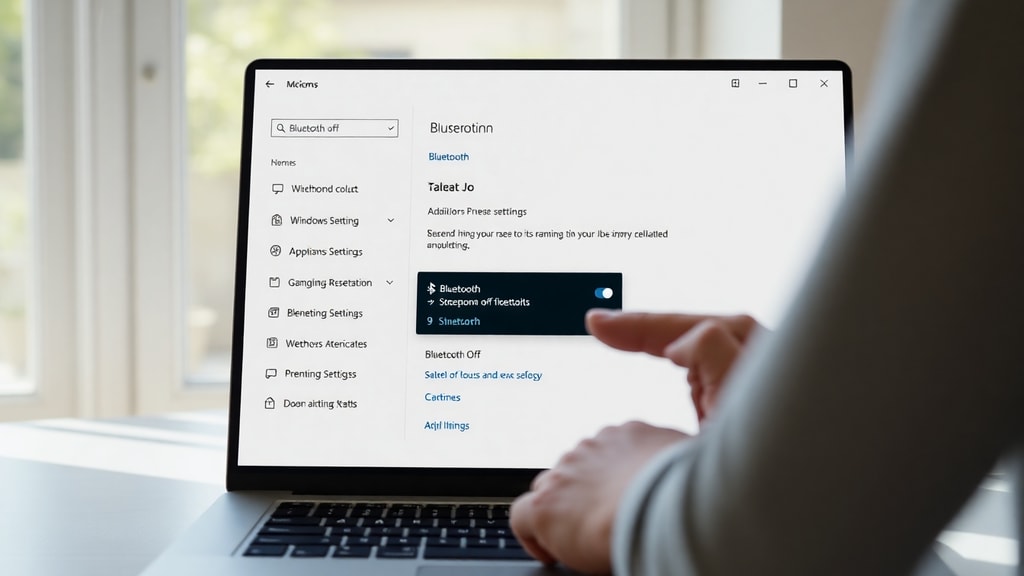
For users who want more than just a toggle, the Settings app provides detailed Bluetooth management. Press the Windows key and the I key together to open Settings. In Windows 10, click Devices, then select Bluetooth and other devices. In Windows 11, click Bluetooth and devices from the left sidebar. You will see a master toggle switch at the top of the Bluetooth section. Slide it to On or Off. This method also shows paired devices, allows you to add new devices, and displays connection status. It is the most reliable way to ensure Bluetooth is completely disabled or enabled, as some quick toggles may leave the radio in a low-power state. Use this method when you need to troubleshoot connection problems or manage multiple devices.

Using the Search Function for Quick Access
If you cannot find the Bluetooth icon anywhere, use the Windows search feature. Click the search icon on the taskbar or press the Windows key and start typing. Type Bluetooth and select Bluetooth and other devices settings from the results. This opens the exact Settings page where you can toggle Bluetooth on or off. This method works on both Windows 10 and Windows 11. It is especially useful if your Action Center is cluttered or if you have customized your taskbar to hide certain icons. The search function also works with voice commands if you have Cortana enabled. Simply say Hey Cortana, open Bluetooth settings. This hands-free option is helpful when you are busy with other tasks.
Using Keyboard Shortcuts and Hardware Keys
Some laptops have dedicated hardware keys or function key combinations for Bluetooth. Look for a key with a Bluetooth symbol, often on the F1 through F12 row. You may need to press the Fn key simultaneously. For example, on many Dell and Lenovo laptops, pressing Fn plus the key with the wireless icon toggles all wireless radios including Bluetooth. On other models, a physical switch on the side of the laptop controls wireless connectivity. Check your laptop manual or the manufacturer support website for specific key combinations. This method is the fastest because it does not require any on-screen interaction. However, it is not available on desktop computers or all laptop models. If your laptop has this feature, it is the most convenient way to control Bluetooth without opening any software.
Common Issues and Troubleshooting Tips
Sometimes the Bluetooth toggle is grayed out or missing entirely. This usually indicates a driver problem or that Bluetooth hardware is not detected. First, restart your computer. This resolves many temporary glitches. If the problem persists, open Device Manager by right-clicking the Start button and selecting Device Manager. Expand the Bluetooth section. If you see a yellow exclamation mark, right-click the device and select Update driver. Choose Search automatically for drivers. If Windows does not find a new driver, visit your computer manufacturer website to download the latest Bluetooth driver. Another common issue is that the Bluetooth toggle appears but does not respond. In this case, run the Bluetooth troubleshooter. Go to Settings, Update and Security, Troubleshoot, Additional troubleshooters, and select Bluetooth. Run the troubleshooter and follow the instructions. This tool can automatically detect and fix problems with Bluetooth settings.
List of Methods to Turn Bluetooth On or Off
Here is a summary of all the methods discussed in this article. Each method is listed with its primary advantage.
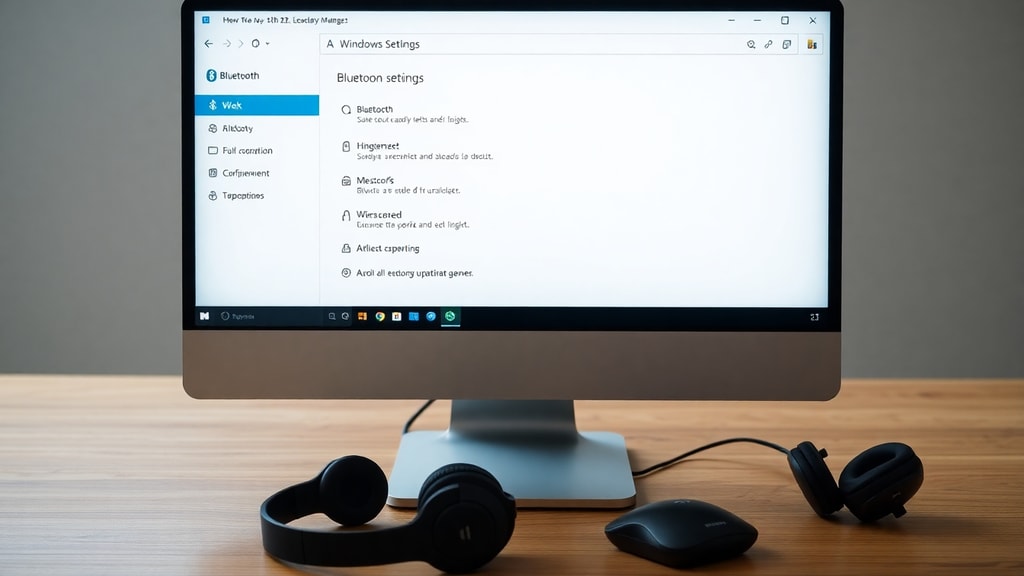
- Action Center keyboard shortcut Windows + A: Fastest method for most users.
- Taskbar notification area click: Best for mouse users who want quick access.
- Settings app Windows + I: Most detailed control and troubleshooting options.
- Search function: Useful when icons are hidden or missing.
- Hardware keys or Fn combinations: Fastest if your laptop supports it.
- Device Manager: For advanced users dealing with driver issues.
Comparison Table of Bluetooth Toggle Methods
The table below compares the main methods by speed, ease of use, and level of control. Use this to choose the best method for your situation.
| Method | Speed | Ease of Use | Control Level |
|---|---|---|---|
| Action Center | Very Fast | Very Easy | Basic On/Off |
| Taskbar Notification | Fast | Easy | Basic On/Off |
| Settings App | Moderate | Moderate | Full Management |
| Search Function | Moderate | Easy | Full Management |
| Hardware Keys | Instant | Very Easy | Basic On/Off |
How to Customize Quick Settings for Bluetooth
You can make Bluetooth even easier to access by customizing your quick settings. In Windows 11, open the quick settings panel by clicking the network, volume, or battery icon. Click the pencil icon to edit. Find the Bluetooth icon and drag it to the top row. Click Done. Now Bluetooth appears in the main quick settings area without needing to expand. In Windows 10, open the Action Center with Windows + A. Click Expand if needed. Right-click any quick action icon and select Edit. You can then add or remove Bluetooth from the visible icons. This customization ensures that Bluetooth is always one click away. It also helps if you frequently switch between devices or need to conserve battery power by turning Bluetooth off when not in use.

Security and Battery Considerations
Leaving Bluetooth enabled when you are not using it can drain your laptop battery faster. Bluetooth radios consume power even when not actively connected. Turning Bluetooth off when you are on battery power extends your usage time. Security is another reason to disable Bluetooth when not needed. Hackers can potentially exploit Bluetooth vulnerabilities to access your device or data. Although modern Windows includes security updates, disabling Bluetooth when you are in public places or not using wireless devices reduces risk. Make it a habit to turn Bluetooth off after disconnecting from headphones or transferring files. Use the quick toggle methods described above to make this a seamless part of your routine. For desktop computers, Bluetooth is less of a battery concern, but security still applies. Disable it when you are not using Bluetooth peripherals.
Additional Tips for Bluetooth Management
If you use Bluetooth frequently, consider pinning the Bluetooth settings shortcut to your taskbar. Right-click the Start button, select Settings, then navigate to Bluetooth and devices. Right-click the Bluetooth toggle or the Bluetooth section header and select Pin to Start. This creates a tile on your Start menu that opens directly to Bluetooth settings. You can also create a desktop shortcut. Right-click on your desktop, select New, Shortcut, and type ms-settings:bluetooth. Name it Bluetooth. Double-clicking this shortcut opens the Bluetooth settings page instantly. These extra steps save time if you manage Bluetooth daily. For users with multiple Bluetooth devices, the Settings app also shows battery levels for connected devices in Windows 11. This helps you know when to charge your mouse or keyboard.
References
Microsoft Support. Turn on or off Bluetooth in Windows. Accessed March 2025. https://support.microsoft.com/en-us/windows/turn-on-off-bluetooth-in-windows-9e92fddd-4e12-e32b-9132-5e36bdb2f75a
Microsoft Learn. How to turn on/off Bluetooth quickly. Accessed March 2025. https://learn.microsoft.com/en-us/answers/questions/3888866/bluetooth