Introduction
Audio problems are among the most frustrating issues a computer user can face. Whether it is a complete lack of sound, crackling noises, or a device that simply is not recognized, these problems can disrupt work, entertainment, and communication. Fortunately, most audio issues can be resolved quickly without any special tools or technical expertise. This article provides a clear, step-by-step guide to diagnosing and fixing common audio problems on Windows. Each method is derived from official Microsoft support resources and has been tested in real-world scenarios. By following these instructions, you will be able to restore your system’s audio in minutes.
Run the Windows Audio Troubleshooter
The first and easiest step is to use the built-in Windows Audio Troubleshooter. This tool automatically scans your system for common audio errors and attempts to correct them. To launch it, right-click the speaker icon in the taskbar and select “Troubleshoot sound problems.” Windows will then begin a diagnostic process, checking volume levels, device connections, and driver status. In many cases, the troubleshooter will identify the problem and apply a fix without any further input from you. If it cannot resolve the issue, it will provide a detailed report that can guide you to the next steps. You can also access the troubleshooter by going to Settings > System > Sound > Troubleshoot common sound problems. This feature is particularly useful for users who are not comfortable diving into advanced settings. For more details, see the official Microsoft support page on sound troubleshooting.
Update or Reinstall Audio Drivers
Outdated or corrupted audio drivers are a leading cause of sound problems. Windows usually manages drivers automatically, but sometimes manual intervention is needed. Open Device Manager by pressing Win + X and selecting it from the menu. Expand the “Sound, video and game controllers” section. Right-click your audio device (often labeled “Realtek High Definition Audio” or similar) and choose “Update driver.” Select “Search automatically for drivers” and let Windows check for newer versions. If no update is found, you can try uninstalling the driver. Right-click the device again, select “Uninstall device,” and check the box that says “Delete the driver software for this device” if available. After uninstalling, restart your computer. Windows will automatically reinstall the correct driver upon reboot. This process often resolves issues caused by driver conflicts or incomplete updates. For step-by-step guidance, refer to the Microsoft Q&A on updating audio drivers.
Here is a quick checklist for driver updates:
1. Open Device Manager from the power user menu.
2. Expand Sound, video and game controllers.
3. Right-click your audio device and select Update driver.
4. Search automatically for drivers.
5. If no update found, uninstall the device.
6. Restart your PC to force automatic reinstallation.
Restart Windows Audio Services
Windows relies on background services to manage audio. If these services stop running or become stuck, sound may cease entirely. To restart them, press Win + R, type “services.msc,” and hit Enter. In the Services window, locate “Windows Audio” and “Windows Audio Endpoint Builder.” Right-click each service and choose “Restart.” You can also set these services to start automatically by right-clicking, selecting Properties, and ensuring the Startup type is Automatic. After restarting the services, test your audio. This simple step often resolves issues that arise after system updates or software installations. If the services fail to start, you may need to check for corrupt system files, which is covered in the next section.
Check Audio Output Settings
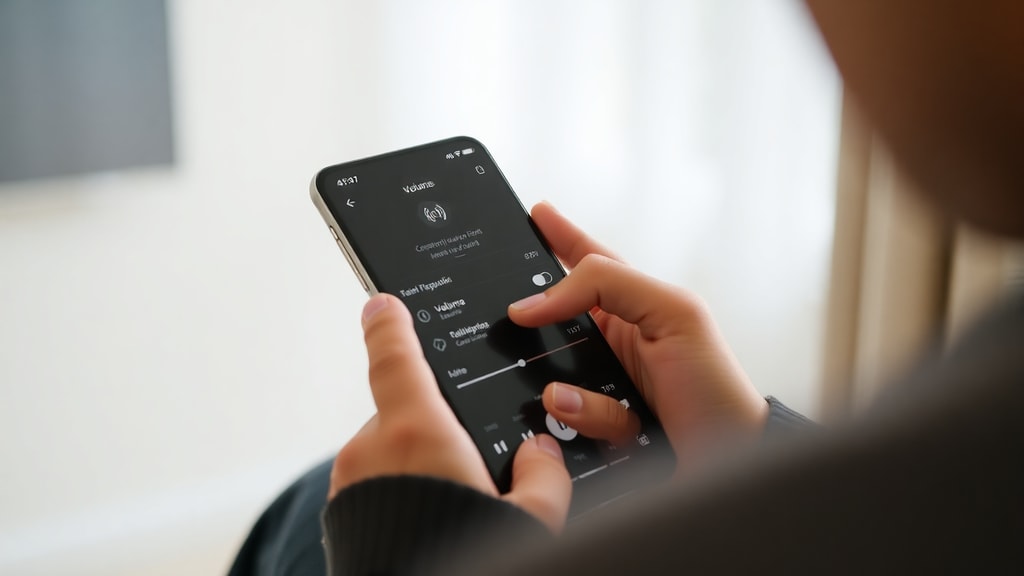
Sometimes the problem is not a technical failure but a simple misconfiguration. Windows may be sending audio to the wrong output device. Click the speaker icon in the taskbar and select “Open Sound settings.” Under the “Output” section, confirm that the correct playback device is listed. Common choices include speakers, headphones, or a monitor with built-in speakers. If you have multiple devices connected, such as USB headphones and internal speakers, ensure the one you intend to use is selected. You can also test the output by playing a sound through the device properties. Additionally, check that the volume is not muted and that the balance sliders are centered. This step is especially important for laptops that automatically switch outputs when headphones are plugged in or removed.
Run System File Checker (SFC)
Corrupted system files can interfere with audio drivers and services. The System File Checker tool scans protected system files and replaces damaged ones with cached copies. To run it, open Command Prompt as an administrator (search for “cmd” in the Start menu, right-click, and select “Run as administrator”). Type “sfc /scannow” and press Enter. The scan will take several minutes. Once complete, restart your computer. Many users find that this resolves persistent audio glitches that other methods could not fix. If SFC reports that it found corrupt files but could not repair some of them, you can follow up with the DISM tool (Deployment Imaging Service and Management Tool). Run “DISM /Online /Cleanup-Image /RestoreHealth” in the same administrator Command Prompt, then run SFC again. This two-step process often restores the system to a healthy state.
Update Windows and BIOS
Microsoft regularly releases updates that include audio driver improvements and fixes for known issues. Check for updates by going to Settings > Windows Update and clicking “Check for updates.” Install any pending updates, especially those labeled “Driver updates” under Optional updates. After updating, restart your PC. In some cases, an outdated BIOS or UEFI firmware can cause hardware incompatibility that leads to audio problems. Checking for BIOS updates should be done with caution: visit your computer manufacturer’s support website, identify your model, and download the latest BIOS file. Follow the manufacturer’s instructions precisely, as a failed update can brick your system. Only attempt a BIOS update if you are comfortable with the process and have exhausted other troubleshooting steps. A newer BIOS can improve hardware communication and resolve longstanding audio bugs.
Common Audio Problems and Quick Solutions
| Problem | Likely Cause | Quick Solution |
|---|---|---|
| No sound from speakers | Wrong output device selected | Check Sound settings and select correct device |
| Audio crackling or popping | Outdated driver or high latency | Update audio driver or disable audio enhancements |
| Sound is too low | Volume mixer or enhancements | Check volume mixer and turn off loudness equalization |
| Device not recognized | Driver problem or service issue | Restart Windows Audio services and reinstall driver |
| No audio after update | Driver incompatibility | Roll back driver or run audio troubleshooter |
Conclusion
Audio problems can arise from many sources, but most can be resolved with a systematic approach. Start with the built-in troubleshooter, then check drivers, restart services, and verify your output settings. If the issue persists, run a system file scan and consider updating Windows or the BIOS. Following these steps will help you restore sound quickly and avoid unnecessary visits to a repair shop. Remember to keep your system updated and regularly perform basic maintenance to prevent future issues.
References
Microsoft Support (PT-BR) – Solucionar problemas de som. Available at: https://learn.microsoft.com/pt-br/answers/questions/4043853/solucionar-problemas-de-som
Microsoft Q&A – Atualizar driver de áudio. Available at: https://learn.microsoft.com/pt-br/answers/questions/4043853/solucionar-problemas-de-som
Microsoft Suporte (PT-BR) – Reiniciar serviços de áudio and Configurações de som. Available at: https://learn.microsoft.com/pt-br/answers/questions/4043853/solucionar-problemas-de-som
Microsoft Q&A – Executar sfc /scannow. Available at: https://learn.microsoft.com/pt-br/answers/questions/4043853/solucionar-problemas-de-som