Understanding Laptop RAM Upgrade Possibilities
Upgrading the RAM in a laptop is one of the most effective ways to improve performance, especially if you work with multiple applications, virtual machines, or memory-intensive software. However, not all notebooks allow easy access to memory slots, and some have RAM soldered directly to the motherboard. Before purchasing a new module, it is essential to determine whether your specific model supports an upgrade and which type of memory it requires. This article will guide you through reliable methods to check if you can replace or add RAM to your laptop, using built-in Windows tools, third-party software, and official documentation.
The process involves both software checks and physical verification. By following the steps outlined in this guide, you will be able to confirm the number of available slots, the maximum supported capacity, and whether the memory is user-replaceable. These steps are based on real-world practices recommended by manufacturers and repair technicians, ensuring you avoid unnecessary expenses or incompatible hardware.

Consult the User Manual or Service Manual
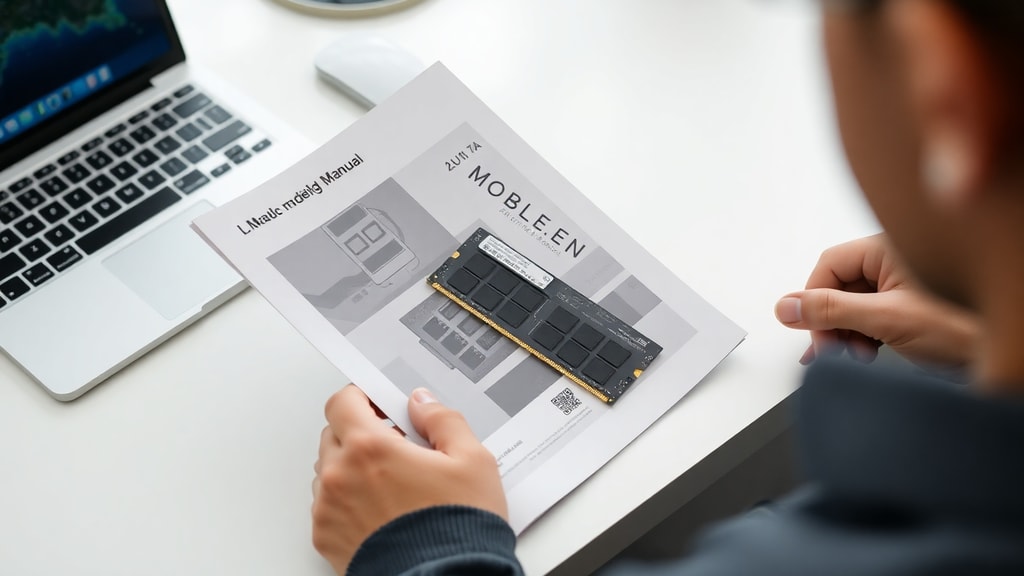
The first and most reliable source of information is the official documentation that came with your laptop. The user manual or service manual explicitly states the number of memory slots, whether the RAM is soldered or expandable, and the maximum supported capacity. Many modern ultrabooks have memory soldered onto the motherboard, meaning there are no slots for upgrades. In contrast, gaming laptops and business-class models often have one or two SO-DIMM slots that can be replaced or added.
If you have lost the physical manual, you can usually download a PDF version from the manufacturer's support website. Search for your exact model number, which is often printed on a label on the bottom of the laptop. Look for sections labeled memory specifications, upgrade information, or technical specifications. For example, MSI Informatica's guide on RAM upgrades recommends consulting the service manual because it contains details about the motherboard layout and slot location. This approach is particularly useful for checking if the memory is socketed or soldered, saving you the trouble of opening the chassis unnecessarily.
Use Windows Built-in Tools to Check Slots and Usage
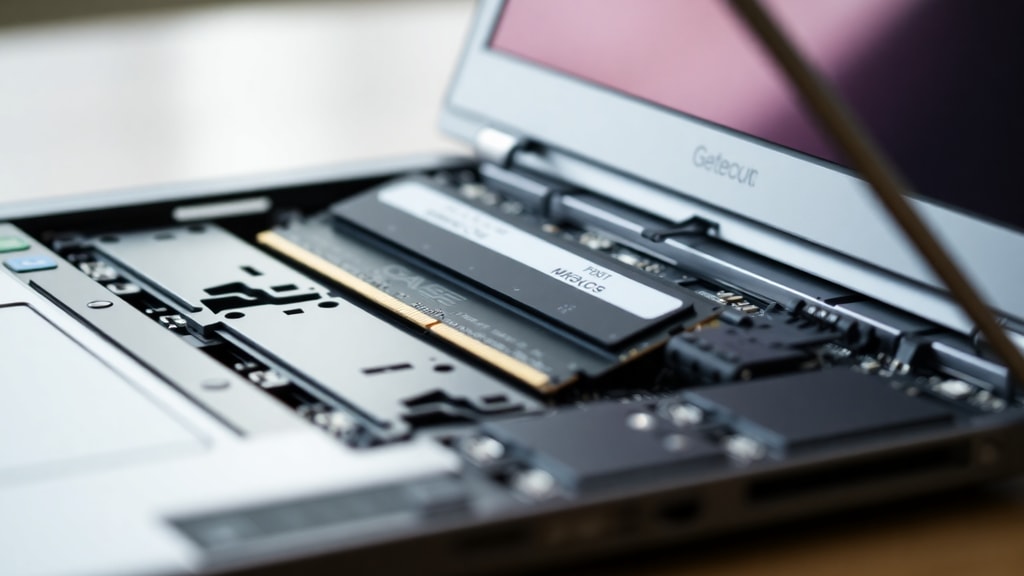
Windows provides several built-in utilities that can give you immediate information about your current memory configuration without opening the laptop. The quickest method is to use the Task Manager. Press Ctrl+Shift+Esc to open Task Manager, then click on the Performance tab and select Memory. In the bottom-right corner, you will see a field labeled Slots used. This tells you how many physical slots are occupied and how many are empty. For instance, if you see 1 of 2, it means one slot is free and you can add another module. However, if you see 2 of 2, all slots are occupied, and you would need to replace an existing stick to increase capacity.
Another built-in tool is the System Information window. Press Windows + R, type msinfo32, and press Enter. Look for entries labeled Total Physical Memory and Available Physical Memory. While this does not show the slot count directly, it confirms the amount of RAM the system recognizes. If the installed physical memory is significantly higher than what Windows reports, there may be a compatibility issue or a loose module. For more detailed slot information, you can also use the Command Prompt method described below, but Task Manager is the most user-friendly option for a quick check. BringIT's guide on notebook RAM upgrades emphasizes that the Performance tab in Task Manager is the easiest way to see slot occupancy without any additional software.
- Open Task Manager by pressing Ctrl+Shift+Esc
- Go to the Performance tab and select Memory
- Check the Slots used field to see how many slots are occupied
- If it shows 1 of 2, you have one free slot; if 2 of 2, all slots are filled
- Use System Information (msinfo32) to confirm total installed memory
Use Third-Party Software like CPU-Z
For more detailed specifications, third-party software like CPU-Z is a free and widely trusted tool. Download and install CPU-Z, then open the application. Click on the Mainboard tab. Here you will see the manufacturer and model of your motherboard, as well as the BIOS version. With this information, you can visit the motherboard manufacturer's website to find the exact memory specifications, including the maximum supported capacity and the type of RAM (DDR3, DDR4, DDR5, etc.). CPU-Z also has a Memory tab that shows the current memory type, frequency, and timings, and an SPD tab that lists each individual memory module, including whether it is soldered or removable.
The SPD tab is especially useful because it displays information for each slot, such as the module size, manufacturer, and part number. If a slot is empty, it will show as blank. This confirms not only the number of physical slots but also the configuration of your current RAM sticks. CPU-Z does not require installation in some versions and can be run from a USB drive, making it a great portable tool for checking laptops before purchase or upgrade.

Use the Command Line with WMIC
Windows Management Instrumentation Command-line (WMIC) is a powerful tool for extracting hardware information without graphical interfaces. Open Command Prompt as administrator by typing cmd in the search bar, right-clicking Command Prompt, and selecting Run as administrator. Then type the following command: wmic memphysical get MaxCapacity, MemoryDevices. The output will show two numbers: MaxCapacity, which is the total supported memory in kilobytes, and MemoryDevices, which is the number of physical slots on the motherboard. To convert the maximum capacity from kilobytes to gigabytes, divide by 1048576 (1024 for megabytes and 1024 again for gigabytes). For example, 8388608 KB divided by 1048576 equals 8 GB. If MemoryDevices shows 2 and you already have one module installed, you have a free slot for an upgrade.
This method is fast, requires no additional software, and works on all Windows versions. However, it only tells you the theoretical maximum capacity and slot count, not whether the existing modules are soldered. For that, combine the WMIC result with a physical inspection or the manufacturer documentation. Avel's blog on RAM memory explains that using the wmic command is a reliable approach to quickly obtaining slot and capacity data without disassembling the laptop.
| Command | Output Example (KB) | Conversion to GB | Slots Available |
| wmic memphysical get MaxCapacity, MemoryDevices | MaxCapacity = 8388608, MemoryDevices = 2 | 8388608 / 1048576 = 8 GB | 2 slots total, 1 free |
| wmic memphysical get MaxCapacity, MemoryDevices | MaxCapacity = 16777216, MemoryDevices = 1 | 16777216 / 1048576 = 16 GB | 1 slot, possibly soldered |
Check the Manufacturer's Website for Your Exact Model
Once you have identified the exact model number of your laptop, either from the System Information window or from a sticker on the bottom, visit the manufacturer's support page. For brands like Dell, Lenovo, HP, and Acer, these pages typically list the technical specifications, including memory type, maximum capacity, and whether the RAM is soldered or expandable. Look for a section called Memory, System Memory, or Technical Specifications. Many manufacturers also provide a service manual PDF that includes instructions for accessing the memory slots. This is your most definitive source because it comes directly from the company that built the laptop. If the specification page says Memory is not expandable or Memory is soldered to the motherboard, you will not be able to upgrade the RAM without specialized equipment. In some cases, the maximum supported memory may be listed with a note about using high-density modules, which helps you choose the correct replacement.
Check the Amount of RAM Installed in the System
Another simple check is to view the installed memory in Windows. Right-click on This PC or My Computer on the desktop or in File Explorer, and select Properties. Under System, you will see Installed memory (RAM). This number represents the total amount Windows recognizes. If you have, for example, 8 GB installed but the Task Manager shows two slots with two 4 GB sticks, you know both slots are occupied. However, if you have 8 GB and one slot is used, you have room to add another module. This method does not tell you the maximum capacity, but it confirms what is currently inside the system. Sometimes the reported memory is less than the physical sticks due to hardware issues, but that is not typical. For a quick confirmation of your current setup, this approach is straightforward.
Additional Considerations Before Upgrading
Before purchasing a RAM module, verify the type of memory your laptop supports. Laptops use SO-DIMM modules, which come in different generations such as DDR3, DDR4, or DDR5. Using the wrong generation will not fit or may cause damage. Also, consider the clock speed (frequency) and voltage. It is generally safe to mix different frequencies, but the system will run at the speed of the slower module. For best performance, use identical modules from the same manufacturer. Additionally, some laptops require that you remove the bottom panel or keyboard to reach the memory slots. Watch for hidden screws or clips, and be gentle with the ribbon cables. If you are not comfortable with hardware, consider consulting a professional technician. Finally, keep in mind that some modern laptops, especially thin and light models, have RAM soldered onto the motherboard, which cannot be upgraded at all. In such cases, only the storage drive or wireless card might be replaceable. Always double-check your specific model before spending money on new memory.
References
MSI Informatica. Upgrade de RAM em notebook: guia 2026. Available at: https://msiinformatica.com.br/upgrade-de-ram-em-notebook-guia-2026/
BringIT. Upgrade na memória RAM do notebook. Available at: https://www.bringit.com.br/blog/dicas-e-tutoriais-para-notebook/upgrade-no-notebook/upgrade-na-memoria-ram-do-notebook/
Avel. O que é memória RAM e como trocar. Available at: https://avell.com.br/blog/o-que-e-memoria-ram
Você Pergunta. Tem como trocar o… (source incomplete, but referenced for checking installed RAM).