Why Changing Your Router Password Matters
Your router is the gateway to every device in your home. It manages your internet connection, secures your network, and controls access to your personal data. The default password that comes with your router is often published online or printed on a sticker attached to the device. Anyone within range can use that password to log into your network, monitor your traffic, or even change your settings. Changing your router password is one of the simplest and most effective steps you can take to protect your home network from unauthorized access. It prevents neighbors from freeloading on your bandwidth, stops hackers from intercepting sensitive information, and keeps your smart home devices safe. Whether you are setting up a new router or just want to improve security, knowing how to change the password is essential.
Before You Start: Gather the Necessary Information
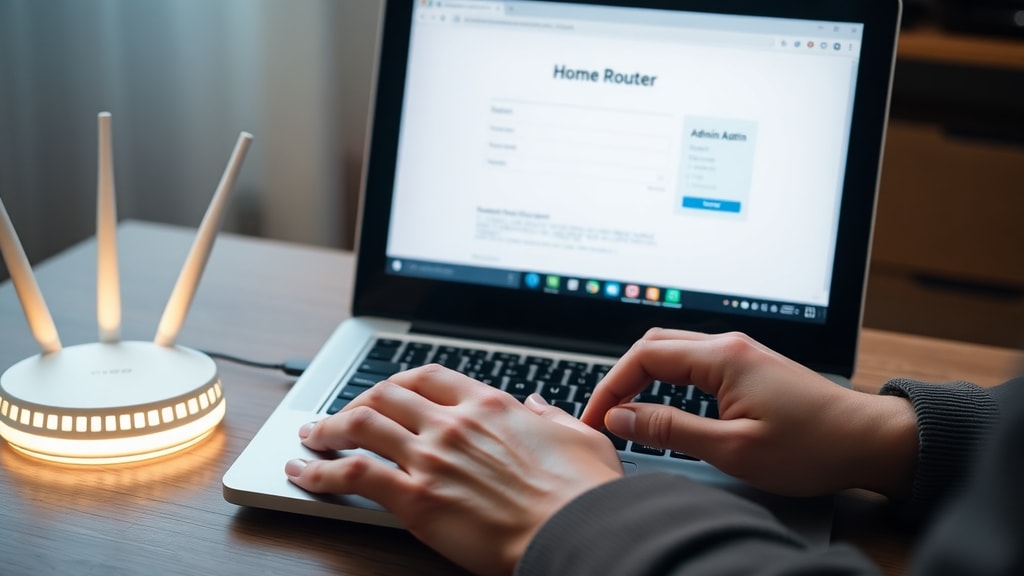
Before you can change your router password, you need a few pieces of information. The most important is your router’s IP address. This is the address you type into a web browser to access the router’s admin panel. Most routers use one of a few common IP addresses. The best way to find yours is to check your device’s network settings. On a Windows computer, open the command prompt and type ipconfig. Look for the line labeled Default Gateway. On a Mac, go to System Settings, select Network, click on your active connection, and look for Router. On a smartphone, connect to your Wi-Fi and check the network details under Wi-Fi settings. The IP address is usually something like 192.168.1.1 or 192.168.0.1. You can also look at the sticker on your router or the manual that came with it.
Here are some common router IP addresses for reference:
192.168.1.1
192.168.0.1
192.168.2.1
10.0.0.1
10.0.1.1
You will also need the current username and password for the router’s admin interface. Many manufacturers use default credentials like admin for both the username and password, or admin as the username and password as the password. If you have never changed these, they might still be the defaults. If you have changed them before and forgotten them, you may need to reset the router to factory settings by holding the reset button for about ten seconds using a paperclip. Keep in mind that resetting the router will erase all your custom settings, so only use this as a last resort.
Step-by-Step Guide to Changing Your Wi-Fi Password
Once you have the IP address and admin credentials, you can proceed. Follow these steps carefully to change your Wi-Fi password. The exact wording of menus varies by router brand, but the general process is the same.
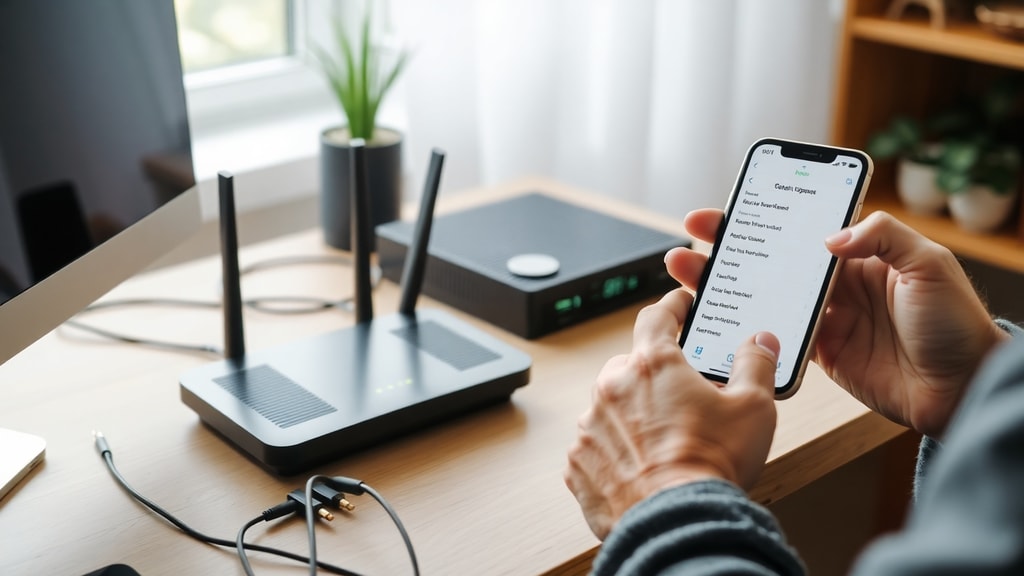
Open a web browser on a device that is connected to your network. Type your router’s IP address into the address bar and press Enter. You should see a login page. Enter your admin username and password. If you are using the defaults, try admin/admin or admin/password. After logging in, look for a section labeled Wireless, Wi-Fi, or Wireless Setup. This is where you will find the settings for your Wi-Fi network name (SSID) and password. Inside that section, locate the field labeled Password, Passphrase, or Pre-Shared Key. Delete the current value and type your new password. Make sure it is a strong password that includes a mix of uppercase and lowercase letters, numbers, and special characters. Aim for at least 12 characters. Once you have entered the new password, click Save or Apply. Some routers require you to confirm the change by clicking an additional button. The router may reboot after saving. If it does, wait a minute for it to restart fully.
Below is a summary table of these steps for quick reference:
Step | Action
1 | Find router IP address using ipconfig or device network settings
2 | Open web browser and enter the IP address
3 | Log in with admin username and password
4 | Navigate to Wireless or Wi-Fi settings
5 | Locate the password field (Password, Passphrase, or Pre-Shared Key)
6 | Enter a new strong password
7 | Click Save or Apply
8 | Wait for router to reboot if necessary
9 | Reconnect your devices with the new password
For more detailed guidance, you can refer to the support page from your router’s manufacturer. For example, TP-Link provides step-by-step instructions for changing your router password on their official website. Check the TP-Link support page for more information. Similarly, Norton offers a comprehensive guide on how to change your Wi-Fi router password. Visit the Norton guide for additional tips.
How to Change the Router Admin Password (Optional)
Changing your Wi-Fi password is not the same as changing the password you use to log into the router’s admin panel. Many people leave the admin password as the default, which is a serious security risk. If someone gains access to your router’s admin interface, they can change settings, block devices, or even redirect your traffic to malicious sites. To change the admin password, look for a menu labeled System, Administration, Management, or Advanced. On many routers, this is found under Advanced Settings or System Tools. Inside that section, you will see options to change the admin username and password. Enter your current password, then type a new one. Choose something that is not easy to guess, and that you have not used for other accounts. Save the changes. After this, you will need to use the new admin credentials the next time you log into the router.
What to Do After Changing Your Password
After you save the new Wi-Fi password, your router will likely disconnect all connected devices. This is normal. Every device that was previously connected to your network will need to be reconnected using the new password. Go through each device in your home, including phones, laptops, tablets, smart TVs, gaming consoles, and smart home gadgets. For each device, navigate to the Wi-Fi settings, select your network name, and enter the new password. If any device fails to connect, double-check that you typed the password correctly. Some routers allow you to temporarily revert to the old password if you made a mistake, but it is better to start fresh. Also, consider updating the password on guest networks if you have one. Finally, if you changed the admin password, make sure you store it in a safe place. You can write it down and keep it near the router, or use a password manager.
Troubleshooting Common Issues
Sometimes the process does not go smoothly. Here are some common problems and how to fix them. If you cannot log into the router, make sure you are using the correct IP address. Double-check using the ipconfig command on Windows or the network settings on your phone. If the IP address does not work, try another common one like 192.168.0.1 or 10.0.0.1. If you still cannot access the login page, your browser might be using a cached version. Try clearing your browser cache or using a different browser. Another common issue is forgetting the admin password. If you have changed it before and cannot remember, you will need to perform a factory reset. Locate a small button on the back or bottom of the router labeled Reset. Use a paperclip or pin to press and hold it for about ten seconds. The router will reboot with factory defaults. After that, you can log in using the default credentials printed on the sticker. Keep in mind that a factory reset erases all your custom settings, including your Wi-Fi password and any port forwarding rules. You will need to set everything up again from scratch.
References
Norton. “How to change your Wi-Fi router password.” https://us.norton.com/blog/how-to/how-to-change-wifi-router-password
TP-Link. “Change TP-Link Router Password.” https://www.tp-link.com/us/support/faq/73/

D-Link. “How to change your Router's Wi-Fi password.” https://www.dlink.com/uk/en/resource-centre/how-to-guides/how-to-change-your-routers-wifi-password-eu
Trend Micro. “How to Change Your Router's Default Password.” https://helpcenter.trendmicro.com/en-us/article/tmka-20524
TechRadar. “How to change your router password.” https://www.techradar.com/broadband/how-to-change-your-router-password
WikiHow. “How to Change a Router Password.” https://www.wikihow.com/Change-a-Router-Password