Understanding RAR Compression and File Size Selection
RAR compression is a widely used method for reducing the size of files and folders, but choosing the correct output size involves more than simply picking a compression level. When you compress data into a RAR archive, you may need to split the final file into multiple volumes. This is especially important when you plan to transfer the archive via email, upload it to a web platform, or burn it to optical media such as a CD or DVD. The ability to define a specific size for each volume allows you to fit the archive into the constraints of your storage medium or distribution channel.
The process begins by selecting the files you want to compress. In WinRAR, you click "Add to archive," and in the "Archive name and parameters" window you will find the "Split to volumes, bytes" field. This is where you define the maximum size of each part. For example, if you set it to 700 MB, the archive will be broken into pieces of that size. Understanding how to use this feature correctly requires familiarity with size units, common recommendations, and the trade-offs between compression ratio and processing time.
How to Set the Volume Size in WinRAR
To choose the file size when compressing with RAR, follow these steps. First, right-click the file or folder you want to compress and select "Add to archive" from the context menu. In the archive name and parameters dialog, look for the field labeled "Split to volumes, bytes." You can type a number directly, followed by a unit abbreviation. For example, entering 700M creates volumes of 700 megabytes each, while 100M produces 100-megabyte parts. You can also use K for kilobytes and G for gigabytes. Some versions of WinRAR also accept a pure number of bytes, but using the unit suffix is more practical.
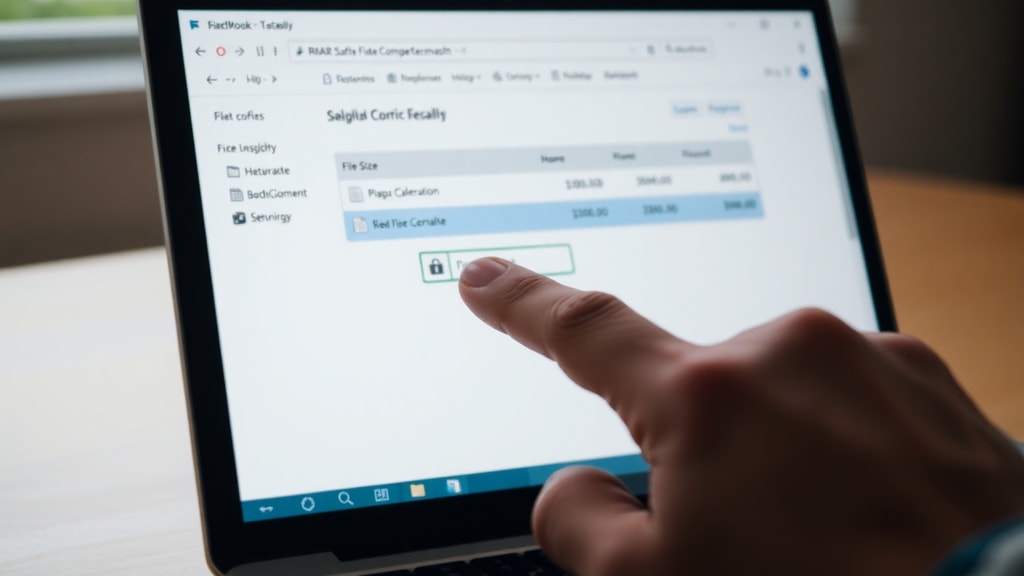
The exact syntax is important: if you enter 100 without a unit, the software interprets it as bytes, which would create extremely small volumes. Therefore, always include the unit. A reliable source for this information is the Guia Foca guide, which explains that you can specify the volume size in bytes, KB, MB, or GB. This flexibility allows you to adapt the archive to almost any distribution requirement.
Here is a list of common unit examples and their typical use cases:
- 100M – common for email attachments or small web uploads
- 700M – fits a standard CD-R
- 4.48G – fits a single-layer DVD (some tools round to 4.7 GB)
- 2G – useful for USB flash drives with FAT32 file size limits
- 1M – useful for testing or very small distribution
Recommended File Sizes Based on Use Case
Different scenarios require different volume sizes. The table below summarises typical recommendations based on common storage media and transfer methods. These values are widely cited in guides such as the one from TecMundo, which explains how to divide RAR files effectively.

| Use Case | Recommended Volume Size | Notes |
|---|---|---|
| Email attachment | 10 MB to 25 MB | Most providers limit attachments to 25 MB. |
| FTP or web upload (general) | 100 MB | Common limit for many free file hosts. |
| CD-R disc | 700 MB | Standard CD capacity (80 minutes). |
| DVD±R single layer | 4.7 GB (or 4.48 GB) | Some software uses the binary gigabyte definition. |
| DVD±R dual layer | 8.5 GB | Less common but supported. |
| USB flash drive (FAT32) | 4 GB | FAT32 cannot hold files larger than 4 GB. |
| Blu-ray disc | 25 GB | For single-layer Blu-ray media. |
When you choose a size, ensure it does not exceed the maximum allowed by your target platform. For example, if you plan to email the archive, a volume size of 100 MB is often too large, as many email providers cap attachments at 25 MB. In such cases, you can either reduce the volume size or split the archive into more pieces. The table above gives you a quick reference, but you can always enter a custom value based on your specific needs. The MundoBytes guide also emphasises using pre-defined profiles like "CD 700 MB" and "DVD 4.48 GB" that appear in WinRAR's split-to-volumes dropdown.
Balancing Compression Level and Output Size
Choosing the volume size is only one part of the equation. The compression level you select directly affects the total size of the archive and thus the number of volumes required. WinRAR offers several compression methods: "Store," "Fast," "Normal," "Good," and "Best" (sometimes called "Maximum"). "Store" simply packages the files without compression, while "Best" applies maximum compression to reduce the overall data size as much as possible. However, higher compression takes more time and increases processor usage. For large files or archives, the difference between "Normal" and "Best" can be several minutes of additional waiting, but the reduction in total volume size may be worthwhile if you need to fit the archive into a fixed medium.
Another important setting is the dictionary size. The dictionary size determines how much memory WinRAR uses to find repeated patterns in the data. The default is 32 MB, but you can increase it to 64 MB, 128 MB, or even 1 GB in newer versions. A larger dictionary often improves compression for large or repetitive files, but it requires significantly more RAM during compression and decompression. According to guidance from Microsoft Learn, the RAM usage can be six to ten times the dictionary size. Therefore, if you set the dictionary to 128 MB, your system should have at least 768 MB to 1.28 GB of free memory to avoid performance issues. If you are working on an older computer or have limited RAM, it is safer to stick with the default dictionary size and adjust the compression level instead.
When you combine the dictionary size and compression level, you can fine-tune the total output. For example, you might choose "Best" compression with a 64 MB dictionary for a collection of text files, which can shrink them dramatically. For media files that are already compressed (like JPEG images or MP4 videos), higher compression yields minimal gains, so "Normal" or "Fast" is usually sufficient. The FasterCapital article on compressing RAR files highlights this balance between processing time and file size, recommending that users test different settings on a sample of their data before committing to a full archive.
Additional Considerations for Large Archives
Beyond the basic volume size and compression settings, several other factors can influence your final RAR file arrangement. One is the recovery record. Including a recovery record adds extra data that can help reconstruct a damaged volume. This increases the overall size but adds resilience. If you are splitting an archive across multiple discs or sending parts over unreliable connections, a recovery record of 5% to 10% of the volume size is a wise addition.
Password protection is another feature that does not change the volume size significantly but can add a layer of security. Keep in mind that encrypting file names (a WinRAR option) makes the archive more secure but may prevent some tools from listing the contents without the password. This does not affect the volume size directly, but it influences how the archive can be handled.
Finally, always test the archive after compression. WinRAR includes a "Test" button in the archive properties window. Running a test verifies that each volume is intact and that the split points are correct. This step is especially important when you are sending the archive to someone else; a corrupted volume can make the entire set unusable. By carefully choosing the volume size, compression level, and additional options, you can create a RAR archive that fits your exact distribution and storage needs.
References
The following sources were used to compile the information in this article:
TecMundo. "Aprenda a dividir arquivos RAR." Accessed July 2026. https://www.tecmundo.com.br/produto/966-aprenda-a-dividir-arquivos-rar.htm
Guia Foca. "rar." Accessed July 2026. https://www.guiafoca.org/guiaonline/intermediario/ch18s08.html
MundoBytes. "Dividir archivos comprimidos en partes." Accessed July 2026. https://mundobytes.com/pt/como-dividir-archivos-comprimidos-en-partes-con-winrar-y-7-zip/
FasterCapital. "Como Comprimir E Descomprimir Arquivos Rar." Accessed July 2026. https://fastercapital.com/pt/tema/como-comprimir-e-descomprimir-arquivos-rar.html
Microsoft Learn. "Como compactar ao máximo e dividir uma pasta." Accessed July 2026. https://learn.microsoft.com/pt-br/answers/questions/3825346/como-compactar-ao-m-ximo-e-dividir-uma-pasta