Introduction
Desktop icons are shortcuts, files, or system folders that appear on the main screen of your Windows computer. They give you quick access to programs, documents, and settings. Over time, the desktop can become cluttered with many icons, making it hard to find what you need. Many users want to clean up or completely hide these icons. In Portuguese, the phrase "apagar ícones da área de trabalho" means to turn off or remove desktop icons. This article explains the easiest ways to delete, hide, or customize desktop icons in Windows 10 and Windows 11. You will learn official methods that do not require third-party software. Whether you want a minimalist desktop or need to organize your workspace, these steps will help you manage your icons effectively.
Hiding All Desktop Icons at Once
The fastest way to hide every icon on your desktop is to use the built-in toggle in Windows. This method does not delete any files or shortcuts; it simply makes them invisible. When you need them again, you can turn the visibility back on with the same steps. Here is a straightforward list of steps to follow:
- Right-click an empty area on your desktop. Make sure you click on a spot that has no icons underneath.
- In the context menu that appears, move your mouse over the option that says "View". A submenu will open.
- Look for an option labeled "Show desktop icons". It will have a checkmark if the icons are currently visible.
- Click on "Show desktop icons" to remove the checkmark. Immediately all icons on the desktop will disappear.
- To bring them back, repeat the same steps and click the option again to recheck it.
This method works in both Windows 10 and Windows 11. According to Microsoft Support, this is the official way to personalize which icons appear on your desktop. You can access the same toggle at any time to instantly hide or show all desktop icons. Many users find this useful when they want to take a screenshot of their wallpaper or work without visual distractions.
Deleting Individual Desktop Icons
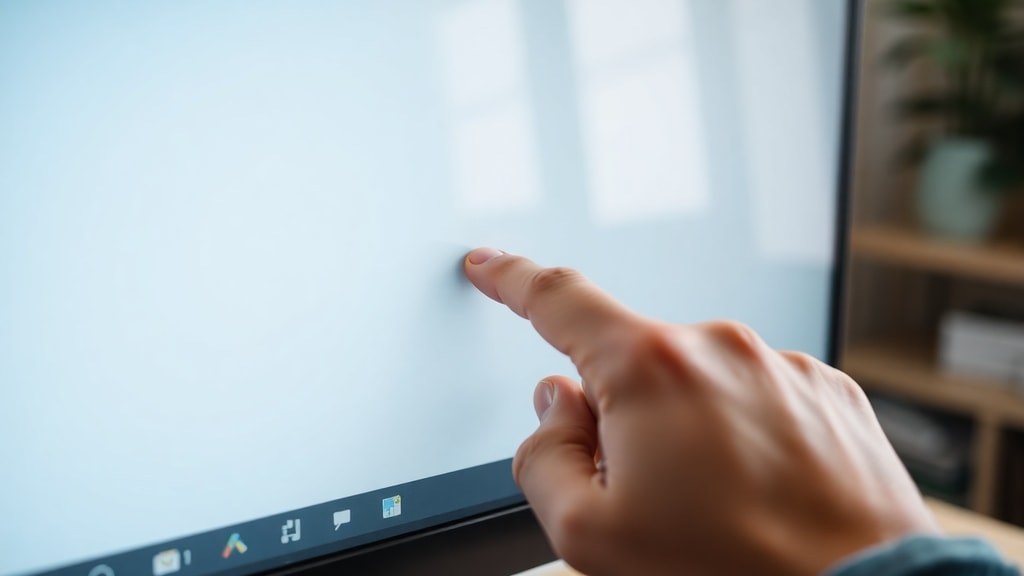
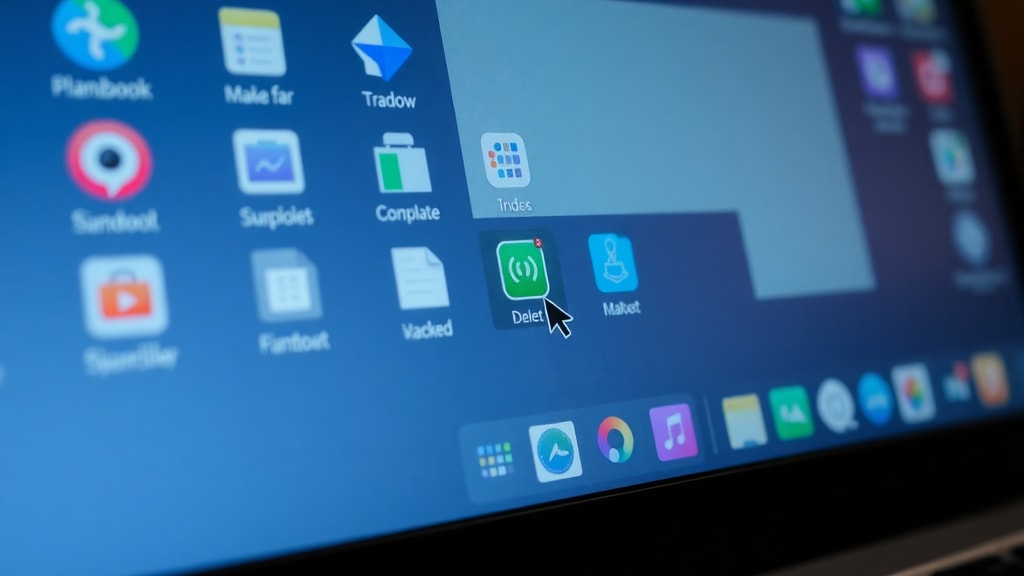
If you only want to remove a few shortcuts or files instead of hiding everything, you can delete them one by one. Deleting moves the icon to the Recycle Bin, so you can recover it if you change your mind. To delete a desktop icon, you have two easy options. First, you can select the icon by clicking on it once. Then press the "Delete" key on your keyboard. A confirmation dialog may ask if you want to move the item to the Recycle Bin. Click "Yes" to proceed. Second, you can right-click the icon and choose "Delete" or "Move to Recycle Bin" from the menu. This method works for shortcuts, folders, and files. Be careful not to delete system icons like "This PC" or "Recycle Bin" using this method, because those are part of Windows and require a different approach to remove. For regular shortcuts, deletion is safe and permanent (until you empty the Recycle Bin).
Sometimes desktop icons are not removable using the Delete key because they are pinned or system protected. If you have installed an application that added a stubborn icon, you may need to check the program's settings or use the context menu options. A common discussion on the Windows 11 community on Reddit notes that certain icons resist deletion. In such cases, try restarting your computer or running a malware scan if the icon appears suspicious. For most standard shortcuts, the Delete key works without issues.
Customizing Which System Icons Appear
Windows allows you to control which system icons show up on your desktop, such as "This PC", "Recycle Bin", "Control Panel", and "User's Files". To access these settings, go to the Start menu and open "Settings". Then click on "Personalization". In the left sidebar, select "Themes". Scroll down until you see "Desktop icon settings" under the "Related Settings" section. Click it. A new window will open with checkboxes next to each system icon. Uncheck the ones you want to hide, and check the ones you want to show. Click "Apply" and then "OK". This is a more permanent customization than the simple hide toggle because it controls which default icons are part of your desktop layout.

This method is especially useful for users who want to keep a clean desktop but still need access to system shortcuts. For example, you can keep the Recycle Bin visible while hiding This PC. The settings apply only to system icons, not to user-created shortcuts or files. If you want to hide absolutely everything, combine this with the "Show desktop icons" toggle described earlier. The Microsoft Support article on personalizing desktop icons provides full details on these steps.
Comparison of Desktop Icon Management Methods
Different situations call for different approaches. The following table summarizes the main methods covered in this article, including when to use each one.
| Method | Action | Effect | Recovery |
|---|---|---|---|
| Hide all icons (View > Show desktop icons) | Right-click desktop > View > uncheck Show desktop icons | Temporarily hides all icons; no files are deleted | Easy: recheck the same option |
| Delete individual icons | Select icon and press Delete, or right-click > Delete | Moves icon to Recycle Bin | Restore from Recycle Bin |
| Customize system icons (Settings > Personalization > Themes > Desktop icon settings) | Uncheck specific system icon boxes | Permanently removes selected system icons from desktop | Recheck the boxes to restore them |
Each method has its own advantages. Using the hide toggle is quick and reversible. Deleting individual icons is best for removing shortcuts you no longer need. Customizing system icons gives you permanent control over default items. Choose the approach that matches your current goal.
When to Hide Desktop Icons
Many users decide to hide all desktop icons for aesthetic reasons. A clean wallpaper or a presentation slide looks better when no shortcuts distract the viewer. Some professionals with multiple monitors prefer to use the desktop only as a workspace for open windows, not for icons. Students might hide icons during online exams to avoid temptation or accidental clicks. Additionally, people who use a laptop with a small screen often remove all desktop shortcuts to maximize usable area. The hidden icons are not gone forever; you can bring them back whenever you need to access a file or program quickly.
Others want to delete icons permanently because they have duplicate shortcuts or old files from uninstalled software. Cleaning up the desktop regularly can improve system performance slightly, especially if your computer is older. Windows loads desktop icons each time you start the machine, so having fewer icons can speed up the login process. Even though the effect is minor, many users appreciate the psychological boost of a tidy desktop. Regardless of your reason, the methods described here are safe and do not harm your system.
Additional Tips for Managing Desktop Icons
If you often switch between a clean desktop and a functional one, consider creating a desktop shortcut that toggles the "Show desktop icons" setting. You can write a small script or use a free utility, but for most people the manual right-click method is sufficient. Another tip: organize your desktop icons into folders. Right-click on the desktop, choose "New", then "Folder". Drag related shortcuts into that folder. This keeps your desktop organized without hiding everything. For those who want a truly minimal experience, you can also hide the taskbar and set your wallpaper to a solid color. Windows 11 offers a "Focus" mode that reduces distractions.
If you need to access your desktop icons while they are hidden, press the "Windows + D" keyboard shortcut to show the desktop. This temporarily reveals the desktop and all its hidden icons. Pressing Windows + D again returns you to your previous window layout. This trick works even when the "Show desktop icons" option is unchecked, but note that the icons will remain visible only as long as you are on the desktop. When you open another window, they disappear again. This is useful for quickly grabbing a file from a hidden desktop.
Potential Issues and Troubleshooting
Sometimes the "Show desktop icons" option does not appear in the right-click menu. This usually happens if your Windows installation is corrupted or if a group policy has disabled the option. To fix this, try restarting Windows Explorer. Open Task Manager (Ctrl + Shift + Esc), find "Windows Explorer" in the list, right-click it, and choose "Restart". This refreshes the desktop and should restore the context menu options. If the problem persists, run a system file checker scan. Open Command Prompt as administrator and type "sfc /scannow". This tool repairs corrupted system files. Another rare issue is that after hiding icons, some icons may remain visible because they are pinned by the operating system. In that case, use the Desktop icon settings as described earlier to manually disable those specific system icons.
For users who want to delete every icon permanently, remember that simply hiding them does not remove the underlying files. To truly delete shortcuts, use the Delete key method. However, caution is advised before deleting any icon that you are not sure about. If a shortcut leads to a program that is still installed, deleting the shortcut does not uninstall the program. It just removes the shortcut from the desktop. You can always create a new shortcut by dragging the program from the Start menu to the desktop.
References
Microsoft Support. "Personalizar los iconos del escritorio en Windows." Accessed October 2023. https://support.microsoft.com/es-es/windows/personalizar-los-iconos-del-escritorio-en-windows-c13270f0-3812-c71d-f27e-29aa32588b20
SoftZone. "Borrar, ordenar u esconder iconos en Windows." Accessed October 2023. https://www.softzone.es/noticias/windows/borrar-ordenar-esconder-iconos-windows/
Reddit r/Windows11. "How do I get rid of desktop icons? (not removable)." Accessed October 2023. https://www.reddit.com/r/Windows11/comments/1ewa36s/how_do_i_get_rid_of_desktop_icons_not_removable/
Microsoft Learn Q&A. "¿Cómo borro iconos viejos y repetidos en panel de control?" Accessed October 2023. https://learn.microsoft.com/es-es/answers/questions/2611709/como-borro-iconos-viejos-y-repetidos-en-panel-de-c
Microsoft Learn Q&A. "Quitar iconos de la barra de tareas Windows 10." Accessed October 2023. https://learn.microsoft.com/es-es/answers/questions/3276893/quitar-iconos-de-la-barra-de-tareas-windows-10