Checking Printer Ink Levels on Windows 10 and 11
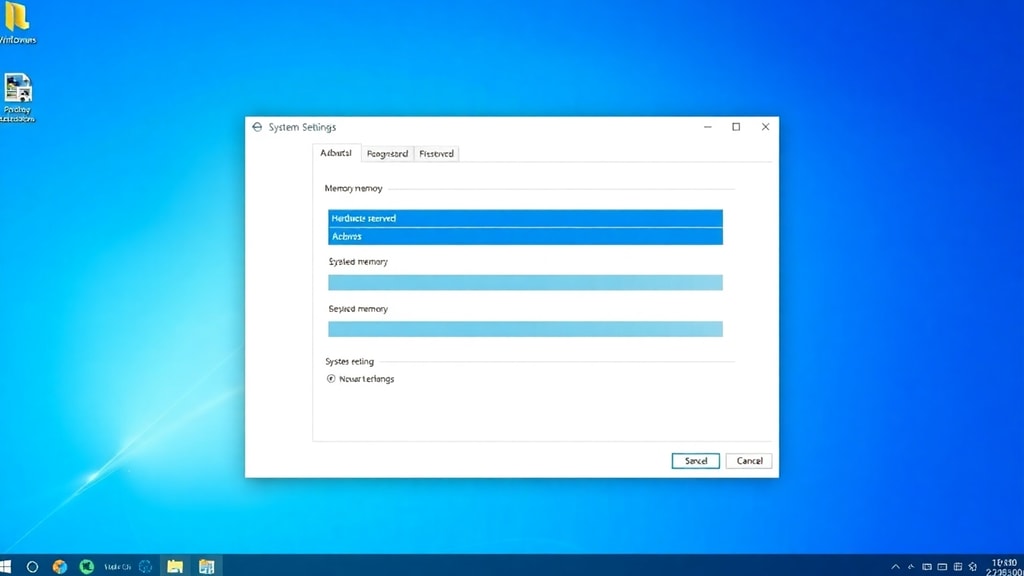
Keeping track of your printer ink levels is essential to avoid running out of ink in the middle of an important print job. On Windows 10 and Windows 11, there are several straightforward methods to view estimated ink levels. The most reliable approach is to use the dedicated software that came with your printer, such as HP Smart for HP printers or Epson Status Monitor for Epson models. These applications provide a clear visual representation of each cartridge's remaining ink. Another method involves accessing the printer status through the Control Panel or the Settings app. All these options give you quick access to the information you need without complicated steps.
The following list summarizes the three primary ways to check ink levels on a Windows computer:
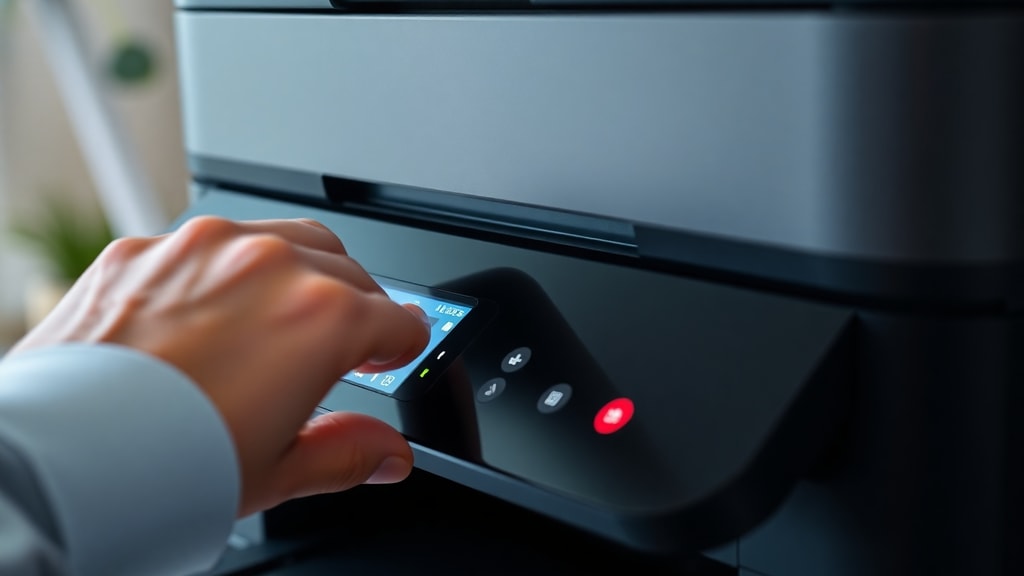
- Via the printer manufacturer's software: Open the start menu, type the name of your printer app (e.g., HP Smart, Epson Status Monitor), and launch it. Look for a tab or section labeled "Estimated Ink Levels" or "Supply Status." The software often updates in real time when your printer is connected.
- Via the Control Panel: Navigate to Devices and Printers, right-click or double-click your printer icon, and select "Printing Preferences" or "Printer Properties." In the window that opens, find a tab named "Maintenance," "Service," or "Estimated Ink Levels." Some printers show the levels directly on the General tab.
- Via the Settings app: Go to Settings > Devices > Printers and Scanners. Click on your printer, then click "Manage." Under "Printer options" or "Hardware properties," you may see an option for ink levels. This method is especially helpful if the manufacturer’s software is not installed.
| Method | Steps (Brief) | Ease of Use |
|---|---|---|
| Printer Software (e.g., HP Smart) | Open app, look for ink level indicator | Very easy, graphic display |
| Control Panel (Devices and Printers) | Double‑click printer, find properties tab | Moderate, may vary by driver |
| Settings App (Windows 10/11) | Settings > Devices > Printers > Manage | Easy, but not all printers show levels |
For a detailed guide on using the Epson Status Monitor, refer to the Epson support documentation at this Epson page. This resource explains the exact steps for viewing ink levels through the manufacturer’s utility.
Checking Printer Ink Levels on macOS
Mac users have two convenient methods to see printer ink levels. The first and most direct way is through System Preferences. Open the Apple menu, select System Preferences, then click Printers and Scanners. Choose your printer from the list and click the Options and Supplies button. In the window that appears, go to the Supply Levels tab. Here you will see a graphical bar for each ink cartridge, showing the approximate remaining amount. The second method works while you are about to print a document. In any application, go to File > Print. When the print dialog opens, click the Show Details button if needed, then look for a dropdown menu that says Printer Options, Supplies, or Information. Select the option that displays supply levels. Some printer drivers show the ink status directly in this dialog.
Apple provides official guidance for checking supply levels on macOS. For further reading, visit Apple Support’s article on printer supplies. This page covers both methods in more detail and includes troubleshooting steps if the supply level information does not appear.
Using Mobile Apps to Check Ink Levels
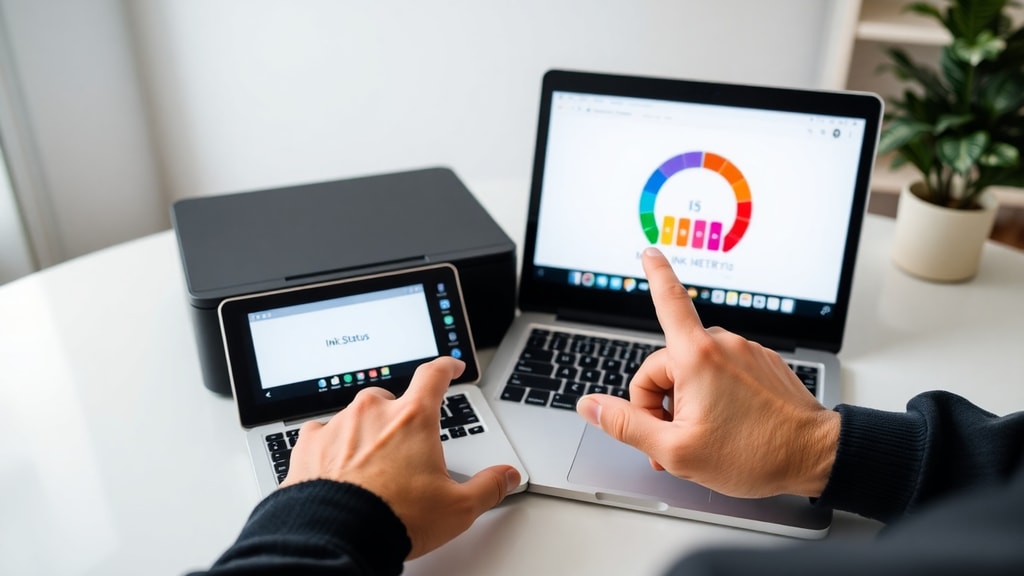
Modern printers often come with companion mobile applications that allow you to check ink levels from your smartphone or tablet. These apps connect to your printer over Wi‑Fi or Bluetooth and provide a remote dashboard. For HP printers, the HP Smart app is the most popular choice. After installing the app and adding your printer, the home screen displays estimated ink levels for each cartridge. Epson users can download Epson iPrint, which offers a similar feature. Canon offers Canon PRINT Inkjet/SELPHY, and Brother has Brother iPrint&Scan. All these apps update the ink level information in real time, and many also send low‑ink alerts. Using a mobile app is especially convenient if your printer is located in a different room or if you want to quickly check supplies without walking to the computer.
To use a mobile app, follow these steps:
- Download the official app from the App Store or Google Play Store. - Ensure your printer and mobile device are on the same Wi‑Fi network (or pair via Bluetooth if supported). - Open the app and follow the on‑screen instructions to add your printer. - Once connected, look for an icon or menu item labeled "Ink Levels," "Supply Status," or "Cartridge Status." The app typically shows a percentage or a bar graph.
Understanding Ink Level Indicators and Common Signs
Most printer software displays ink levels as estimated percentages, ranging from 100% (full) to 0% (empty). Keep in mind that these readings are approximations based on the printer’s usage history. The actual amount of ink may vary slightly. Many printers also show a warning when ink is low, but you can still print for a while after the warning appears. Some printers automatically stop printing when a cartridge is completely empty. To avoid interruptions, it is wise to check levels before starting a large print job. Another common sign is a drop in print quality: faded text, missing colors, or streaks on the page often indicate low ink. If you see these symptoms, check the levels using one of the methods described above.
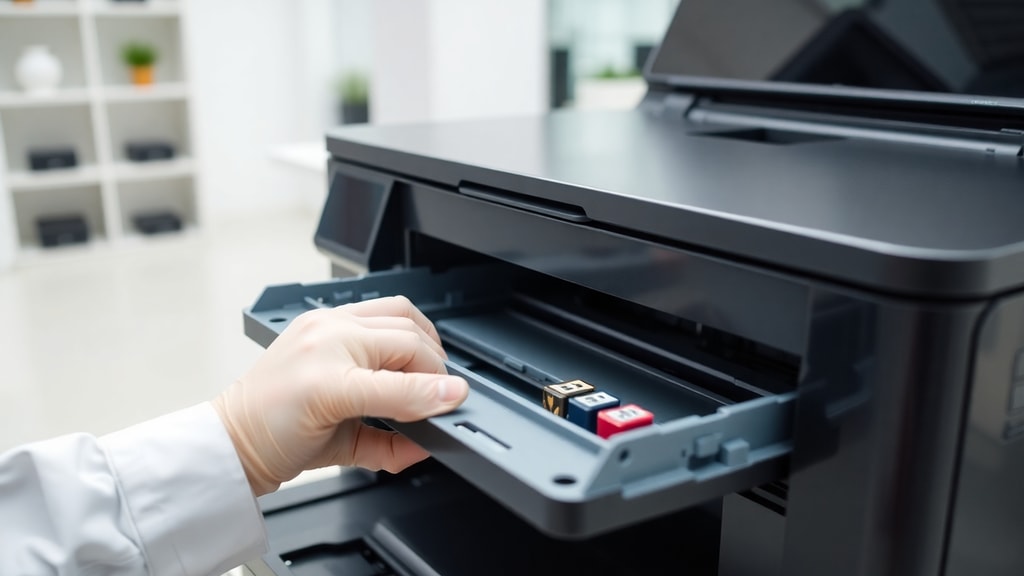
Different printer brands use slightly different terminology. For example, HP uses "Estimated Ink Levels" while Epson displays "Remaining Ink." Always refer to your printer’s manual for the exact location of the ink status in your specific model’s software.
Troubleshooting When You Cannot See Ink Levels
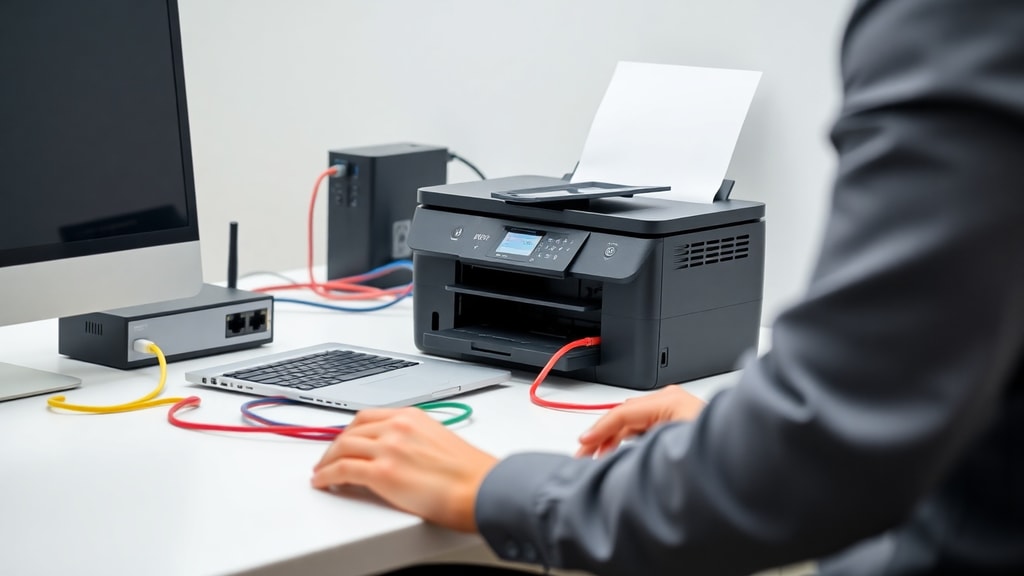
Sometimes you may open the software or settings and find no ink level information. This can happen for several reasons. First, ensure your printer drivers are properly installed. Outdated or missing drivers prevent the computer from communicating with the printer. Visit the manufacturer’s website to download the latest driver for your operating system. Second, check that your printer is turned on and connected to your computer or network. If the printer is offline, the software cannot retrieve the ink status. Restart both the printer and the computer to re‑establish the connection. Third, some older printers do not report ink levels at all, especially basic models without a chip in the cartridge. In that case, you may need to rely on physical inspection or a print test page. Finally, for mobile apps, ensure your printer supports Wi‑Fi and that you have enabled the correct network. If you still cannot see the levels, consult the manufacturer’s support website or the user manual for your specific model.
References
- Epson Support: "Checking the Ink Levels" – https://files.support.epson.com/htmldocs/st24__/st24__ug7/ink_1.htm
- Apple Support: "View supply levels for your printer" – https://support.apple.com/guide/mac-help/mchl71a320e5/mac
- WikiHow: "How to Check Printer Ink Levels in Windows" – https://pt.wikihow.com/Ver-os-N%C3%ADveis-de-Tinta-da-Impressora-no-Windows
- Toner Master: "How to Check Printer Ink Levels" – https://www.toner-master.com/pt/how-to-check-printer-ink-levels/