Introduction: Charging Your Phone from a Computer
Charging a smartphone from a computer is a common practice, especially when a wall charger is not readily available. Whether you are at a desk, in a library, or traveling with a laptop, connecting your phone to a computer can provide a steady trickle of power. However, the process requires some attention to detail to achieve the best results. This article explains how to charge your phone from a computer, including the correct cable, port selection, mode settings, and what to expect in terms of speed and safety. By following these guidelines, you can ensure that your phone receives power efficiently while protecting both devices.
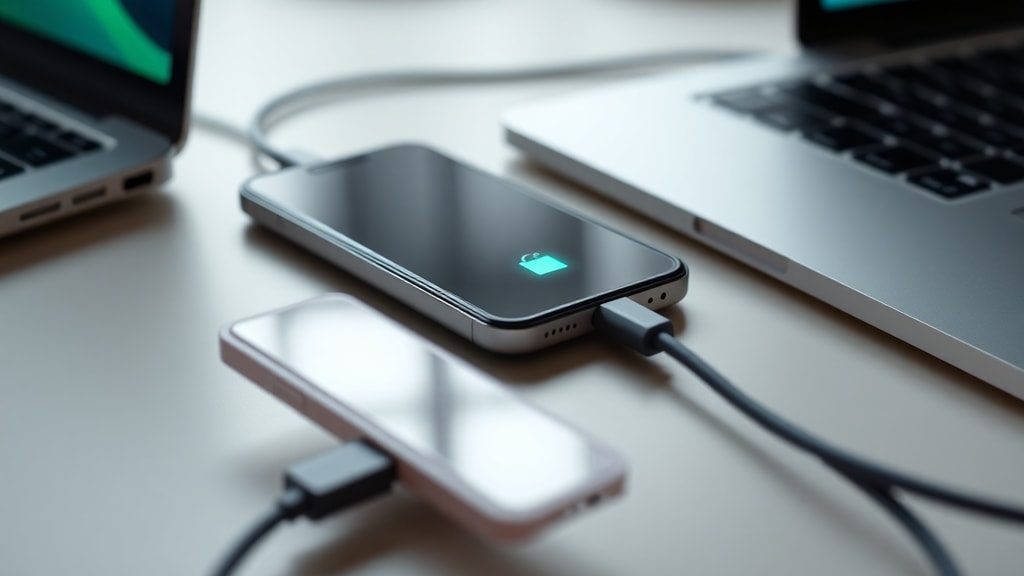
How to Connect Your Phone to a Computer for Charging
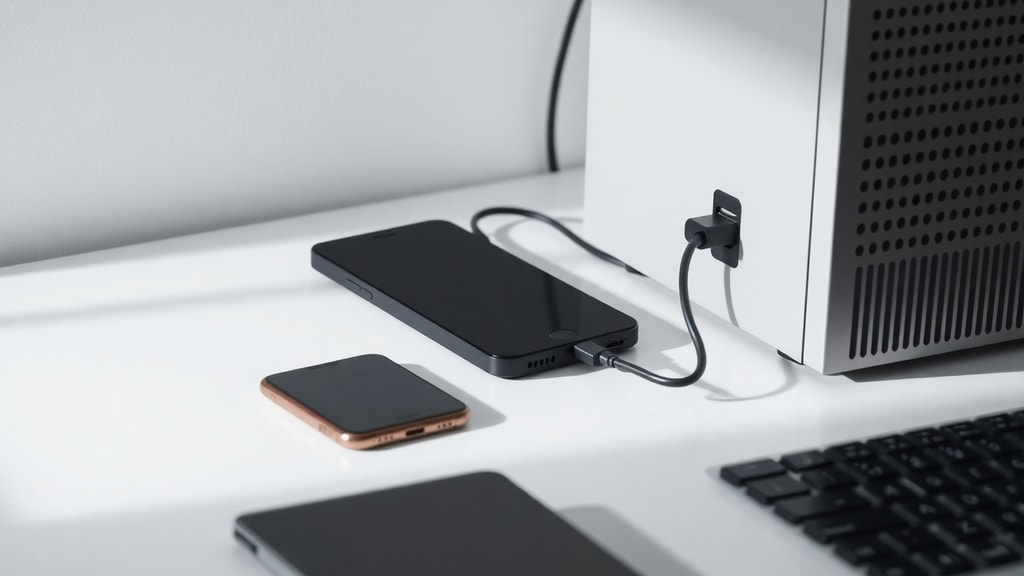
The first step is to use a compatible USB cable. Most modern smartphones use USB-C, while older models rely on micro-USB or Lightning connectors. It is highly recommended to use the original cable that came with your phone or a high-quality third-party cable. A cable with proper shielding and adequate wire gauge minimizes resistance and ensures stable power delivery. Connect one end of the cable to your phone and the other to a USB port on the computer. Desktop towers typically have ports on the front or back, while laptops have them on the sides. Once connected, your phone may vibrate or display a notification indicating that it is charging.
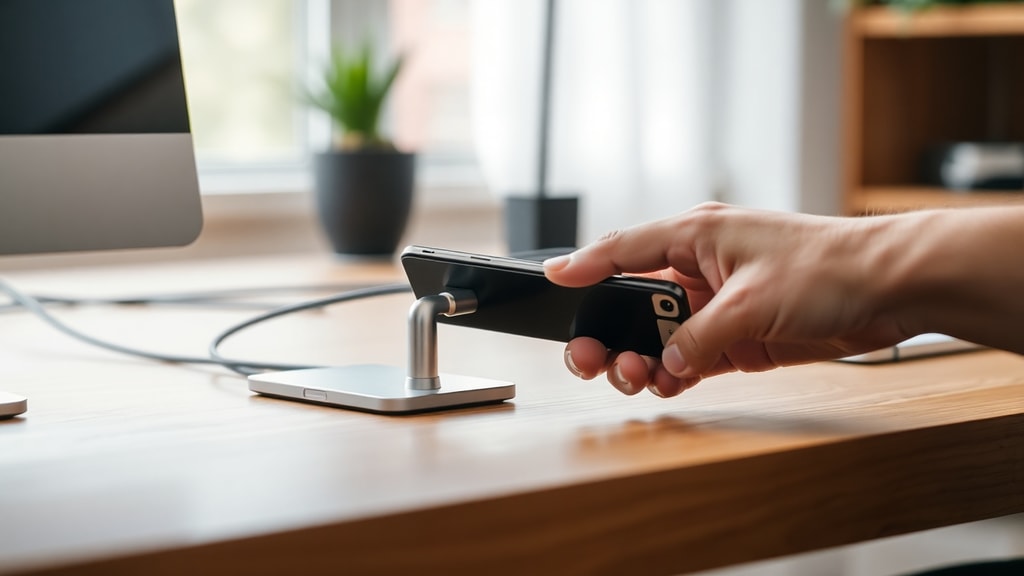
When your phone detects the USB connection, it often presents a menu asking how you want to use the link. Options usually include "File Transfer", "Photo Transfer", "USB Tethering", and "Charging Only". To focus solely on power, select "Charging Only" or "No Data Transfer". This prevents any data synchronization, which can drain additional power and pose security risks. If the menu does not appear, you can modify the USB settings from the notification panel or the system settings under "Developer Options" or "Connected Devices". For further guidance, you can refer to the WikiHow guide on connecting a phone to a computer.
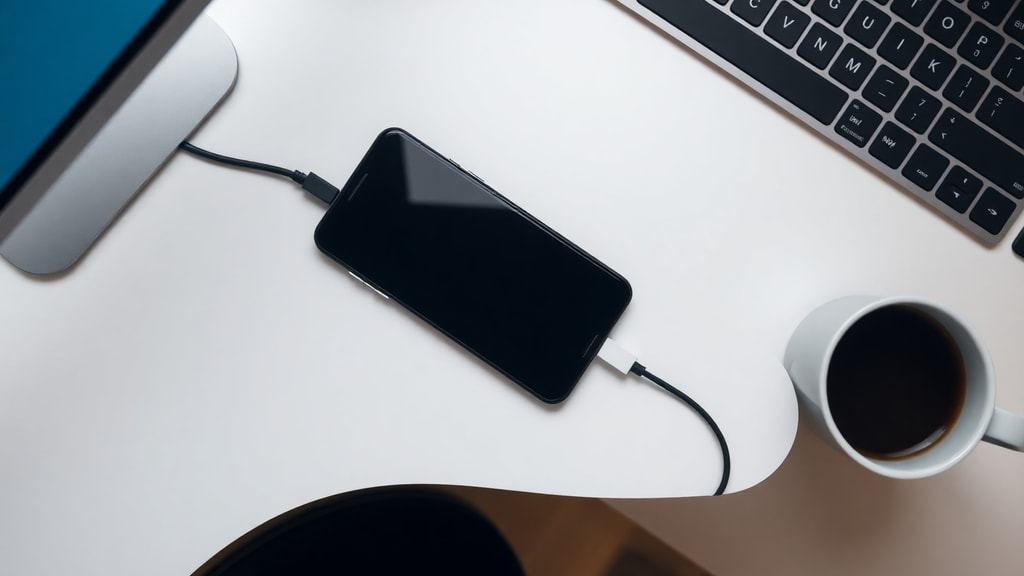
Choosing the Right USB Port for Faster Charging
Not all USB ports deliver the same amount of current. Standard USB 2.0 ports provide up to 0.5 amperes, while USB 3.0 ports can supply up to 0.9 amperes. Newer USB-C ports, especially those that support Power Delivery, can provide 3 amperes or more, rivaling some wall chargers. To charge your phone faster from a computer, use a port that offers higher current. On many computers, USB 3.0 ports are color-coded blue or marked with a "SuperSpeed" logo. Even with USB 3.0, charging will still be slower than a typical wall charger, but the difference compared to USB 2.0 can be noticeable. For more information on optimizing charging speed, consult the Windows Report article on charging your phone faster from a notebook.
Comparison of USB Port Types for Charging
The following table summarizes the typical current output of common USB port types found on computers. Note that actual performance depends on the specific hardware and whether the computer is powered on or in a low-power state.
USB Port Type | Maximum Output | Charging Speed Relative to Wall Charger
USB 2.0 | 0.5 A | Very slow, often less than 5 watts
USB 3.0 / 3.1 | 0.9 A | Slow, about 4.5 watts
USB-C (standard) | 1.5 A - 3 A | Moderate, up to 15 watts with Power Delivery
USB-C with Power Delivery | 3 A+ | Fast, comparable to many fast chargers
Tips for Efficient Charging from a Computer
To get the most out of charging your phone via a computer, follow these practical tips:
- Use the original or a high-quality USB cable to minimize resistance.
- Close unnecessary apps on your phone and avoid using it during charging to reduce power consumption.
- If using a laptop, plug it into a power outlet so that the battery does not drain faster than the phone charges.
- Turn off the phone or enable airplane mode to eliminate background network activity.
- Select "Ch