Understanding CRDOWNLOAD Files
When you download a file using Google Chrome, the browser creates a temporary file with a .crdownload extension while the download is in progress. This extension stands for Chrome Download and indicates that the file is not yet complete. Many users encounter these files when a download is interrupted, paused, or canceled. The file cannot be used in its current state because it contains only partial data. Attempting to open a .crdownload file directly with a standard program will result in errors or corrupted output. The file must be fully downloaded before it can be renamed and accessed normally.
The .crdownload format is specific to Chrome and Chromium-based browsers. When you start a download, Chrome creates a placeholder file with the .crdownload extension and writes data to it as the download progresses. Once the download finishes, Chrome automatically removes the .crdownload extension and reveals the actual file extension, such as .mp4, .pdf, or .zip. If the download is interrupted, the .crdownload file remains in your downloads folder with only a portion of the data. You cannot open this file directly, but you may be able to resume the download or recover parts of the data using specific methods.
How to Open a CRDOWNLOAD File on Windows
Opening a .crdownload file requires that the download be completed or resumed. The simplest method is to resume the download in Chrome. Open Chrome and press Ctrl+J to open the Downloads page. Locate the incomplete download and click the resume button if it is available. If the download is stuck, check your internet connection and restart Chrome. Sometimes the download process freezes due to network issues or browser glitches. Restarting the browser often restores the download and completes the file automatically.
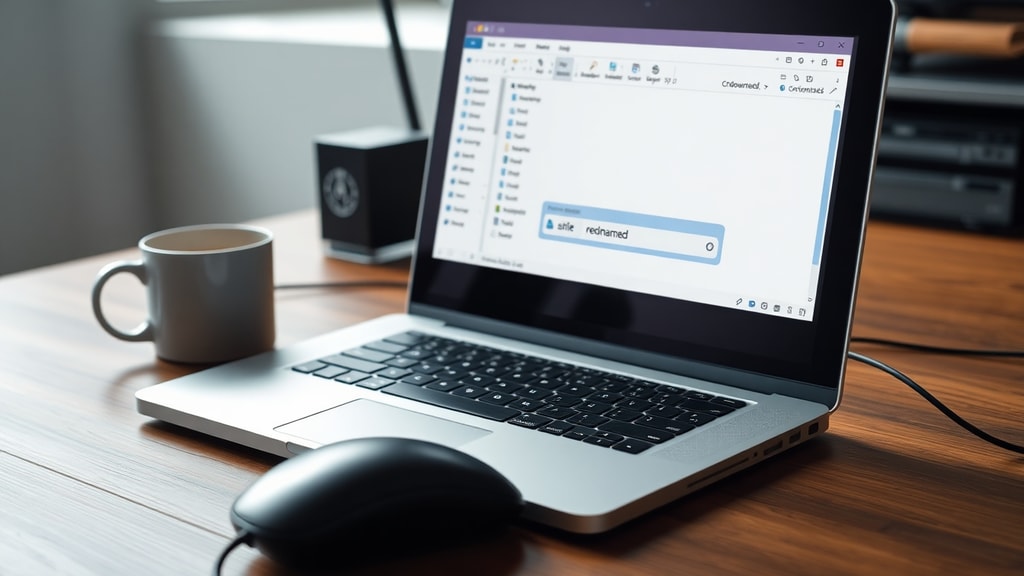
If resuming the download is not possible, you can manually rename the .crdownload file to its intended extension. For example, if you were downloading a PDF file named report.pdf.crdownload, you can rename it to report.pdf. This does not recover missing data but may allow you to open the file if a sufficient portion was downloaded. However, this method only works for certain file types and may result in a corrupted or incomplete file. Always back up the original file before renaming.
Using Google Chrome to Handle CRDOWNLOAD Files
Google Chrome provides built-in tools to manage incomplete downloads. To resume a paused or failed download, open Chrome and go to the downloads menu by clicking the three-dot menu or pressing Ctrl+J. Find the incomplete file and click the arrow icon to resume. If the file is not listed, check your default downloads folder for files with the .crdownload extension. You can also drag and drop the file back into Chrome to restart the download process. This is the most reliable way to obtain a complete file without additional software.
If the download is permanently stuck, you may need to clear the browser cache or reset Chrome settings. Go to Settings, Privacy and security, and clear cached images and files. After clearing the cache, restart the browser and attempt the download again. If all downloads are affected, update Chrome to the latest version by going to Help and About Google Chrome. Updates often fix bugs that cause incomplete downloads.
Alternative Methods for CRDOWNLOAD Files
When Chrome cannot resume the download, you can use third-party tools to open or convert .crdownload files. One option is the Crdownload File Viewer app available on Google Play for Android users. This app can open partial files and attempt to extract usable data. However, it is important to note that these tools may not recover all data and the resulting file may be corrupted. Always scan recovered files with antivirus software before opening.
Another method is to use a file recovery tool that can repair damaged downloads. Some programs like Recuva or Stellar Phoenix can recover data from incomplete files. These tools scan the partial file and attempt to reconstruct the missing portions based on the file header. This approach works best for media files like videos and audio, which can sometimes play even if partially downloaded. For documents, the success rate is lower.
Important Considerations and Warnings
Do not attempt to open a .crdownload file with standard applications like media players or document readers. The incomplete data may cause the program to crash or corrupt other files. Always ensure the download is complete before renaming or opening the file. If you receive a .crdownload file from another person, ask them to complete the download and resend the file in its final format.
Here are key points to remember when handling CRDOWNLOAD files:
- Only rename the file after the download is complete.
- Never delete the .crdownload file unless you are sure the download cannot be resumed.
- Use Chrome's built-in resume function first before any third-party tools.
- Scan any recovered file with antivirus software.
- Back up the original .crdownload file before attempting to rename or convert it.
Table of Common File Types and Their CRDOWNLOAD Extensions
The table below shows common file types and how they appear during a Chrome download:
| Original File Type | CRDOWNLOAD Extension | Typical File Size After Completion |
|---|---|---|
| PDF Document | report.pdf.crdownload | Depends on content |
| MP4 Video | video.mp4.crdownload | Large files (100 MB+) |
| ZIP Archive | archive.zip.crdownload | Varies |
| JPEG Image | photo.jpg.crdownload | Small (2-10 MB) |
| MP3 Audio | song.mp3.crdownload | Moderate (5-50 MB) |
How to Prevent CRDOWNLOAD File Issues
To avoid encountering stuck or incomplete .crdownload files, ensure your internet connection is stable during large downloads. Use a download manager that supports pause and resume functionality. Chrome's built-in download manager is reliable for most users, but for very large files, consider using a dedicated download manager that can resume downloads even after a browser crash. Also, keep Chrome updated to the latest version to benefit from bug fixes and performance improvements.

If you frequently experience incomplete downloads, check for extensions that may interfere with the download process. Some ad blockers or security extensions can cause downloads to fail. Disable these extensions temporarily and try the download again. Additionally, free up disk space in your downloads folder, as insufficient space can cause Chrome to create incomplete files.
Using Third-Party Software for CRDOWNLOAD Files
Several third-party applications claim to open or convert .crdownload files. While some are legitimate, many are unreliable or may contain malware. Only download such tools from trusted sources like the Google Play Store or official developer websites. Before using any tool, research user reviews and check for security certifications. One example is the Crdownload File Viewer on Google Play, which is designed to open partial .crdownload files on Android devices. However, remember that the data recovered may be incomplete.
For Windows users, tools like Total Commander or file repair utilities can sometimes handle partial files. These tools attempt to read the existing data and reconstruct the file structure. They work best with media files that are streamable, such as MP4 videos, which can play even if only part of the file is present. For other file types, the success rate is lower, and you may need to use a professional data recovery service.
What to Do If the CRDOWNLOAD File Is Corrupted
If you have a .crdownload file that appears corrupted or cannot be resumed, your best option is to re-download the original file from the source. Delete the partial .crdownload file and start a fresh download. To verify the integrity of the new file, use an online tool like VirusTotal to scan it for malware. This ensures the file is safe before opening. Do not attempt to open a corrupted .crdownload file, as it may contain errors that could harm your system.
In some cases, you can use file repair software to fix the incomplete download. Programs like Stellar File Repair or DataNumen can attempt to recover data from damaged files. However, these tools are not guaranteed to work for partial downloads and may require a paid license. Always try the simplest solution first: resume the download in Chrome.
Conclusion
CRDOWNLOAD files are a normal part of the Chrome download process and indicate that a download is incomplete. To open such a file, you must complete the download using Chrome's resume function. If that fails, you can try renaming the file or using third-party tools, but these methods may result in corrupted data. Always prioritize security by scanning files before opening and updating your browser regularly. With the steps outlined in this article, you can handle .crdownload files effectively and minimize data loss.
References
FILExt. CRDOWNLOAD File Extension. Retrieved from https://filext.com/file-extension/CRDOWNLOAD
MundoBytes. How to Open a CRDOWNLOAD File. Retrieved from https://mundobytes.com/pt/como-abrir-um-arquivo-crdownload/
Moyens.net. How to Open CRDOWNLOAD File in Windows 10. Retrieved from https://pt.moyens.net/web/como-abrir-o-arquivo-crdownload-no-windows-10/
How to open a CRDOWNLOAD file on Windows 11/10. YouTube. Retrieved from https://www.youtube.com/watch?v=LYUNzha3BAo
Crdownload File Viewer. Google Play. Retrieved from https://play.google.com/store/apps/details?id=crdownload.file.opener.crplayer
FileExt (Portuguese). CRDOWNLOAD File Extension. Retrieved from https://filext.com/pt/extensao-do-arquivo/CRDOWNLOAD