Understanding Why Your Desktop Shows No Image
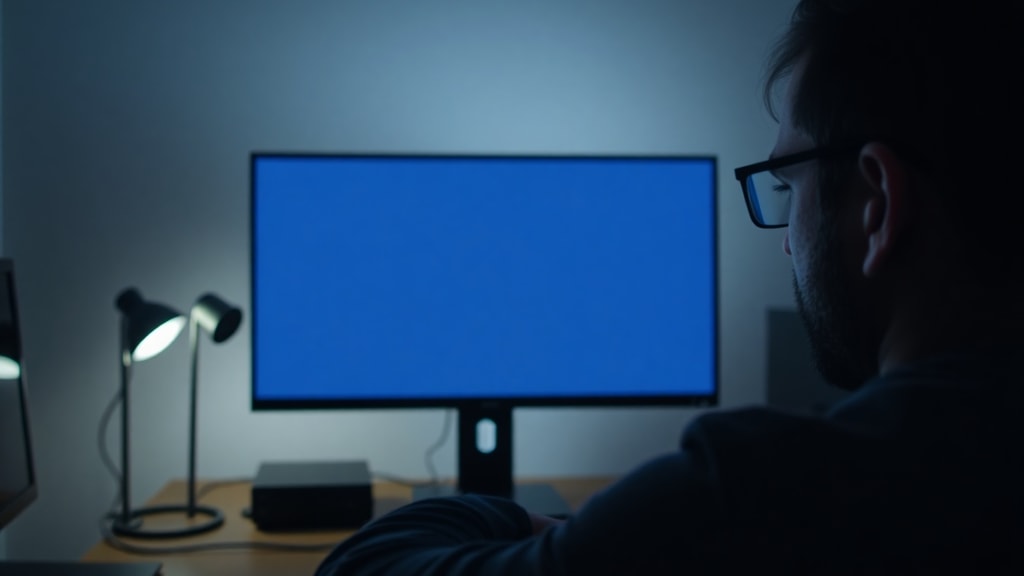
When you press the power button on your desktop computer and hear the fans spinning, lights turning on, but the screen remains black, it can be frustrating. This issue, often described as no video or no display, is one of the most common hardware problems. The causes range from simple connection mistakes to more complex component failures. Before you panic or assume your computer is broken, there are several logical steps you can take to diagnose and fix the problem. This article will guide you through the most frequent reasons why a desktop powers on but shows no image, and provide clear solutions for each.
Check the Monitor Connection First
The most overlooked cause is a simple connection error. Many desktop computers have two sets of video ports: one on the motherboard and one on a dedicated graphics card. If you have a dedicated graphics card installed, your monitor must be plugged into the ports on that card, not the motherboard. Plugging into the motherboard often results in no image because the integrated graphics are disabled when a dedicated card is present. Check the back of your PC carefully. The ports on the graphics card are usually located lower down, often with multiple ports like HDMI, DisplayPort, or DVI. If you have been using the motherboard ports, switch the cable to the graphics card. Also, ensure the cable is fully inserted and not loose. Sometimes a cable can appear connected but is not making proper contact.
Inspect the Video Cable and Monitor Ports
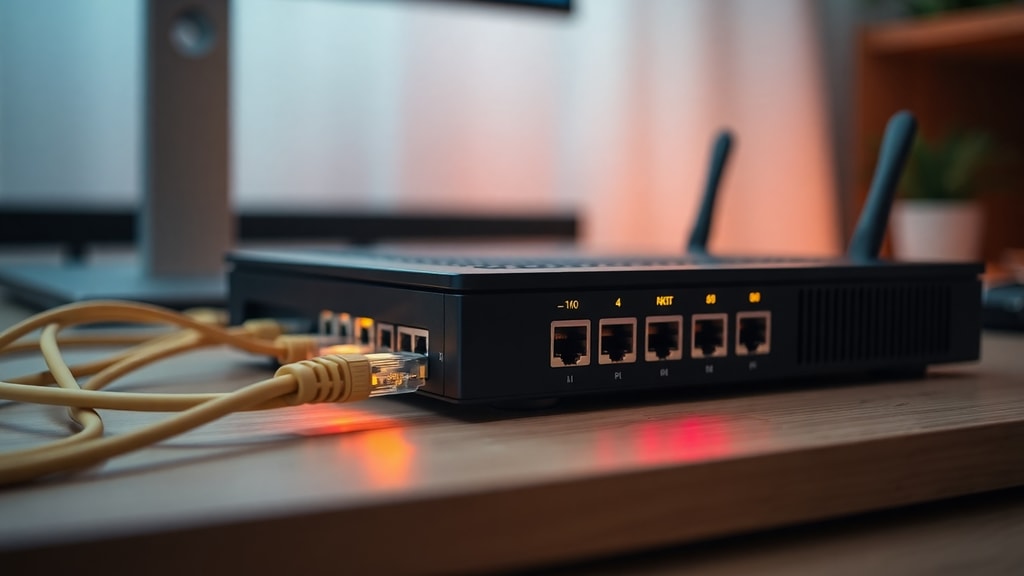
Faulty or damaged cables are another common culprit. HDMI, DisplayPort, and VGA cables can wear out over time, especially if they are bent or pulled frequently. Try using a different cable if you have one available. If you have multiple ports on your monitor, such as HDMI 1 and HDMI 2, switch to the other port. Some monitors do not automatically detect the correct input source. Use the monitor's on-screen menu buttons to manually select the correct input. For example, if your cable is plugged into HDMI 1, ensure the monitor is set to HDMI 1. A simple cable swap or port change can instantly restore the image.
Reseat the RAM Modules
Loose or improperly seated RAM is a very frequent cause of a black screen when the PC turns on. Even if the RAM sticks look secure, they can become slightly dislodged due to vibration or temperature changes. To fix this, turn off your computer, unplug the power cord, and open the case. Locate the RAM modules on the motherboard. Press down on the clips at each end of the RAM slot to release the stick. Remove the RAM completely, then reinsert it firmly until the clips click back into place. Make sure the stick is evenly seated. If you have multiple sticks, try using only one stick at a time in different slots. This can identify if a specific module or slot is faulty. This simple step resolves many no-display issues.
Verify the Graphics Card Power and Seating
Your dedicated graphics card needs both proper physical connection and power. First, ensure the card is fully inserted into its PCIe slot on the motherboard. Sometimes cards can become loose, especially if the computer was moved. Remove the card and reinsert it firmly. Second, check the power cables. Most modern graphics cards require one or two PCIe power cables directly from the power supply. These cables are often 6-pin or 8-pin connectors. Make sure they are clicked in securely. If the card is not receiving power, it will not output any video. Also, check if the power supply unit has enough wattage to support your graphics card. An underpowered card may fail to initialize.
Reset the BIOS or CMOS
Corrupted BIOS settings can prevent the system from initializing the display. Resetting the BIOS to factory defaults often resolves this. The easiest method is to remove the CMOS battery on the motherboard. This small, round, silver battery is usually located near the PCIe slots. Turn off the PC, unplug it, and carefully remove the battery. Wait for one to two minutes, then reinsert it. This clears any corrupted settings. Alternatively, you can use the CMOS jumper on the motherboard, but removing the battery is simpler. After resetting, the BIOS will revert to default settings, which often enables the correct video output configuration.
Boot into Safe Mode to Check Drivers
If your computer shows the BIOS screen or Windows logo but then goes black, the issue may be a corrupted or incompatible graphics driver. Booting into Safe Mode loads only essential drivers, bypassing the graphics driver. To enter Safe Mode, restart your PC and press the F8 key repeatedly before Windows starts loading. On Windows 10 and 11, you may need to interrupt the boot process three times to trigger automatic repair, then navigate to Troubleshoot, Advanced Options, and Startup Settings. Once in Safe Mode, if the display works, the problem is driver-related. You can then uninstall the current graphics driver using Device Manager and install a fresh, stable version from the manufacturer's website.
Check for Power Supply or Peripheral Issues
Sometimes the problem is not inside the computer but with the power source. Faulty power strips, surge protectors, or wall outlets can provide unstable power, causing the system to power on but not initialize the graphics. Try plugging your desktop directly into a wall outlet, bypassing any power strips or stabilizers. Also, disconnect all unnecessary peripherals like USB drives, external hard drives, and extra monitors. An overloaded power supply or a shorted USB device can prevent the system from completing its startup sequence. If the display appears after removing peripherals, reconnect them one by one to identify the problematic device.
Common Causes and Quick Fixes Table
| Cause | Symptom | Quick Fix |
|---|---|---|
| Monitor connected to wrong port | PC powers on, no image | Plug cable into dedicated graphics card ports |
| Loose RAM modules | Fans spin, no beeps, no video | Reseat RAM sticks firmly |
| Faulty video cable | Intermittent or no display | Try a different cable or port |
| Graphics card not powered | No image, card fans may not spin | Check and reconnect PCIe power cables |
| Corrupted BIOS | System loops or black screen | Remove CMOS battery for 2 minutes |
| Bad graphics driver | Black screen after Windows logo | Boot into Safe Mode and uninstall driver |
| Power supply issue | PC turns on but unstable | Plug directly into wall outlet |
Step-by-Step Troubleshooting Checklist
Follow this ordered list to systematically eliminate common causes. Do not skip steps, as the simplest fix is often the correct one.
- Verify the monitor is powered on and the cable is securely connected to the correct port on the graphics card.
- Test with a different video cable and a different monitor port.
- Reseat the RAM modules, trying one stick at a time in different slots.
- Remove and reinsert the graphics card, and check its power cables.
- Reset the BIOS by removing the CMOS battery for two minutes.
- Boot into Safe Mode to test for driver issues.
- Disconnect all peripherals and plug the PC directly into a wall outlet.
- If none of these work, the problem may be a failed component like the motherboard, CPU, or power supply.
When to Seek Professional Help
If you have tried all the steps above and your desktop still shows no image, the issue may be more serious. A failed motherboard, dead CPU, or completely faulty power supply can cause a no-display condition that requires specialized diagnostic tools. In such cases, it is best to take your computer to a professional repair service. They can test components individually and identify the exact failure. Do not attempt to replace the motherboard or CPU yourself unless you have experience, as improper handling can cause further damage. Sometimes the cost of repair may exceed the value of an older system, so consider whether a new computer is a better investment.
References
Dell Support. Monitor connected to the wrong port. Available at: https://www.dell.com/support/contents/pt-pt/article/product-support/self-support-knowledgebase/monitor-screen-video/monitors-and-screens
TecMundo. Loose or faulty RAM modules and failed graphics driver. Available at: https://www.tecmundo.com.br/software/286845-pc-liga-nao-aparece-imagem-saiba-resolver.htm
Microsoft Learn. Graphics card not recognized and BIOS/CMOS corruption. Available at: https://learn.microsoft.com/pt-br/answers/questions/4001609/pc-n-o-d-imagem-apenas-som
Positivo do Seu Jeito. Faulty cable/port and power supply issues. Available at: https://www.meupositivo.com.br/doseujeito/dicas/como-resolver-pc-liga-sem-imagem-tela/