Introduction
Connecting your phone to your computer is a common task that allows you to transfer photos, back up important files, manage messages, or even use your mobile internet connection. Whether you use an Android device or an iPhone, there are multiple ways to establish this link. Some methods are fast and direct, while others offer more convenience by working over a wireless network. Understanding the options available helps you choose the best approach for your specific needs. In this article, we will explore the most reliable and practical ways to connect your phone to a computer, covering wired connections, Bluetooth, built‑in software, and third‑party apps.
Using a USB Cable for a Direct Connection
The most straightforward method to connect your phone to a computer is through a USB cable. This approach is widely supported and does not require any additional software on either device. For Android users, connecting the phone with a USB cable usually triggers a notification that allows you to choose the connection type. The key is to select File Transfer, sometimes labelled as MTP (Media Transfer Protocol) or Android Auto, rather than charging only mode. Once this option is selected, your computer will recognise the phone as a portable storage device, and you can browse its internal memory and SD card through File Explorer on Windows or Finder on macOS.
iPhone users follow a slightly different process. When you plug an iPhone into a computer using a Lightning cable, the phone may prompt you to confirm that you trust the computer. After tapping Trust and entering your passcode, the iPhone appears as a camera or portable device in Windows Explorer, or in the Photos app if you use a Mac. From there you can import photos and videos, but full file access is more limited compared to Android. For deeper control of iPhone files, you may need to use iTunes or the built‑in Files app.
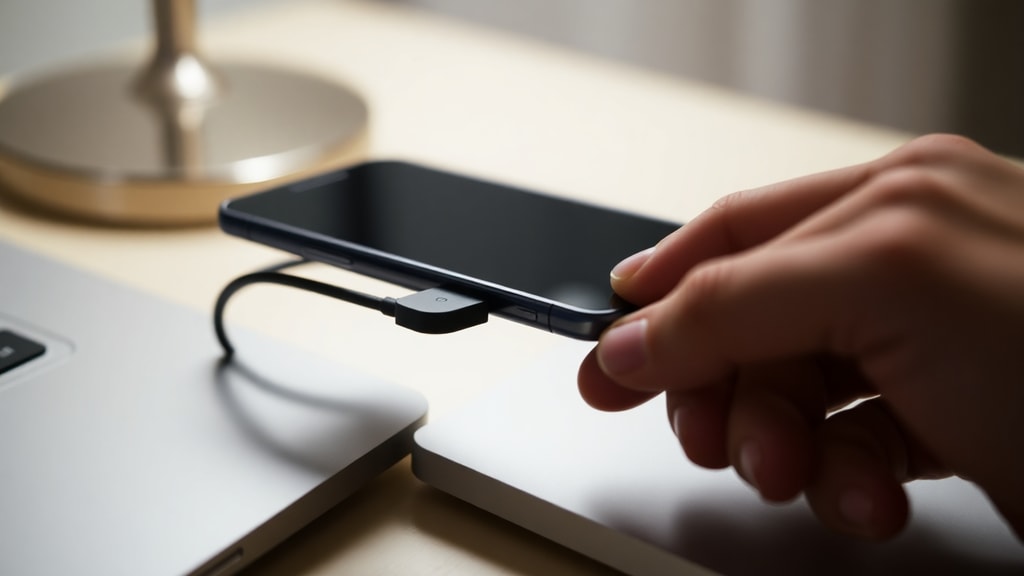
One advantage of the USB method is speed. Transferring large video files or high‑resolution photos happens much faster than over Bluetooth or even some Wi‑Fi solutions. The connection is also stable and does not depend on your network quality. However, you must have a compatible cable, and on some older computers, USB‑C ports may require an adapter. It is also important to ensure that the cable supports data transfer and is not a charge‑only cable. If your computer does not detect your phone, try a different USB port or restart both devices.
The following text table summarises the main ways to connect a phone to a computer and compares their key characteristics.
Method | Speed | Ease of Setup | File Transfer Ability
USB Cable | Fast | Very Easy | Full (Android) / Limited (iPhone)
Bluetooth | Slow | Easy | Very limited
Phone Link (Microsoft) | Fast | Easy | Photos, messages, calls
Wi‑Fi Apps (e.g., CX File Explorer) | Fast | Moderate | Full (requires network setup)
Establishing a Wireless Connection via Bluetooth
Bluetooth offers a cable‑free way to connect your phone and computer, though it is best suited for small files or low‑bandwidth tasks such as transferring contacts, short documents, or synchronising notifications. To pair your phone with a Windows computer, open the Settings menu, go to Devices, and select Add Bluetooth or other device. Make sure Bluetooth is enabled on both the phone and the computer, and that neither device is in Airplane mode. Your phone will appear in the list of available devices; select it and confirm the pairing code on both screens. On a Mac, the process is similar through System Settings.
Once paired, you can send files from the phone to the computer by selecting the file and choosing the Share option, then picking Bluetooth. The receiving computer must be set to accept Bluetooth file transfers. On Windows, you can find this option under Bluetooth & other devices settings. The transfer speed is noticeably slower than USB, typically a few megabytes per second at best, so sending a large video can be tedious. Additionally, Bluetooth connections are more prone to interference and may disconnect if the devices move too far apart.
Despite these limitations, Bluetooth remains useful for quickly sharing a single photo or document when you do not have a cable handy. It also allows for continuous features like using your phone as a music player for your computer, or sending SMS messages through certain apps. However, for most file‑transfer needs, other methods are more efficient.
Leveraging Microsoft Phone Link for Seamless Sync
Microsoft offers a built‑in application called Phone Link, previously known as Your Phone, which integrates your Android or iPhone with Windows 10 and 11. This tool is designed for users who want to manage calls, messages, notifications, and photos directly from their desktop without physically connecting the devices. The setup requires your phone to run Android 7.0 or later, or iOS 14 or later, and a Windows 10 or 11 computer. You install the companion app, Link to Windows, on your phone from the Google Play Store or the Apple App Store.
After opening Phone Link on your PC and scanning the QR code displayed on your screen with your phone, the two devices pair over Wi‑Fi or Bluetooth. The connection is maintained as long as both devices are on the same network or within Bluetooth range. Once linked, you can see your recent photos, send and receive SMS messages, view your call history, and even answer calls using your computer’s microphone and speakers. For Android users, there is an additional feature called Continue on PC, which lets you send web links and other content from your phone to your computer seamlessly.
One of the strongest advantages of Phone Link is that it does not require a USB cable. It works wirelessly in the background, automatically syncing your latest photos. The data transfer for photos is fast because it uses the local network. However, the tool does not provide full file system access; you cannot browse all folders on your phone or transfer arbitrary files. For that, you still need a USB cable or a dedicated file‑sharing app. Microsoft’s official support page provides detailed setup instructions and troubleshooting tips, which you can access at Microsoft Support for Phone Link.
Alternative Wireless Methods Using Wi‑Fi and Third‑Party Apps
If you need full file‑transfer capabilities without a cable and do not want to rely solely on Microsoft’s ecosystem, using a third‑party application that works over Wi‑Fi is an excellent alternative. Apps like CX File Explorer, Solid Explorer, or Feem allow you to share files between your phone and computer using your home network. The typical setup involves installing the app on your phone, enabling network access or FTP server mode, and then entering the provided IP address into your computer’s file manager.
For example, in CX File Explorer, you go to the Network tab, select Remote Manager, and turn on the server. The app displays an FTP address such as ftp://192.168.1.10:3721. On Windows, open File Explorer and type that address into the address bar. You will then see the phone’s storage as a removable drive and can copy files in either direction. The speed is comparable to USB because it uses your local network, which is usually much faster than Bluetooth. Free apps often have some limitations, such as banners or restrictions on file size, but paid versions remove these.
Another popular approach is using cloud storage services like Google Drive, Dropbox, or OneDrive. By installing the cloud app on both your phone and computer, you can upload files from one device and download them on the other. This method does not require a direct connection, but it depends on your internet upload and download speeds. For occasional transfers of a few files, cloud storage is very convenient because it works anywhere. However, for large files or when you do not have internet access, direct Wi‑Fi file transfer is better.
Here is a list summarising the key points of each connection method mentioned in this article:
1. USB Cable – Offers the fastest and most reliable file transfer. Best for moving large files and backing up data. Android users must select File Transfer mode. iPhone users need to trust the computer.
2. Bluetooth – Simple to set up but slow. Ideal for small files like contacts or one photo. Not suitable for videos or large backups.
3. Microsoft Phone Link – Wireless integration for calls, texts, and photo access. Does not replace full file browsing. Requires Windows 10/11 and Android 7.0 or iOS 14.
4. Wi‑Fi File Transfer Apps – Provide full access to phone storage over the network. Requires configuration but speeds are close to USB. Good for frequent transfers without cables.
References
HP TECH TAKES. How to connect a phone to your computer. Available at: https://www.hp.com/br-pt/shop/tech-takes/como-conectar-um-telefone-ao-seu-computador
Microsoft Support. Phone Link requirements and setup. Available at: https://support.microsoft.com/pt-br/topic/vincular-ao-celular-requisitos-e-configura%C3%A7%C3%A3o-cd2a1ee7-75a7-66a6-9d4e-bf22e735f9e3
Hama. How to connect mobile to laptop. Available at: https://pt.hama.com/dicas-e-conselhos/dicas-para-telemovel/conectar-telemovel/conectar-o-telemovel-ao-pc
TecMundo. How to link Android with Windows 11. Available at: https://www.tecmundo.com.br/software/237045-vincular-celular-android-windows-11