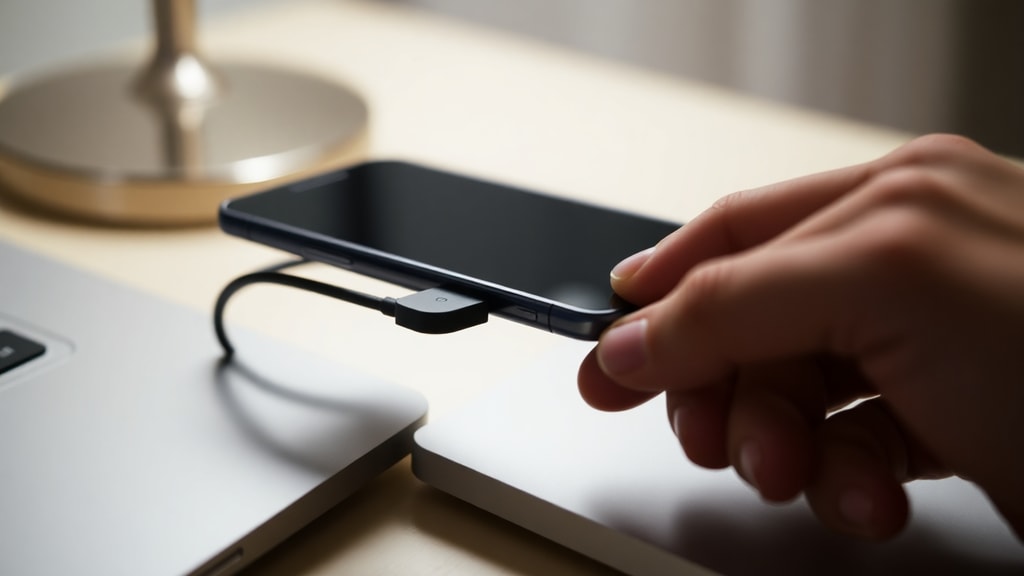
Understanding the Fastboot Screen on Your Android Phone
When you restart your phone and are greeted with a screen displaying the word “Fastboot” often with a logo or a list of options, it can be alarming. You did not intend to enter any special mode, yet the device stops at a black screen with white text instead of booting normally. This situation is surprisingly common, especially among Android users who own devices from brands like Xiaomi, Motorola, or OnePlus. The fastboot mode is essentially a diagnostic and low-level interface that allows developers and advanced users to flash firmware, recover the system, or modify partitions. However, when it appears unexpectedly after a restart, it indicates that something triggered the phone to load this mode instead of the normal boot process. Understanding why this happens is the first step toward resolving the issue quickly and safely.
In this article, we will explore the main causes behind a phone showing Fastboot after a restart. We will look at accidental button presses, failed system updates, faulty rooting attempts, hardware problems, and software bugs. We will also provide a practical table and a list of steps you can follow to get your phone back to normal. By the end, you will know not only why fastboot appears, but also how to prevent it from happening again.
Accidental Button Combination During Restart
One of the most frequent reasons for a phone entering fastboot mode without intention is the accidental pressing of the correct button combination. On many Android devices, holding down the Power button together with the Volume Down key during the boot process forces the phone into fastboot mode. This is a standard feature designed for developers, but it can be triggered by routine handling. If you place your phone in a pocket, a bag, or a car mount, the buttons may be pressed simultaneously. When the phone restarts – for example, after an overnight update or a low battery shutdown – those same buttons can remain under pressure, causing the device to skip the normal boot and land on the fastboot screen.

This phenomenon is well documented. According to SmartOutlets, the combination of Power + Volume Down is the most common trigger, and many users discover that simply checking the phone’s position or removing it from a tight pocket solves the problem. If you see fastboot after a restart, the first thing to do is ensure that no button is stuck. Inspect your phone case, clean the edges, and try to restart again while being careful not to press any volume keys.
Interrupted or Failed System Updates
Another major reason for an unexpected fastboot mode is a failed software update. When your phone downloads and attempts to install a new version of Android or a security patch, the process is delicate. If the battery runs out during installation, if the connection drops while downloading the update files, or if the phone crashes mid‑flash, the system can become corrupt. The device then enters fastboot as a safety measure to prevent a bricked phone. In this state, the phone cannot load the operating system because essential boot files are missing or damaged. Fastboot allows you to reflash the proper firmware via a computer, but it can appear confusing when all you wanted was a simple restart.
Research from CelularPonto emphasizes that incomplete updates are a leading cause of fastboot screens. If you recall that your phone was installing an update just before the restart, the fastboot screen is almost certainly related. In such cases, the solution involves either trying a forced shutdown followed by a normal boot, or using a PC to reinstall the official firmware. Do not attempt to bypass this by repeatedly pressing keys, as you may worsen the corruption.
Rooting Attempts and Incompatible Custom ROMs
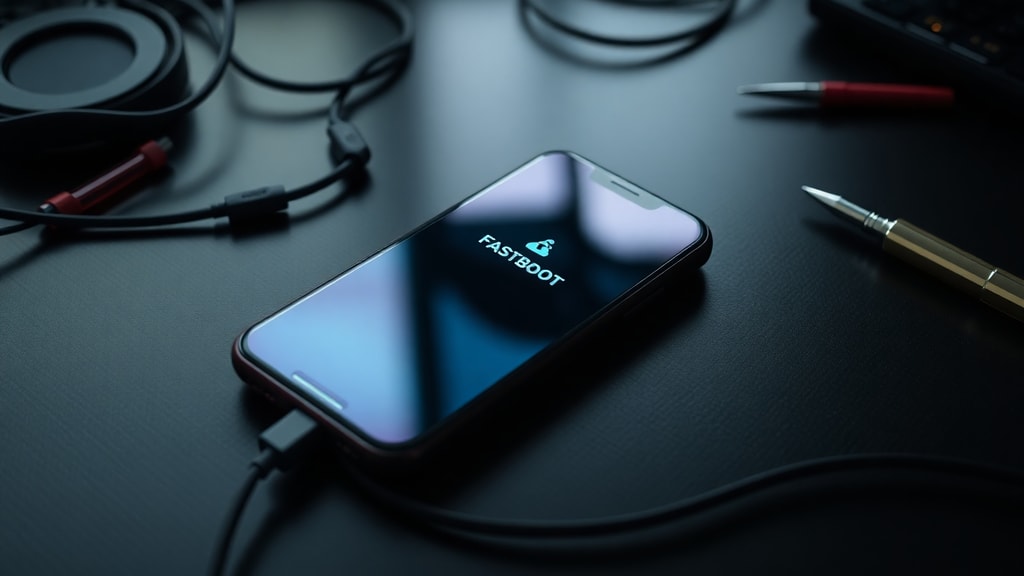
Many users try to gain full control over their device by rooting it or installing custom firmware. These processes involve unlocking the bootloader, replacing recovery images, and flashing new system partitions. If the root procedure is interrupted, if the wrong version of a custom ROM is used, or if the device receives an incompatible modification, the phone may fail to boot correctly. Instead of starting the operating system, the bootloader falls back to fastboot mode to indicate that the system cannot be verified. This is especially common on phones that have had their bootloader unlocked but were not fully flashed with a compatible software.
As noted by Tenorshare, poor root execution or incompatible ROMs can easily cause a phone to get stuck in fastboot. In these scenarios, the phone is not broken beyond repair, but it does require technical intervention. You may need to reflash the stock firmware using fastboot commands from a computer or install a compatible custom ROM. Beginners should be cautious: entering fastboot due to a failed root attempt can often be fixed by returning to official software. If you recently performed any system modifications, that is likely the root cause of the fastboot screen.
Hardware Failures: Defective Buttons and Internal Storage
Sometimes the issue is purely physical. The buttons on your phone, especially the volume rocker or the power button, can become stuck, damaged, or overly sensitive due to wear or liquid damage. If the phone thinks that Volume Down is being pressed continuously, it may automatically enter fastboot mode every time it restarts. Similarly, a failing internal memory chip or a corrupted eMMC can cause the device to be unable to load the boot partition, forcing it into fastboot as a last resort. This is rarer but possible, especially on older devices with many charge cycles.

A report from TechTudo highlights that hardware problems like defective buttons are often overlooked. Users assume a software glitch, but a simple test of pressing each button individually can reveal if one is stuck. If you suspect hardware failure, you may need to clean the buttons with isopropyl alcohol, or, in more severe cases, take the phone to a repair shop. Internal storage failure usually requires professional diagnosis and replacement, but before concluding that, try the software solutions first.
Software Bugs and Malicious Applications
Not every fastboot appearance is due to a major error. Sometimes, a random bug in the Android operating system can cause the device to misbehave. A poorly coded app, especially one that requests root permissions or modifies system settings, might trigger a boot loop that ends in fastboot. Malware can also interfere with the boot process, forcing the phone into a diagnostic mode. While less common than the other causes, this possibility should not be dismissed, particularly if you have installed apps from unknown sources or have recently side‑loaded a new piece of software.
According to OqueAssistir, bugs in the OS or malicious applications can generate instability leading to fastboot. If the problem started after installing a new application, try booting into safe mode (if possible) to disable third‑party apps, or use a computer to uninstall the problematic app via ADB. In many cases, a factory reset from fastboot mode (using command line) can clear the corrupt app data and allow the phone to boot again.
Table: Quick Overview of Causes and Solutions
The table below summarizes the main reasons your phone shows fastboot after restart and the most direct solutions for each.
| Cause | Typical Scenario | Primary Solution |
|---|---|---|
| Accidental button press | Phone in pocket or car mount; buttons squeezed during restart | Force restart by holding Power for 10‑15 seconds; avoid pressing volume keys |
| Failed system update | Update interrupted by low battery or lost connection | Reinstall official firmware via computer using fastboot commands |
| Root / custom ROM failure | Incompatible ROM or incomplete root process | Flash stock firmware or a compatible ROM using fastboot |
| Hardware defect | Stuck volume button or failing internal storage | Clean buttons; if storage issue, repair shop needed |
| Software bug / malware | Recent app install that modifies system | Safe mode or factory reset via ADB |
List of Steps to Diagnose and Fix Fastboot on Restart
Follow these steps in order. Stop when your phone boots normally.
- Force restart: Press and hold the Power button for 10 to 15 seconds until the screen goes black and the device vibrates, then release. This often bypasses fastboot if it was triggered by a temporary glitch or accidental button press.
- Check buttons: Verify that the volume down button is not stuck. Press each button several times to ensure they click normally. If they feel stiff or do not spring back, try cleaning with a soft cloth or compressed air.
- Remove case and accessories: Sometimes a tight case keeps the volume button pressed. Remove the case and any screen protector that might interfere with button function, then restart again.
- Use the fastboot menu itself: On the fastboot screen, use the volume keys to highlight “Reboot” or “Start” and press the Power button to select it. This will attempt a normal boot. If the menu is unresponsive, proceed to the next step.
- Boot into recovery mode: From fastboot, select “Recovery mode” (if available) and try to wipe the cache partition or perform a factory reset. This can fix software corruption without losing all data if you only wipe cache.
- Connect to a computer: If the above fails, install ADB and fastboot tools on a PC. Connect your phone via USB, and in the fastboot screen, run the command fastboot reboot. This sends a direct reboot command to the bootloader.
- Reinstall firmware: As a last resort, download the official stock firmware for your exact model and flash it using fastboot commands (fastboot flash system, etc.). This will erase all data, so back up if possible, but it should restore normal booting.
If none of these work, the problem may be hardware‑related and require professional repair. However, in most cases, one of these steps will resolve the fastboot screen and let you use your phone normally again.
References
SmartOutlets. “Modo Fastboot Xiaomi: Como Sair e Por Que Aparece.” 2025. smartoutlets.com.br
CelularPonto. “Fastboot no Celular: Guia Completo para Solucionar o Problema.” celularponto.com.br
Tenorshare (via esperto.rtacabz.com). “Android Preso no Modo Fastboot: Como Resolver.” esperto.rtacabz.com
TechTudo. “Como Sair do Fastboot Xiaomi: Saiba o Que É e o Modo no Celular da Marca.” 2023. www.techtudo.com.br
OqueAssistir. “O Que Significa Fastboot e Quando Ele Aparece no Celular.” oqueassistir.com.br