Understanding the Thumbs File in Windows 10
When exploring folders on Windows 10, especially those containing images, you might come across a file named thumbs.db. This file has a long history in Windows operating systems, but its role has evolved significantly over the years. In Windows 10, the behavior of this file is different from previous versions like Windows XP or Windows 7. Understanding what thumbs.db is, how it works, and whether it poses any security risk is important for managing your system efficiently. This article covers everything you need to know about thumbs.db in Windows 10, including its purpose, where it is stored, and how you can control its creation.
What Is the Thumbs.db File?
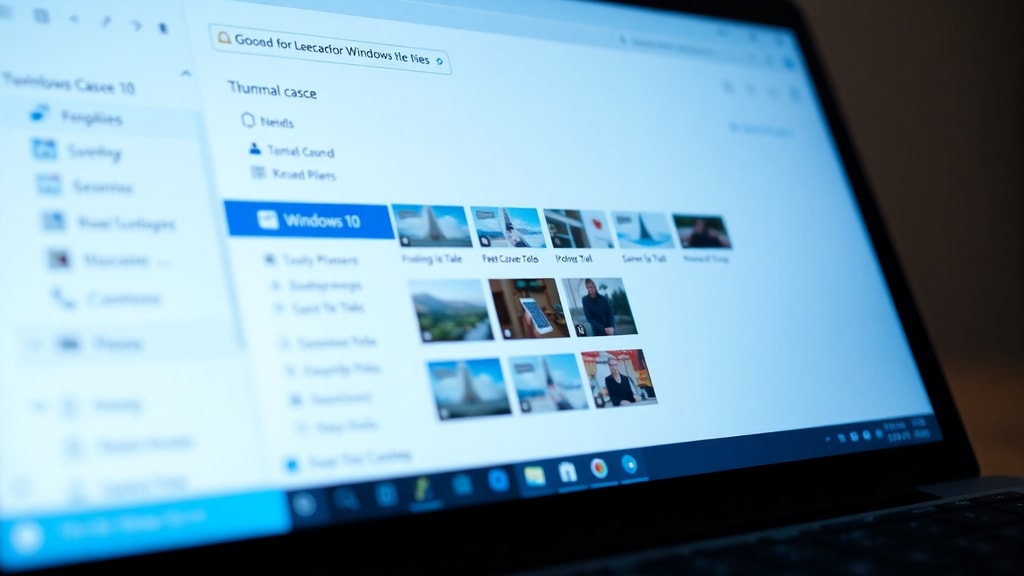
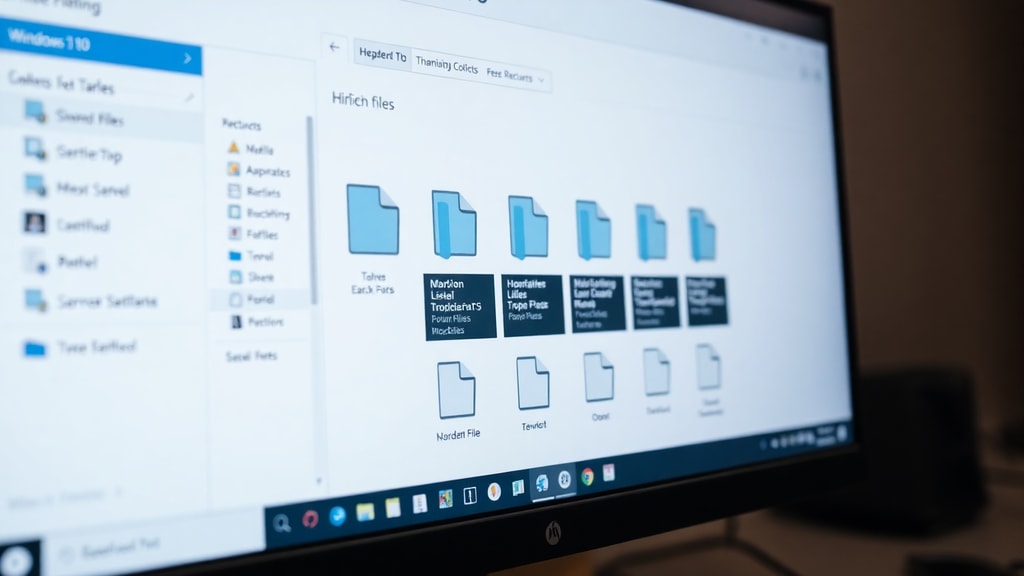
Thumbs.db is a database file that stores thumbnail images of picture files within a folder. When you open a folder that contains images, Windows generates small previews of each picture to display in File Explorer. These previews are called thumbnails. The thumbs.db file acts as a cache for these thumbnails, so Windows does not have to regenerate them every time you open the folder. This speeds up the process of browsing folders with many photos, especially on older hardware or when dealing with large image collections.
In earlier versions of Windows, such as Windows XP, Vista, 7, and 8, thumbs.db files were automatically created in every folder that contained images. Each folder had its own thumbs.db file, which could accumulate over time and take up disk space. However, Windows 10 introduced a significant change to how thumbnails are managed.
How Thumbs.db Works in Windows 10
Unlike previous versions, Windows 10 no longer generates thumbs.db files per folder. Instead, the operating system centralizes the thumbnail cache into a single location. This change was made to improve performance and reduce the number of hidden files scattered across folders. In Windows 10, thumbnail data is stored in the path C:\Users\[YourUsername]\AppData\Local\Microsoft\Windows\Explorer. Inside this folder, you will find files named thumbcache_[size].db, where the size refers to the resolution of the thumbnails, such as 32, 96, 256, or 1024 pixels. These files serve the same purpose as the old thumbs.db but are stored in one central place.
This centralized approach means that you will rarely see a thumbs.db file in a standard Windows 10 folder. If you do encounter one, it is most likely a leftover from an older Windows installation, a copy from a network drive, or a file created by third-party software that still uses the legacy method. Some external drives or USB sticks that were used on older systems may also contain thumbs.db files.
Why You Might Still See Thumbs.db Files
Even though Windows 10 does not create thumbs.db automatically, there are specific scenarios where these files may appear. One common case is when you access folders from an external drive or network location that was previously connected to an older version of Windows. The thumbs.db file may have been copied along with the folder contents. Another situation involves certain applications that generate thumbs.db for compatibility reasons. Some older image editors or file managers still create these files to store their own thumbnail caches.
If you see a thumbs.db file on your Windows 10 system, it is generally safe to delete it. The file is not critical for system operation, and Windows will simply regenerate the thumbnails if needed. However, if the file is on a read-only media or a network folder, you may need to adjust permissions to remove it. Always ensure that the file is not in use before attempting deletion, as this could cause a temporary error.
How to Delete or Disable Thumbs.db Files
If you want to remove thumbs.db files from your Windows 10 computer, you have several options. The simplest method is to search for all thumbs.db files using File Explorer and delete them. You can do this by opening File Explorer, navigating to your user folder or the entire drive, and using the search bar to look for "thumbs.db". Once the search results appear, you can select all files and press the Delete key. Be aware that some files may be hidden, so you need to enable the viewing of hidden files and folders.
To enable hidden files, open File Explorer, click on the View tab, and check the box labeled "Hidden items". This will show all hidden files, including thumbs.db. After deletion, the files may not reappear unless you access folders from older drives or network locations. If you want to prevent Windows 10 from creating any thumbnail cache at all, you can disable the feature entirely.
To disable thumbnail cache in Windows 10, follow these steps:
- Open File Explorer and click on the View tab.
- Click on Options (or Change folder and search options).
- In the Folder Options window, go to the View tab.
- In the Advanced settings list, find the option "Always show icons, never thumbnails".
- Check this box and click Apply, then OK.
After applying this change, Windows will no longer generate thumbnails for any files. Instead, File Explorer will display generic icons for image and video files. This can free up disk space but may make browsing folders less visual. If you want to restore thumbnails later, simply uncheck the same option.
Impact on System Performance and Disk Space
Thumbs.db files, whether the old per-folder type or the centralized thumbcache files, can consume disk space over time. The centralized cache in Windows 10 can grow to several hundred megabytes, especially if you frequently view large image collections or videos. While this is usually not a problem on modern drives with ample space, users with limited storage, such as on solid-state drives (SSDs), may want to reclaim that space.
You can clear the centralized thumbnail cache using the Disk Cleanup tool. To do this, type "Disk Cleanup" in the Start menu and select the tool. Choose the drive where Windows is installed (usually C:), and then click "Clean up system files". In the list of files to delete, look for "Thumbnails" and check the box. This will remove all cached thumbnails stored in the central database. Windows will regenerate them as needed, but this can slow down folder browsing temporarily until the cache is rebuilt.
Here is a comparison between the legacy thumbs.db and the modern thumbcache system:
| Feature | Legacy thumbs.db | Modern thumbcache (Windows 10) |
|---|---|---|
| Location | Each folder containing images | Central folder under AppData |
| File name | thumbs.db | thumbcache_[size].db |
| Creation method | Automatic per folder | Automatic but centralized |
| Disk space usage | Scattered across drives | Concentrated in one location |
| Performance | Faster per folder after first load | Faster overall for multiple folders |
| Ease of clearing | Delete individual files | Use Disk Cleanup or delete thumbcache files |
Security Concerns and Myths About Thumbs.db
There are common misconceptions that thumbs.db files might be viruses or malware. In reality, the thumbs.db file is a legitimate system file created by Windows. However, malware authors sometimes disguise malicious files with the same name to avoid detection. If you find a thumbs.db file in an unexpected location, such as the root of your system drive or a folder that does not contain images, it is worth scanning with antivirus software. Generally, if the file is in a folder with images and is hidden, it is safe.
Another myth is that thumbs.db files can contain sensitive information, such as previews of deleted images. While it is true that the thumbnail cache stores previews of images you have viewed, these are low-resolution versions that do not preserve the original quality. When you delete the source image, the thumbnail remains in the cache until it is overwritten. This means that someone with access to your computer could potentially see small previews of images you have deleted. However, clearing the thumbnail cache or disabling thumbnails entirely eliminates this risk.
For users who prioritize privacy, especially on shared computers, it is advisable to regularly clear the thumbnail cache using Disk Cleanup. This ensures that no traces of previously viewed images remain in the cache. You can also disable thumbnails entirely as described earlier. For more information on managing privacy in Windows 10, you can refer to this resource: Microsoft support article on privacy settings.
When to Keep or Delete Thumbs.db Files
In most cases, you do not need to keep thumbs.db files. They are not essential for Windows operation, and deleting them frees up a small amount of disk space. However, if you frequently access the same folders with large numbers of images, the cache can improve browsing speed. The centralized thumbcache in Windows 10 is efficient and self-managing, so there is little reason to delete it manually unless you need to reclaim space.
If you are using an external drive or network share that is shared with older Windows versions, you may want to delete thumbs.db files from that drive to avoid clutter. Some users also remove these files when transferring folders to other systems to prevent compatibility issues. Remember that deleting thumbs.db from a folder will cause Windows to regenerate thumbnails the next time you open that folder, which may take a few seconds.
For advanced users, you can prevent the creation of thumbs.db on network drives by adjusting Group Policy settings. This is useful in corporate environments where network storage is shared. However, for most home users, simply ignoring or deleting these files is sufficient. To learn more about managing hidden files and system settings, check out this guide: How to show hidden files in Windows 10.
Why Microsoft Changed the Thumbnail Caching System
The move from per-folder thumbs.db to a centralized thumbcache was one of many improvements in Windows 10 aimed at simplifying file management. The old system created many small files that could become fragmented and slow down file scanning. Additionally, the thumbs.db file was often left behind when copying folders to USB drives, causing unnecessary clutter. By centralizing the cache, Microsoft reduced fragmentation, improved performance, and made it easier to manage the cache through built-in tools like Disk Cleanup.
Another advantage is privacy. In earlier versions, thumbs.db files could persist even after deleting images, potentially revealing sensitive content. The centralized cache is more easily cleared, and users have more control over its size and behavior. This change also aligns with the general trend in Windows 10 toward consolidating system data into fewer, more manageable locations.
References
The information in this article is based on data from the following sources:
Microsoft Learn. (n.d.). Impedir a criação de arquivos thumbs.db no Windows. Retrieved from https://learn.microsoft.com/pt-br/answers/questions/2760466/impedir-a-cria-o-de-arquivos-thumbs-db-no-windows?page=1
ADSLzone. (n.d.). Qué es thumbs.db en Windows 10. Retrieved from https://www.adslzone.net/esenciales/windows-10/que-es-thumbsdb+/
PcHardwarePro. (n.d.). O que é um arquivo thumbs?. Retrieved from https://www.pchardwarepro.com/pt/o-que-%C3%A9-um-arquivo-thumbs/
Wikipedia. (n.d.). Thumbs.db. Retrieved from https://pt.wikipedia.org/wiki/Thumbs.db
TenForums. (n.d.). Windows 10 Thumbs.db. Retrieved from https://www.tenforums.com/general-support/60967-windows-10-thumbs-db.html
SitePoint. (n.d.). Switch off thumbs.db in Windows. Retrieved from https://www.sitepoint.com/switch-off-thumbs-db-in-windows/
Microsoft Learn. (n.d.). Windows 10 unable to delete thumbs.db files. Retrieved from https://learn.microsoft.com/en-us/answers/questions/2794529/windows-10-unable-to-delete-thumbs-db-files