Understanding Why Laptop Fan Speed Matters
Knowing how to check laptop fan speed is an essential skill for anyone who uses a notebook regularly. The fan is one of the most critical components inside your laptop because it prevents overheating. When the internal temperature rises due to intensive tasks like gaming, video editing, or running multiple applications, the fan spins faster to push hot air out. If you cannot monitor this speed, you might ignore signs of a failing fan or excessive dust buildup, which can lead to permanent hardware damage. Checking fan speed gives you direct insight into the health of your cooling system, helps you diagnose unusual noises, and allows you to make informed decisions about cleaning or replacing thermal paste.
How Does a Laptop Fan Speed Work
Laptop fans operate based on temperature sensors placed near the CPU and GPU. When these sensors detect heat above a certain threshold, the motherboard sends a signal to the fan to increase its revolutions per minute, or RPM. Most modern notebooks have fans that can spin at various speeds, from a nearly silent low RPM when browsing the web to full throttle under heavy load. The fan speed is usually controlled automatically by the system firmware, but some utilities let you adjust it manually. Understanding this mechanism is important because a fan that runs too slowly can cause thermal throttling, while one that runs at maximum speed all the time may indicate a sensor issue or a need for maintenance.
Methods to Check Fan Speed on Windows Laptops
Windows users have several reliable options to monitor fan speed. You can use free third-party software, built-in system tools, or even the BIOS menu. Each method has its own advantages, depending on your comfort level and what kind of information you need.
Using SpeedFan for Real-Time Monitoring
One of the most popular free utilities is SpeedFan. This program reads sensor data directly from your motherboard and displays fan RPM, temperatures, and voltages in real time. After downloading and installing SpeedFan, open the application and look for the readings labeled Fan1, Fan2, and so on. Usually, these correspond to your CPU fan and possibly a secondary case fan. SpeedFan also allows you to set custom fan curves, meaning you can tell the fan to spin faster or slower at specific temperature thresholds. However, be careful when changing settings because a low fan speed can lead to overheating. The interface is a bit old-fashioned, but the data it provides is accurate and useful for diagnosing problems. You can download SpeedFan from its official site for more details.
Checking Fan Speed with HWiNfo
Another powerful tool is HWiNfo, which is a comprehensive hardware diagnostics program. It is especially useful for Windows 10 and Windows 11 users because it lists every sensor in your system, including fan RPM, CPU temperature, GPU temperature, and even battery voltage. When you run HWiNfo, choose the Sensors-only mode to avoid installing unnecessary drivers. Once the sensor window opens, scroll down to find entries like CPU Fan, GPU Fan, or simply Fan Speed. The readings update every second, so you can see how the fan responds to different workloads. Unlike SpeedFan, HWiNfo does not allow you to change fan speeds, which makes it a safe option for pure monitoring. It is also excellent for logging data over time if you want to track temperature trends. Visit the HWiNfo official site for the latest version.
Using Argus Monitor to See Fan Percentage
Argus Monitor is a paid utility that offers a clean interface and a unique feature: it displays fan speed as a percentage from 0 to 100, in addition to RPM. This is helpful because many users find percentages easier to understand than raw RPM numbers. Argus Monitor also allows you to create custom fan curves to prevent sudden thermal spikes, but you must purchase a license for full functionality. The trial version shows all sensor data and is sufficient for a simple check. To use it, install the program and look at the Fan Control tab. You will see each fan listed with its current speed and temperature correlation. This tool is especially popular among gamers and power users who want fine-grained control over their cooling system.
How to Check Fan Speed on macOS Laptops
Apple users do not need third-party software for basic fan monitoring. Mac notebooks running macOS have a built-in feature through the System Report. Click the Apple logo in the top-left corner, choose About This Mac, then select System Report. In the Hardware section, click on Fans. Here you will see the current fan speed for each fan in RPM, the minimum and maximum speeds, and the fan ID. This is a read-only view, so you cannot adjust anything, but it gives you accurate real-time data. If you want more advanced monitoring, such as temperature correlations or the ability to control fan speed, free applications like Macs Fan Control are available, but they are not required for a simple check. The built-in method is reliable and works on all recent macOS versions.
Checking Fan Speed Through BIOS or UEFI
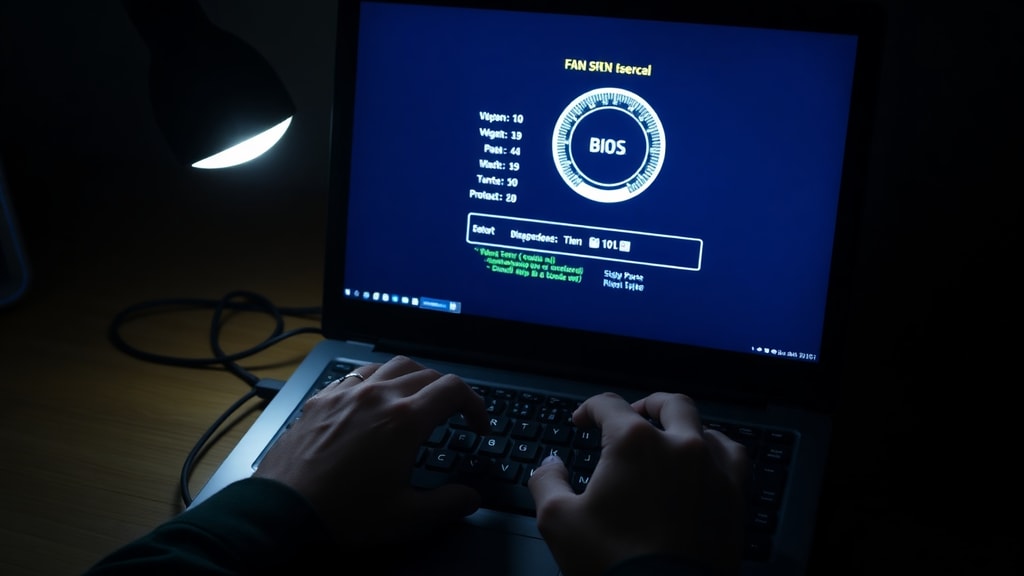
Every laptop has a BIOS or UEFI menu that provides basic hardware information, including fan speed. To access it, restart your notebook and press the key displayed on the startup screen, which is often Delete, F1, or F12. Once inside the BIOS, look for sections labeled Hardware Monitor, PC Health Status, or System Information. The exact naming varies by manufacturer, but you will typically see CPU temperature and a fan speed reading in RPM. Some BIOS menus also allow you to set fan control modes, such as Silent or Performance. This method is useful if you do not want to install any software or if your operating system is not loading. However, the BIOS only shows a snapshot and does not log changes over time.
When to Be Concerned About Fan Speed Readings
Knowing the normal RPM range for your laptop model is crucial. For most notebooks, a CPU fan idles between 2000 and 3500 RPM when the system is at rest or doing light work. Under heavy load, such as gaming or rendering, the fan can spin up to 5000 or even 6000 RPM. If you see the fan speed stuck at zero RPM while the system is warm, that usually indicates a hardware failure or a disconnected fan cable. Conversely, if the fan constantly runs at maximum speed even when the laptop is idle, there may be a dust blockage, a failed temperature sensor, or a software issue causing high background CPU usage. A sudden drop in fan speed combined with rising temperatures is a red flag for imminent overheating.
List of Common Tools for Monitoring Fan Speed
Below is a list of the most common tools and methods to check laptop fan speed, along with their primary platforms.
- SpeedFan - Windows freeware with real-time RPM and temperature monitoring
- HWiNfo - Windows diagnostics tool with detailed sensor data
- Argus Monitor - Windows utility with percentage-based fan readouts
- Macs Fan Control - macOS and Windows app for control and monitoring
- BIOS/UEFI - Built-in firmware menu on all laptops for basic readings
- System Report - macOS built-in feature accessed through About This Mac
Comparison Table of Fan Speed Monitoring Tools
The following table summarizes the key features of the main software tools discussed in this article.
| Tool | Platform | Cost | RPM Display | Fan Control |
|---|---|---|---|---|
| SpeedFan | Windows | Free | Yes | Yes |
| HWiNfo | Windows | Free | Yes | No |
| Argus Monitor | Windows | Paid | Yes, plus percentage | Yes |
| Macs Fan Control | macOS, Windows | Free | Yes | Yes |
| System Report (macOS) | macOS | Built-in | Yes | No |
| BIOS/UEFI | All | Built-in | Yes | Sometimes |
Tips for Maintaining Healthy Fan Speeds
Regular maintenance is key to keeping your fan speed within normal ranges. Dust accumulation is the most common cause of slow or noisy fans. You should clean your laptop vents every three to six months using compressed air. Also, ensure that your laptop is placed on a hard, flat surface when in use, as soft surfaces like beds or couches block airflow and force the fan to work harder. Keep an eye on your fan speed readings after cleaning; if the RPM does not improve, the fan bearing may be worn out and need replacement. Additionally, updating your BIOS and chipset drivers can sometimes resolve fan control issues because manufacturers release updates to improve thermal management.

References
SpeedFan Official Site. Almaco. https://www.almaco.com/ru/speedfan/.
HWiNfo Official Site. https://www.hwinfo.com/.
Argus Monitor Official Site. https://www.argusmonitor.com/.
Apple Support. Fan Behavior and Fan Noise in a Surface Device. https://support.apple.com/101576.
Microsoft Surface Support. Fan Behavior and Fan Noise in a Surface Device. https://support.microsoft.com/surface/performance/fan-behavior-and-fan-noise-in-a-surface-device.
Lenovo. Laptop Fan Tips. https://www.lenovo.com/br/pt/glossary/laptop-fan/.