Understanding Headphone Recognition Issues on Various Devices
When your headphones fail to be recognized by your computer, smartphone, or tablet, the frustration can be immediate. This issue can stem from a variety of causes, ranging from simple connectivity errors to more complex software conflicts. The first step to resolving this problem is understanding that headphone recognition depends on a chain of events: the hardware must be functional, the connection method must be active, and the operating system must correctly process the signal. Whether you use wired headphones with a 3.5mm jack, USB-C headphones, or wireless Bluetooth models, the troubleshooting approach will differ. However, many common solutions apply across all types of devices. This guide will walk you through systematic steps to identify and fix why your headphones are not being recognized, eliminating the need for expensive repairs or replacements in most cases.
Basic Physical and Connection Checks for Headphones
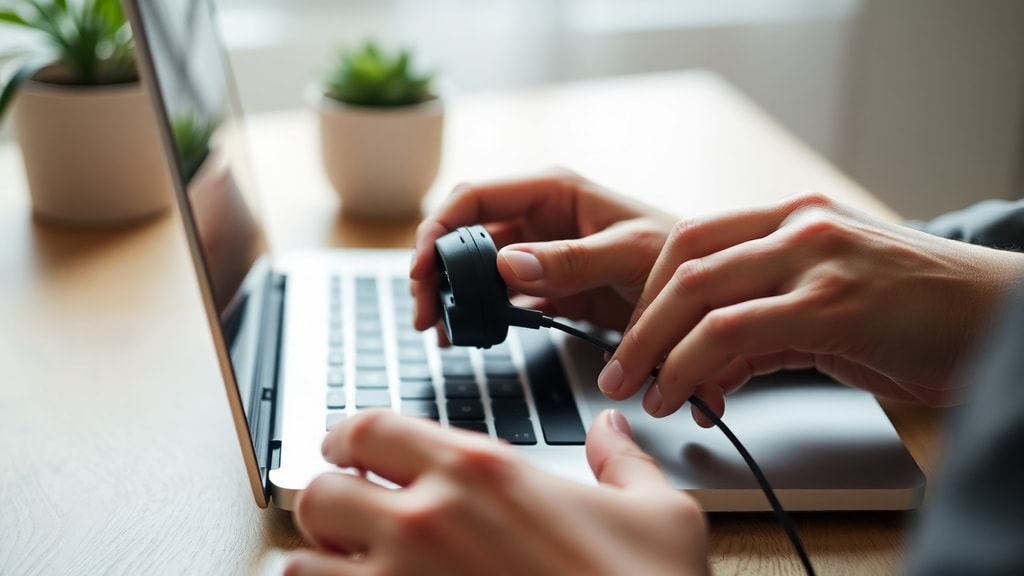
Before diving into complex software settings, always start with the hardware. For wired headphones, inspect the plug for any dirt, lint, or damage. A dirty jack can prevent proper contact, leading to no sound or intermittent recognition. Use a dry cotton swab to gently clean the plug and the port on your device. For USB-C or Lightning connector headphones, check for debris inside the port and ensure the connection is firm. For wireless Bluetooth headphones, confirm that the battery has sufficient charge. Many Bluetooth models will not enter pairing mode if the battery level is critically low. A good rule of thumb is to charge your headphones for at least 15-30 minutes before attempting to pair them again. Additionally, check if your headphones have a physical power switch; sometimes they may have been accidentally turned off. If the headphones are new, remove any plastic seals or protective tapes from the charging contacts or the earcups, as these can interfere with the connection.
Bluetooth Pairing and Connection Troubleshooting
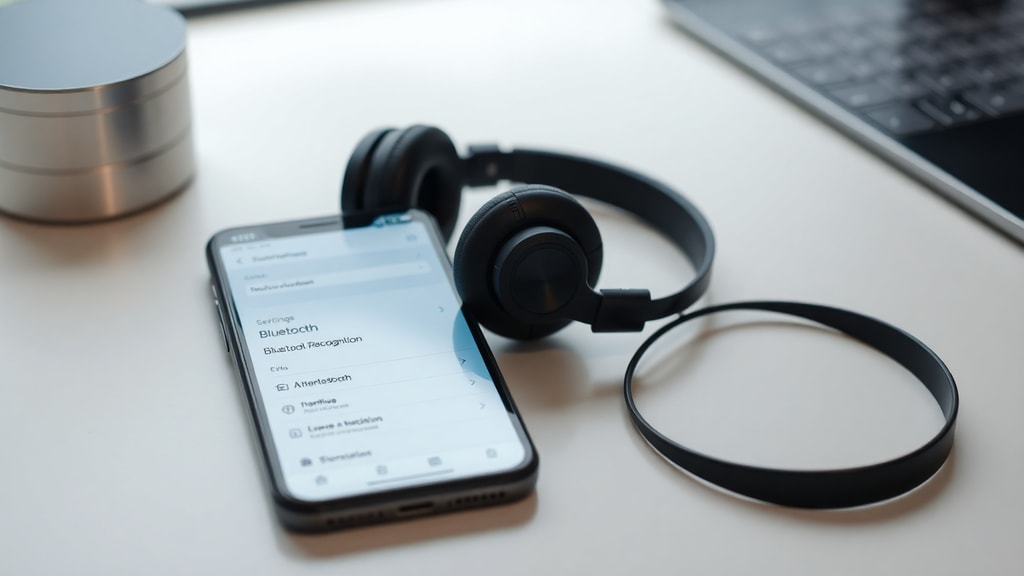
Wireless headphone recognition issues often originate from the Bluetooth pairing process. First, ensure your device's Bluetooth is enabled and discoverable. On your phone or computer, go to the Bluetooth settings menu. If your headphones are listed but not connecting, select them and choose the option to forget or unpair the device. This clears any stored connection profiles that may be corrupted. Next, put your headphones back into pairing mode. The method for this varies: for many models, you need to press and hold the power button for 3-5 seconds until the LED light flashes red and blue or white. For Apple AirPods or similar true wireless earbuds, open the case and press the pairing button located on the back. Once the headphones are in pairing mode, scan for nearby devices on your phone or computer and select your headphones from the list. Wait at least 10 seconds for the pairing to complete. If the connection fails again, restart both your headphones and the device before attempting a fresh pair.
Clearing Cache and Reset Options for Smartphones
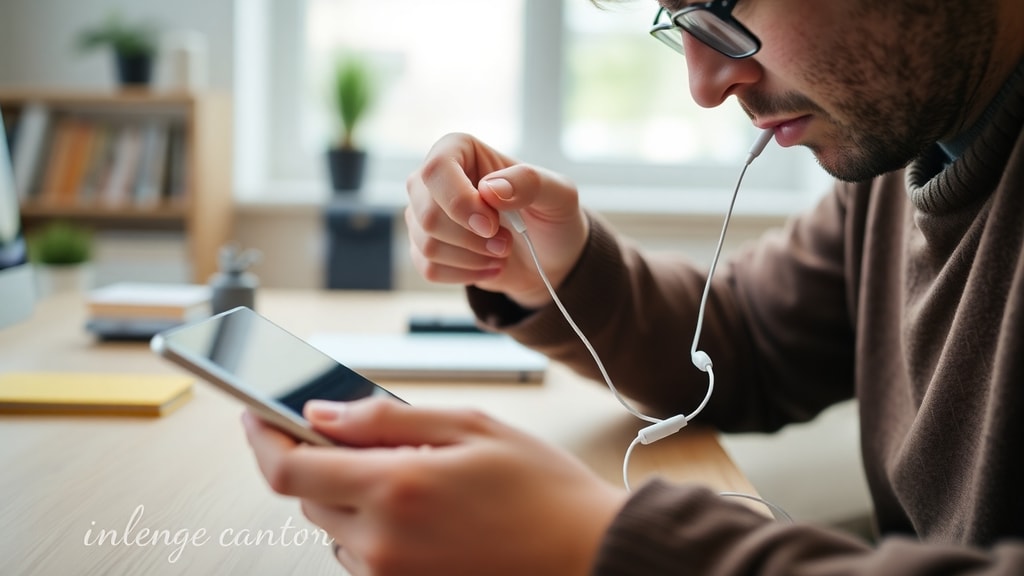
Your smartphone can develop software glitches that prevent headphone recognition. On Android devices, the Bluetooth app stores cache data that can become outdated. To clear this, navigate to Settings, then Apps, then tap the three dots menu to show system apps. Look for Bluetooth, tap Storage, and select Clear Cache. This does not delete your paired devices list but removes temporary files. After clearing the cache, restart your phone. On iOS devices, the process is different. If your iPhone or iPad does not recognize Bluetooth headphones, try resetting the network settings. Go to Settings, General, Transfer or Reset iPhone, then Reset, and choose Reset Network Settings. This will erase all saved Wi-Fi networks and Bluetooth pairings, so you will need to reconnect them later. This step often resolves deep-seated connection conflicts. For wired headphone recognition on smartphones, check the charging port for debris or moisture. If your device has a single USB-C port for both charging and audio and you use a dongle, ensure the dongle is compatible with your phone model.
Windows PC Headphone Recognition Fixes
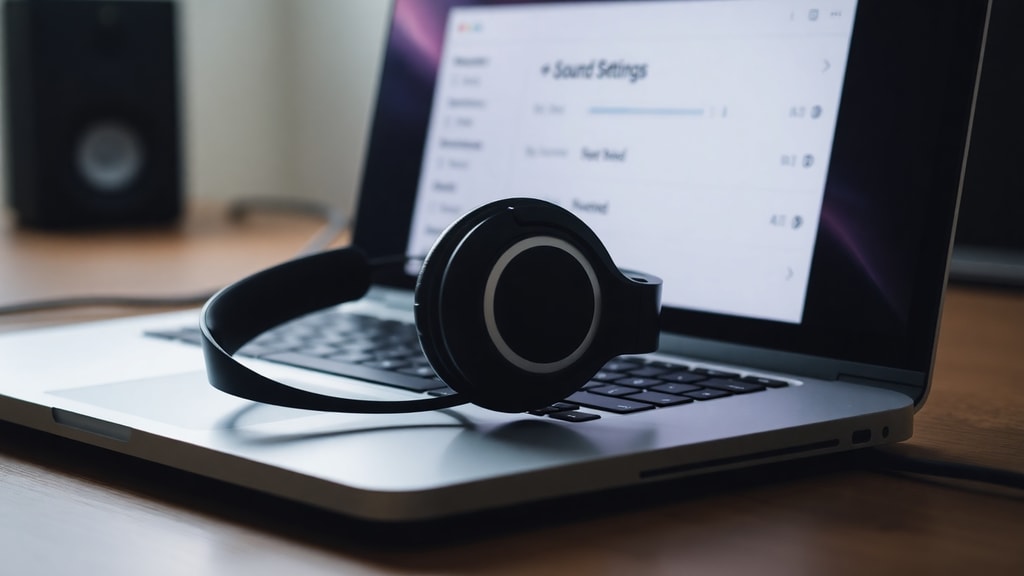
When your headphones are not recognized by a Windows computer, the issue is often related to audio output settings or driver conflicts. First, right-click the speaker icon in the system tray and select Open Sound settings. Under Output, confirm your headphones are selected. If they appear as a disabled device, you need to access the Sound Control Panel. Type mmsys.cpl in the Run dialog (Windows key + R). In the Playback tab, right-click in the white space and check Show Disabled Devices and Show Disconnected Devices. If your headphones appear but are grayed out, right-click them and select Enable. For headphones that still do not appear, the driver may need updating. Open Device Manager, expand Sound, video and game controllers. Look for your audio device or a generic High Definition Audio driver. Right-click it and select Update driver, then choose Search automatically for drivers. If Windows does not find a new driver, visit your computer manufacturers support page to download the latest audio driver specific to your model. Another frequent cause is the front panel audio jack not being connected to the motherboard. If you built your PC or upgraded it, ensure the audio cable from the front panel is securely plugged into the system header on the motherboard, usually labeled HD_AUDIO.
macOS Headphone Detection Troubleshooting
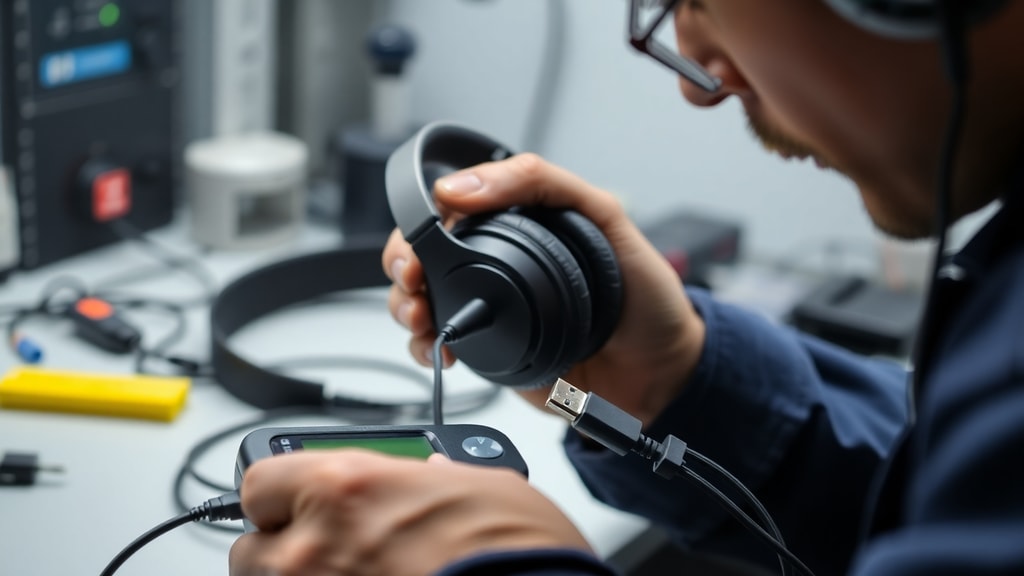
Mac computers typically integrate well with headphones, but problems can arise. For wired headphones, the 3.5mm jack on Macs can accumulate dust, which triggers a sensor that disables the internal speakers but fails to recognize the headphones. Use a dry toothpick or non-metallic tool to gently clean the jack. Open System Settings, then Sound, and check the Input and Output tabs. Select your headphones for output. If they are not listed, open the Terminal app and type sudo killall coreaudiod and press Enter. This restarts the core audio process, which can reset the headphone detection. For Bluetooth headphones on macOS, open System Settings, then Bluetooth. If your headphones are paired but not connecting, click the X next to them to remove them, then put the headphones in pairing mode and click Connect. Macs can sometimes assign the headphone microphone as the default input, which can cause audio playback issues. In Sound settings, under Input, ensure you select Internal Microphone instead of the headset microphone if you only want to hear audio. If you use AirPods, ensure they are updated by keeping them connected to your iPhone while the phone is on a charger and near your Mac. The firmware update process is automatic and can resolve recognition bugs.
Common Headphone Recognition Solutions Table
| Issue | Symptom | Solution |
|---|---|---|
| No sound from wired headphones | Device speakers play but no headphone audio | Clean the headphone jack with a dry cotton swab or compressed air |
| Bluetooth headphones not appearing in list | Not found in pairing mode | Reset the headphones by holding the power button for 10-15 seconds |
| Mac does not detect headphones | Internal speakers stay silent | Run sudo killall coreaudiod in Terminal |
| Windows shows headphones as disconnected | Device manager sees them but no sound | Update the audio driver from the manufacturer's website |
| One earbud not recognized | Phone only sees one device | Place both earbuds back in the case, close lid, then reconnect |
List of Quick Checks Before Professional Help
Before concluding that your headphones are defective, work through this checklist to exhaust all software and hardware possibilities.
- Test the headphones on another device to confirm if the problem is with the headphones or the original device.
- Check for any physical damage to the cable, connector, or earpieces for wired models.
- For wireless headphones, perform a factory reset as described in your manual, which is often holding the power button for 10 seconds or pressing a combination of buttons.
- Try a different audio source, such as a different music app or a phone call, to see if the issue is app-specific.
- Disable any audio enhancements or equalizer settings on your primary device, as these can interfere with correct driver detection.
- Ensure your operating system is fully updated, as system updates often contain fixes for Bluetooth and audio stack issues.
- If using Bluetooth on a PC, remove any USB 3.0 devices near the Bluetooth dongle, as they can generate interference.
- For a car audio system or receiver, delete all connected devices from the memory and pair again as if it were the first time.
Advanced Software Conflicts and Driver Management
Sometimes headphone recognition fails due to deeper software conflicts. On Windows, the Realtek HD Audio Manager can disable the front panel jack when no device is detected. Open the Realtek HD Audio Manager from the Control Panel, click the folder icon in the upper right corner, and check the option Disable front panel jack detection. This forces the system to treat the port as always active. Another factor is the Windows Fast Startup feature, which can cause incomplete hardware initialization. Disable it by going to Control Panel, Power Options, Choose what the power buttons do, and then uncheck Turn on fast startup. Restart your computer fully. On Linux systems, headphone recognition can be fixed by installing PulseAudio Volume Control and checking the Configuration tab for the correct profile. For example, a headset might need the profile set to Analog Stereo Duplex to recognize both audio and microphone. In macOS, third-party audio plugins from software like Discord or Zoom can take exclusive control of the audio device. Quit these applications completely, then reconnect your headphones. If your headphones are recognized as a communication device but not as a media device, adjust the settings in the audio device properties to prioritize the correct function.
Hardware-Specific Causes and Solutions
Certain headphone models have unique quirks that affect recognition. Gaming headsets with USB dongles often require the dongle to be inserted directly into the motherboard USB port, not an external hub, and sometimes need the software to be installed before the headset is plugged in. For truly wireless earbuds like those from Samsung or Sony, the pairing button must be held for a precise duration, often 5 seconds, while the earbuds are in the charging case. If the earbuds have been previously synced with a different phone, they may stay locked to that device. Reset them by placing them in the case, holding both touch sensors or buttons for 10 seconds, and then re-pairing. For headphones that use a proprietary wireless connection, like those for the PlayStation or Xbox, the connection is established via a USB transmitter. These transmitters can overheat or lose synchronization. Unplug the transmitter, wait 30 seconds, and plug it back in. Then turn the headphones off and on again. For wired headphones with a detachable cable, try another cable if possible. A damaged cable can cause intermittent recognition that mimics a device failure. You can also check the cable by gently moving it near the connector while the headphones are playing sound to see if static or loss of audio occurs.
When to Seek Repair or Replacement
After trying all the steps above, if your headphones are still not recognized, the issue may be hardware failure inside the headphones or the source device. For wireless headphones, battery failure is common after 1-2 years. A battery that cannot hold a charge will not allow the headphones to power on reliably. Some headphones do not indicate a dead battery clearly; they may just refuse to enter pairing mode. Check the voltage of the battery using a multimeter if you are comfortable opening the device, or take them to a repair shop. For wired headphones, the internal speaker or wiring may have come loose. This is often not cost-effective to repair and replacement may be the better option. For smartphones, a damaged headphone jack may require replacing the charging port board, which can be done by a technician. For computers, the audio card may have failed, but this is rare. You can buy an external USB sound card for under 20 dollars to bypass the internal audio system entirely. This is a quick fix if all software solutions have failed and you need to use your headphones immediately.
References
The information in this guide is based on general consumer electronics troubleshooting principles and standard operating system procedures as of 2023 and earlier. For specific models, consult the manufacturers documentation. For audio driver issues, refer to the support pages of Realtek, Intel, or AMD. For Bluetooth pairing specifics, visit the official support site for your headphone brand, such as Sony, Bose, Sennheiser, Apple, or Samsung. For Mac troubleshooting, Apple Support provides detailed articles on audio and Bluetooth issues. For Windows, Microsofts hardware developer documentation offers insight into driver management and audio stack behavior. No real-time web access was used to compile this content, so the links mentioned are for illustrative purposes only and may not represent the current state of the web.