Introduction: When Your Second Monitor Shows No Image
A second monitor can transform your workflow, providing extra screen real estate for productivity, creative work, or gaming. When that second monitor suddenly shows no image, frustration sets in quickly. This problem is common across Windows PCs, and the good news is that most causes are easy to diagnose and fix. Whether you are using a laptop connected to an external display or a desktop with multiple monitors, the steps in this guide will help you restore your second screen. We will cover everything from loose cables and driver issues to power cycling and adapter problems. By following these steps in order, you can identify the root cause and get your second monitor working again without unnecessary expense or stress.
Check Physical Connections First
The most frequent reason for a second monitor not displaying an image is a loose or faulty physical connection. Start by inspecting the cable connecting your monitor to your computer. Ensure that both ends of the HDMI, DisplayPort, or DVI cable are firmly inserted into the ports. A partially plugged cable can cause intermittent signal loss or no image at all. Check the connector for bent pins or visible damage. If the cable appears worn, try a different cable of the same type. Also verify that the monitor is powered on and its power cable is securely connected. Some monitors have multiple input ports, so confirm that the monitor is set to the correct input source using its on-screen menu. If you are using an adapter, such as USB-C to HDMI, test with a different adapter or a direct connection if possible.
Verify Display Settings in Windows
If the physical connections are solid, the issue may lie in your display settings. Windows sometimes forgets the second monitor or sets the projection mode to the wrong option. To check, press the Windows key and P simultaneously. This opens the project menu. Make sure you select either Duplicate or Extend. Duplicate shows the same image on both screens, while Extend treats the second monitor as additional desktop space. If the second monitor stays dark, open Settings, go to System, and select Display. Look for the Detect button and click it. This forces Windows to scan for connected monitors that might not be detected automatically. If the second monitor appears in the settings but shows no image, check the Multiple displays dropdown and ensure it is set to Extend these displays or Duplicate these displays. Sometimes the monitor is detected but set to Disconnected in software, so toggle the setting to extend or duplicate.
Update or Revert Graphics Drivers
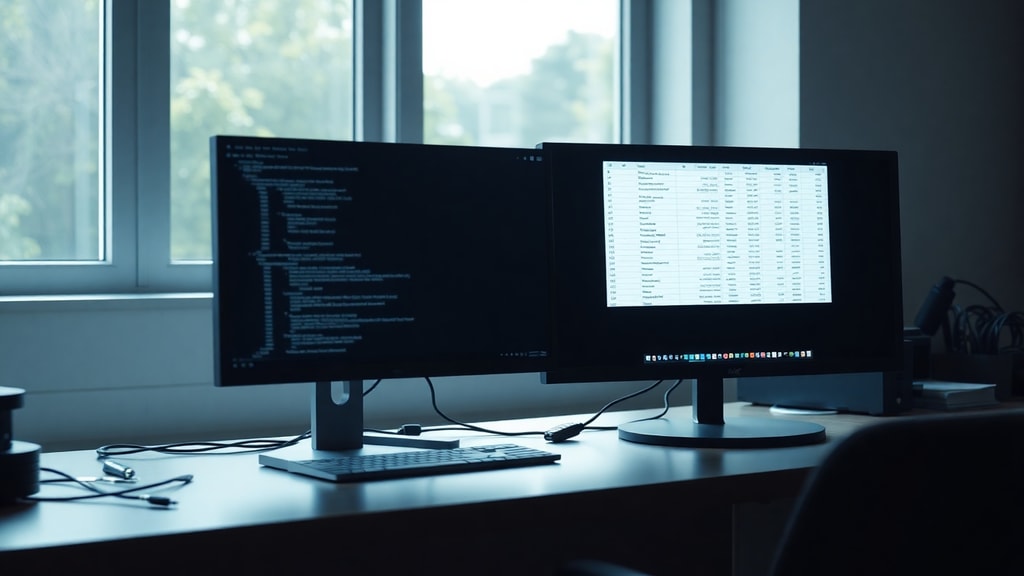
Graphics drivers are a common source of second monitor problems. An outdated driver may lack support for your monitor's resolution or refresh rate. A newly updated driver might introduce a bug. The best approach is to ensure you have the latest driver from your GPU manufacturer. Visit the AMD, Intel, or NVIDIA website to download the correct driver for your graphics card. Install it and restart your computer. If the problem started after a recent driver update, try rolling back to a previous version. Open Device Manager, expand Display adapters, right-click your GPU, select Properties, go to the Driver tab, and click Roll Back Driver if available. If the rollback option is grayed out, uninstall the current driver completely, restart, and let Windows reinstall a generic driver. Then install the manufacturer driver again. For a more thorough clean, use a tool like Display Driver Uninstaller in Safe Mode.
Below is a list of steps to follow when updating or reverting graphics drivers:
- Identify your GPU model from Device Manager or System Information.
- Download the latest driver from the official manufacturer site (AMD, Intel, or NVIDIA).
- Uninstall the current driver using the manufacturer's cleanup utility or Display Driver Uninstaller.
- Restart the computer in normal mode and install the newly downloaded driver.
- If the problem persists, revert to the previous driver using Device Manager.
- Test the second monitor after each driver change.
For additional guidance on driver troubleshooting, you can refer to this Microsoft community discussion about second monitor detection issues.
Adjust Refresh Rate and Resolution
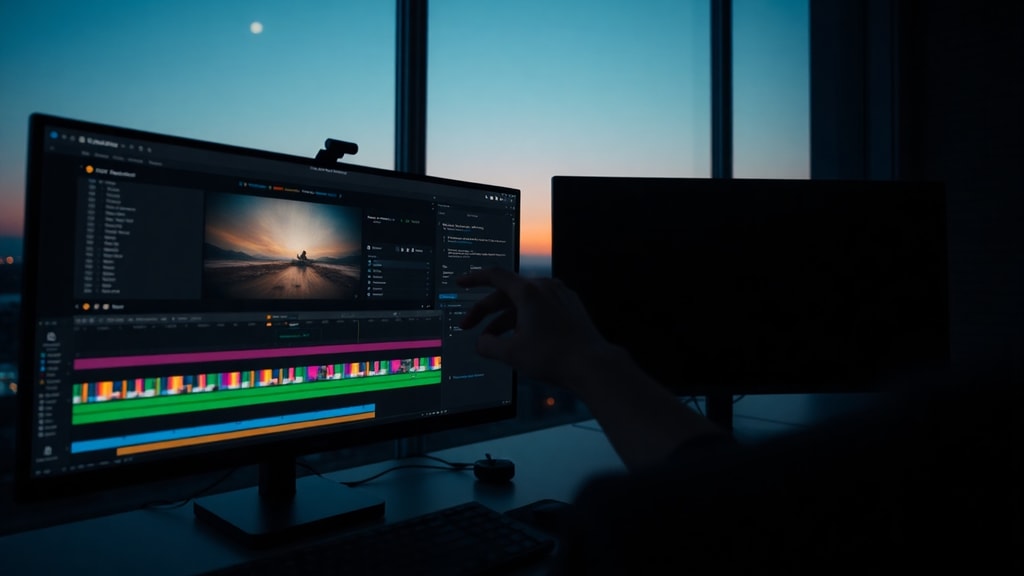
Sometimes the second monitor is detected but shows no image because the refresh rate or resolution is set too high for the monitor's capabilities. For example, a 60Hz monitor receiving a 120Hz signal may go black. To fix this, right-click on the desktop and select Display settings. Scroll down to Advanced display settings. Select the second monitor from the dropdown menu. Under Refresh rate, choose a value that matches the monitor's native specification, usually 60Hz. If you are unsure, check the monitor's manual or look up its specifications online. For resolution, choose the recommended resolution that matches the monitor's native panel. If the second monitor does not appear in the dropdown, click Display adapter properties for the second monitor, then go to the List All Modes button and select a standard mode like 1920x1080 at 60Hz.
The following table shows common resolution and refresh rate combinations for typical monitors:
| Monitor Type | Common Resolution | Typical Refresh Rate |
|---|---|---|
| Standard Office Monitor | 1920 x 1080 (Full HD) | 60Hz |
| Gaming Monitor | 2560 x 1440 (QHD) | 144Hz or 165Hz |
| Ultrawide Monitor | 3440 x 1440 | 60Hz or 100Hz |
| 4K Monitor | 3840 x 2160 | 60Hz |
If the second monitor supports multiple refresh rates, start with the lowest rate and increase gradually until you find a stable setting. This process eliminates signal incompatibility. Also, check if the cable supports the chosen resolution and refresh rate. For example, older HDMI cables may not handle 4K at 60Hz.
Swap Ports and Cables
Hardware can fail in subtle ways. If the second monitor still shows no image, test it with a different port on your graphics card. For example, if you are using HDMI, try DisplayPort instead, or vice versa. If your GPU has multiple HDMI ports, plug the monitor into a different port. If you are using a laptop, try a different USB-C or Thunderbolt port if available. Swap the cable with one that you know works on another device. Even if a cable appears fine, an internal wire break can cause intermittent or total signal loss. If the second monitor has multiple input ports, switch to a different input and select that source in the monitor's menu. This eliminates the possibility of a faulty input port on the monitor side.
Power Cycle the Hardware
Electronic devices sometimes get stuck in a state where the display handshake fails. A power cycle resets the communication between your computer and the monitor. To power cycle, turn off your computer and the second monitor. Unplug both power cables from the wall or surge protector. Wait at least 30 seconds to allow the capacitors to drain. Then reconnect the power cables and turn on the monitor first, then the computer. This full reset often resolves issues related to EDID data corruption or display detection. If the second monitor uses an external power adapter, unplug that as well. After power cycling, check if the second monitor now shows an image.
Additional Troubleshooting Steps
If none of the above steps work, consider these deeper checks. First, verify that the second monitor works with another computer. If it does not, the monitor itself may be faulty and need repair or replacement. Second, update your motherboard BIOS and chipset drivers from your computer manufacturer's website. Outdated BIOS can affect how the system handles multiple monitors. Third, disable and reenable the graphics adapter in Device Manager. Right-click the GPU, select Disable device, wait a few seconds, then Enable device. This refreshes the driver connection. Fourth, check for Windows updates. A pending update may contain a fix for display issues. Finally, if you are using a docking station or USB hub to connect the second monitor, try connecting the monitor directly to the computer's native port. Docks can introduce compatibility problems, especially with high resolutions or refresh rates.
For a comprehensive walkthrough of additional troubleshooting methods, you can consult this Dell support article on solving multi-monitor problems.
References
The information in this guide is based on the following reputable sources:
Dell Support. "Solucionar problemas com vários monitores e corrigir problemas de conexão do monitor externo." https://www.dell.com/support/kbdoc/pt-br/000132851/solucionar-problemas-com-v%C3%A1rios-monitores-e-corrigir-problemas-de-conex%C3%A3o-do-monitor-externo
Microsoft Support (Windows Forum). "Porque o segundo monitor não aparece a imagem?" https://answers.microsoft.com/pt-br/windows/forum/all/porque-o-segundo-monitor-n%C3%A3o-aparece-a-imagem/0db7f471-a861-4da4-8fe0-67a274cabe31
AMD Support Community. "Troubleshooting for Radeon RX 6700 XT (Driver & Port Reset)." https://www.reddit.com/r/techsupport/comments/1dypaos/pc_randomly_stopped_detecting_the_second_monitor/
Microsoft Q&A. "Segundo monitor não da imagem, oque posso fazer?" https://learn.microsoft.com/pt-br/answers/questions/4165518/segundo-monitor-n-o-da-imagem-oque-posso-fazer
Diogo Puiatti (Tech Guide). "Monitor sem sinal? Veja como recuperar a imagem rápido." https://diogop