Understanding Why the 5.1 Speaker Option Is Missing on Your PC
When you connect a surround sound system to your computer, you expect to see the 5.1 speaker option in the sound settings. However, many users report that this option is simply not there. The absence of the 5.1 speaker option on your PC can be frustrating, especially after investing in a quality audio setup. This issue typically stems from incorrect device selection, outdated drivers, or hardware limitations. The first step is to understand that Windows does not always detect your audio hardware correctly, and it may default to stereo output. This means the system will only show options for stereo speakers or headphones. The solution often involves manually configuring the audio output to match your hardware capabilities. Whether you are using a dedicated sound card, an HDMI connection via your graphics card, or an optical output from your motherboard, the method to enable 5.1 surround sound varies. In this guide, we will explore the most effective ways to restore the 5.1 speaker option and get your surround sound working properly.
Check the Correct Output Device Is Selected
The most common reason the 5.1 speaker option does not appear is that Windows is using the wrong audio output device. Many computers have multiple audio outputs built-in, including the motherboard audio jacks, HDMI audio from the graphics card, and possibly a dedicated sound card. If your 5.1 speakers are connected to a receiver via HDMI, but Windows is set to use the default motherboard speakers, the surround sound option will not show. To fix this, right-click the speaker icon in the system tray and select "Sound settings." Under "Output," choose the device that corresponds to your 5.1 system. For HDMI connections, select the display or receiver name. For analog connections, select the line-out or speaker option from your sound card. Once you have selected the correct device, click "Device properties" and look for the "Spatial sound" or "Format" drop-down menu. If the 5.1 option is still missing, proceed to the next steps. Remember that some monitors or TVs do not support 5.1 audio over HDMI, so check your display specifications as well.
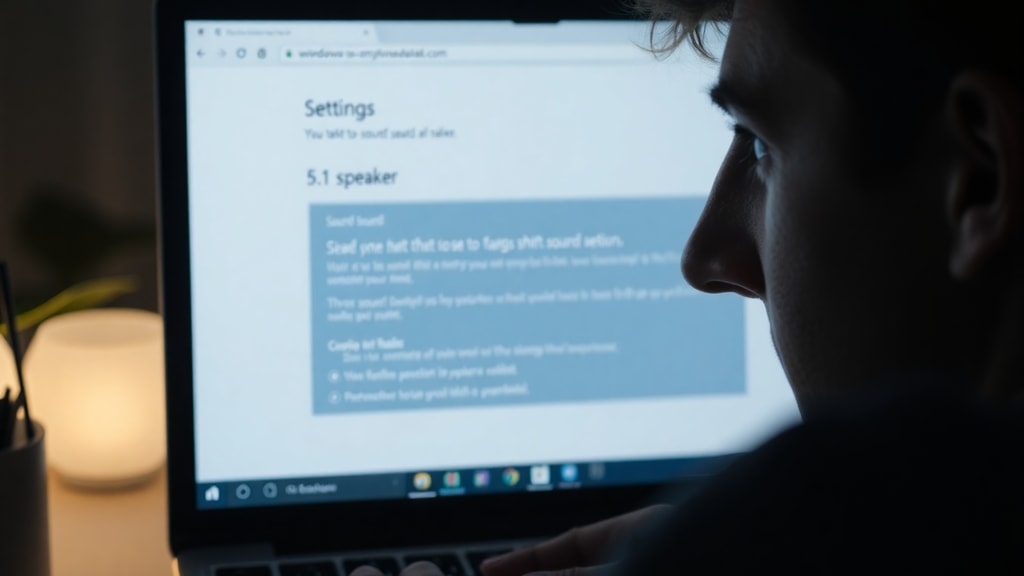
Set the Audio Device as Default and Reconfigure Channels
After selecting the correct output device, you need to ensure it is set as the default playback device in the Sound control panel. Press Windows key + R, type "mmsys.cpl," and hit Enter. This opens the classic Sound window. On the Playback tab, locate your 5.1 audio device. Right-click it and choose "Set as Default Device." Then click the "Configure" button at the bottom. A Speaker Setup wizard appears. In the "Audio channels" drop-down menu, select "5.1 Surround" if it is available. If it is grayed out or missing, your device may not support 5.1 in its current configuration. Some devices require you to first select the correct format in the "Advanced" tab. Click the "Advanced" tab in the same Properties window, then check the "Default Format" box. Choose the highest quality format that supports 5.1, such as 24-bit, 48000 Hz (Studio Quality) or Dolby Digital. Apply the changes and test the audio. This manual reconfiguration often forces Windows to recognize the surround sound capability of your hardware.
Update or Reinstall the Sound Driver
A corrupted or outdated sound driver can prevent the 5.1 option from appearing. Driver issues are especially common after Windows updates or when switching from integrated audio to a dedicated sound card. To address this, open Device Manager by pressing Windows key + X and selecting it. Expand "Sound, video and game controllers." Right-click your audio device and choose "Update driver." Select "Browse my computer for drivers" and then "Let me pick from a list of available drivers on my computer." If you see multiple drivers, try an older version or one labeled "High Definition Audio Device." This generic Microsoft driver sometimes works better with surround sound than manufacturer-specific drivers. If updating does not help, uninstall the driver entirely by right-clicking and selecting "Uninstall device." Check the box that says "Delete the driver software for this device" if available. Reboot your computer. Windows will automatically reinstall a basic audio driver. Then download the latest driver from your PC or sound card manufacturer's website. For Realtek audio, use the official Realtek HD Audio Manager. Install it in compatibility mode if necessary, and restart again. This process often resolves driver conflicts that hide the surround sound option.
Use Third-Party Media Players with Pass-Through Support
Sometimes the missing 5.1 option is not a hardware or driver problem but a limitation of the media player or streaming application. Standard media players like Windows Media Player or many browser-based players may only output stereo even if your system supports surround sound. In such cases, using a third-party media player with pass-through capabilities can activate 5.1 audio. Applications like MPC-BE, VLC Media Player, and PotPlayer allow you to enable direct sound or pass-through mode. For example, in VLC, go to Tools > Preferences > Audio. Under "Output," select "DirectSound" or "WaveOut." In the "Codecs" section, ensure "Audio codec" is set to "All" and enable "Audio pass-through" if available. For MPC-BE, right-click the player window, go to Options > Playback > Output. Set "Audio renderer" to "DirectSound: Device" and choose your 5.1 device. Then check "Enable bitstreaming (pass-through) for audio." These players can send the raw surround signal directly to your receiver or sound system, bypassing Windows audio processing. This method works especially well for movies and games that have native 5.1 audio tracks.
Hardware Compatibility and BIOS Settings
Not all motherboards or sound cards support 5.1 audio natively. Some budget motherboards only have stereo output, while others require specific jumper configurations or BIOS settings to enable multi-channel audio. Check your motherboard manual or manufacturer website to confirm if it supports 5.1 surround sound. For integrated Realtek audio, you may need to install the Realtek HD Audio Driver and enable "Surround Sound" in the Realtek HD Audio Manager. This manager is often missing on newer Windows versions but can be downloaded separately. Also, check your BIOS settings for audio configuration. Enter BIOS by pressing F2, Del, or F10 during boot. Look for "Onboard Audio," "HD Audio Controller," or "Azalia Audio." Ensure it is enabled and not set to disabled or auto. Some systems have a separate setting for "Multi-channel Audio" or "Surround Sound." Enable it if present. If you are using an external receiver, ensure it is set to the correct input and supports 5.1 PCM or bitstream formats. HDMI connections may require the receiver to be set to "Direct" or "Multi-Channel" mode. For optical connections, ensure your receiver supports Dolby Digital or DTS, as standard PCM over optical is limited to stereo.
Check Cable Connections and Audio Ports
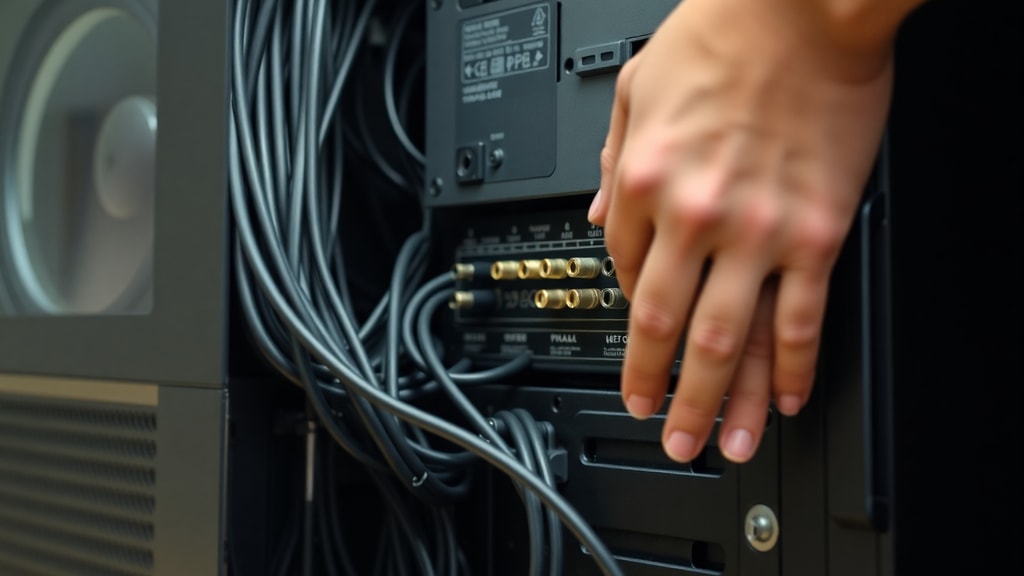
Physical connections play a crucial role in enabling 5.1 audio. For analog 5.1 systems, you need to use three separate 3.5mm jacks: front left/right (green), rear left/right (black), and center/subwoofer (orange). If any of these cables are not fully inserted or are connected to the wrong jacks, Windows may not detect the full channel configuration. Refer to your motherboard or sound card manual for the correct jack assignments. Some systems use a single digital cable (HDMI or optical) but require the output device to be set to "surround" mode. Verify that your speaker cables are not damaged and that the connections are secure. For USB speakers with virtual surround, ensure the USB port provides enough power and that the speakers are recognized as a single device. If you are using a headset with virtual 7.1, the 5.1 option may not appear because the headset emulates surround sound through software. In such cases, you may need to install the manufacturer's software to enable surround modes.
Common Troubleshooting Steps Summarized in a List
To quickly resolve the missing 5.1 option, follow this checklist:
- Verify the correct playback device is selected in Sound settings.
- Set the device as default in the Sound control panel.
- Manually configure audio channels to 5.1 Surround.
- Update or reinstall the audio driver via Device Manager.
- Use third-party media players with pass-through support.
- Check hardware compatibility with your motherboard or sound card.
- Inspect BIOS settings for multi-channel audio options.
- Test all cable connections and port assignments.
- Disable any audio enhancements that may limit channel options.
- Run the Windows audio troubleshooter from Settings > Update & Security > Troubleshoot.
Comparison of Common Audio Output Methods and Their Capabilities
The table below compares typical audio connections found on PCs and their support for 5.1 surround sound.
| Connection Type | Supports 5.1 Natively | Requires Extra Software | Common Issues |
|---|---|---|---|
| 3.5mm Analog (3 jacks) | Yes | No | Wrong jack assignment or missing driver |
| HDMI | Yes | No | Device not set as default or receiver not compatible |
| Optical (TOSLINK) | Only with compressed formats (Dolby Digital, DTS) | Yes, for bitstreaming | Limited PCM support |
| USB Speakers | Depends on model | Sometimes | Driver installation required |
| Bluetooth | No (limited to stereo) | N/A | Not recommended for surround |
Final Checks and Alternative Solutions
If you have tried all the above methods but the 5.1 option remains hidden, consider using a virtual surround sound solution. Software like Dolby Atmos for Headphones or DTS Sound Unbound creates a virtual surround effect using stereo headphones or speakers. While not true 5.1, it can simulate spatial audio for gaming and movies. Another option is to use an external USB sound card or DAC that explicitly supports 5.1 output. These devices often come with their own control panel that exposes surround options Windows may have hidden. Also, check if your audio system has a "Stereo Mix" or "Surround" mode switch on the hardware itself. Some receivers require you to select "Multi-Channel In" or "Direct" to accept the 5.1 signal from your PC. Finally, consider reinstalling Windows if the issue persists after all hardware and driver checks. This is a drastic step but can resolve underlying system corruption that interferes with audio device recognition.
References
Informatecdigital. "Como configurar e entender o som 5.1 no Windows." Accessed March 2025. https://informatecdigital.com/pt/como-configurar-y-entender-el-sonido-5-1-en-windows/.
Bytepeaker. "Como configurar e testar o som Surround 5.1 no Windows 10." Accessed March 2025. https://bytepeaker.com/pt/tutoriais/como-configurar-e-testar-o-som-surround-5-1-no-Windows-10/.
Microsoft Learn. "Não consigo ativar Surround 5.1 no Windows 10." Accessed March 2025. https://learn.microsoft.com/pt-br/answers/questions/3308695/n-o-consigo-ativar-surround-5-1-no-windows-10.
Reddit r/htpc. "Can't get 5.1 sound in Windows 10 - the test shows it." Accessed March 2025. https://www.reddit.com/r/htpc/comments/aonovg/cant_get_51_sound_in_windows_10_the_test_shows_it/.
Dell Support. "Como configurar áudio 5.1 e 7.1 no Inspiron." Accessed March 2025. https://www.dell.com/support/manuals/pt-br/inspiron-14-5491-2-in-1-laptop/inspiron.