Introduction: Understanding the Basics of Opening a USB Flash Drive
A USB flash drive, often called a pen drive, is one of the most common storage devices used today. Whether you need to transfer files between computers, back up important documents, or carry portable software, knowing how to open and access the contents of a pen drive on a PC is a fundamental skill. The process itself is straightforward, but it can vary slightly depending on the operating system you are using. In this article, we will walk through the steps for Windows, macOS, and Linux, and also cover common problems that might prevent the drive from appearing. By the end, you will have a clear understanding of how to open a pen drive on your PC and what to do if things do not go as expected.
Step-by-Step Guide: Opening a USB Flash Drive on Windows
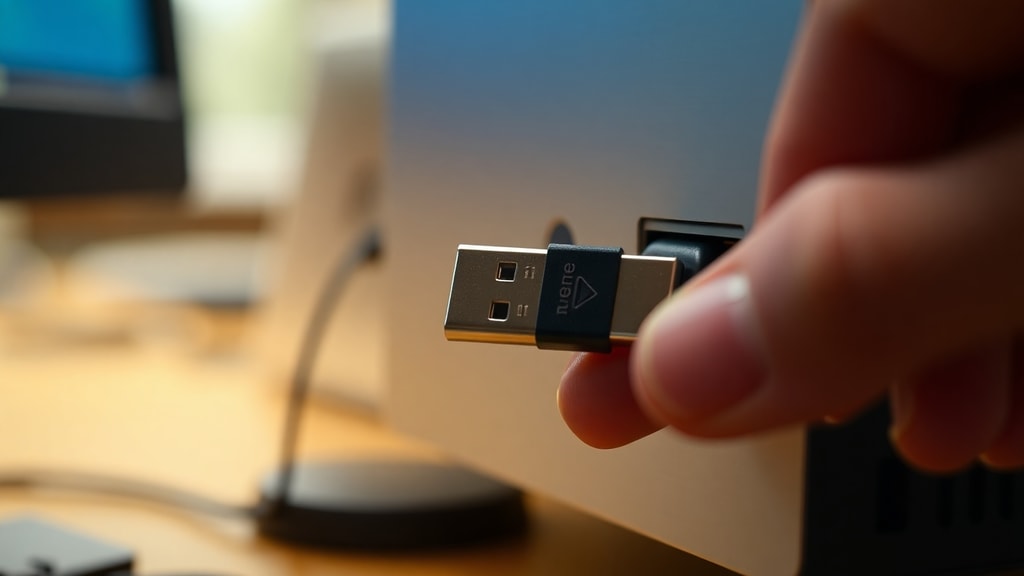
Windows is by far the most common operating system for personal computers, and the procedure for opening a USB drive is designed to be intuitive. Start by plugging the pen drive into any available USB port on your computer. You may hear a notification sound, and a small icon might appear in the system tray near the clock. To actually view the contents, open File Explorer. The quickest way is to press the Windows key and the letter E at the same time (Win + E). In the File Explorer window, look at the left sidebar or the main area under This PC. You will see the USB drive listed under Devices and drives. It usually appears with a drive letter such as D: or E: and may show a name like USB Drive or the brand name of the manufacturer. Double‑click on that drive icon, and the contents will open in the main pane. From there, you can copy, move, delete, or open files just as you would with any folder on your hard drive. If the drive does not appear in File Explorer, do not worry; we will cover troubleshooting steps later in this article.
Opening a USB Drive on macOS
If you are using a Mac, the process is slightly different but equally simple. Insert the USB flash drive into a USB port on your Mac. In most cases, a drive icon will appear on the desktop automatically. If you do not see it, open a new Finder window. Click on the Finder icon in the Dock. In the Finder sidebar, look under the Locations section. Your USB drive should be listed there, often with the name you assigned to it or a default label. Click on the name, and the contents will appear in the main Finder window. You can then drag and drop files to and from the drive, or use the standard Copy and Paste commands. Remember to safely eject the drive before unplugging it. You can do this by right‑clicking the drive icon on the desktop and selecting Eject, or by clicking the small eject symbol next to the drive name in the Finder sidebar. This prevents data corruption.
Opening a USB Drive on Linux
Linux distributions handle USB drives in a similar manner to macOS and Windows. Once you plug in the pen drive, most modern Linux desktop environments will auto‑mount it. Open your file manager. The name of the file manager depends on your distribution; common ones are Nautilus (GNOME), Dolphin (KDE), or Thunar (Xfce). In the file manager sidebar, you should see the USB drive listed under Devices or Removable Media. Click on the entry, and you will see the drive’s contents. If the drive does not auto‑mount, you may need to manually mount it via the terminal, but for typical desktop users, the graphical interface works without any extra steps. After you are finished, right‑click the drive icon in the file manager and select Unmount or Safely Remove. This ensures that all write operations are completed.

Troubleshooting When the PC Does Not Recognize the USB Drive
Even with the correct steps, sometimes a computer will not recognize a USB flash drive. This can be frustrating, but there are several tried‑and‑tested methods to resolve the issue. Below is a list of the most effective troubleshooting steps you can try in order.
- Try a different USB port. Sometimes the port itself is faulty. Plug the drive into another port on your computer. If it works, the original port may have a hardware issue.
- Connect the drive to another computer. This test helps you determine whether the problem lies with the drive or with your PC. If the drive works on another machine, then the issue is likely with your computer’s USB drivers or settings.
- Check Disk Management. Press Win + X and select Disk Management from the menu. Look for your USB drive in the list of volumes. It may appear as a removable disk without a drive letter. Right‑click on the partition and choose Change Drive Letter and Paths to assign a letter. Then try opening the drive again.
- Run the Windows USB Troubleshooter. Windows includes a built‑in troubleshooter for USB devices. Type Troubleshoot in the Windows search bar, select Additional troubleshooters, and then find Hardware and Devices (or USB Troubleshooter if available). Follow the on‑screen prompts.
- Reinstall the USB drivers via Device Manager. Press Win + X and choose Device Manager. Expand the Universal Serial Bus controllers section. Right‑click each entry and select Uninstall device. Restart your computer, and Windows will automatically reinstall the drivers.
If none of these steps work, the drive itself may have a hardware failure. In that case, professional data recovery services might be your last option, though they can be expensive.
Using Disk Management to Force Detection
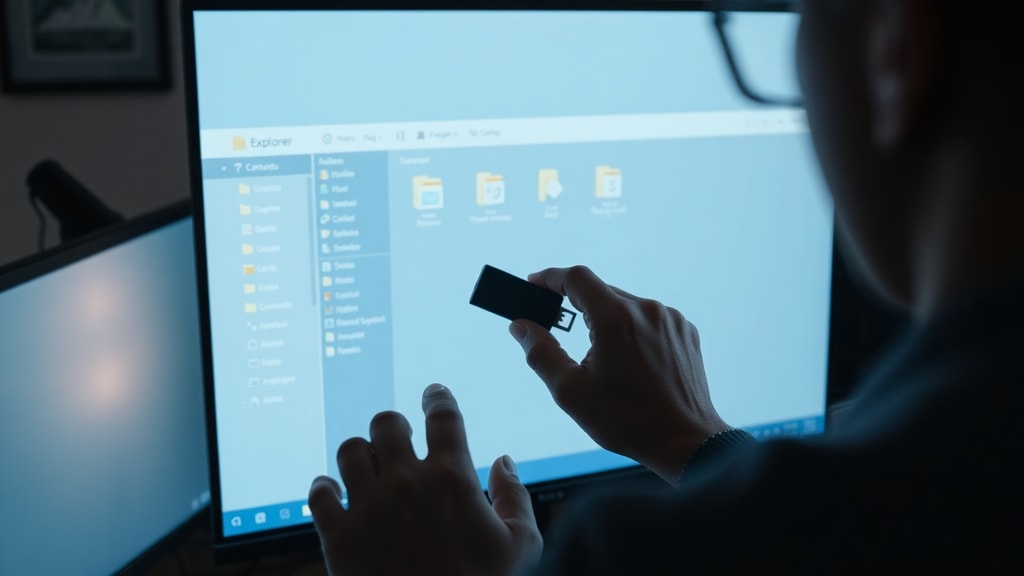
Disk Management is a powerful tool that goes beyond what File Explorer shows. To access it, press Win + X and click Disk Management. In the lower pane, you will see a graphical representation of all storage devices connected to your computer. Your USB drive should appear as a removable disk. If it appears but has no drive letter, right‑click the partition (usually a black bar labeled Unallocated or a blue bar with a healthy file system) and choose Change Drive Letter and Paths. Add a new letter, such as F: or G:. After you apply the change, the drive should become visible in File Explorer. If the drive shows as Unallocated, it means the drive has no file system. You can create a new simple volume by right‑clicking the unallocated space and following the wizard, but this will erase all data on the drive.
Checking Device Manager for Driver Issues
Another common cause of a drive not being recognized is corrupted or outdated USB drivers. The Device Manager lets you update or reinstall these drivers. Press Win + X and select Device Manager. Look for Universal Serial Bus controllers. If you see a yellow exclamation mark next to any item, that indicates a problem. Right‑click the problematic entry and select Update driver. You can also choose Uninstall device, then restart your PC. Windows will attempt to install the correct driver automatically upon reboot. If you still have issues, try downloading the chipset drivers from your motherboard manufacturer’s website. Sometimes, generic Windows drivers are not sufficient for certain USB 3.0 controllers.
Table: Common USB Issues and Quick Solutions
Below is a reference table that summarizes frequent problems you might encounter when trying to open a USB flash drive on a PC, along with straightforward solutions.
| Issue | Solution |
|---|---|
| Drive not detected in File Explorer | Check Disk Management and assign a drive letter; try a different port or computer |
| Drive shows but fails to open with file system error | Use chkdsk in Command Prompt (run as administrator) with command chkdsk X: /f (replace X with drive letter) |
| Write protected error when trying to copy files | Check for a physical lock switch on the drive; run DiskPart and clean the read‑only attribute |
| Drive appears but is empty (no files) | Open File Explorer Options and enable Show hidden files; files may be hidden due to malware |
| Slow performance or frequent disconnects | Update USB drivers; try a USB 2.0 port instead of USB 3.0; replace the cable (if external enclosure) |
Additional Tips for Safely Using USB Drives
Once you have successfully opened your pen drive, consider adopting a few habits to keep your data safe. Always use the Safely Remove Hardware feature before unplugging the drive. On Windows, you can click the small USB icon in the system tray and select Eject. On macOS, drag the drive to the Trash or use the eject button. This ensures that any pending writes are completed, reducing the risk of data corruption. It is also a good idea to keep a backup of important files on another device, because USB drives can fail without warning. Additionally, scan the drive with antivirus software if you use it on multiple public computers to avoid spreading malware. By following these simple practices, you can extend the life of your pen drive and protect your data.
Conclusion
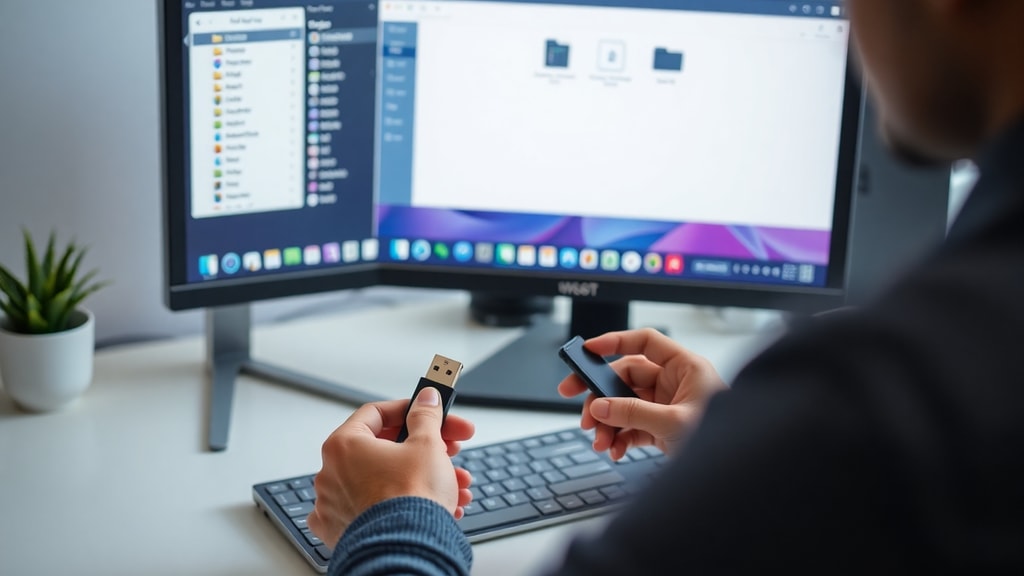
Opening a USB flash drive on a PC is a routine task that most users master quickly. Whether you are on Windows, macOS, or Linux, the steps are similar: insert the drive, open your file manager, and locate the drive under devices. When things go wrong, the troubleshooting techniques outlined in this article—checking ports, using Disk Management, updating drivers, and running the Windows USB Troubleshooter—will resolve the majority of issues. If the drive remains undetected, it may be physically damaged. For further reading and official guidance, Microsoft offers detailed support articles on how to open and eject USB drives that are not recognized, and community resources like Hardzone provide practical solutions for PC issues. By keeping this guide handy, you will be prepared to handle both the simple and the stubborn cases.
References
Microsoft Learn. How to open a pen drive with Windows 10. https://learn.microsoft.com/es-es/answers/questions/4225581/como-abrir-un-pendrive-con-windows10
Microsoft Learn. How to open or eject a USB flash drive that's not recognized. https://learn.microsoft.com/en-us/answers/questions/3188394/how-to-open-or-eject-a-usb-flash-drive-thats-not-r
Hardzone. PC no reconoce disco o pendrive USB? (Soluciones y reparación). https://hardzone.es/tutoriales/reparacion/pc-no-reconoce-disco-pendrive-usb/
Vicente Guzman. Cómo abrir un pendrive y acceder a los archivos. https://vicenteguzman.mx/como-abrir-un-pendrive/
Reddit Tech Support. Unable to physically open flash drive. https://www.reddit.com/r/techsupport/comments/1ax3a0n/unable_to_physically_open_flash_drive/