What Is an Audio Driver and Why Does It Matter?
An audio driver is a specialized software component that acts as a critical middleman between your operating system and your computer's audio hardware. Without this driver, the sound card, speakers, microphone, or audio interface connected to your machine would not know how to interpret the digital instructions sent by applications. The driver handles time-sensitive operations, converting electrical energy into acoustic energy through a transducer, and manages the flow of data required for recording, processing, and mixing sound. In simple terms, you cannot hear audio on a computer without the correct audio driver installed and working properly.
Understanding the Core Function of an Audio Driver
The primary role of an audio driver is to translate commands from the operating system and software into signals that the audio hardware can understand. This conversion happens in both directions. When you play a music file, the driver tells the speakers when and how to vibrate. When you record a voice memo, the driver captures the incoming electrical signal from the microphone and converts it into digital data. This process must occur with extremely low latency to avoid pops, clicks, or dropouts. Audio drivers also manage multi-channel output, sample rate conversions, and buffer sizes, which are crucial for professional audio work and gaming.
Built-In Audio Drivers in Windows 10 and 11
Modern versions of Windows come with native support for many common audio devices. Windows 10 and 11 include built-in drivers such as USB Audio 2.0, which uses the WaveRT port class, and the High Definition Audio driver. These are automatically installed when you plug in a standard headset, USB speaker, or internal sound card. For most typical use cases, the built-in drivers work without manual intervention. However, specialized hardware like professional audio interfaces, high-end gaming headsets, or legacy sound cards often require the manufacturer's dedicated driver to unlock full functionality, lower latency, or access specific features like surround sound control panels.
Common Scenarios Requiring a Driver Update or Reinstall
You may need to update or reinstall your audio driver if you encounter certain problems. Below is a list of signs indicating a driver issue:
- No sound coming from the speakers or headphones after connecting them.
- Audio playback is distorted, crackling, or stuttering.
- The microphone is not detected or is not recording sound.
- An audio device is recognized but shows a yellow exclamation mark in Device Manager.
- Sound works after a restart but stops working again after a few minutes.
- New hardware is added, such as an external DAC or gaming sound card.
- After a major Windows update, your sound no longer functions properly.
How to Update Your Audio Driver With Device Manager
The quickest method for many users is to use the built-in Device Manager tool. To start, right-click the Start button and select Device Manager. Expand the section labeled Sound, video and game controllers. You will see your audio device listed there, often named Realtek High Definition Audio, NVIDIA High Definition Audio, or something similar. Right-click on the device name and select Update driver. In the new window, choose Search automatically for drivers. Windows will then search online and locally for a better driver version and install it if found. This method works well if the issue is minor and your system is connected to the internet.
How to Reinstall an Audio Driver for a Fresh Start
Sometimes an update is not enough. If your audio driver is corrupted or misconfigured, a clean reinstall is recommended. Open Device Manager again, expand Sound, video and game controllers, right-click your audio device, and select Uninstall device. In the confirmation dialog, you may see a check box that says Delete the driver software for this device. Checking it will remove the installed driver files completely. After uninstalling, restart your computer. Windows will automatically detect the missing hardware and reinstall a compatible driver during the startup process. This often resolves issues caused by conflicting driver versions or incomplete installations.
Manual Installation From the Manufacturer
If automatic searches fail, you may need to download the driver directly. For a laptop or pre-built desktop, visit the support website of your computer manufacturer such as Dell, HP, Lenovo, or ASUS. Search for your specific model number and navigate to the audio or sound drivers section. Download the latest version of the audio driver meant for your operating system. For custom-built PCs, check the motherboard manufacturer's website or the sound card maker's page. Once downloaded, run the installer as an administrator and follow the on-screen instructions. A restart is typically required afterward.
Comparison of Audio Driver Types for Different Users
| Driver Type | Best For | Key Benefit |
|---|---|---|
| Built-in Windows Driver | General users | No manual setup required |
| Manufacturer Dedicated Driver | Gamers and musicians | Lower latency and extra features |
| Universal Audio Driver | USB microphones and webcams | Wide compatibility across devices |
| Pro Audio Interface Driver | Recording studios | Multi-channel support and stability |
Troubleshooting Tips for Common Problems
If no sound is heard after updating, first check your volume mixer and ensure the application is not muted. In Device Manager, verify that the audio device is enabled and not disabled. Right-click the device and go to Properties. Under the Driver tab, you can use the Roll Back Driver option if a recent update caused the issue. If the driver is missing entirely, look under Other devices for an Unknown device. Right-click it, select Update driver, and then Browse my computer for drivers. Navigate to the folder where you downloaded the manufacturer's driver and let Windows install it. Also ensure that your default playback device is set correctly. Open Sound settings and check that your headphones or speakers are selected as the output.
How to Use Troubleshooters for Audio Issues
Windows includes dedicated audio troubleshooters that often resolve driver problems automatically. For Windows 11, go to Settings, then System, then Sound. Click on Troubleshoot common sound problems. The tool will scan for issues such as disabled devices, wrong default formats, or driver errors. On Windows 10, search for Find and fix problems with playing sound in the Control Panel. These built-in tools can restart services, reinstall drivers in the background, and fix registry entries related to audio. Running them is a safe first step before attempting more advanced manual driver management.
Driver Removal Tools and Clean Installation
In some cases, leftover files from a previous audio driver can interfere with a new installation. Manufacturer-specific tools like the Display Driver Uninstaller are popular for graphics drivers, but for audio, you can use a simpler approach. Use Device Manager to uninstall the device with the Delete driver software option checked. Then use the Add or Remove Programs feature in Windows to remove any audio-related software control panels. Restart the system, and only then install the fresh driver from the manufacturer. This method ensures no old configuration files remain to cause instability.
Audio Driver Updates and Windows Updates
Windows Update sometimes delivers new audio drivers automatically. However, these are often generic versions provided by Microsoft rather than the latest from the hardware maker. If you are using a very new audio device or a high-performance interface, check the manufacturer's website monthly for updates. For most built-in sound cards, the drivers pushed via Windows Update are sufficient. You can also use the Optional updates section in Windows Update to find and install audio driver updates that are not automatically installed. This section is found under Settings, Windows Update, Advanced options, and then Optional updates.
Realtek Audio Drivers and Common Configurations
Realtek High Definition Audio drivers are among the most widely used on desktop and laptop computers. They support 7.1 surround sound, jack detection, and front panel audio. Dell and other OEMs provide customized versions of these drivers. For example, the Dell Realtek High Definition Audio Driver is specifically tuned for Dell hardware and may include audio enhancements not found in the generic version. Always download the driver from your computer's support page to ensure compatibility. If you install a generic Realtek driver on an OEM machine, you may lose features like microphone noise cancellation or equalizer presets.
Professional Audio Interfaces and Their Drivers
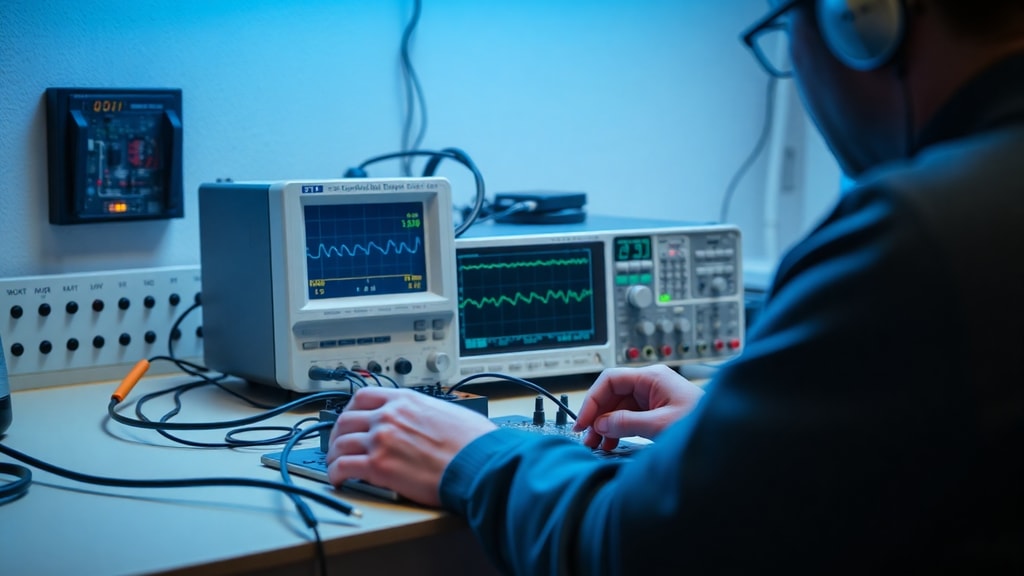
For musicians, podcasters, and audio engineers, the driver quality directly affects performance. Professional audio interfaces from brands like Focusrite, Universal Audio, and Audient require dedicated drivers to function with low buffer sizes and high sample rates. These drivers often include a control panel for routing audio and adjusting settings. If you are using a digital audio workstation like Ableton Live or Pro Tools, using the manufacturer's driver instead of the Windows generic one is essential. Without the correct driver, you may experience high latency, making live monitoring impossible.
Checking the Status of Your Audio Driver
You can verify the health of your audio driver in several ways. Open Device Manager, double-click your audio device, and go to the General tab. The device status should say This device is working properly. If it does not, note the error code. For example, Error Code 43 indicates the hardware has failed in communication with the driver. Go to the Driver tab to see the driver provider, date, and version. Compare this version to the one listed on the manufacturer's website. If your driver date is several years old and you have audio issues, an update is likely the solution.
References
Microsoft Learn. What are audio drivers and why do we need them? Retrieved from https://learn.microsoft.com/en-us/windows-hardware/drivers/audio/usb-2-0-audio-drivers.
Microsoft Support. How to check for audio driver updates in Windows 11. Retrieved from https://support.microsoft.com/en-us/windows/hardware/audio/update-audio-drivers-in-windows.
SoundGuys. Headphone driver types: Which one's just right? Retrieved from https://www.soundguys.com/driver-types-19347/.
Audient. What Are Audio Drivers And Why Do We Need Them? Retrieved from https://audient.com/tutorial/audio-drivers/.
Dell Support. Realtek High Definition Audio Driver Details. Retrieved from https://www.dell.com/support/home/en-us/drivers/driversdetails?driverid=fy22f.