Understanding DLL Files and Their Purpose
Dynamic Link Library, or DLL, files are essential components in the Windows operating system. They contain code, data, and resources that multiple programs can use simultaneously. When you install software, it often relies on DLL files to perform specific functions like displaying graphics, handling network connections, or managing file operations. Instead of each program having its own copy of the same code, they share DLLs, which saves disk space and memory. However, many users encounter DLL files and wonder how to open them. Opening a DLL file is not like opening a document or an image. DLLs are binary files designed to be executed by programs, not read by humans directly. Yet, there are legitimate reasons to open them, such as inspecting dependencies, recovering lost functionality, or understanding how an application works. This guide covers the safest and most effective methods to open, view, and work with DLL files on Windows.
Using a Text Editor for Simple Viewing
One common method to open a DLL file is by using a basic text editor like Notepad. This approach is straightforward but limited. Right-click on the DLL file, select "Open with," and choose Notepad. The file will open, but the content will appear as a confusing mix of characters, symbols, and some readable text strings. This happens because DLLs are compiled binary files, not plain text. While this method allows you to see some metadata, such as version numbers or copyright strings embedded in the file, it is not recommended for modifying the DLL. Editing a binary file in a text editor can corrupt it completely. Use this method only for a quick glance to confirm basic information like file name or internal strings. For any real analysis or modification, more advanced tools are necessary.
Using Decompilers for Detailed Analysis
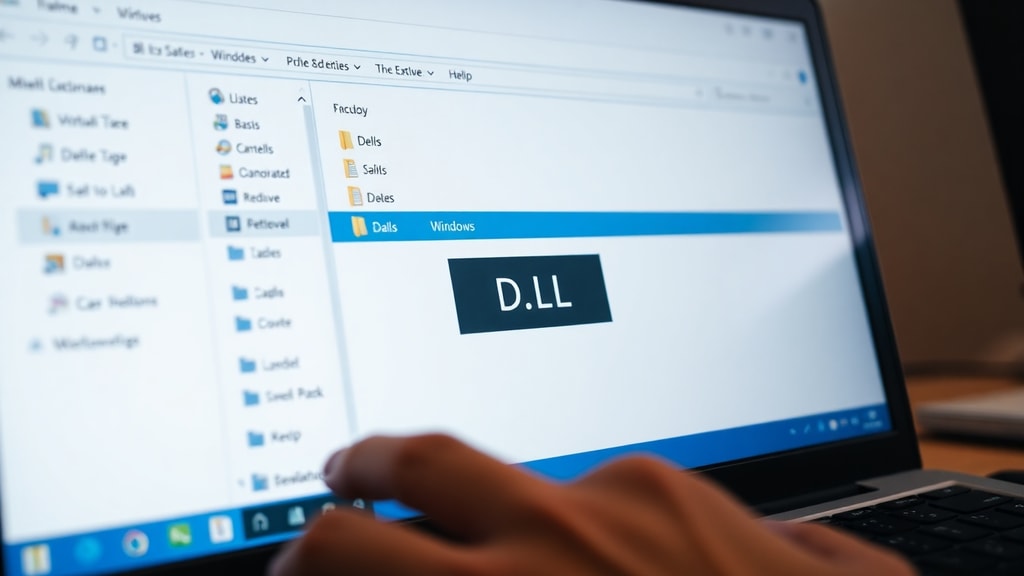
For developers and advanced users who need to view the source code inside a DLL, decompilers are the best option. These tools translate the compiled code back into a readable programming language like C# or assembly. Popular decompilers include dotPeek, ILSpy, and .NET Reflector. To use them, download and install a reliable decompiler. Launch the program, click on "File" then "Open," and select the DLL file. The decompiler will analyze the code and present it in a structured tree view. You can expand namespaces, classes, and methods to see the actual implementation. This is extremely useful for debugging, learning how a library works, or checking for security vulnerabilities. However, decompiling may break software licensing agreements, so ensure you have permission to view the code. For system DLLs or third-party libraries, it is often better to avoid decompilation unless you own the rights.
Registering DLL Files with regsvr32
Sometimes a DLL file is present on your system but not properly registered. Registration tells Windows where the DLL is and how to use it. To register a DLL, open Command Prompt as an administrator. Navigate to the folder containing the DLL using the cd command. Then type regsvr32 "filename.dll" and press Enter. A message will confirm if the registration succeeded. This is useful when a program fails to find a required DLL. However, not all DLLs are designed to be registered. Some are simply libraries that do not require registration. If registration fails, it may indicate that the DLL is incompatible with your system or corrupted. Always run the command with administrator privileges, or the operation will not work.
Analyzing Dependencies with Dumpbin
Dumpbin is a command-line tool included with Visual Studio that helps you inspect DLL files. It can reveal which other DLLs your file depends on and what functions it exports. Open a Developer Command Prompt from your Start menu. Use the command dumpbin /DEPENDENTS myfile.dll to see a list of required DLLs. This is valuable when a program crashes because a dependency is missing. You can identify exactly which library is needed. Similarly, dumpbin /EXPORTS myfile.dll shows all the functions the DLL provides to other programs. This information helps developers understand how to call the DLL from their own code. Dumpbin is a free tool if you have Visual Studio, but there are also standalone versions available. It is a robust way to analyze DLLs without decompiling them.
Checking for Corruption and System Integrity
If you suspect a DLL file is corrupted, there are simple checks you can perform. Right-click the DLL file, select Properties, and look at the Details tab. Here you can see the file version, size, and description. Compare these values with known good copies if available. For system DLLs, Windows includes a built-in tool called System File Checker (SFC). Open Command Prompt as administrator and run sfc /scannow. This will scan all protected system files and replace corrupted versions with correct ones from a cached copy. It is a safe way to repair DLLs without manual intervention. For third-party DLLs, the best solution is often to reinstall the software that owns the file. Simply download the latest version of the program and run the installer. This will restore any missing or damaged DLLs.
Reinstalling the Associated Software
When a DLL file is missing or broken, the most reliable fix is to reinstall the application that requires it. Many users spend time searching for individual DLL files online, which can be risky. Downloading DLLs from unofficial sites may introduce malware or incompatible versions. Instead, locate the program that reports the error. Uninstall it completely using the Control Panel, then download a fresh copy from the official website. Run the installer, and it will place the correct DLL in the right directory. This method ensures all dependencies are properly configured. It also updates the software to the latest version, which may fix other underlying issues. Reinstalling is a straightforward process that resolves most DLL-related problems.
Common Mistakes to Avoid When Opening DLL Files
Many users make errors when dealing with DLL files. One major mistake is editing a DLL with a text editor and then saving it. This corrupts the binary structure, rendering the file useless. Another error is downloading DLLs from third-party websites. These files may be outdated, infected, or designed for a different version of Windows. Also, avoid moving or deleting DLL files manually. Because multiple programs share DLLs, removing one can break several applications. Always use official methods like software reinstalls or system restore points. Finally, do not confuse 32-bit and 64-bit DLLs. A 64-bit DLL will not work on a 32-bit system, and vice versa. Check your system type before troubleshooting.
Table: Summary of Methods to Open DLL Files
Below is a table that compares the main methods for opening and working with DLL files. Each method has a specific purpose and level of risk.
| Method | Best For | Risk Level | Required Tools |
|---|---|---|---|
| Text Editor | Quick viewing of strings | Low (viewing only) | Windows Notepad |
| Decompiler | Reading source code | Medium (legal concerns) | dotPeek, ILSpy |
| regsvr32 | Registering COM DLLs | Low (admin needed) | Command Prompt |
| Dumpbin | Analyzing dependencies | Low | Visual Studio tools |
| sfc /scannow | Repairing system DLLs | Low | Command Prompt (admin) |
| Reinstall software | Replacing missing DLLs | Low | Original installer |

List of Essential Tools for DLL Handling
Here is a list of tools that can help you work with DLL files safely and effectively:
- Notepad or any text editor for basic inspection.
- dotPeek or ILSpy for decompiling .NET DLLs.
- Command Prompt with regsvr32 for registration tasks.
- Dumpbin from Visual Studio for dependency analysis.
- System File Checker (sfc /scannow) for repairing system files.
- Official software installers for replacement of missing DLLs.
Safety Precautions When Working with DLLs
Working with DLL files requires caution. Always back up the original file before making any changes. Create a system restore point if you plan to modify system DLLs. Use antivirus software to scan any DLL file you download. Avoid opening DLLs from unknown sources. If a program asks you to download a DLL, it is better to reinstall the program directly. Also, understand that many DLL files are not meant to be opened by users. They work silently in the background. Only use advanced tools like decompilers if you have programming experience. For typical troubleshooting, the methods described in this article are safe when followed correctly.
References
- wikiHow. "How to Open DLL Files." Accessed via https://es.wikihow.com/abrir-archivos-DLL
- NeuralWord. "How to Open DLL Files: Complete Guide." Accessed via https://www.neuralword.com/pt/tecnologia-e-inovacao/computadores-e-tablets/como-abrir-arquivos-dll-guia-completo-e-passo-a-passo
- Librería FAN. "Open DLL Libraries." Accessed via https://libreriafan.com.ar/abrir-librerias-dll/
- wikiHow (Portuguese). "How to Use Programs to Open DLL Files." Accessed via https://pt.wikihow.com/Usar-Programas-para-Abrir-Arquivos-DLL
- tecnobits. "How to Open DLL Files on Windows 11: Complete Guide." Accessed via https://tecnobits.com/pt/Como-abrir-arquivos-DLL-no-Windows-11:-guia-completo/