Introduction
Headphone detection issues are frustrating because they interrupt your workflow, gaming, or entertainment. Your computer may not recognize wired headphones plugged into the audio jack, or a Bluetooth headset might refuse to connect. The problem can stem from loose cables, outdated drivers, power management settings, or misconfigured audio output. Fortunately, most of these problems have straightforward fixes. This guide walks you through proven steps to restore headphone detection quickly, based on official support documents from Corsair, Microsoft Q&A, and Windows Report. Whether you use a desktop PC, laptop, or tablet, these solutions apply to Windows 10 and Windows 11.
Check Physical Connections and Ports
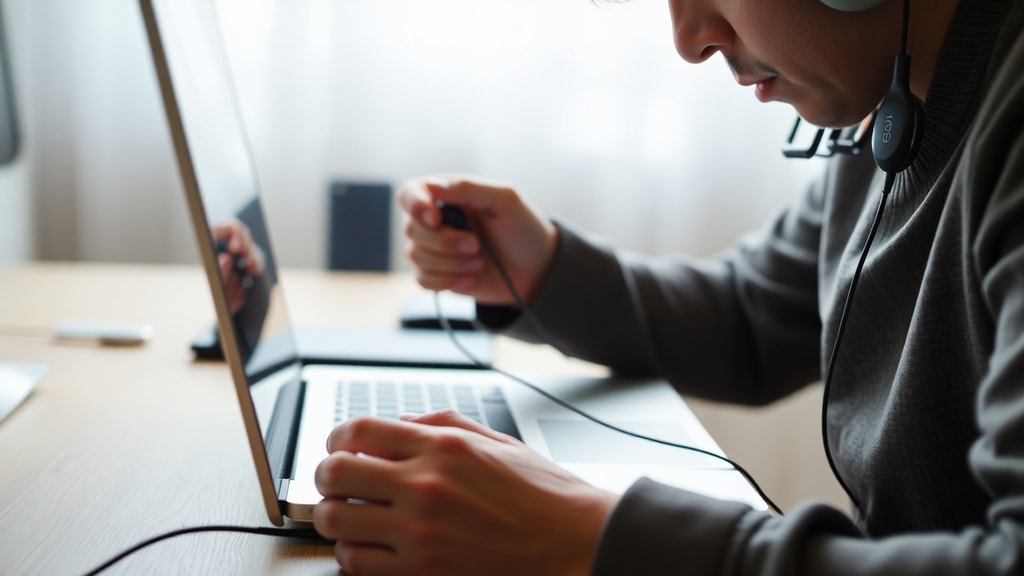
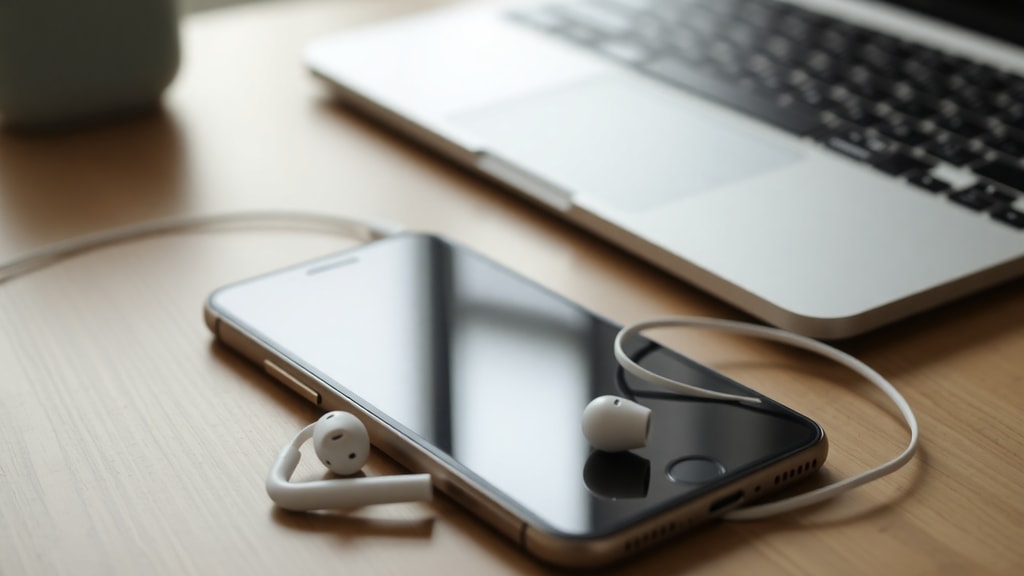
The first step is always to verify the physical link. A partially inserted headphone plug or a dirty jack can prevent detection. Make sure the headphone connector is pushed all the way into the correct port. For headsets with separate microphone and audio plugs, confirm you are using the right jacks (often color-coded green for audio, pink for mic). If you are using a USB headset, try a different USB port. Loose ports or faulty cables can mimic detection failures. For Bluetooth headsets, turn off Bluetooth on your device, then turn it back on and re-pair the headset. Remove the headset from your device’s Bluetooth list and go through the pairing process again. According to Corsair Support, many detection problems are simply connection errors that a clean re-pair or port change can resolve. Visit their official guide for model-specific advice.
Update or Reinstall Audio Drivers
Outdated or corrupted audio drivers are common culprits. Windows usually manages drivers automatically, but manual updates can fix stubborn issues. Open Device Manager by right‑clicking the Start button and selecting it. Expand the “Sound, video and game controllers” section. Locate your audio device (often Realtek High Definition Audio or a manufacturer‑specific name). Right‑click the device and choose “Update driver.” Select “Search automatically for drivers.” If Windows finds none, visit your computer or motherboard manufacturer’s website to download the latest audio driver. A more thorough approach is to uninstall the driver entirely. Right‑click the audio device in Device Manager, choose “Uninstall device,” and check the box “Delete the driver software for this device” if available. Then restart your computer. Windows will reinstall the driver automatically. Microsoft Q&A confirms that this process resolves many detection failures because it clears corrupt settings and forces a fresh driver installation.
Microsoft Q&A – Fix headphone detection in WindowsDisable Power Saving for the Audio Device
Windows can turn off audio devices to save battery, which sometimes prevents headphone detection. To disable this, open Device Manager again. Locate your audio device under “Sound, video and game controllers.” Right‑click it and select “Properties.” Go to the “Power Management” tab. Uncheck “Allow the computer to turn off this device to save power.” Click OK. If you do not see a Power Management tab, your device may not support it, but this step is safe to try. After changing the setting, test your headphones. This fix is often mentioned in Microsoft Q&A threads as a simple yet effective solution for intermittent detection issues, especially on laptops.
Set Headphones as Default Playback Device
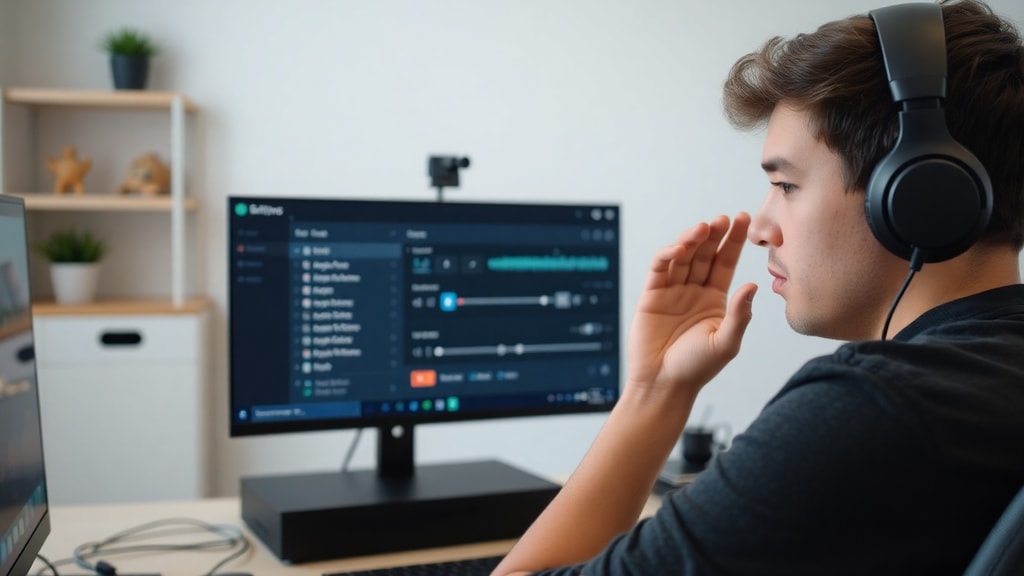
Sometimes the computer detects the headphones but routes sound to speakers or another output. To ensure the headphones are the active device, right‑click the speaker icon in the system tray and select “Open Sound settings.” Under “Output,” choose your headphones from the dropdown list. If you do not see them, click “Manage sound devices” in the same window. Look for your headphones under “Output devices.” If they appear as “Disabled,” click the device and then “Enable.” Make sure the headphone device is set as “Default.” You can also access the classic Sound control panel: right‑click the speaker icon, select “Sounds,” go to the “Playback” tab, right‑click the headphone device, and choose “Set as Default Device.” This action forces Windows to use the headphones for all audio output.
Check if the Device Is Listed and Enabled
Even when drivers are correct, the headphone device may not appear in the sound settings. In Windows, navigate to Settings > System > Sound > Manage sound devices. Under “Output devices,” you should see your headphones. If they are missing, click the “Add device” button or look for “Show disabled devices” at the bottom of the list. Right‑click an empty area to enable that view. Once you see the headphone entry, click it and select “Enable.” If the device is present but still not working, try restarting the Windows Audio service. Press Win+R, type services.msc, press Enter. Find “Windows Audio,” right‑click it, and choose “Restart.” This can kick the system into recognizing the headphones again. Windows Report highlights this procedure as effective for headphones that are detected but produce no sound.
Additional Troubleshooting Steps
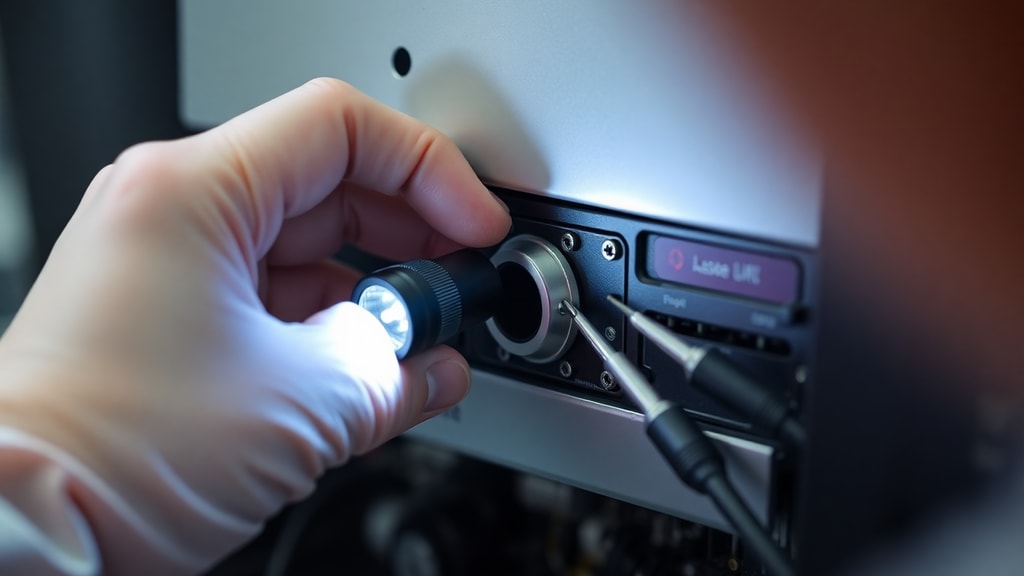
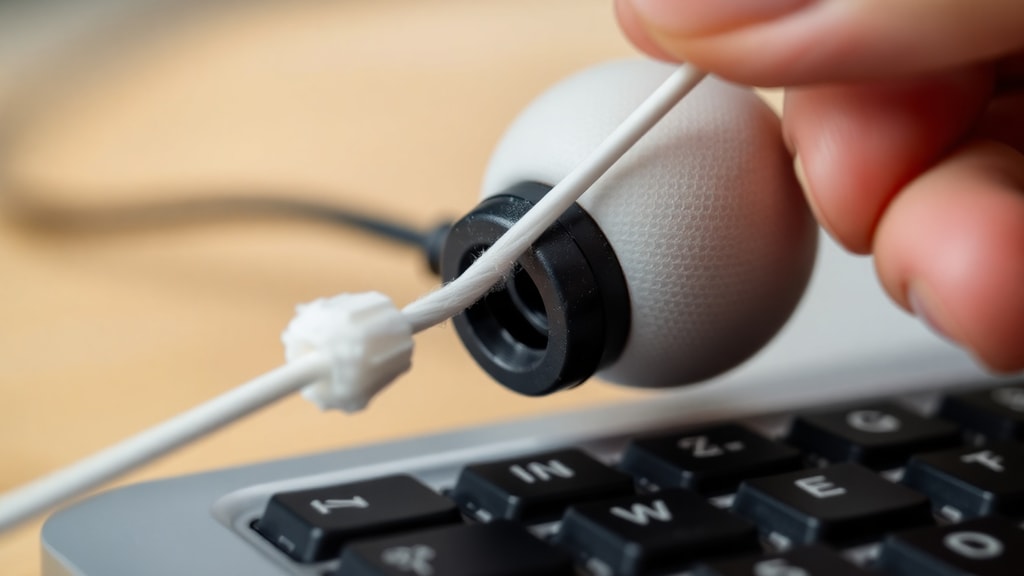
If none of the above works, try the following advanced or situational fixes. First, run the built‑in audio troubleshooter. Go to Settings > Update & Security > Troubleshoot > Additional troubleshooters, select “Playing Audio,” and run it. This can automatically identify and correct misconfigurations. Second, check for physical obstructions in the headphone jack. Use compressed air or a toothpick to gently remove dust. Third, test your headphones on another device to confirm they are not broken. Fourth, disable audio enhancements. Right‑click the speaker icon, select “Sound,” go to the “Playback” tab, right‑click your headphone device, select “Properties,” then the “Enhancements” tab, and choose “Disable all enhancements.” Some enhancements can interfere with detection. Fifth, update your BIOS or chipset drivers, as motherboard‑level audio controllers may require firmware updates. Sixth, if you use a front panel audio jack, check that the internal cable is properly connected to the motherboard. This is uncommon but possible on desktop PCs.
Common Fixes Summary Table
| Issue | Solution | Difficulty |
|---|---|---|
| Headphone not physically detected | Re‑plug, clean jack, change USB port, re‑pair Bluetooth | Easy |
| Driver corrupted or outdated | Update or uninstall audio driver in Device Manager | Easy |
| Computer turns off audio device to save power | Disable power saving in Device Manager properties | Easy |
| Wrong default playback device | Set headphones as default in Sound settings | Easy |
| Device disabled or hidden | Enable device via Manage sound devices | Easy |
| Audio enhancements blocking detection | Disable enhancements in device properties | Moderate |
Quick Checklist – List of Steps to Follow
For a systematic approach, run through this list in order. Most people solve their issue by the third step.
- 1. Check physical connection and try different ports or re‑pair Bluetooth.
- 2. Update or reinstall audio drivers via Device Manager.
- 3. Disable power management for the audio device.
- 4. Set headphones as the default playback device in Sound settings.
- 5. Enable the device if it appears disabled in Manage sound devices.
- 6. Run the Playing Audio troubleshooter.
- 7. Disable audio enhancements.
- 8. Test headphones on another device.
- 9. Update BIOS or chipset drivers if all else fails.
References
Corsair Support. “My headset is not being detected by my computer.” Accessed April 2025. https://help.corsair.com/hc/pt/articles/14791910782477-Meu-headset-n%C3%A3o-est%C3%A1-sendo-detectado-pelo-meu-computador
Microsoft Q&A. “How to solve headphone detection problem in Windows.” Accessed April 2025. https://learn.microsoft.com/pt-br/answers/questions/3922464/como-resolver-problema-de-detec-o-no-fone-p2-no-wi
Microsoft Q&A. “My computer does not recognize the headphone.” Accessed April 2025. https://learn.microsoft.com/pt-br/answers/questions/3749776/meu-computador-n-o-reconhece-o-fone
Windows Report. “No sound from headphones – how to fix.” Accessed April 2025. https://windowsreport.com/pt/nao-sai-som-dos-fones-de-ouvido-como-resolver/