Introduction
Opening a CD drive door from your PC is a common task that many users encounter, whether they need to insert a disc, remove a stuck tray, or perform maintenance remotely. While the physical eject button on the drive itself is straightforward, there are several software-based methods that offer convenience and flexibility. For example, if your computer is under a desk or the drive button is broken, using your operating system or external utilities can save time and effort. This article explores various ways to eject a CD or DVD drive from your PC, including built-in Windows features, keyboard shortcuts, and third-party tools. Each method is detailed with steps and considerations to help you choose the best approach for your situation.
Understanding these methods is particularly useful for laptop users where the drive might be integrated into the chassis, or for desktop users who frequently access discs. Additionally, if you work with multiple drives or have a remote setup, knowing how to open the CD drive from the software level can streamline your workflow. Below, we cover the most reliable techniques, from the simple right-click in Windows Explorer to creating custom hotkeys using freeware utilities. Whether you are a novice or an advanced user, this guide provides practical solutions.
Using Windows Explorer to Eject the CD Drive
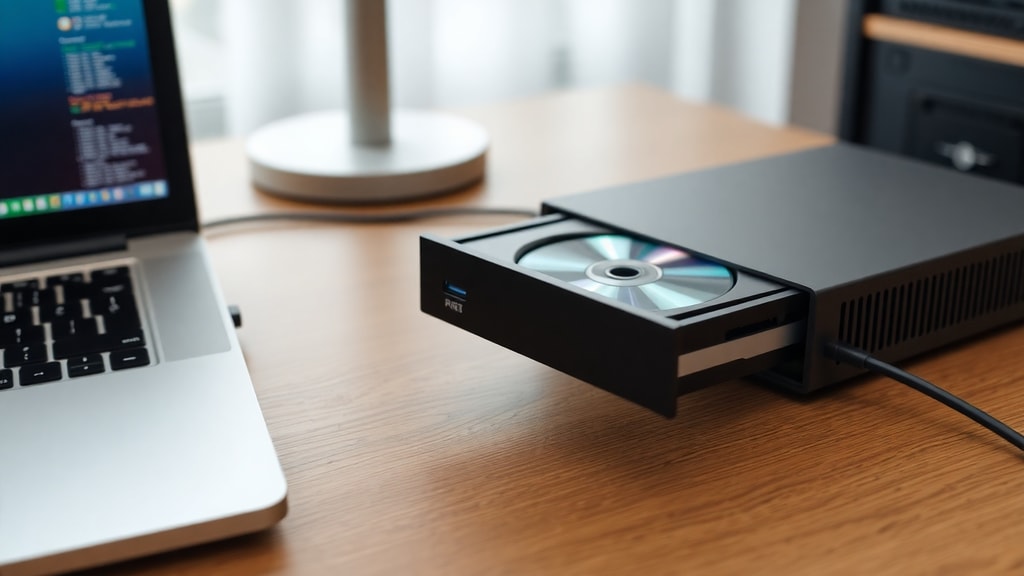
The simplest and most direct way to open your CD drive door from your PC is through Windows Explorer. This method requires no additional software and works on all versions of Windows. To start, open File Explorer by pressing Windows key plus E or clicking the folder icon on your taskbar. In the left panel, locate This PC or Computer. Under Devices and drives, you will see your optical drive listed, typically labeled as CD Drive or DVD Drive followed by a letter like D or E. Right click on the drive icon, and from the context menu, select Eject. The tray will automatically slide out.
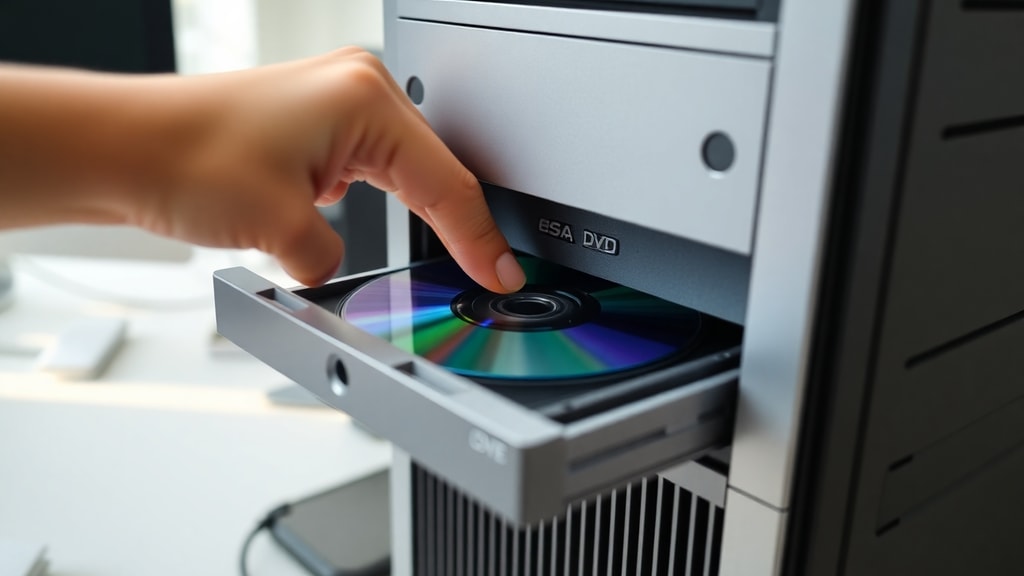
This approach is highly reliable because it uses the native operating system command. If your drive does not respond, it may indicate a hardware issue or a driver problem. However, for normal operations, the right-click eject method works seamlessly. It is also accessible from the ribbon interface in File Explorer: select the drive and click the Manage tab, then choose Eject. For added context, Microsoft provides documentation on this process, which you can explore through the Microsoft Learn article that details common troubleshooting steps for CD/DVD trays. This method is ideal for users who prefer a visual interface without memorizing commands.
Keyboard Shortcuts: The Built-in Eject Key
Many keyboards, especially those designed for laptops or multimedia use, include a dedicated Eject key. This key is often marked with an upward-pointing triangle above a horizontal line, resembling the eject symbol. Pressing this key immediately opens the CD drive tray without needing to navigate through menus. On some laptops, the Eject key might be combined with another function key, such as F12, requiring you to hold the Fn key while pressing it. Check your keyboard layout or user manual to identify the exact key.
If your keyboard lacks a physical Eject key, you are not alone. Desktop keyboards frequently omit this feature to save space. In such cases, you can still use keyboard shortcuts through software solutions, but Windows itself does not provide a default hotkey for ejecting optical drives. According to Microsoft Learn, there is no built-in keyboard shortcut for this action, which is why many users rely on third-party utilities. For users with the Eject key, it remains one of the fastest methods available. HP Support offers guidance on unlocking stuck trays, which often involves checking the keyboard eject function first. You can find more details in their support document.
Creating Custom Keyboard Shortcuts with Third-Party Tools
For those who want to assign a custom keyboard shortcut to open the CD drive, third-party tools like NirCMD are excellent options. NirCMD is a free command-line utility that can perform various system tasks, including opening and closing CD/DVD trays. Once installed, you can create a shortcut or hotkey combination to execute the eject command without using the mouse. This method is particularly useful for power users who prefer keyboard navigation or need to automate repeated actions.
To use NirCMD, first download the tool from its official website. It is a portable executable, meaning no installation is required. Extract the nircmd.exe file to any folder, such as C:WindowsSystem32, for easy access. Next, open a command prompt with administrator privileges and type the command: nircmd.exe cdrom open D: (replace D: with your actual drive letter). This will immediately eject the tray. To close it, use nircmd.exe cdrom close D:. For a more permanent solution, you can create a desktop shortcut that runs this command, then assign a keyboard shortcut to that shortcut via its Properties dialog.
An alternative method involves using the Hotkey Control feature in NirCMD itself, though this requires additional configuration. Some users combine NirCMD with AutoHotkey to create sophisticated scripts. A detailed walkthrough of setting up shortcuts using NirCMD is available at Pplware, which explains how to map keys like Ctrl+Shift+O to eject the drive. This approach offers high customization and is free from unnecessary bloatware.
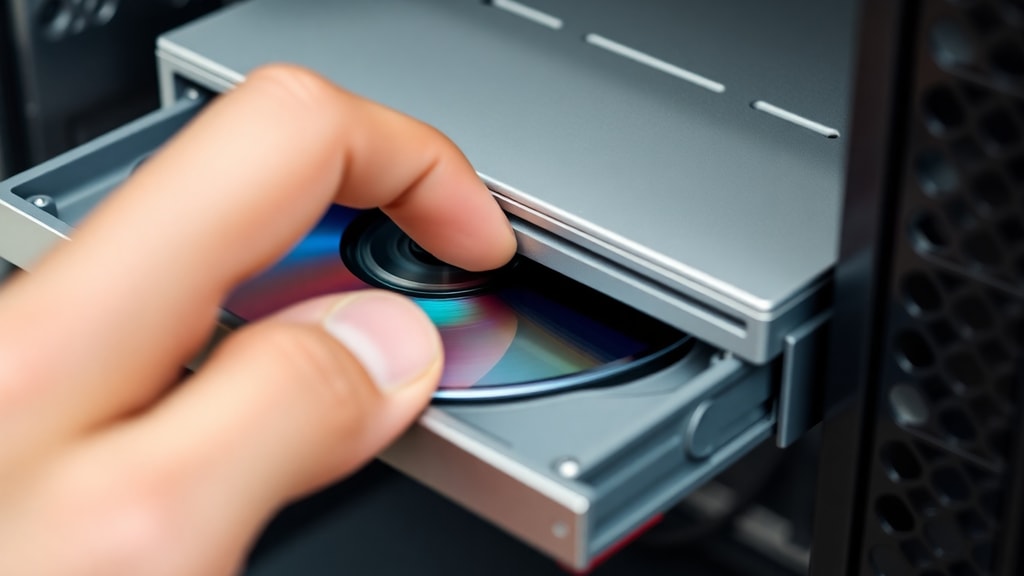
Step-by-Step Guide to Using NirCMD
To help you get started with NirCMD, here is a straightforward list of steps to configure a custom keyboard shortcut for opening your CD drive:
- Download the latest version of NirCMD from the NirSoft website. Ensure you select the correct architecture (32-bit or 64-bit) for your system.
- Extract the nircmd.exe file to a dedicated folder, such as C:NirCMD, or directly to your System32 folder for global access.
- Identify the letter of your CD/DVD drive by opening File Explorer and looking under This PC. Common letters are D, E, or F.
- Create a new shortcut on your desktop: right click an empty area, select New, then Shortcut. In the location field, type: nircmd.exe cdrom open X: where X is your drive letter.
- Name the shortcut something like Open CD Drive. Right click the shortcut, select Properties, and click in the Shortcut key field. Press your desired combination, such as Ctrl+Alt+O, then click Apply.
- Test the shortcut by pressing the assigned keys. The tray should open. If it does not, ensure NirCMD is in a path accessible to the system or use the full path in the shortcut.
This method works on Windows 10 and Windows 11 without issues. You can also create a similar shortcut for closing the tray by replacing open with close in the command. For advanced users, NirCMD supports wildcards and other parameters, such as shutting down all drives at once. The utility is lightweight and does not run in the background unless you set it to, making it ideal for occasional use.
Comparison of Methods
To assist in selecting the best method for your needs, the following table compares the key attributes of each approach discussed in this article:
| Method | Ease of Use | Requires Additional Software | Speed | Best For |
|---|---|---|---|---|
| Windows Explorer Right-Click | Very Easy | No | Moderate (requires mouse) | All users, especially beginners |
| Physical Eject Key | Very Easy | No (if keyboard has key) | Fast (one press) | Users with multimedia keyboards |
| NirCMD Command Line | Moderate | Yes (NirCMD) | Fast (after setup) | Power users and automation |
| NirCMD with Hotkey | Moderate to Advanced | Yes (NirCMD and shortcut creation) | Fast (custom hotkey) | Users wanting keyboard-only workflow |
As shown, the simplest method requires no extra tools but relies on mouse navigation. The fastest method during everyday use is the physical eject key, provided your keyboard includes it. For customization and reliability without additional hardware, NirCMD offers the most flexibility. Each method has its trade-offs, and your choice depends on your comfort level with system configuration and the frequency of use.
Why Windows Lacks a Default Shortcut
Many users wonder why Microsoft does not include a built-in keyboard shortcut for ejecting optical drives. According to Microsoft Learn, the decision stems from the declining use of optical media in modern computing. As USB drives and cloud storage become more prevalent, CD and DVD drives are less common, especially on laptops. Consequently, dedicating a default hotkey for a deprecated feature is not a priority. Additionally, the variety of drive configurations and multiple optical drives would complicate a universal shortcut. This absence pushes users toward third-party utilities like NirCMD or simple workflow adjustments such as using the Windows Explorer right-click method.
Another factor is that many systems now rely on external USB drives that may not have consistent detection via software eject commands. Windows focuses on standardization, and ejecting a drive via Explorer already covers the basic need. For users who require hotkeys, third-party tools fill the gap effectively. The lack of a default shortcut is not a flaw but a reflection of evolving hardware priorities. Understanding this context helps users accept the need for external solutions and appreciate the flexibility that tools like NirCMD provide.
Additional Tips and Troubleshooting
If your CD drive does not open using any of the software methods, first check the drive letter. In File Explorer, if the drive does not appear, it may be disconnected or disabled in Device Manager. Try restarting your computer or reinstalling the driver. For a stuck tray, you can also use a paper clip inserted into the small pinhole on the front of the drive to manually eject it. This mechanical method works even when the PC is off, but it should be used sparingly to avoid damage.
For users who frequently use virtual drives or ISO mounting, note that software eject commands also work on virtual drives created by programs like Daemon Tools or Windows built-in mounting feature. However, those actions unmount the virtual disc rather than opening a physical tray. Always confirm that you are targeting the correct drive letter. If you use NirCMD, test the command in a Command Prompt first to verify it works before creating shortcuts. These simple checks can save time and prevent frustration.
References
The information in this article is based on official documentation and reliable tech sources. For further reading on ejecting CD/DVD drives from Windows, refer to the Microsoft Learn article on opening the CD/DVD tray, which covers Explorer-based methods and common issues. Additionally, the HP Support document provides troubleshooting steps for unlocking stuck trays. For details on using NirCMD to create custom keyboard shortcuts, the Pplware article offers a comprehensive guide. Finally, the Noticias Tecnicas page explores alternative freeware utilities for managing optical drives. These sources provide verified instructions and background for the techniques described above.