Understanding Screen Timeout Settings on Your PC
Keeping your PC screen on for longer periods is a common need for many users. Whether you are giving a presentation, watching a long video, reading a document, or running a process that requires the screen to remain active, the default power settings on most computers will turn off the display after a short period of inactivity. This behavior is designed to save energy and extend the life of your monitor, but it can be frustrating when you need the screen to stay on. Understanding how to adjust these settings on Windows and macOS, as well as using third-party tools, gives you full control over your display behavior.
By default, Windows and macOS set the screen to turn off after 5 to 15 minutes of inactivity. For laptop users, the timeout is often even shorter when running on battery. Changing these settings is simple and does not require advanced technical knowledge. Below we explore the most reliable methods to keep your screen on longer, from built-in system settings to lightweight software utilities. We will also discuss when it is better to adjust sleep settings instead of just the display timeout, and how to avoid accidentally leaving your screen on indefinitely.
Adjusting Screen and Sleep Settings in Windows 11 and Windows 10
Windows offers two main paths to modify screen timeout: the modern Settings app and the legacy Control Panel. Both achieve the same result, but the Settings app is recommended for most users because of its simpler interface. To access the modern settings, press the Windows key and I simultaneously to open Settings. Then navigate to System and select Power and battery (on Windows 11) or Power and sleep (on Windows 10). Under the Screen and sleep section, you will find options to set when to turn off the screen and when to put the device to sleep. You can choose from predefined time intervals ranging from 1 minute to 30 minutes, or select Never (0 minutes) to keep the screen on indefinitely while plugged in or on battery. It is important to distinguish between turning off the display and putting the computer to sleep. Disabling the screen off timer alone may not prevent the computer from entering sleep mode, which would also turn off the screen. Therefore, you should also adjust the sleep setting to Never if you want the screen to stay on without the system suspending.
For users who prefer the legacy method, open the Control Panel by searching for it in the Start menu. Go to Hardware and Sound, then Power Options. Find your currently active power plan and click Change plan settings next to it. In the next window, click Change advanced power settings. Scroll down to Display and expand the section. There you will see Turn off display after with separate options for On battery and Plugged in. Set both to 0 (which means Never) to keep the screen on. Similarly, expand the Sleep section and set Allow hybrid sleep and Put computer to sleep to Never if needed. This method gives you finer control over other power-related behaviors like hard disk timeout and wireless adapter settings.
Configuring Screen Never to Turn Off on macOS
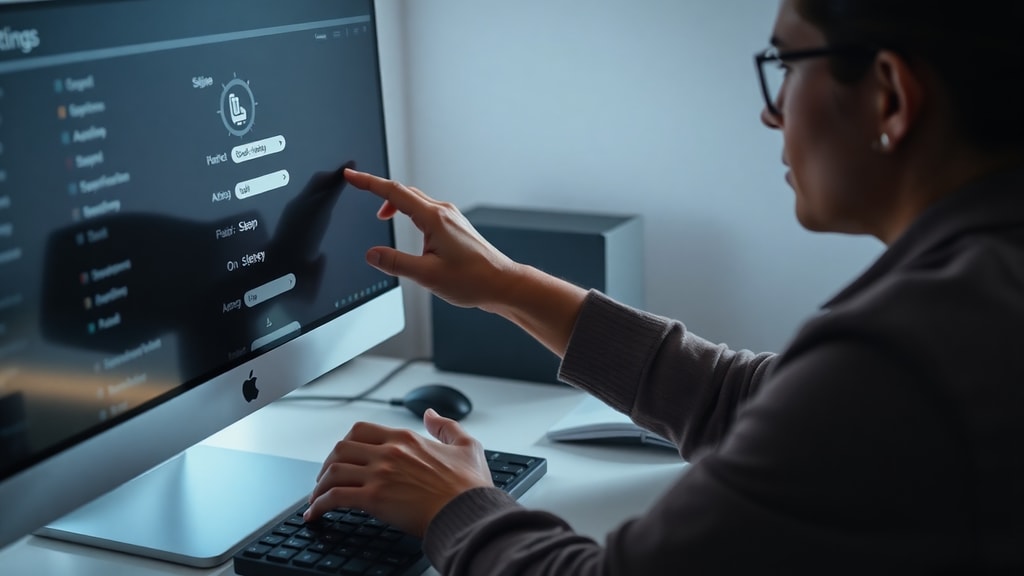
If you are using a Mac, the process is equally straightforward. Open System Settings (or System Preferences on older macOS versions) and click Displays. Look for an option called Turn display off when inactive and set it to Never. On some newer macOS versions, this option may be located under Advanced in the Displays settings. Additionally, you can adjust these settings from the Battery section. Go to System Settings, select Battery, then Options or Power Adapter. There you will find a slider for Turn display off after; move it to Never. Keep in mind that on laptops, macOS treats battery and power adapter settings separately, so you will need to configure both if you want the screen to stay on in either scenario. For desktop Macs, the power adapter settings apply exclusively.
For temporary needs, macOS offers a quick way to prevent sleep without changing system settings. You can use the built-in command `caffeinate` in Terminal, which keeps the system awake. But for most users, adjusting the display timeout in System Settings is the permanent solution. Third-party tools like Amphetamine also provide more flexible override options, which we will discuss later.
When to Use Third-Party Tools
Sometimes you need to keep the screen on only for a specific task, such as watching a movie or running a long script, and you do not want to permanently change your power plan. In these cases, third-party tools are extremely useful. They allow you to temporarily override the system settings without going into menus. Some popular options include:
- Caffeine – A tiny free utility for Windows that prevents the system from sleeping or turning off the display with a single click. It runs in the system tray and can be toggled on or off.
- Microsoft PowerToys (Always On feature) – Part of the official Microsoft PowerToys suite. The Always On utility keeps the computer awake with a customizable time limit or indefinitely. It is available from the Microsoft Store or GitHub.
- Amphetamine – A powerful macOS app that offers many triggers to keep the display active, such as when a specific app is running, when a file is being downloaded, or for a custom duration.
- Keep Display On – A simple Android-like toggle for Windows that prevents screen timeout.
These tools are especially handy for users who often switch between tasks requiring different power behaviors. Instead of diving into settings every time, you can just enable a tool and then turn it off when done. However, be cautious: if you leave such a tool enabled and your laptop is on battery, it will drain power much faster. Using these tools responsibly ensures you get the convenience without excessive energy consumption.
Comparing Methods to Keep Your Screen On
The following table summarizes the main approaches for different operating systems and needs. It highlights the ease of use, flexibility, and permanence of each method.
| Method | Operating System | Permanent or Temporary | Ease of Use | Additional Notes |
|---|---|---|---|---|
| Windows Settings (Modern) | Windows 10/11 | Permanent (until changed) | Very Easy | Requires separate sleep adjustment |
| Control Panel (Legacy) | Windows 10/11 | Permanent | Moderate | More advanced options available |
| macOS System Settings | macOS | Permanent | Easy | Battery / adapter settings separate |
| Caffeine (third-party) | Windows | Temporary (toggle) | Very Easy | Free, minimal footprint |
| PowerToys Always On | Windows | Temporary (configurable duration) | Easy | Part of Microsoft PowerToys suite |
| Amphetamine | macOS | Temporary (with triggers) | Moderate | Highly customizable, free |
Practical Considerations and Troubleshooting
When you set your screen timeout to Never, remember that your monitor may still turn off if the computer enters sleep. Therefore, always check both the display off setting and the sleep setting. On some laptops, the lid close action might also override these settings. If you close the lid, the computer will usually sleep regardless of your screen timeout settings. For desktop users, the monitor itself may have an internal power-saving feature. If you have set Windows to Never turn off the screen but the monitor still goes black after a while, look for a setting in the monitor's on-screen display menu called Auto Power Off or Power Save and disable it.
Another common issue is that certain applications or background processes can prevent the system from sleeping but not the screen from turning off. For example, a media player may keep the system awake while playing a video, but the screen might still go dark if the player does not request display overrides. In such cases, the system will turn off the display after the set idle time. To solve this, you can either increase the display timeout or use a third-party tool that keeps the screen active. Additionally, some corporate or educational PCs have group policies that restrict power settings. If you cannot change these settings, you may need to contact your IT administrator or use a temporary tool that does not require administrative permissions.
For laptops, keeping the screen on for long periods while on battery will significantly reduce battery life. Consider whether you really need the screen to stay on or if you can lower the brightness or use a screensaver. Modern OLED and LCD screens are designed to handle prolonged use, but running the display at full brightness for hours will still consume considerable energy. If you need to keep the screen on for presentations or data monitoring, plugging the laptop into a power source is advisable.
Step-by-Step Guide for Windows Users
To help you implement these settings quickly, here is a simple list of steps that works for both Windows 10 and Windows 11:
- Open Settings by pressing Win + I.
- Click on System, then select Power and battery (Windows 11) or Power and sleep (Windows 10).
- Under Screen and sleep, locate the dropdowns for On battery and When plugged in for "Turn off my screen after".
- Select Never or a longer duration from the dropdown menu.
- Immediately below that, adjust the Sleep setting. Set "Put my device to sleep after" to Never or to a longer time than the screen timeout.
- Close Settings. Your changes take effect immediately.
If you want to use the advanced power options (for example, to change the display timeout for a specific power plan), follow these steps:
- Open Control Panel (search for it in the Start menu).
- Select Hardware and Sound, then Power Options.
- Find your active power plan and click Change plan settings.
- Click Change advanced power settings.
- Scroll to Display and expand it. Expand Turn off display after.
- Set On battery and Plugged in to 0 (Never).
- Also expand Sleep and set Put computer to sleep to 0 (Never) if desired.
- Click Apply and OK.
Conclusion
Keeping your PC screen on longer is a simple adjustment that can greatly improve your workflow and viewing experience. Whether you are using Windows or macOS, the built-in settings provide reliable ways to extend or disable the screen timeout. For temporary needs, third-party tools like Caffeine, PowerToys Always On, or Amphetamine offer convenient on-off control without altering your permanent preferences. Always consider power consumption, especially on laptops, and remember that turning off the display is not the same as sleeping the computer. By understanding the relationship between these settings, you can customize your PC behavior to match exactly what you need.
If you encounter restrictions due to corporate policies or hardware quirks, third-party tools often bypass those limitations. For most home users, the steps described above will work flawlessly. Take a moment to review your current settings and adjust them based on how you use your computer. With the knowledge from this article, you can now keep your screen on as long as you need, without unnecessary interruptions.
References
Microsoft Learn (Windows 11 guide): Microsoft Learn. Acer Support (Windows 11 steps): Acer Support. Microsoft Support (Power & Battery Settings): Microsoft Support. Apple Support (Mac Display Sleep): Apple Support. PowerToys (Microsoft GitHub): PowerToys GitHub. All sources were accessed in 2025.