Understanding the Need for Larger Text in Window Displays
Many computer users find themselves struggling to read small text on their screens. This can be due to various factors such as aging eyes, high‑resolution displays that make everything tiny, or simply a personal preference for larger characters. When text is too small, it leads to eye strain, headaches, and reduced productivity. Fortunately, modern operating systems and applications offer built‑in tools to increase text size without changing the overall resolution of your display. This article will guide you through the steps for Windows 10 and 11, macOS, and popular web browsers, ensuring you can adjust the text in your window displays to a comfortable level. We will also include a quick‑reference table and a list of additional tips to help you customize your viewing experience.

Increasing Text Size in Windows 11
Windows 11 provides a straightforward way to increase only the text size without altering other elements like icons or images. This is ideal if you want larger letters but prefer to keep the overall layout unchanged. To access this setting, click the Start button (or press the Windows key) and select Settings (the gear icon). From the Settings window, navigate to Accessibility in the left sidebar, then click on Text size. You will see a slider labeled Text size. Drag it to the right to preview the increase in size, and then click the Apply button. The change takes effect immediately for most applications, though some may require a restart. If you want to enlarge everything on your screen—including text, apps, and other visual elements—Windows 11 also offers a separate scaling option. Go to Settings > Accessibility > Display, and under Scale, choose a higher percentage (for example, 125% or 150%). Note that scaling can sometimes cause blurriness in older applications, so it is best to test the setting with your most‑used programs.

Adjusting Text Size in Windows 10
In Windows 10, the process is very similar. Click the Start button and select Settings. Go to Ease of Access (the category that later became Accessibility in Windows 11). From the left menu, choose Display. Under the Make text bigger section, you will find a slider to increase the text size. As you adjust it, a sample text preview shows the new size. Click Apply to confirm. Windows 10 also includes a scaling option under the same Display page: the drop‑down menu under Make everything bigger allows you to change the overall size of text, apps, and other items. Choose a percentage and sign out of your account and back in (or restart your computer) to see the full effect on all windows. For users who prefer the classic Control Panel, right‑click on your desktop and select Display settings. Then click Advanced scaling settings or choose a predefined scaling level such as 125% or 150%. This method still works on both Windows 10 and 11 and can be useful if you are already comfortable with the older interface.

Using Quick Keyboard Shortcuts and Settings
For fast access to text size settings on Windows, you can use the keyboard shortcut Win + I to open Settings directly. Then navigate to Accessibility > Text size (Windows 11) or Ease of Access > Display (Windows 10). Once there, adjust the slider and click Apply. This shortcut saves several clicks and can be especially handy when you need to make quick adjustments. Some applications also have their own zoom or text size features. For example, many text editors and web browsers allow you to hold the Ctrl key and scroll your mouse wheel to zoom in or out. However, note that this zooms the entire interface, not just the text. If you need to change the font size only for file explorer windows or dialogue boxes, the Windows system settings described above are your best bet.
Increasing Text Size in Web Browsers
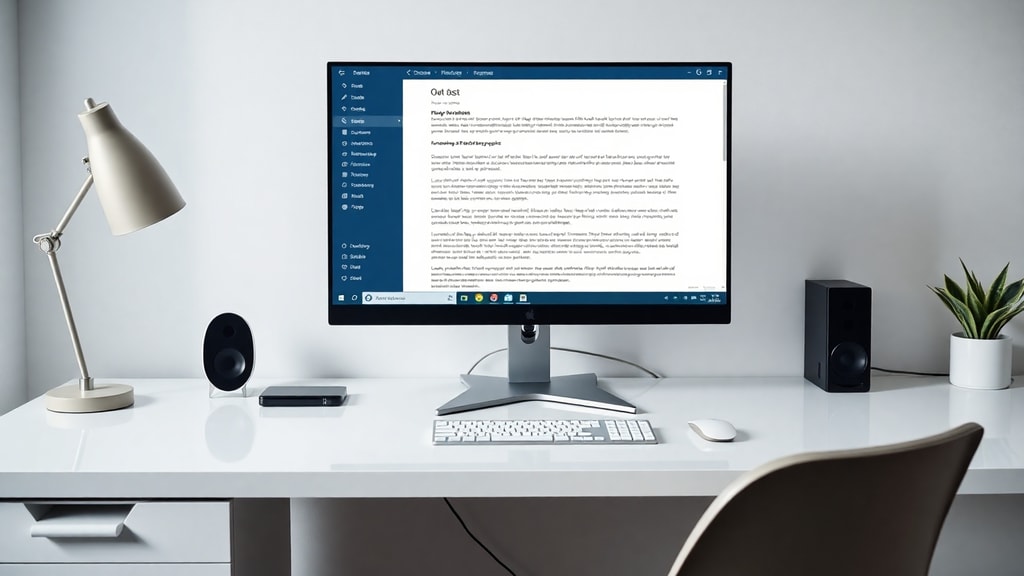
Sometimes you only need larger text within your web browser, not the entire operating system. All major browsers offer built‑in zoom controls. In Google Chrome, Mozilla Firefox, and Microsoft Edge, you can press Ctrl and the + (plus) key to zoom in, and Ctrl and the - (minus) key to zoom out. Holding Ctrl and pressing 0 resets the zoom level to 100%. If you want to increase only the font size for web pages (not images or layout), you can adjust the browser’s default font settings. In Chrome, go to Settings (three dots menu > Settings) and then Appearance. Under Font size, you can choose between Very small, Small, Medium, Large, and Very large. For finer control, click Customize fonts, where you can set a specific minimum font size. This is especially useful for sites with very small text; setting a minimum font size ensures that no text on any webpage falls below a certain point. In Firefox, the equivalent settings are under Options > General > Language and Appearance. In Edge, the settings are similar to Chrome’s. Remember that these browser settings only affect the browser itself, not other applications.
Adjusting Text on Mac
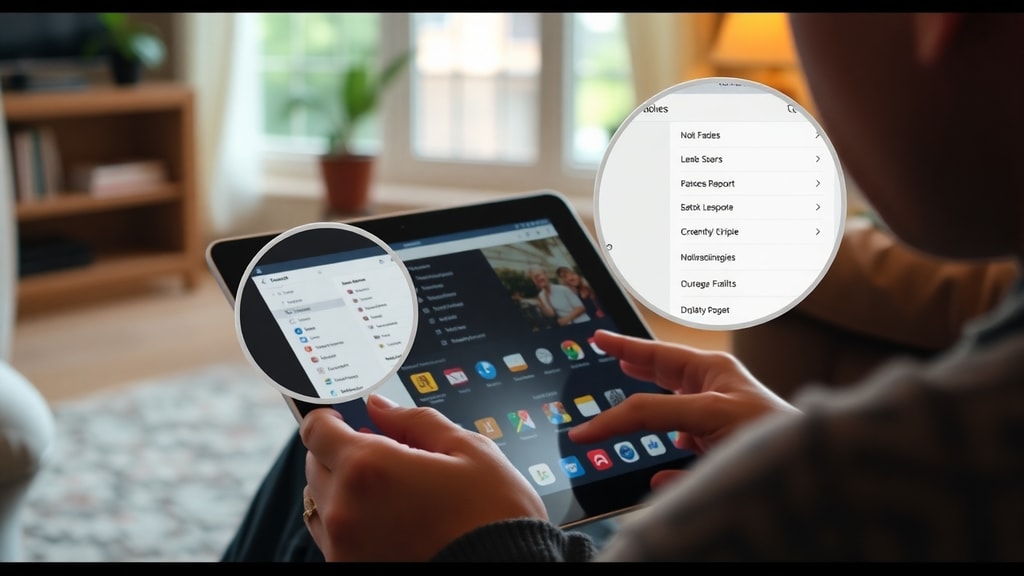
Mac users have multiple ways to enlarge text in their displays. The most direct method is to open System Settings (or System Preferences on older macOS versions) and click Displays. Under the Display tab, you will see a list of resolution options. Select Scaled and then pick a larger text option. Typically, the option that shows Larger Text makes all text bigger, while the option that shows More Space makes it smaller. You can also adjust the text size in individual applications. For example, in Finder, you can increase the sidebar icon size and text size by going to Finder > Settings > Sidebar and adjusting the setting. Many Mac users also take advantage of the Accessibility features: go to System Settings > Accessibility > Display and turn on the option to Increase contrast or reduce transparency, which can make text easier to read. Additionally, you can use the Zoom feature under Accessibility > Zoom to enable a custom zoom level for the entire screen, but this is more like a magnifier than a simple text size increase.Mac display settings provide further details.
Additional Tips for Enhancing Readability
Beyond the built‑in text size adjustments, there are several other ways to improve on‑screen readability. Here is a list of practical suggestions:
- Use high‑contrast themes: both Windows and macOS offer high‑contrast modes that make text stand out more clearly against the background.
- Adjust screen resolution: lowering the resolution can make everything bigger, but it may reduce sharpness. Use this as a last resort.
- Enable ClearType on Windows: this technology smooths the edges of text and makes it appear sharper. You can find it by searching for “Adjust ClearType text” in the Start menu.
- Increase the DPI scaling of your monitor manually: some monitors allow you to set a custom scaling level through the graphics card control panel.
- Consider using a larger monitor or sit closer to the screen if your vision is limited.
- Take regular breaks and use the 20‑20‑20 rule to reduce eye strain.
These tips can complement the text size adjustments and make your overall computing experience more comfortable.
Comparison of Text Size Adjustment Methods
The following table summarizes the most common methods to increase text size on different operating systems and browsers:
| Operating System / Application | Method | Effect on Interface |
|---|---|---|
| Windows 11 | Settings > Accessibility > Text size | Only text size increases; icons and layout remain the same. |
| Windows 10 | Settings > Ease of Access > Display > Make text bigger | Only text size increases; icons and layout remain the same. |
| Windows (both versions) | Settings > Display > Scale | Everything (text, icons, apps) becomes larger. |
| macOS | System Settings > Displays > Scaled > Larger Text | System‑wide text and UI elements become larger. |
| Google Chrome | Ctrl + plus/minus, or Settings > Appearance > Font size | Zoom changes entire page; font size setting changes text only. |
| Mozilla Firefox | Ctrl + plus/minus, or Options > General > Fonts & Colors | Zoom changes entire page; font size setting changes text only. |
| Microsoft Edge | Ctrl + plus/minus, or Settings > Appearance > Font | Same as Chrome. |
Use this table to quickly decide which method fits your needs. For most everyday tasks, adjusting the system text size or using browser zoom will suffice.
References
Microsoft Support. “Increase text and app sizes in Windows.” Accessed August 2024. https://support.microsoft.com/pt-br/windows/aumentar-o-texto-e-as-aplica%C3%A7%C3%B5es-c3095a80-6edd-4779-9282-623c4d721d64
Apple Support. “Increase content on the screen.” Accessed August 2024. https://support.apple.com/pt-br/guide/mac
Google Accessibility. “Zoom in and out on web pages.” Accessed August 2024. https://support.google.com/accessibility/answer/96810?hl=pt-PT&co=GENIE.Platform%3DDesktop